
Want to make it easy for your visitors to find and follow your Facebook page? Adding a Facebook link to your WordPress site is a simple step that can boost your online presence and connect you with your audience faster.
If you’re wondering how to do it without hassle, you’re in the right place. You’ll discover clear, step-by-step instructions to add your Facebook link quickly and effectively. By the end, your website will be ready to guide visitors straight to your social media, helping you grow your community and stay connected.
Keep reading—your WordPress site is about to get a powerful upgrade!
Choose The Right Facebook Link
Choosing the right Facebook link is key for your WordPress site. It directs visitors to the correct profile or page. This choice impacts how people connect with your brand or personal account. Picking the right link builds trust and improves user experience.
Personal Profile Vs Business Page
Decide between linking a personal profile or a business page. A personal profile shows your individual account. It works well for personal blogs or freelancers. A business page represents your company or brand. It offers tools for marketing and customer interaction. Choose the link that fits your website’s purpose.
Copying Your Facebook Url
Find your Facebook URL to add it to WordPress. Go to the profile or page you want to link. Look at the browser’s address bar. Highlight the full web address starting with “https://”. Right-click and select “Copy”. Paste this URL into your WordPress menu or widget. This method ensures the link leads directly to your Facebook presence.
Add Facebook Link To WordPress Menu
Adding a Facebook link to your WordPress menu helps visitors find your social page easily. It improves your site’s social presence and keeps users connected. This process is quick and does not need coding skills. Follow these simple steps to add the link smoothly.
Accessing The Menu Settings
Log in to your WordPress dashboard. Go to the “Appearance” section. Click on “Menus” to open the menu editor. Here, you can manage all your site menus. Choose the menu where you want to add the Facebook link. This area controls what visitors see in your site navigation.
Creating A Custom Link
Find the “Custom Links” option on the left side. Enter your Facebook page URL in the URL field. Type “Facebook” or your preferred label in the Link Text box. Click the “Add to Menu” button. This action adds the Facebook link to your menu list. You can always change the label later.
Positioning The Link
In the menu structure, drag the Facebook link to your desired spot. Place it at the beginning, middle, or end of the menu. This controls where it appears on your site. After positioning, click “Save Menu” to apply changes. Visit your website to see the Facebook link live.
Insert Facebook Link In Widgets
Adding a Facebook link to your WordPress site helps visitors find your social profile easily. Widgets offer a simple way to show this link on sidebars or footers. You can use different types of widgets to display your Facebook link clearly and attractively.
Using Text Widget
The Text Widget lets you add plain text or HTML to your sidebar. Paste your Facebook page URL inside this widget. You can also write a short invitation, like “Follow us on Facebook.” This method is quick and works well for simple links.
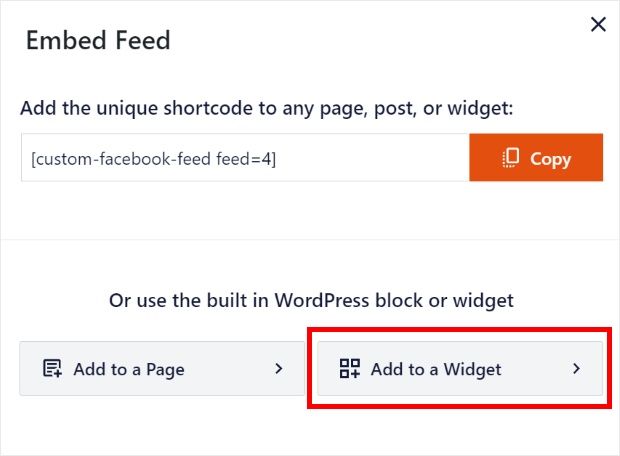
Go to Appearance > Widgets in your WordPress dashboard. Drag the Text Widget to your chosen widget area. Enter your Facebook link and save changes. Your link will now appear on your site’s sidebar or footer.
Adding Social Icons Widget
Many WordPress themes include a Social Icons Widget. It shows clickable icons for different social networks, including Facebook. Select the Facebook icon and add your profile URL. This looks neat and is easy for visitors to spot.
Access the Widgets section from your dashboard. Find the Social Icons Widget and place it in your sidebar or footer. Add the Facebook URL in the settings. Save and check your site to see the Facebook icon live.

Credit: linkdoctor.io
Embed Facebook Button Using Plugins
Embedding a Facebook button on your WordPress site is simple with plugins. Plugins save time and work well for users without coding skills. They add Facebook buttons that link to your page or profile. This helps visitors find and follow your Facebook easily.
Many plugins offer options for button style, size, and placement. Choose the right plugin to fit your site’s design and needs. Installing and setting up a plugin is quick and straightforward.
Selecting A Suitable Plugin
Search for Facebook button plugins in the WordPress plugin directory. Check ratings and reviews to find trusted options. Look for plugins updated recently to ensure compatibility. Pick one with good support and easy setup. Popular choices include “Simple Social Icons” and “WP Social Button.”
Installing And Activating The Plugin
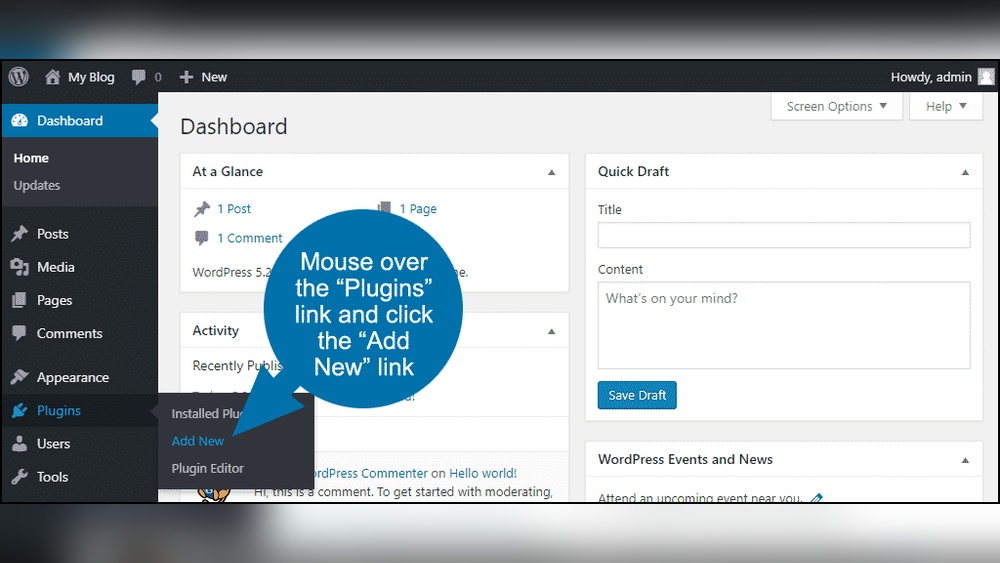
Go to your WordPress dashboard. Click “Plugins” and then “Add New.” Enter the plugin name in the search box. Click “Install Now” on the chosen plugin. After installation, click “Activate” to enable it on your site. The plugin will appear in your dashboard menu.
Configuring Facebook Link Settings
Open the plugin settings from your dashboard menu. Enter your Facebook page or profile URL in the link field. Choose the button style, size, and position on your site. Save your settings to apply changes. Preview your site to see the Facebook button live. Adjust settings if needed for the best look.
Add Facebook Link In Post Or Page
Adding a Facebook link to a WordPress post or page helps visitors connect with your social profile. It drives traffic and builds engagement. The process is simple and fits any editing style. Two common editors are Gutenberg and Classic Editor. Each has a clear way to insert a Facebook link.
Using Gutenberg Block Editor
Open the post or page in Gutenberg editor. Click the plus (+) button to add a new block. Choose the “Paragraph” or “Button” block for the link. Type the text you want, like “Follow us on Facebook”. Highlight the text. Click the link icon in the block toolbar. Paste your Facebook page URL in the box. Press Enter or click the apply button to save the link. Update or publish your post.
Adding Link In Classic Editor
Open the post or page in the Classic Editor. Highlight the text where you want the link. Click the “Insert/edit link” button in the toolbar. A small window will appear. Paste your Facebook page URL in the URL field. Optionally, check “Open link in a new tab” for better user experience. Click the “Add Link” button. Save or update your post or page.
Optimize Facebook Link For Engagement
Optimizing your Facebook link in WordPress boosts visitor interaction. Proper optimization makes your link clear and inviting. This increases clicks and engagement on your Facebook page.
Small changes can make a big difference. Focus on clear calls to action and mobile-friendly design. These improve user experience and encourage more visits.
Using Call-to-action Phrases
Call-to-action phrases guide visitors on what to do next. Use simple commands like “Follow us on Facebook” or “Join our community.” These phrases create urgency and interest.
Place your call to action near the Facebook link. Make it visible and easy to read. Short, direct phrases work best.
Ensuring Mobile Friendliness
Many users visit websites on their phones. Your Facebook link must work well on small screens. Test the link to ensure it loads quickly and looks good on mobile devices.
Use buttons or icons that are easy to tap. Avoid tiny links that are hard to click. Mobile-friendly links keep visitors engaged longer.
Troubleshoot Common Issues
Troubleshooting common issues helps keep your Facebook link working well on WordPress. Problems can stop visitors from reaching your Facebook page. Fixing these issues improves user experience and site performance. Two frequent problems are broken links and plugin conflicts. Both can be solved with simple steps.
Broken Links
Broken links occur when the URL is incorrect or outdated. Double-check the Facebook URL for typos or changes. Make sure the link starts with “https://” for security. Test the link by clicking it in your WordPress editor. Update the link if Facebook changes its page address. Clear your browser cache to see recent updates on your site.
Plugin Conflicts
Plugins can sometimes clash and stop links from working. Disable other plugins one by one to find the conflict. Look for plugins that affect links or social media. Update all plugins to their latest versions for better compatibility. Choose well-rated plugins to reduce the chance of conflicts. If problems continue, contact plugin support for help.
Credit: smashballoon.com
Credit: www.moretonbaywebsites.com.au
Frequently Asked Questions
How Do I Add A Facebook Link To My WordPress Menu?
To add a Facebook link to your WordPress menu, go to Appearance > Menus. Add a custom link with your Facebook URL, then save the menu. This places your Facebook profile or page directly in your site’s navigation for easy access.
Can I Add A Facebook Icon Link In WordPress Sidebar?
Yes, you can add a Facebook icon link to your WordPress sidebar using a widget. Use the Custom HTML or Social Icons widget and insert your Facebook profile URL. This creates a clickable icon that directs visitors to Facebook.
What’s The Easiest Plugin To Add Facebook Link In WordPress?
The easiest plugin to add a Facebook link is “Simple Social Icons. ” It lets you add customizable Facebook icons anywhere on your site. The plugin is lightweight and user-friendly, requiring minimal setup for instant social media linking.
How To Link A Facebook Page Instead Of Profile In WordPress?
To link a Facebook page, use the exact page URL in your WordPress link or widget. This ensures visitors land on your business or community page, not your personal profile. Always double-check the URL for accuracy before saving.
Conclusion
Adding a Facebook link to your WordPress site is simple and fast. It helps visitors find your social page easily. Use menus, widgets, or buttons to place the link. Keep the link visible and working well. This small step can improve your site’s connection with users.
Try it today to make your site more social-friendly.



