

Are you looking to boost your website’s engagement and make it easier for visitors to connect with you? Adding a Facebook button to your WordPress site is one of the simplest and most effective ways to do just that.
Imagine your visitors sharing your content with a single click or following your page without leaving your site. This small change can lead to bigger traffic, more followers, and stronger online presence. You’ll discover easy steps to add a Facebook button to your WordPress site—no tech skills required.
Keep reading, and you’ll have your site ready to connect with your audience on Facebook in minutes.
Credit: www.hostinger.com
Benefits Of Adding Facebook Button
Adding a Facebook button to your WordPress site brings several benefits. It helps connect your website with a large audience on social media. Visitors can easily share your content or follow your Facebook page. This simple tool can make your site more interactive and trustworthy.
Boosting User Engagement
The Facebook button invites visitors to interact with your content. Clicking the button allows users to like or comment on your posts. This interaction keeps visitors on your site longer. Engaged users often return, creating a loyal audience.
Increasing Social Shares
The Facebook button makes sharing quick and easy. Visitors can share your articles with their friends in one click. More shares mean more visibility for your content. This expands your reach beyond your website’s visitors.
Enhancing Website Credibility
A Facebook button shows your site is active on social media. It gives visitors confidence in your brand or business. Being connected to Facebook adds a layer of trust. People feel safer engaging with sites linked to real social profiles.
Choosing The Right Facebook Button
Choosing the right Facebook button for your WordPress site helps connect visitors with your page. Different buttons serve different purposes. Pick the one that fits your goal. It could be to get likes, shares, or followers. Each button type has unique features and styles. This guide explains the main Facebook button options. It helps you decide which suits your website best.
Like Button Options
The Like button lets visitors show they enjoy your content. It can appear in different sizes and layouts. Choose from standard, button count, or box count styles. The button can show the number of likes. Visitors can click it to like your page or a post. The Like button builds engagement and trust on your site.
Share Button Variations
The Share button helps visitors spread your content on Facebook. It offers multiple styles such as icon only or button with text. Visitors can add a comment before sharing. The button supports sharing posts, pages, or custom links. Sharing increases your content’s reach and visibility online. Use it to encourage users to promote your site easily.
Follow Button Features
The Follow button allows users to follow your Facebook page. Followers get updates without liking posts. It shows your page name and profile picture. Visitors can click it to follow you instantly. This button helps grow your audience steadily. It fits well if you want long-term engagement with users.
Using WordPress Plugins
Adding a Facebook button to your WordPress site helps visitors connect with your page easily. Using plugins makes this task simple and fast. Plugins provide ready-made tools to place Facebook buttons anywhere on your site. No coding skills are needed.
Plugins also offer customization options. You can change how the button looks and behaves. This way, the button fits your website style and goals perfectly.
Top Plugins For Facebook Buttons
Several plugins work well for adding Facebook buttons. “Social Media Share Buttons & Social Sharing Icons” is popular. It supports many social networks, including Facebook.
“WP Social Chat” allows users to chat via Facebook Messenger directly. “Easy Social Share Buttons” offers many design choices and placement options.
Choose a plugin that matches your needs and is regularly updated. Check user reviews for reliability and support.
Installation And Activation
Go to your WordPress dashboard and click “Plugins” then “Add New.”
Type the plugin name in the search box. Click “Install Now” next to the plugin you want.
After installation, click “Activate” to start using the plugin. The button will not appear until you configure it.
Customization Settings
Open the plugin settings from the dashboard menu. Most plugins let you choose button style and size.
Select button position, such as sidebar, footer, or post content. Some plugins allow animation effects or custom colors.
Enter your Facebook page URL to link the button properly. Save changes and preview your site to see the button live.
Credit: smashballoon.com
Manual Method With Facebook Code
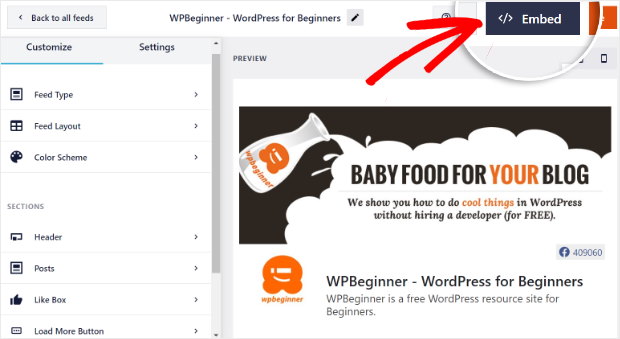
Adding a Facebook button to WordPress can boost your site’s interaction. The manual method uses Facebook’s own code. This way, you control how and where the button appears. It takes a few steps but is simple to follow. You don’t need extra plugins, making your site faster and cleaner.
Generating Facebook Button Code
Visit Facebook’s developer page for social plugins. Choose the type of button you want, like “Like” or “Share.” Enter your website URL in the form provided. Customize the button size and layout. Facebook will create the code for you. Copy this code carefully to use later.
Adding Code To WordPress
Log in to your WordPress dashboard. Go to Appearance and select Theme Editor. Find the header.php or footer.php file. Paste the Facebook code where you want the button to appear site-wide. Save the changes. Check your website to ensure the button shows correctly.
Placing Button In Posts Or Widgets
To add the button inside posts, open the post editor. Switch to the Text or HTML view. Paste the Facebook button code where you want it. For widgets, go to Appearance and select Widgets. Add a Custom HTML widget to your sidebar or footer. Paste the code inside and save. Preview your site to see the button in place.
Optimizing Button Placement
Optimizing the placement of your Facebook button is key to increasing clicks and engagement. The button must be easy to find without overwhelming the visitor. Thoughtful positioning helps visitors notice the button naturally and encourages them to interact.
Consider where users spend most of their time on your site. Place the button where it complements your content and user flow. This improves the chance that visitors will click and share your page.
Best Locations On Your Site
Top areas include the header, sidebar, and end of blog posts. The header is visible on every page and grabs attention early. Sidebars remain in view as users scroll, offering a constant call to action. Placing the button at the end of posts targets readers who finish your content and want to share it.
Mobile-friendly Positioning
Most users visit sites on mobile devices. The button should be easy to tap on small screens. Position it near the top or bottom of the screen for quick access. Avoid placing it too close to other clickable items to prevent accidental taps.
Avoiding Clutter
Too many buttons or links can confuse visitors. Limit the number of social buttons on your pages. Keep the design clean and simple. A single, well-placed Facebook button is more effective than several scattered buttons. Clear space around the button helps it stand out and invites clicks.
Testing And Troubleshooting
Testing and troubleshooting the Facebook button on your WordPress site is essential. It ensures the button works correctly and improves user experience. You can avoid visitor frustration by checking functionality early. Fixing problems quickly keeps your site professional. This section covers easy steps to verify, fix, and update your button.
Verifying Button Functionality
Start by clicking the Facebook button on your page. It should open a Facebook dialog or share the content. Test on different browsers and devices to be sure. Clear your cache and reload the page if the button does not work. Use Facebook’s Debugger tool to check for errors. Confirm the button links to the correct Facebook page or post.
Fixing Common Issues
Buttons might not show due to plugin conflicts. Disable other plugins one by one to find the issue. Check your WordPress theme for compatibility problems. Update your Facebook app ID if it changed. Make sure your site uses HTTPS, as Facebook requires secure connections. Adjust button size and placement if it overlaps other elements. Review Facebook’s developer guidelines for any changes.
Updating For Compatibility
Facebook often updates its API and features. Keep your plugin or code up to date. Check for plugin updates in your WordPress dashboard regularly. Replace outdated code snippets with the latest versions from Facebook. Test the button after each update to confirm it still works. Backup your site before making significant changes. Staying current prevents broken buttons and errors.
Tracking Engagement Metrics
Tracking engagement metrics helps you understand how visitors interact with your Facebook button on WordPress. These metrics show the number of clicks, likes, and shares. They reveal what content interests your audience the most. Use this data to improve your website and social media presence.
Using Facebook Insights
Facebook Insights provides detailed data about user interactions. It shows how many people clicked the Facebook button on your site. You can track likes, shares, and comments linked to your page. This tool helps measure the success of your Facebook integration. Regularly check Insights to stay updated on engagement levels.
Analyzing Website Analytics
Website analytics tools like Google Analytics track visitor behavior on your site. They record how many visitors come from Facebook and their actions. Look for metrics such as click-through rates and session duration. These numbers show how effective your Facebook button is in driving traffic. Analyze trends to find what works best.
Adjusting Strategies Based On Data
Use the engagement data to refine your social media strategy. Increase efforts on content that gets more clicks and shares. Change the button placement if click rates are low. Experiment with different call-to-action texts to boost interaction. Data helps make informed decisions that improve visitor engagement.

Credit: www.youtube.com
Frequently Asked Questions
How Do I Add A Facebook Button To WordPress?
To add a Facebook button, use a plugin or embed Facebook’s official code. Plugins simplify the process and offer customization options.
Which WordPress Plugin Is Best For Facebook Buttons?
Popular plugins like “WP Social Buttons” or “Social Media Share Buttons” work well. They’re easy to install and customize for your site.
Can I Customize The Facebook Button’s Appearance?
Yes, most plugins and Facebook’s code allow you to change size, color, and style to match your site’s design.
Does Adding A Facebook Button Affect Site Speed?
Minimal impact occurs with lightweight plugins or direct code. Avoid heavy plugins to keep your site fast and responsive.
Conclusion
Adding a Facebook button to your WordPress site helps visitors connect easily. It boosts sharing and brings more traffic to your content. The steps are simple and take just a few minutes. Use plugins or manual code, whichever feels right for you.
Keep your website user-friendly and social. This small change can improve your online presence. Start today and watch your site grow bit by bit.



