
Are you looking to boost your WordPress site’s credibility and improve user experience? Adding external links is one of the smartest moves you can make.
But if you’ve ever wondered how to do it the right way, you’re in the right place. You’ll discover simple, step-by-step tips to add external links that not only look good but also help your site rank better. Keep reading, and you’ll master this essential skill in no time!

Credit: www.wptasty.com
Benefits Of External Links
External links play a key role in improving your WordPress site. They connect your content to other useful and trusted sources. Adding these links helps both your readers and your website’s performance.
Enhancing Seo
Search engines use external links to understand your content better. Linking to relevant, high-quality sites shows your page is valuable. It helps search engines rank your site higher. This can increase your visibility in search results.
Building Credibility
Linking to trusted websites boosts your site’s trustworthiness. Readers see you back up your information with real sources. This builds your reputation as a reliable content creator. It encourages visitors to trust your site more.
Driving Traffic
External links can bring new visitors to your site. When you link to popular pages, they might link back to you. This creates a flow of traffic between sites. It helps grow your audience and increases engagement.
Choosing The Right Links
Choosing the right external links is key to a useful WordPress post. Good links guide readers to helpful, trusted sources. They also boost your site’s credibility and SEO. Picking links wisely makes your content stronger and more reliable.
Relevance To Content
Links must match the topic of your post. They should support or explain your points clearly. Irrelevant links confuse readers and reduce trust. Always choose links that add real value to your content.
Authority Of Source
Pick links from well-known and trusted websites. Sites with authority have accurate and up-to-date information. Linking to these sites improves your site’s reputation. Avoid unknown or unreliable sources to keep your content credible.
Avoiding Spammy Links
Stay away from links that look spammy or low quality. Such links can harm your SEO and annoy readers. Check links for proper content and no excessive ads. Use only safe and clean websites to link your readers.
Adding External Links In WordPress Editor
Adding external links in the WordPress editor helps connect your content to useful sources. This practice improves user experience and boosts SEO by showing trustworthiness. WordPress offers two main editors: the Block Editor and the Classic Editor. Each editor has simple ways to insert external links. Understanding these methods makes your content more valuable and easier to navigate.
Using The Block Editor
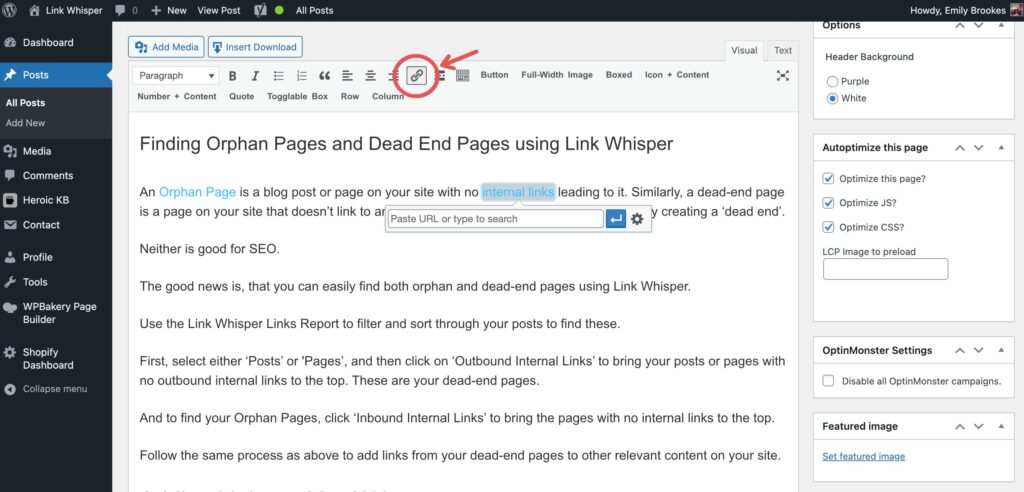
The Block Editor uses blocks to build content. To add an external link, select the text or image you want to link. Click the link icon in the toolbar above the block. Paste the full URL of the external website in the box. Press Enter or click the arrow to apply the link. You can also toggle the option to open the link in a new tab. This keeps readers on your site while they visit the external page.
Linking From Classic Editor
The Classic Editor looks like a traditional word processor. Highlight the text or select the image for the link. Click the “Insert/edit link” button in the toolbar. A popup appears where you enter the external URL. You can check the box to open the link in a new tab. Click “Add Link” to save it. The link now appears in your content, ready for visitors to click.
Setting Link Attributes
Link attributes control how links behave and improve SEO. Use the “Open in new tab” option to keep users on your site. Add the “nofollow” attribute for links to less trusted sites. This tells search engines not to pass ranking credit. In the Block Editor, find these options in the link settings. In the Classic Editor, use the “Link Options” popup. Proper link attributes protect your site and enhance user experience.

Credit: www.greengeeks.com
Using Plugins For External Links
Using plugins for external links in WordPress makes managing links easier. Plugins help add, edit, and control links with little effort. They save time and reduce mistakes when handling many links.
Plugins also improve SEO by managing link attributes automatically. This helps keep your site safe from spam and boosts search engine trust. Many plugins offer features beyond basic linking, like link tracking and redirection.
Top Plugins To Consider
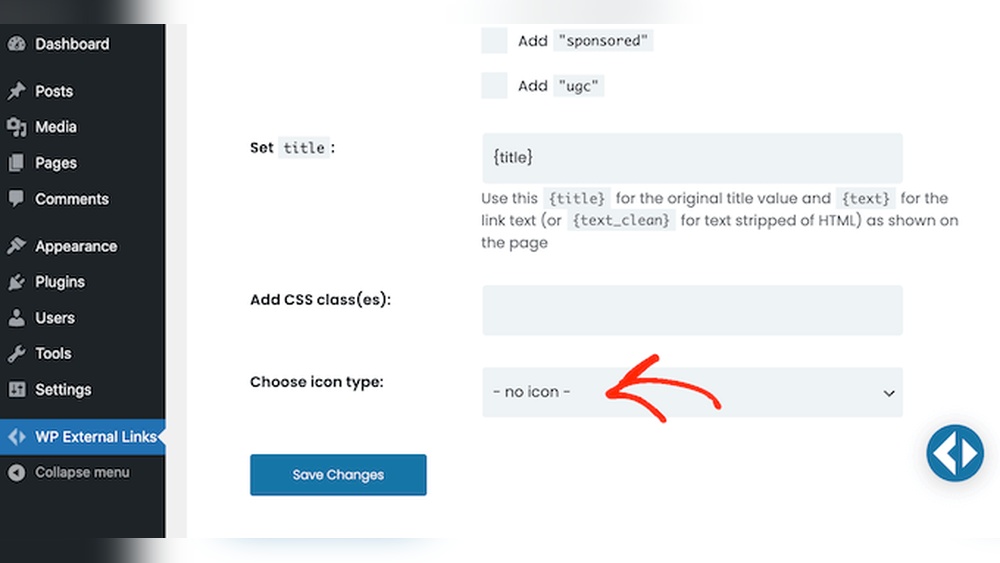
Several plugins stand out for managing external links in WordPress. Pretty Links creates clean, short URLs and tracks clicks. ThirstyAffiliates is great for affiliate link management. WP External Links controls link behavior and appearance easily.
Choose plugins that fit your website’s needs. Look for simple setup and good support. These plugins help keep external links organized and effective.
Automating Link Management
Plugins automate tasks like opening links in new tabs or adding icons. This saves time and ensures consistency across your site. Automation reduces errors when adding many external links.
Some plugins update broken links automatically or redirect old URLs. This keeps your site user-friendly and SEO-friendly. Automating link tasks frees you to focus on content creation.
Adding Nofollow Attributes
NoFollow attributes tell search engines not to follow certain links. Plugins make it simple to add NoFollow to external links. This helps control your website’s SEO value flow.
Adding NoFollow can protect your site from linking to low-quality or spammy websites. Plugins often offer one-click options to add NoFollow tags. This keeps your link management quick and effective.
Best Practices For External Linking
External links improve your website’s value and user experience. They help readers find useful information beyond your site. Using external links correctly also helps search engines understand your content better. Follow these best practices for effective external linking in WordPress.
Opening Links In New Tabs
Set external links to open in new tabs to keep visitors on your site. This prevents users from leaving your page completely. In WordPress, you can check the box “Open link in a new tab” when adding or editing a link. This small step improves user experience and keeps your audience engaged.
Using Descriptive Anchor Text
Use clear and descriptive anchor text for all external links. Avoid generic phrases like “click here” or “read more.” Instead, describe what the link leads to. Descriptive anchor text helps users understand the link’s destination. It also improves SEO by providing context to search engines.
Monitoring Link Performance
Track how your external links perform to see which ones work best. Use tools like Google Analytics or WordPress plugins to monitor clicks. Monitoring helps you understand user behavior and improve link placement. Remove or update links that do not bring value or traffic.
Credit: linkwhisper.com
Troubleshooting Common Issues
Troubleshooting common issues with external links in WordPress helps keep your site reliable. Broken links, formatting problems, and SEO concerns can hurt user experience and site ranking. Fixing these quickly improves your website’s trust and performance.
Broken Links
Broken links lead to error pages and frustrate visitors. Check links regularly to ensure they work. Use tools like broken link checkers to find bad URLs fast. Replace or remove broken links to keep your site clean.
Link Formatting Problems
Incorrect link formatting can cause confusion and reduce clicks. Always use the proper HTML syntax for links. Make sure URLs start with “http://” or “https://”. Avoid spaces or special characters in the URL. Test links on different devices for consistency.
Seo Impact Concerns
External links affect your SEO ranking. Use links that add value and relate to your content. Avoid linking to low-quality or spammy sites. Set external links to open in a new tab to keep visitors on your site. Use “nofollow” tags when linking to untrusted sources.
Frequently Asked Questions
How Do I Add External Links In WordPress Editor?
To add external links, highlight your text and click the link icon. Paste the URL and ensure “Open in new tab” is checked for better SEO.
Why Should External Links Open In A New Tab?
Opening links in a new tab keeps visitors on your site longer. It improves user experience and reduces bounce rates, positively impacting SEO.
Can External Links Affect My Website’s Seo Ranking?
Yes, relevant and quality external links boost SEO by adding credibility. Avoid linking to low-quality sites to maintain your website’s authority.
How Do I Make External Links Nofollow In WordPress?
In the link settings, check the “Add rel=”nofollow”” box. This tells search engines not to pass SEO value to the linked site.
Conclusion
Adding external links in WordPress helps improve your website’s value. It guides readers to useful information outside your site. Use clear text for links so visitors know what to expect. Always check that links work before publishing. Keep your content relevant and trustworthy by linking wisely.
Practice these steps to build better posts and engage your audience. Simple links can make a big difference in user experience. Start adding external links today to enhance your WordPress site.



