

Are you looking to build a stunning website without any coding hassle? Adding Elementor to your WordPress site is one of the easiest ways to create beautiful pages quickly.
Imagine having full control over your website’s design with simple drag-and-drop tools—no technical skills needed. In this guide, you’ll learn exactly how to add Elementor to your WordPress site step-by-step. By the end, you’ll be ready to design eye-catching pages that grab attention and keep visitors coming back.
Let’s dive in and make your website shine!
Why Choose Elementor
Choosing the right page builder is key for your WordPress site. Elementor stands out as a popular choice. It offers many tools to create beautiful pages without coding. Simple, fast, and powerful. Many users find it easy to use and reliable.
Benefits Of Elementor
Elementor uses a drag-and-drop interface. This means you can design pages by moving elements around. No need to write code. It has many ready-made templates. These help you start your site quickly. You can customize colors, fonts, and layouts easily.
It works well with most WordPress themes. The live preview shows changes immediately. This saves time. You can also add widgets like buttons, images, and videos. Elementor has a free version with great features. The Pro version adds advanced tools for professionals.
Comparing With Other Page Builders
Elementor loads pages fast. This helps with site speed and user experience. Other builders may slow your site down. It offers more design freedom than many alternatives. The interface is clean and intuitive. Beginners find it simpler to learn than others.
Some builders require extra plugins to work well. Elementor comes with many features built-in. Updates are regular, fixing bugs and adding improvements. Support is active and helpful. Overall, Elementor balances ease of use with powerful options.

Credit: www.youtube.com
Preparing Your WordPress Site
Preparing your WordPress site is an important step before adding Elementor. It ensures a smooth setup and prevents problems later. Take some time to check your site’s readiness and protect your data. This helps you avoid issues during installation and use.
Checking WordPress Requirements
Elementor needs certain WordPress settings to work well. Your WordPress version should be 5.0 or higher. PHP version must be 7.0 or above. Make sure your web host supports these versions. Also, increase the PHP memory limit to at least 128MB. This helps Elementor run without errors. Check these details in your hosting control panel or ask your host provider.
Backing Up Your Site
Backing up your WordPress site is vital before adding new plugins. It saves your content, themes, and settings. Use a backup plugin or your hosting service’s backup tool. Create a full backup including database and files. Store the backup in a safe place. This gives you a way to restore your site if something goes wrong. Backup often to keep your site safe.
Installing Elementor Plugin
Installing the Elementor plugin is the first step to designing beautiful pages on WordPress. It adds a simple drag-and-drop page builder to your site. This lets you create custom layouts without coding.
Follow clear steps to install Elementor quickly. The process is easy and safe. You can start building your pages in minutes.
Finding Elementor In The Plugin Directory
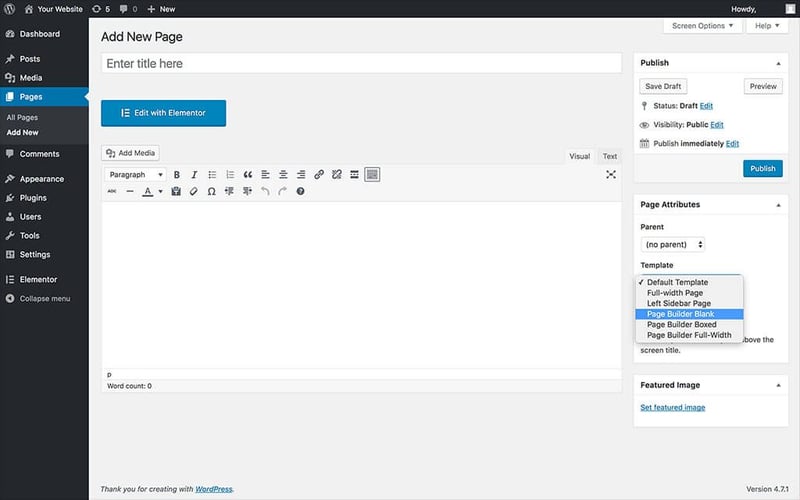
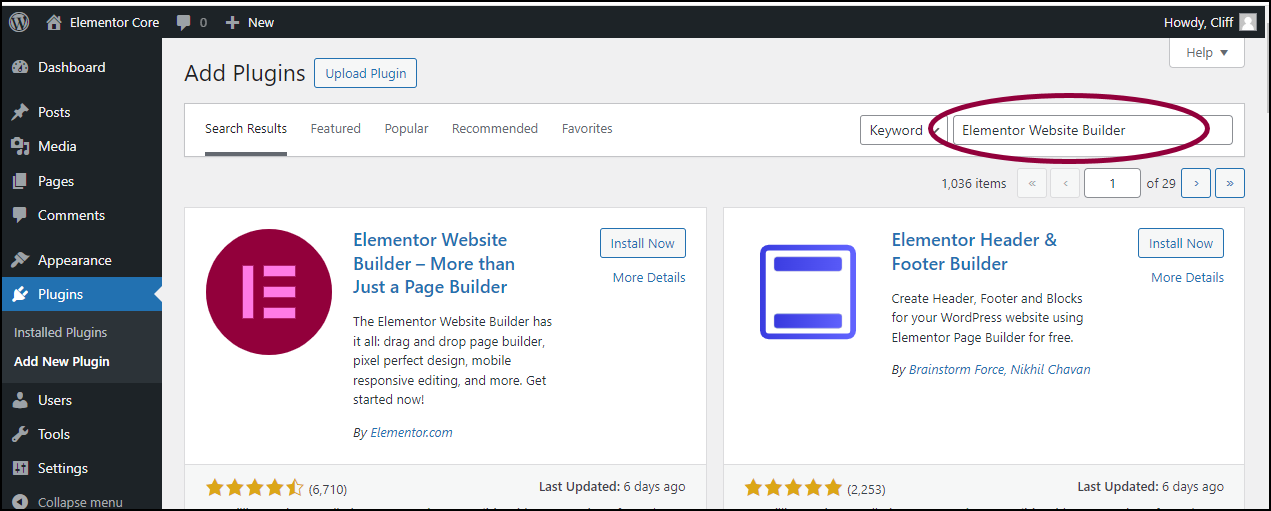
Log in to your WordPress dashboard. On the left menu, click Plugins. Then choose Add New. Use the search box at the top right. Type “Elementor” to find the plugin.
The official Elementor plugin appears first. Check that the author is “Elementor.com.” This confirms you have the right plugin.
Step-by-step Installation Guide
Click the Install Now button next to Elementor. Wait a few seconds while WordPress downloads the files. After installation, click Activate to enable the plugin.
Once activated, a new menu called “Elementor” appears in the dashboard. You can now create new pages using Elementor’s editor.
Credit: elementor.com
Activating Elementor
Activating Elementor is the first step to start building your website. After installing the plugin, you must activate it to use its features. Activation connects Elementor to your WordPress site. This process takes only a few clicks. Once activated, you can design pages with ease.
Setting Up After Activation
After activation, Elementor adds a new menu in your dashboard. You will see options like Templates and Settings. Begin by visiting the Settings tab. Here, you can control where Elementor works on your site. Enable Elementor for posts, pages, or custom post types. Save your settings before moving on.
Configuring Basic Settings
Basic settings help you control the editing experience. Choose the default colors and fonts for your site. This keeps your design consistent. You can also enable or disable Elementor’s role manager. It controls who can edit with Elementor. Set these options based on your needs. Save changes to apply your preferences.
Creating Your First Page
Creating your first page with Elementor is simple and fun. It lets you build a website without coding. You see your changes live as you edit. This makes the process fast and easy to understand.
Start with a blank page or use a template. Elementor offers many design blocks to help your page look great. Each step lets you control the layout and style.
Launching Elementor Editor
First, go to your WordPress dashboard. Click on “Pages” and then “Add New.” Give your page a name. Then press the “Edit with Elementor” button. This opens the Elementor editor.
The editor shows your page on the right and tools on the left. You can add text, images, buttons, and more. The interface is clear and easy to use.
Using Drag-and-drop Features
Drag any widget from the left panel to the page. Place it where you want. Move it around until it fits your design. No coding needed.
Widgets include headings, images, videos, and columns. Click on any widget to change its settings. Adjust colors, fonts, and size with simple controls.
Adding Widgets And Elements
Adding widgets and elements in Elementor makes your WordPress site look better. These tools help you build pages with ease and style. You can create sections, add buttons, images, text, and much more. Each widget plays a role in making your site useful and attractive.
Start with choosing the right widgets for your page. Then, customize them to fit your design and needs. This process helps your site stand out and work well.
Choosing Essential Widgets
Elementor offers many widgets. Pick those that suit your page goals. Text, images, and buttons are basic but powerful. Use headings to organize content clearly. Video and gallery widgets can make your site lively. Forms let visitors contact you easily. Avoid clutter by selecting only needed widgets. Focus on content that helps users.
Customizing Widget Settings
Each widget has settings to adjust its look and function. Change colors, fonts, and sizes to match your style. Add links and actions to buttons and images. Set margins and padding for better spacing. Use the style tab to control appearance. Preview changes to see the result instantly. Customize for mobile view to ensure good display. Small tweaks improve user experience greatly.
Design Tips For Stunning Sites
Designing a stunning website with Elementor is easier than you think. Simple tricks make your site look professional and clean. Focus on layout, colors, and usability for the best results.
Good design keeps visitors interested and helps your site stand out. Use Elementor’s tools smartly to create a polished look without stress.
Using Templates And Blocks
Start with Elementor’s ready-made templates to save time. These templates offer well-designed pages for many types of sites. Choose one that fits your topic and style.
Blocks are smaller sections like headers, footers, or call-to-action areas. Add blocks to build pages quickly and keep design consistent. Customize colors and fonts to match your brand.
Using templates and blocks ensures a clean, balanced layout. It also helps avoid clutter and confusion on pages.
Optimizing For Mobile Devices
Many visitors use phones to browse websites. Your site must look good on small screens. Elementor offers tools to preview and adjust mobile views.
Check font sizes, button spacing, and image alignment for mobile. Make sure text is readable and buttons easy to tap. Avoid large files that slow loading on phones.
Mobile optimization improves user experience and boosts search rankings. A site that works well on all devices keeps visitors longer.
Publishing And Managing Pages
Publishing and managing pages in Elementor is simple and clear. After designing your page, you need to publish it so visitors can see it. Managing pages means you can update or change your content anytime. This keeps your site fresh and useful for your audience.
Previewing Your Design
Before publishing, preview your design to check how it looks. Elementor lets you see your page on different devices like phones and tablets. This helps you ensure your page looks good everywhere. Use the preview button to open a new tab with your design. Look for any mistakes or layout issues. Fix any problems before you publish.
Updating And Editing Pages
After publishing, you can update your page easily. Open the page in Elementor and make your changes. This can be text, images, or layout changes. Save your work by clicking the update button. The new version will replace the old one on your website. Regular updates keep your content accurate and engaging for visitors.
Troubleshooting Common Issues
Adding Elementor to WordPress usually goes smoothly. Sometimes, issues appear that stop the plugin from working well. Troubleshooting common problems helps keep your site running fast and error-free.
This section covers simple steps to fix common Elementor issues. You can solve many problems by checking plugins and improving site performance.
Fixing Plugin Conflicts
Conflicts happen when two plugins try to do the same job. This can cause Elementor to break or not load properly.
Start by deactivating other plugins one at a time. Check Elementor after each deactivation to find the problem plugin.
Update all plugins to the latest version. Old versions often cause conflicts.
Use only trusted plugins from reliable sources. Poorly coded plugins may clash with Elementor.
Improving Site Performance
Slow sites can make Elementor load slowly or freeze. Speed up your site to improve Elementor’s performance.
Clear your browser cache and WordPress cache regularly. Cached files can cause display problems.
Use a good web hosting plan with enough resources. Cheap hosting may slow your site down.
Limit the number of plugins to reduce server load. Too many plugins can slow your site and Elementor.
Optimize images and files to make pages load faster. Large files cause delays in Elementor editing.
Exploring Elementor Pro Features
Elementor Pro brings extra features that improve your website design experience. It offers tools that go beyond the free version. These tools help create professional and unique websites easily. Exploring these features will show why many choose Elementor Pro for their WordPress sites.
Advanced Widgets And Tools
Elementor Pro includes advanced widgets not found in the free version. These widgets let you add forms, sliders, and pricing tables. You can also use posts and portfolio widgets to display content nicely. The theme builder lets you customize headers, footers, and other parts of your site. Dynamic content options help show personalized information to visitors. These tools make building a complete website simpler and faster.
When To Upgrade To Pro
Upgrade to Elementor Pro when you need more design control. If you want custom forms or WooCommerce support, Pro is needed. Also, if you require full theme building features, Pro is the choice. Pro suits those who want advanced marketing tools and better site design. For simple sites, the free version may be enough. But for growth or advanced needs, Pro offers value worth considering.
Credit: elementor.com
Frequently Asked Questions
What Is Elementor In WordPress?
Elementor is a drag-and-drop page builder plugin for WordPress. It allows users to create custom layouts without coding. It offers pre-designed templates and widgets for easy website design. Elementor improves site design speed and flexibility for beginners and professionals.
How Do I Install Elementor On WordPress?
To install Elementor, go to your WordPress dashboard. Navigate to Plugins > Add New. Search for “Elementor” and click “Install Now. ” After installation, click “Activate” to start using Elementor on your site.
Is Elementor Free Or Paid?
Elementor offers a free version with basic features. The Pro version unlocks advanced widgets, templates, and support. Users can start with the free plugin and upgrade for more design options and professional tools.
Can Elementor Work With Any WordPress Theme?
Yes, Elementor is compatible with most WordPress themes. It works best with themes designed for page builders. Using a lightweight, Elementor-friendly theme ensures better performance and design flexibility.
Conclusion
Adding Elementor to WordPress is simple and quick. You can create beautiful pages without coding. Just follow the steps carefully to install and activate the plugin. Use Elementor’s tools to design your site the way you want. It works well with many WordPress themes.
Start building your website today and enjoy the easy editing process. Keep practicing to improve your design skills. Your site will look professional and attract more visitors. No need to wait—try Elementor now and see the difference yourself.



