
Want to make your WordPress site more useful and professional? Adding a downloadable PDF can do just that.
Whether you want to share a guide, an eBook, or important documents, letting your visitors easily download a PDF improves their experience and keeps them coming back. In this post, you’ll learn simple, step-by-step ways to add downloadable PDFs to your WordPress site—no tech skills needed.
Keep reading, and you’ll have your PDFs ready to share in no time.
Credit: barn2.com
Choose The Right Pdf
Choosing the right PDF matters for your WordPress site. It affects user experience and site performance. A good PDF keeps visitors interested and helps your message reach them clearly.
Not all PDFs work well online. Some files are too large or hard to read. Pick a PDF that fits your audience and purpose.
Keep File Size Small
Large PDFs take longer to load. Visitors may leave if the file is slow. Compress your PDF to reduce size. Aim for under 5 MB for fast downloads.
Use Clear And Simple Content
Your PDF should be easy to understand. Avoid complex words or long paragraphs. Use bullet points and headings to break text. This helps readers scan quickly.
Check Mobile Compatibility
Many visitors use phones or tablets. Make sure your PDF looks good on small screens. Use a responsive layout or larger fonts for easy reading.
Include Relevant Information Only
Focus on the key details your audience needs. Avoid adding unrelated content. A focused PDF keeps readers engaged and reduces confusion.
Ensure Accessibility
Accessible PDFs help all users, including those with disabilities. Use proper headings and tags inside the PDF. This improves usability and SEO value.
Prepare Your Pdf For Upload
Preparing your PDF before uploading it to WordPress is an important step. It ensures your file works well on all devices and loads quickly for users. A well-prepared PDF also improves the user experience and helps with website performance. Follow these simple steps to get your PDF ready for upload.
Optimize File Size
Large PDF files can slow down your website. Optimizing the file size helps it load faster and uses less bandwidth. Use tools like Adobe Acrobat or online compressors to reduce file size. Remove unnecessary images, large fonts, or extra pages. Keep the quality good but the size small. This balance makes your PDF easier to download and view.
Check Pdf Security
Securing your PDF protects your content and controls access. Avoid adding passwords that block users from opening the file. Instead, use settings that prevent editing or copying if needed. Verify that no sensitive information is inside the PDF. Check metadata and hidden data before uploading. A secure PDF keeps your work safe and your users happy.
Upload Pdf To WordPress Media Library
Uploading a PDF to the WordPress media library is the first step to share downloadable files on your website. The media library stores all images, videos, and documents in one place. This makes managing and using files easier.
Once the PDF is uploaded, you can insert it into posts or pages. Visitors will then download the file directly from your site. The process is simple and does not require any coding skills.
Access The WordPress Dashboard
Start by logging into your WordPress admin panel. Use your username and password to enter the dashboard. This is the control center for your website.
Open The Media Library
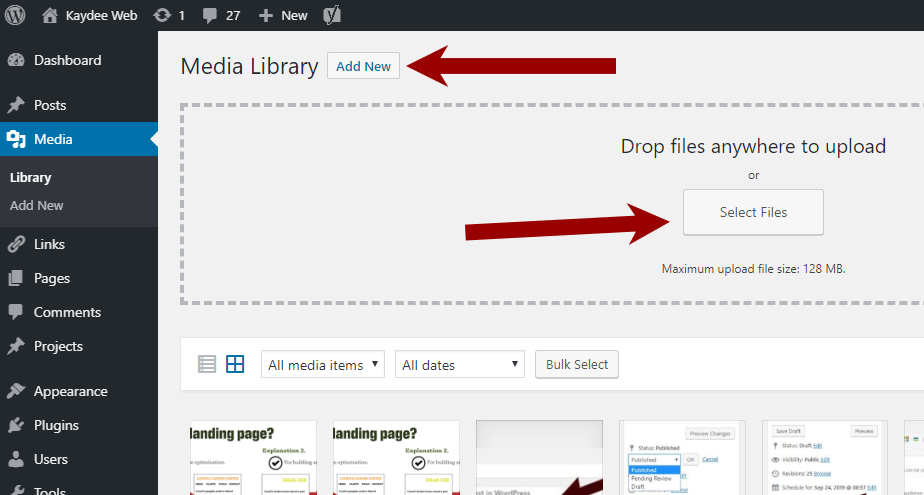
In the dashboard menu, find and click on “Media.” Then select “Library.” This opens the media library where all files are stored.
Upload Your Pdf File
Click the “Add New” button at the top of the media library. A file uploader will appear. Drag your PDF file or click “Select Files” to choose from your computer.
Confirm The Upload
Wait for the upload to finish. You will see a thumbnail or file name appear in the media library. This means your PDF is now stored on your site.
Copy The Pdf Url
Click on the uploaded PDF file in the media library. On the right side, find the file URL. Copy this link to use it when adding the PDF to your content.
Insert Pdf Link In Your Post Or Page
Inserting a PDF link in your WordPress post or page lets visitors download or view files easily. This method helps share important documents like brochures, guides, or reports. The process is straightforward and works with both the Block Editor and Classic Editor.
Using The Block Editor
First, open the post or page where you want the PDF link. Click the plus (+) icon to add a new block. Choose the “File” block from the list. Upload your PDF file or select one from the media library. WordPress will automatically create a download link. You can edit the link text to make it clear and inviting. This block also shows a download button by default. Preview your post to check the link works correctly before publishing.
Using The Classic Editor
Open the post or page in the Classic Editor. Place the cursor where the PDF link should appear. Click the “Add Media” button above the editor toolbar. Upload your PDF or pick one from the media library. Select the file and click “Insert into post.” WordPress will add a clickable link to your content. Edit the link text if needed. Save or update the post and test the link on the live page to ensure it works well.
Add Download Button For Better Ux
Adding a download button improves user experience on your WordPress site. Visitors find it easier to get PDFs quickly. A clear button guides users to download without confusion. It also looks clean and professional.
Simple buttons reduce clicks and save time. Users stay longer and return more often. A well-placed button can increase PDF downloads significantly.
Add A Download Button Using The Block Editor
Open the page or post where you want the PDF. Click the plus (+) icon to add a new block. Select the “Button” block from the options.
Type the button text, like “Download PDF.” Highlight the button and click the link icon. Paste the PDF file URL in the link field. Save and preview to test the button.
Use Plugins For Customizable Download Buttons
Plugins help create stylish and functional download buttons. Search for plugins like “Download Monitor” or “Easy Digital Downloads.” Install and activate your chosen plugin.
Upload your PDF inside the plugin settings. Use shortcode or block to place the button anywhere. Plugins offer tracking and extra features for downloads.
Style Your Download Button For Better Visibility
Make the button stand out with colors and size. Use contrasting colors to catch attention. Increase font size for easy reading.
Add padding around the button to improve click area. Use CSS if you want custom styles. A visible button invites more clicks and downloads.
Credit: www.wpbeaverbuilder.com
Use Plugins For Advanced Features
Adding downloadable PDFs to WordPress can be simple or complex. Basic methods work for many. Yet, plugins offer advanced features. They help manage files better and improve user experience. Plugins bring options like file tracking, secure downloads, and stylish display. These tools save time and add professionalism to your site.
Popular Pdf Plugins
Several plugins stand out for PDF handling in WordPress. PDF Embedder lets users view PDFs directly on pages. Download Monitor tracks file downloads and manages files easily. WP File Download offers a full file management system. These plugins suit different needs and skill levels. Choose one that fits your site goals and user needs.
Plugin Setup Tips
Start by installing the plugin from the WordPress dashboard. Activate it and check the settings menu. Configure file upload limits and allowed file types. Set download buttons or embed codes on posts or pages. Test the download link on different devices. Keep plugins updated for security and performance. Use clear file names and descriptions for users.
Test Your Pdf Download Link
Testing your PDF download link is a crucial step after uploading the file to WordPress. It ensures visitors can access your PDF without issues. A broken link can frustrate users and hurt your site’s reputation.
Checking the link confirms the file opens correctly and downloads smoothly. It also helps catch typos or wrong URLs. Testing saves time and improves user experience.
Click The Download Link
Start by clicking the PDF download link on your page or post. This action should open the PDF in a new tab or start the download immediately. If nothing happens, the link might be broken or incorrect.
Verify The Pdf Opens Properly
After clicking, check if the PDF file opens without errors. The document should display clearly, with no missing pages or corrupted data. This confirms the file uploaded correctly.
Test On Different Devices And Browsers
Try the download link on various devices like phones, tablets, and computers. Also, test on popular browsers such as Chrome, Firefox, and Safari. This ensures all users can access the PDF easily.
Check File Size And Load Time
Notice how long it takes for the PDF to load or download. Large files may take longer and frustrate users. Consider compressing the PDF if it loads too slowly.
Fix Issues Promptly
If the link does not work, double-check the URL or re-upload the PDF. Clear your browser cache to avoid loading old data. Fixing problems quickly keeps your site professional and user-friendly.
Credit: kaydee.net
Troubleshoot Common Issues
Troubleshooting is key to a smooth PDF download experience on WordPress. Some common issues can stop files from working properly. Fixing these problems quickly helps keep visitors happy and your site professional.
Broken Links
Broken links happen when the PDF file is moved or deleted. This stops the download link from working. Check the file URL in your WordPress media library. Make sure it matches the link on your page or post.
Clear your browser cache and reload the page. Sometimes old data causes link errors. Use a link checker plugin to find broken links easily. Fix or update any incorrect URLs you find.
Permission Errors
Permission errors occur when users cannot access the PDF file. This happens if file permissions are too strict on your server. Set the file permissions to 644 or 755 for public access.
Check your WordPress security plugins. Some block file downloads to protect your site. Adjust settings to allow PDF access without risking security. Test the download link after changes.
Frequently Asked Questions
How Do I Upload A Pdf To WordPress?
To upload a PDF, go to your WordPress dashboard, click Media > Add New, and select your PDF file. Once uploaded, copy the file URL to use in your posts or pages.
Can I Link A Pdf For Download In WordPress Posts?
Yes, you can add a downloadable PDF link by inserting the file URL in your post editor. Highlight text or add a button, then link it to the PDF URL.
Are There Plugins To Add Downloadable Pdfs In WordPress?
Yes, plugins like PDF Embedder or Download Monitor help manage and display downloadable PDFs easily on your site without coding.
How To Ensure Pdf Files Are Secure On WordPress?
Use plugins that restrict access or password-protect PDF downloads. Also, store PDFs in private folders if sensitive information is included.
Conclusion
Adding a downloadable PDF to your WordPress site is simple and useful. It helps visitors get important information quickly. You just need to upload the file and link it properly. Make sure the link is clear and easy to find.
This small step can improve your site’s user experience. Keep your PDFs organized and update them when needed. With these tips, your site will offer valuable content to your audience. Try it today and see the difference it makes.



