
Are you looking to make your WordPress site stand out with a unique touch? Custom navigation menus can be your secret weapon.
They not only enhance the user experience but also reflect your brand’s personality. Imagine your visitors navigating through your site with ease, finding exactly what they need. This guide will show you exactly how to add custom navigation menus to your WordPress theme.
Whether you’re a beginner or a seasoned WordPress user, you’ll find practical tips to elevate your website’s design. Dive in and discover how you can transform your site into a user-friendly masterpiece that keeps visitors coming back.
Benefits Of Custom Navigation Menus
Custom navigation menus help users find things easily. They make websites look neat and tidy. Visitors can go to important pages quickly. This improves user experience a lot. Businesses can show their top products or services. This boosts sales and engagement.
Search engines like organized websites. Custom menus make your site more visible online. They help improve your site’s ranking. It’s easier to manage your website content. You can update menus without much trouble. This saves time and effort for web admins. Custom menus can fit any design. They add a unique touch to your site.
Designers can be more creative with custom menus. This makes your site stand out. The menus can match your brand’s style. Visitors remember websites with cool navigation. This helps build a strong brand image. Custom menus are a great tool for every website.
Setting Up Your WordPress Environment
Picking the best theme is crucial. It sets the tone for your site. Some themes have built-in menu support. Others may need extra work. Always check if the theme fits your needs. Look for themes that are easy to customize. A simple layout is often best. Avoid themes with too many features. They can slow down your site. A fast site is a happy site. Test a theme before making it live. See if it feels right for you.
You need to find your theme files. Go to your WordPress dashboard. Click on Appearance, then Theme Editor. Here you will see your theme files. Look for files like header.php or functions.php. These files help you add menus. Be careful when editing. Always make a backup. Mistakes can break your site.
Creating A Custom Navigation Menu
Discover easy ways to add custom navigation menus in WordPress themes. Enhance user experience by organizing website content efficiently. Learn step-by-step to create a unique and functional menu.
Registering The Menu In Functions.php
First, open the functions.php file in your theme folder. Add code to register a new menu. Use register_nav_menus() function for this task. Give your menu a name like ‘Primary Menu’. This helps you identify it later. Don’t forget to save the file. Now, your menu is ready for the next step.
Adding Menu Locations In Theme Files
Open the theme files where you want the menu. Typically, this is the header.php file. Use wp_nav_menu() function to display the menu. Make sure to specify the menu name here. You can style it using CSS for a better look. Save your changes. Your custom menu should now appear on your site.

Credit: www.linkedin.com
Styling The Navigation Menu
Customizing navigation menus in WordPress themes enhances user experience. Easily add unique menus through the WordPress dashboard. Choose styles, colors, and layouts for a personalized look.
Using Css For Basic Styling
CSS helps make your menu look nice. Start by adding a background color. Choose one that matches your theme. Use padding to give space around text. This makes it easier to click. Try adding hover effects. This changes the menu when you move your mouse over it. You can change the text color or make it bold. This makes the menu more interactive. Explore different font styles. Choose a simple and readable font for your menu.
Integrating Responsive Design
Menus should work on all devices. Use media queries in CSS. This helps the menu change size on small screens. Make the menu into a hamburger icon for phones. Users can click it to see more options. Use flexbox or grid for layout. These tools help the menu items stay organized. Always test on different devices. This makes sure your menu works everywhere.
Adding Menu To WordPress Admin
Create custom navigation menus in WordPress themes by adding code to the functions. php file. This enhances site organization. Use WordPress functions to register and display menus, offering users easy navigation across your website.
Accessing Menu Settings
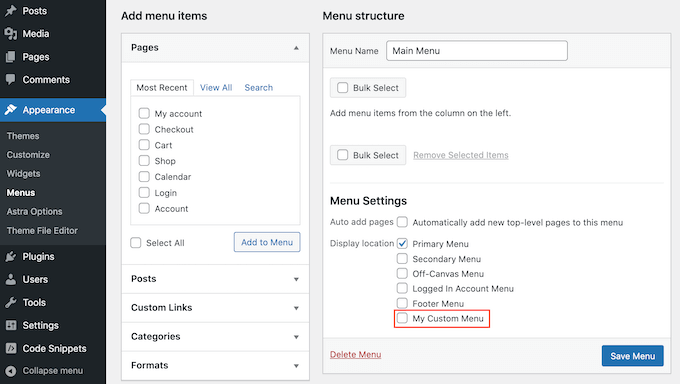
First, find the WordPress dashboard. Click on Appearance. Then select Menus. A new page will appear. This is the Menu Settings page. Here, you can create new menus. You can also edit old ones.
On the left, you see your pages, posts, and categories. You can add these to your menu. Click the checkbox next to each item. Then, click Add to Menu. The items will move to the right side. Now, they are part of your menu.
Assigning Menu Locations
At the bottom of the Menu Settings page, find Menu Locations. This is where you choose where your menu appears. WordPress themes have different locations. Common ones are header, footer, and sidebar. Click the checkbox next to your chosen location. Then click Save Menu. Now, your menu will show on your website.
Credit: www.wpbeginner.com
Using Plugins For Advanced Features
Plugins enhance custom navigation menus in WordPress themes. They offer flexible design and improved user experience. Easily tailor menus to match your site’s needs.
Exploring Popular Menu Plugins
Menu plugins can add special features to your WordPress site. They help you make menus look cool and work better. Max Mega Menu is a favorite. It lets you build big menus with many links. You can add pictures and icons too. WP Mega Menu is another choice. It is easy to use and has neat designs. UberMenu offers more options. It can make your menu special with many styles. These plugins are easy to install. They can make your site look professional.
Implementing Advanced Functionalities
Adding advanced features to menus can improve user experience. Some plugins let you add search bars to menus. Others allow social media links. You can also add contact forms to menus. This makes it easy for visitors to reach you. Some plugins even let you change menu colors. Or add animations. This makes your site look lively and fun. Using the right plugin can make your site stand out. It makes your menus more useful and engaging.
Troubleshooting Common Issues
Sometimes, menus do not show up right. Check if the menu is set as primary. Go to the menu settings in the dashboard. Make sure the menu is saved and assigned. Use the customizer to see the live changes. Also, clear your browser’s cache. This helps in seeing the updated menu.
Plugins can cause menu issues. Disable one plugin at a time. Check if the menu works. This helps find the troublesome plugin. Once found, update or replace it. Also, check your theme settings. Some themes have special menu options. Make sure your menu settings are correct.
Best Practices For Navigation Menus
Explore adding custom navigation menus in WordPress themes to enhance user experience. Customize menus for better site navigation and improved SEO. This approach helps guide visitors smoothly through your website.
Ensuring User-friendly Navigation
Navigation should be simple. Users need to find what they seek fast. Use clear labels. Make sure they understand each link. Group similar items together. This helps users find things quickly. Always keep menus short. Too many options can confuse users. Consider using dropdowns for submenus. This saves space and is tidy.
Optimizing For Seo
Navigation menus help search engines understand your site. Use keywords in menu labels. This boosts your site’s visibility. Avoid keyword stuffing. Keep labels natural and easy to read. Structure menus logically. This aids both users and search engines. Ensure your menu is mobile-friendly. Many users browse on phones. A responsive design is crucial. Check your menu’s performance. Use tools to measure user interaction.

Credit: www.linkedin.com
Frequently Asked Questions
How Do I Add A Custom Navigation Menu In WordPress?
Go to your WordPress dashboard, then navigate to Appearance > Menus. Click “Create a new menu,” add desired items, and save. Assign the menu to a location under “Manage Locations. “
How Do I Add A Menu To A WordPress Theme?
Go to WordPress dashboard, click “Appearance,” then “Menus. ” Create a new menu, add items, and save. Assign the menu to theme locations under “Manage Locations. ” This integrates your menu into the theme. Use theme customizer for further styling and adjustments.
How Do I Create A Custom Navigation Menu In WordPress Without Using Plugins?
Go to your WordPress dashboard. Navigate to Appearance > Menus. Create a new menu, add menu items, and save. Assign the menu to a theme location under ‘Manage Locations. ‘ Customize menu styles using CSS in the theme’s stylesheet. This method avoids plugins and keeps your site lightweight.
How To Create A Custom Menu Widget In WordPress?
To create a custom menu widget in WordPress, go to Appearance > Menus. Create a new menu, save it, then navigate to Appearance > Widgets. Add the “Custom Menu” widget to your desired sidebar, select your menu from the dropdown, and save.
Conclusion
Creating custom navigation menus enhances your WordPress site. Easy steps make it simple. First, decide the menu style that fits your theme. Next, use the WordPress menu editor for setup. Drag and drop items to arrange. Preview changes to ensure everything looks right.
Custom menus boost user experience. They help visitors find information quickly. Your website becomes more organized and professional. Engage your audience with clear navigation. Implementing custom menus is a straightforward process. Give it a try. Start customizing today. Your WordPress site will look great and function smoothly.


