
Are you looking to make your WordPress site truly yours? Adding custom fields can give you that extra edge by letting you include unique information tailored to your needs.
Whether you want to showcase special details, organize your content better, or create a more dynamic website, custom fields are the secret tool you need. In this guide, you’ll learn exactly how to add custom fields in WordPress—step by step, no jargon, just simple instructions you can follow right now.
Ready to unlock new possibilities for your site? Let’s dive in!
Credit: toolset.com
Benefits Of Custom Fields
Custom fields offer many benefits for WordPress users. They allow you to store extra information beyond the default content. This helps make your website more powerful and unique. Custom fields give you control over your content and site features.
Enhancing Content Flexibility
Custom fields let you add details to posts and pages easily. You can show extra data like ratings, dates, or prices. This makes your content richer and more useful for visitors. It helps you present information in a way that fits your needs. Custom fields adapt to many types of websites, from blogs to stores.
Improving Site Functionality
Custom fields help improve how your site works. They allow developers to create custom layouts and features. You can display content differently on various pages. This adds new functions without changing the core WordPress code. Custom fields also help with organizing content better. This leads to a smoother user experience on your site.
Credit: www.advancedcustomfields.com
Preparing Your WordPress Site
Preparing your WordPress site is the first step before adding custom fields. This preparation helps ensure a smooth process. It reduces risks and keeps your content safe. Taking the time to set up properly saves headaches later.
Choosing The Right Theme
Select a theme that supports custom fields well. Some themes are designed to work better with extra content types. Check if the theme allows easy customization and editing. A flexible theme makes adding custom fields easier and cleaner. Avoid themes that limit content structure or require complex coding.
Backing Up Your Site
Always back up your site before making changes. A backup protects your data from accidental loss. Use a reliable backup plugin or your hosting service tools. Save a copy of your files and database. This step is crucial for restoring your site if something goes wrong.
Using Built-in Custom Fields
WordPress includes a simple way to add custom fields to your posts and pages. These built-in custom fields let you store extra information easily. You can use this data to show unique content or control features on your site. This method works well for small projects or beginners who want extra control without plugins.
Enabling Custom Fields In Screen Options
First, open the post or page editor in WordPress. Look at the top right corner for the “Screen Options” tab. Click it to open a small menu. Find the checkbox labeled “Custom Fields” and check it. This action makes the Custom Fields box appear below the editor. Now you can start adding extra data to your posts.
Adding And Editing Custom Fields
Scroll down to the Custom Fields box below your content editor. Click “Enter new” to create a new custom field. Type a name for your field in the “Name” box. Add the value you want in the “Value” box. Click “Add Custom Field” to save it. To edit a field, choose it from the list and change the value. Save your post to keep changes.
Adding Custom Fields With Plugins
Adding custom fields with plugins makes managing extra content simple. Plugins offer user-friendly tools to create and control custom fields without coding. This method saves time and helps you organize data better on your WordPress site.
Top Plugins For Custom Fields
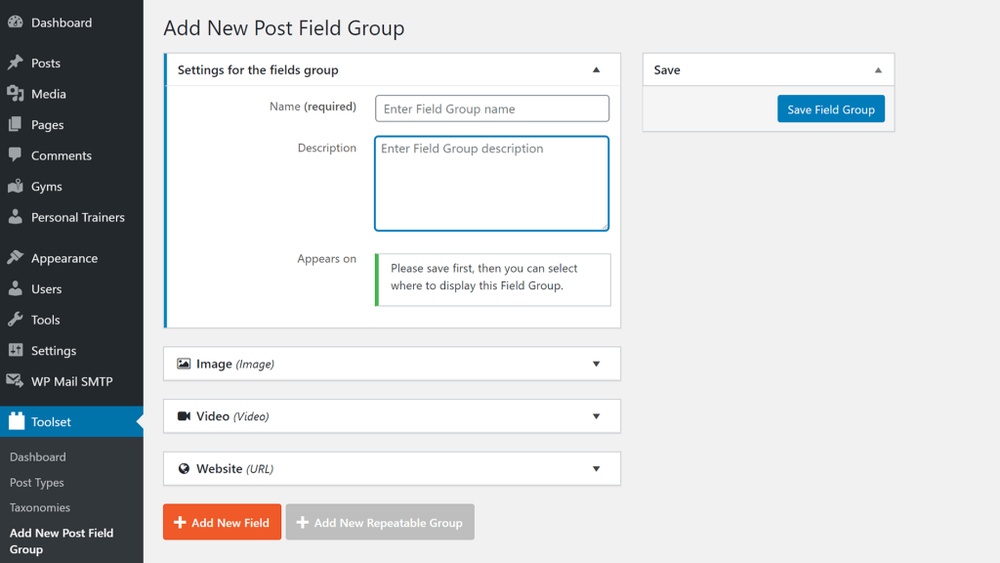
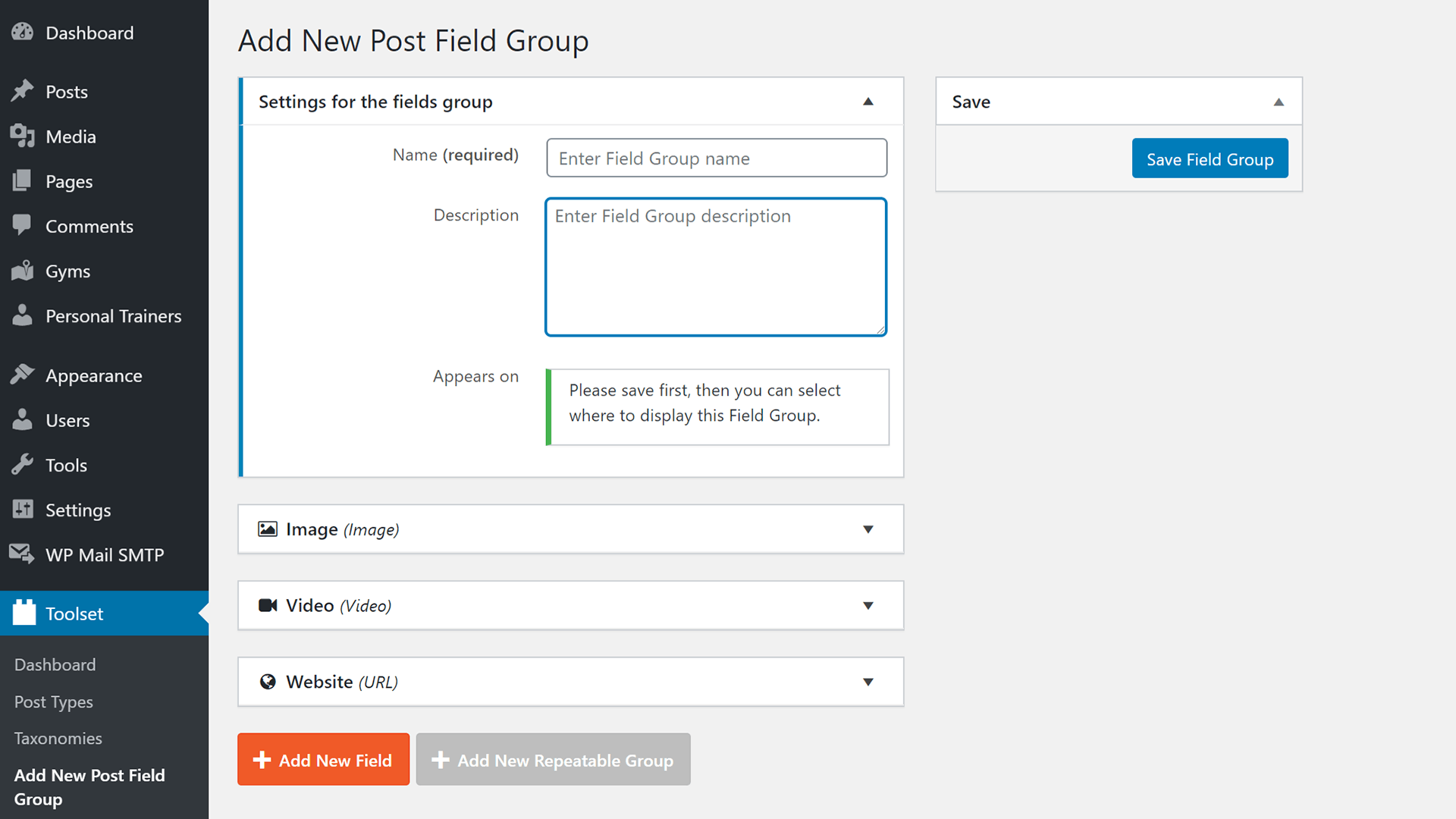
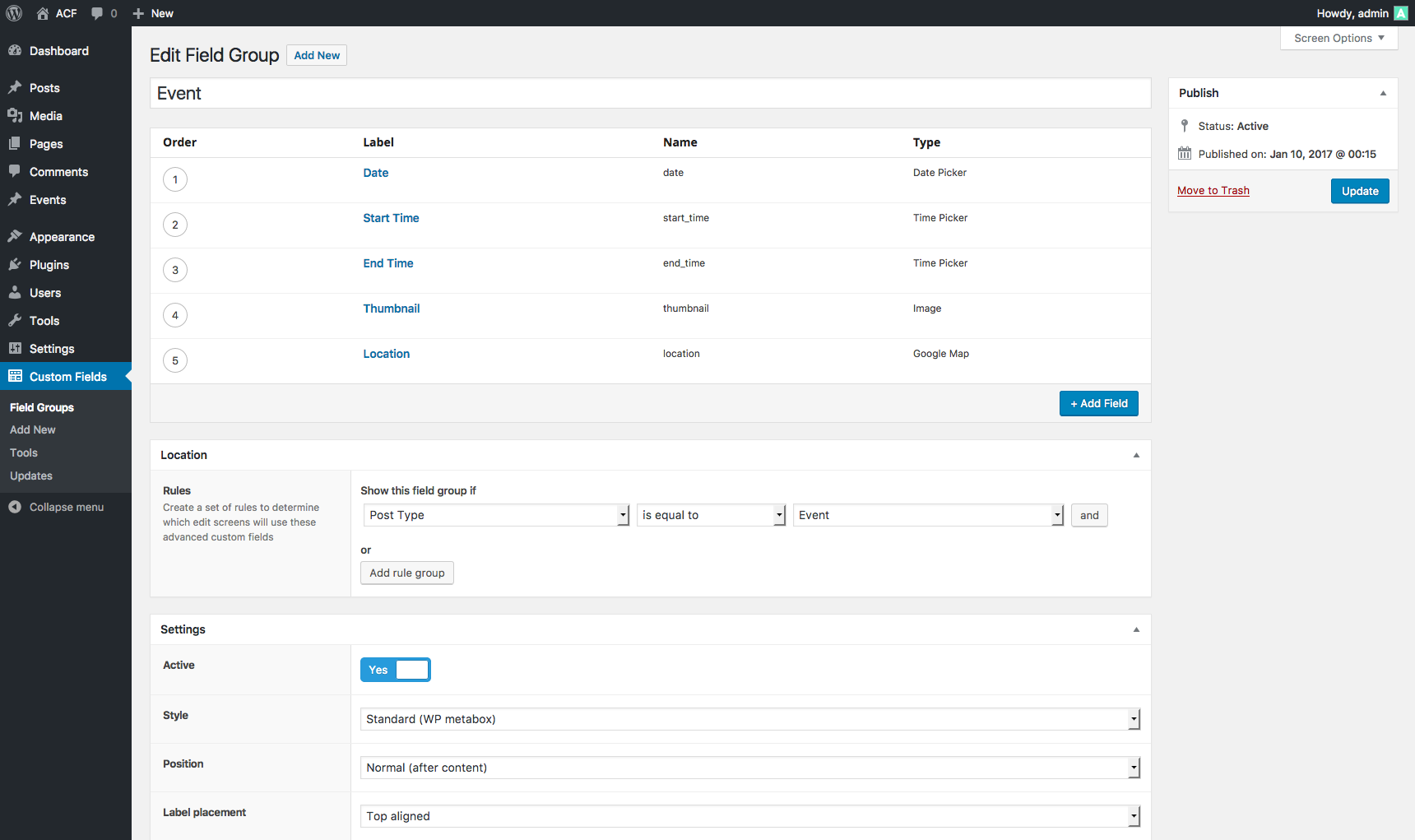
Several plugins simplify adding custom fields in WordPress. Advanced Custom Fields (ACF) is popular for its ease and flexibility. Toolset Types helps create custom fields and content types quickly. Meta Box offers many field options and works well with themes.
Installing And Activating Plugins
Go to your WordPress dashboard and open the Plugins menu. Click on “Add New” and search for the plugin by name. Press “Install Now” and wait for it to finish. Click “Activate” to start using the plugin on your site.
Creating Custom Fields Using Plugins
Open the plugin’s settings from the dashboard. Choose to add a new field group or custom field. Select the field type like text, checkbox, or image. Assign the fields to posts, pages, or custom post types. Save your changes and check your site to see the fields in action.
Displaying Custom Fields On Your Site
Displaying custom fields on your WordPress site lets you show extra information. You can make your posts or pages more useful and unique. Custom fields help you add details like author names, ratings, or product info.
There are different ways to display custom fields. You can edit your theme templates or use shortcodes and widgets. Each method works well depending on your needs and skills.
Editing Theme Templates
Editing theme templates lets you place custom fields exactly where you want. You need to access your theme files, usually single.php or page.php. Use PHP code to call the custom field value.
For example, add php echo get_post_meta(get_the_ID(), 'your_custom_field', true); ? in the template. Replace your_custom_field with your field name. Save the file and refresh your site to see the change.
This method gives full control over the display. It is best for users familiar with PHP and theme files.
Using Shortcodes And Widgets
Shortcodes and widgets allow showing custom fields without editing code. You can create a shortcode to fetch and display field values inside posts or pages. Some plugins also offer shortcode support.
Widgets help you add custom fields in sidebars or footer areas. Use a text widget and insert shortcode or PHP code with plugins that support it. This approach is easier for beginners.
These tools help you add custom fields quickly and flexibly. You can place information anywhere on your site with little effort.
Troubleshooting Common Issues
Troubleshooting common issues with custom fields in WordPress saves time and reduces frustration. Many users face simple problems that block them from using custom fields effectively. Identifying these issues quickly can help you fix them and keep your site running smoothly.
Custom Fields Not Showing
Sometimes, custom fields do not appear in the post editor. This issue often happens because the screen options are not set correctly. Click on the “Screen Options” tab at the top right of the editor screen. Make sure the “Custom Fields” box is checked. If it is unchecked, the custom fields panel remains hidden.
Another cause is the WordPress theme or post type settings. Some themes or custom post types disable custom fields by default. Check your theme settings or consult the theme documentation. You might need to enable support for custom fields manually in your theme’s functions.php file.
Plugin Conflicts
Plugins can interfere with custom fields and cause them to stop working. Conflicts arise when two or more plugins try to control the same feature. To find the conflicting plugin, deactivate all plugins except the one you use for custom fields.
Then, activate plugins one by one while checking if the custom fields work. This process helps pinpoint the plugin causing the problem. Once identified, you can seek an alternative plugin or contact the plugin author for help.

Credit: css-tricks.com
Frequently Asked Questions
What Are Custom Fields In WordPress?
Custom fields allow you to add extra metadata to your posts. They store additional information like author details, ratings, or product info. This data helps customize content display and enhance user experience on your WordPress site.
How Do I Enable Custom Fields In WordPress?
Go to the post editor screen, click on the three-dot menu, select “Preferences,” and enable “Custom Fields. ” This option lets you add or edit custom metadata for posts easily.
Can I Add Custom Fields Without Plugins?
Yes, you can add custom fields manually in the post editor or by coding in your theme’s functions. php file. However, plugins simplify the process and reduce coding errors.
Which Plugins Are Best For Custom Fields?
Popular plugins include Advanced Custom Fields (ACF) and Meta Box. They offer easy interfaces to create and manage custom fields without coding skills, boosting your site’s flexibility.
Conclusion
Adding custom fields in WordPress makes your site more flexible. You can store extra information easily. This helps you show unique content to visitors. The steps are simple and quick to follow. Practice a few times to feel confident. Custom fields improve how your website works and looks.
Start using them today to enhance your WordPress experience. Keep exploring new ways to make your site better. The more you try, the easier it becomes.



