
Are you looking to make your WordPress site truly yours? Adding custom code lets you tailor your website exactly how you want it—whether it’s a unique feature, a design tweak, or improved functionality.
But if you’re worried it’s too complicated or risky, don’t be. This guide will walk you through simple, clear steps to add custom code safely and effectively. By the end, you’ll have the confidence to customize your site like a pro, unlocking new possibilities without breaking a sweat.
Keep reading to discover how easy it can be!
Why Add Custom Code
Adding custom code to WordPress lets you change your website beyond standard options. It gives more control over how your site looks and works. Custom code helps tailor your site to your exact needs.
This approach suits those who want a unique site or extra features. It also helps fix issues that plugins or themes cannot solve. Custom code can improve site speed and user experience too.
Benefits Of Customization
Custom code makes your site unique and different from others. It allows precise design changes without relying on themes. You can add specific functions that match your goals.
It can boost site performance by removing unnecessary features. Custom code also helps improve SEO by optimizing how pages load. You gain full control over every part of your site.
Common Use Cases
Many add custom code to change website layouts or colors. Others use it to create special forms or buttons. It is common to add custom tracking codes for analytics.
Custom code also helps fix theme or plugin conflicts. Some users add extra security features or speed optimizations. It allows easy integration with third-party tools and services.
Preparing Your Site
Before adding custom code to your WordPress site, preparation is key. Proper steps reduce risks and keep your website safe. Taking time to prepare helps avoid problems later. Two important steps are backing up your website and setting up a child theme.
Backup Your Website
Backing up your website means saving a copy of all your files and data. This copy protects you if something goes wrong. You can restore your site quickly using the backup. Use a reliable plugin or your hosting service to create backups. Store backups in a safe place outside your website. Regular backups protect your site from accidental errors and hacking.
Set Up A Child Theme
A child theme lets you change your site’s design and code safely. It copies your main theme but keeps your changes separate. Updates to the main theme do not erase your custom work. To create a child theme, make a new folder and add a style file. Activate the child theme in your WordPress dashboard. This step keeps your custom code safe and easy to manage.
Using The Theme Editor
Using the Theme Editor is a direct way to add custom code to your WordPress site. It lets you change theme files right from the dashboard. This method is quick but needs care. Small mistakes can break your site.
Accessing Theme Files
Go to your WordPress dashboard. Find Appearance in the menu. Click on Theme Editor. You will see a list of theme files on the right. Choose the file you want to edit, like functions.php or header.php. The code will appear in the editor window. Always check you are editing the correct theme.
Adding Code Safely
Before changing any code, back up your site. Copy the original code to a safe place. Add your custom code below or above the existing code. Use small code snippets first. Save changes and test your site immediately. Use a child theme to avoid losing changes after updates. Avoid errors by checking code syntax carefully. This protects your site from crashes.
Custom Code With Plugins
Adding custom code to WordPress can improve your site’s features and design. Plugins make this process safe and easy. They let you insert code without editing core theme files.
Using plugins helps keep your code organized. It also prevents errors that could break your site. You can add PHP, CSS, or JavaScript snippets quickly.
Code Snippets Plugin
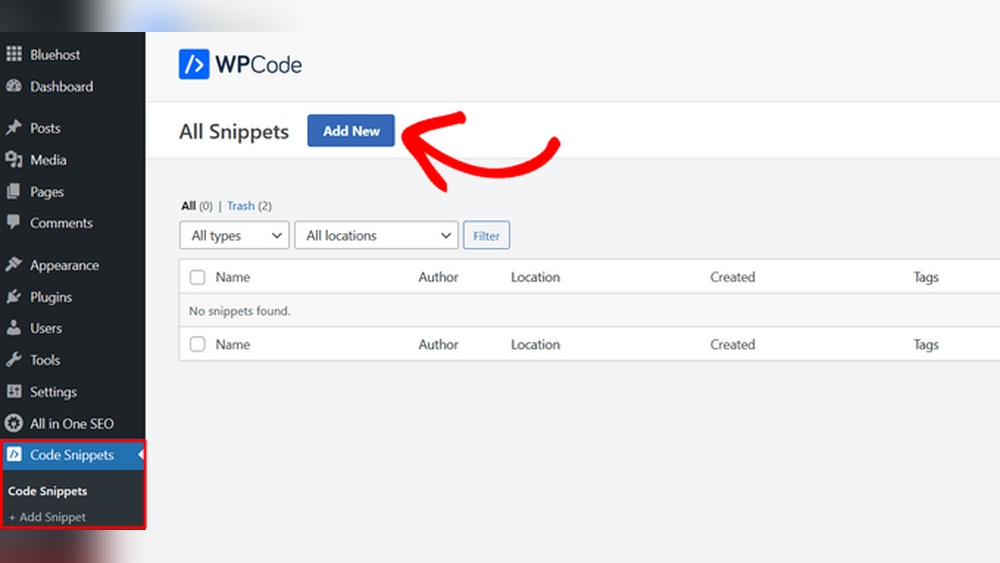
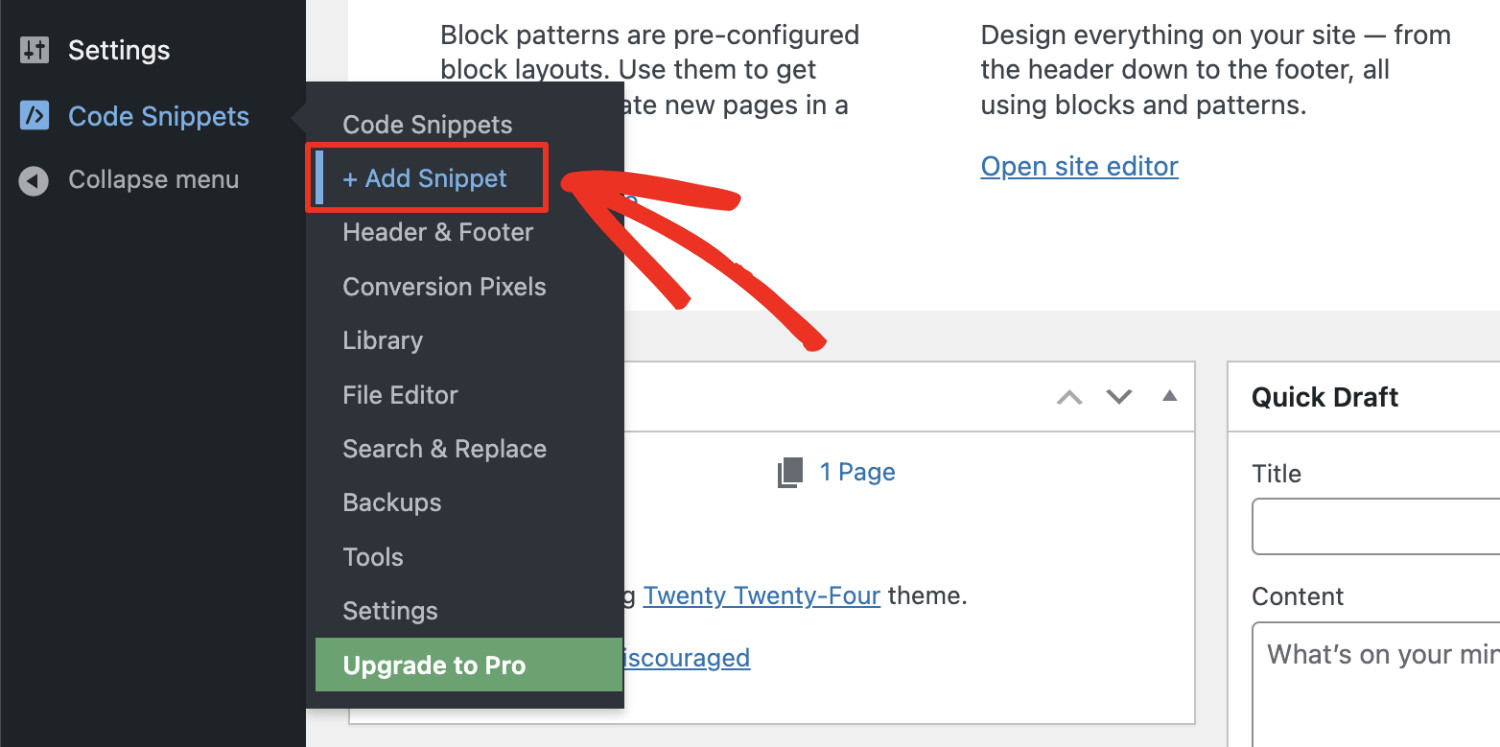
The Code Snippets plugin is a popular tool for adding custom PHP code. It works like a mini code editor inside WordPress.
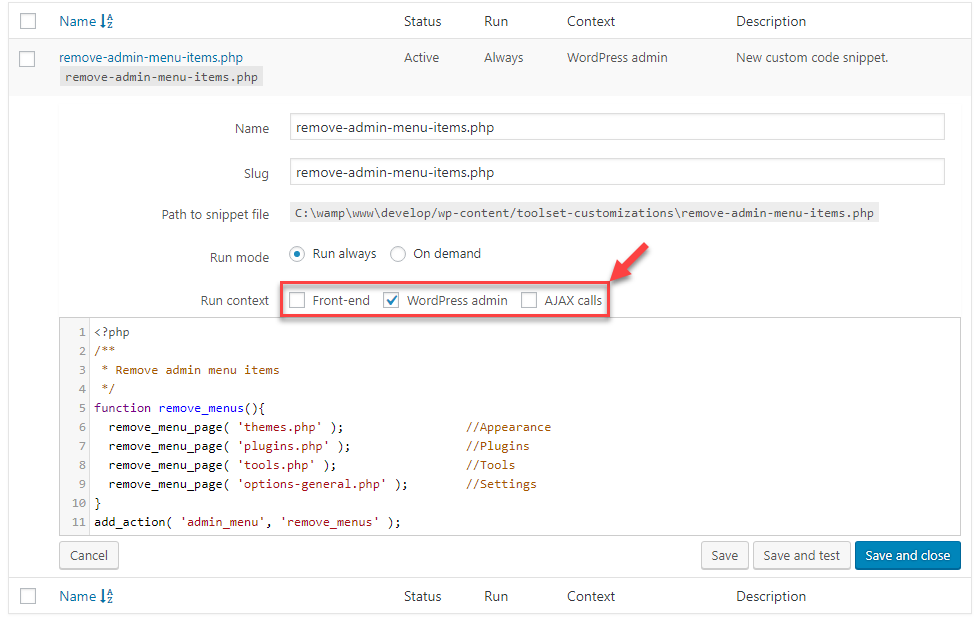
You can add, edit, and activate code snippets separately. This keeps your site clean and stable. It also offers options to run code only in the admin area or on the front end.
The plugin has a simple interface with syntax highlighting. It helps avoid common mistakes. You can enable or disable snippets anytime without deleting them.
Other Popular Plugins
Several other plugins let you add custom code easily. Insert Headers and Footers is a favorite. It allows you to add code in the header or footer sections of your site.
Simple Custom CSS lets you add CSS styles without changing your theme files. Custom CSS changes appear immediately and stay after theme updates.
WPCodeBox is another option. It supports PHP, JavaScript, CSS, and HTML snippets. It also organizes your codes and offers import/export features.
Each plugin has unique features. Choose the one that fits your coding needs and comfort level.
Using Functions.php File
The functions.php file is a powerful tool for adding custom code to your WordPress site. It allows you to change how your site works without editing core files. This file belongs to your active theme. Any code added here runs every time your site loads.
Using the functions.php file helps you add new features or change existing ones. You can include PHP snippets that modify site behavior or add small functions. It is a simple way to customize your site without plugins.
Locating Functions.php
To find the functions.php file, go to your WordPress dashboard. Navigate to Appearance > Theme Editor. On the right side, you will see a list of theme files. Look for functions.php or Theme Functions.
You can also access this file via FTP or your hosting file manager. It is inside the folder wp-content/themes/your-theme-name/. Always open the file carefully to avoid errors.
Best Practices For Edits
Always back up your site before editing functions.php. A small mistake can break your site. Use a child theme to keep your changes safe during updates. Never edit the parent theme directly.
Write clean and simple code. Test each change on a staging site if possible. Avoid adding too much code at once. Keep your snippets organized with comments explaining their purpose.
Credit: wpcode.com
Adding Css Customizations
Adding CSS customizations lets you change your site’s look quickly. CSS controls colors, fonts, sizes, and layouts. Small changes can make your site unique and match your brand. WordPress offers easy ways to add custom CSS without touching theme files.
Using The Customizer
The WordPress Customizer is a simple tool to add CSS. Go to Appearance > Customize in your dashboard. Find the “Additional CSS” section at the bottom. Here, type or paste your CSS code. Changes show live on the right side. This lets you see updates before saving. It keeps your CSS safe during theme updates. Use this for quick tweaks or small style changes.
Additional Css Options
Besides the Customizer, plugins offer more CSS control. Plugins like Simple Custom CSS let you add code easily. Some page builders include custom CSS fields too. You can also use child themes for advanced users. Child themes keep your custom code separate from the main theme. This stops your changes from being lost after updates. Choose the method that fits your skill and needs best.
Testing Your Code
Testing your code is a crucial step after adding custom code to WordPress. It ensures your site runs smoothly and avoids errors that could break your site. Proper testing helps you find issues early and fix them quickly. It also protects your visitors from a poor experience. Use the right tools and methods to test your code effectively.
Staging Environment
A staging environment is a copy of your live site for testing. It lets you try new code without affecting your real website. Use staging to check how your code behaves with your themes and plugins. This space keeps your live site safe from crashes or bugs. Many hosting providers offer easy staging setup. Test every change here before moving to your live site.
Debugging Tips
Debugging finds and fixes errors in your custom code. Start by enabling WordPress debug mode. It shows error messages on your site for quick fixes. Use tools like browser developer consoles to inspect problems. Break your code into smaller parts to isolate issues. Check syntax carefully; a missing symbol can cause errors. Keep a backup of your original code before changes. Testing often helps catch problems early and saves time.

Credit: www.youtube.com
Avoiding Common Mistakes
Adding custom code to WordPress can improve your website’s features. Yet, it can cause issues if not done carefully. Avoiding common mistakes helps keep your site stable and safe. This section explains key points to watch out for.
Code Conflicts
Code conflicts happen when new code clashes with existing themes or plugins. This can cause your site to break or behave oddly. Test code on a staging site before using it live. Use simple, clean code to reduce conflicts. Avoid editing core WordPress files to keep updates smooth.
Security Concerns
Custom code can open security risks if not handled well. Always sanitize and validate user input to prevent attacks. Use secure coding practices to protect your site. Avoid sharing sensitive data in your code. Regularly update your WordPress, themes, and plugins to fix vulnerabilities.
Credit: toolset.com
Frequently Asked Questions
How Do I Safely Add Custom Code To WordPress?
Use a child theme or a site-specific plugin to add custom code. Avoid editing core files directly to prevent issues during updates. Always back up your site before making changes to ensure safety.
Can I Add Custom Code Using WordPress Plugins?
Yes, plugins like Code Snippets let you add custom PHP code easily. These tools manage your code safely without touching theme files, making updates hassle-free and minimizing errors.
Where Should I Place Custom Css In WordPress?
Add custom CSS via the WordPress Customizer under “Additional CSS. ” This method keeps your styles safe during theme updates and is beginner-friendly.
Is Adding Custom Javascript To WordPress Complicated?
No, you can add JavaScript using plugins or by enqueuing scripts in your child theme. Properly enqueueing ensures scripts load correctly without conflicts.
Conclusion
Adding custom code to WordPress helps improve your website’s features. It allows you to change how your site looks and works. Always back up your site before making changes. Use safe methods like child themes or plugins to add code.
Test your site after adding code to avoid errors. Keep code simple and organized for easy updates. Custom coding gives you more control over your WordPress site. Start small and build your skills over time. Your website can become truly unique with custom code.



