
Want to give your WordPress site a fresh, unique look? Adding custom CSS is the easiest way to do just that.
You don’t need to be a coding expert or hire a developer. With a few simple steps, you can change colors, fonts, layouts, and more—making your site truly yours. Keep reading, and you’ll learn exactly how to add CSS to your WordPress site quickly and safely.
This will help you stand out and make your website look exactly how you want. Ready to get started? Let’s dive in!
Why Add Custom Css To WordPress
Adding custom CSS to WordPress lets you control how your website looks. It helps you change styles beyond what themes allow. Custom CSS lets you create a unique site that fits your brand and needs perfectly.
Custom CSS also keeps your design consistent across all pages. It can fix small design issues quickly without editing theme files. This way, you improve your site’s look without affecting its core functions.
Benefits Of Custom Styles
Custom styles make your site stand out from others. You can change colors, fonts, and layouts easily. This helps your website reflect your style better than default themes. It also allows small tweaks that improve site readability and appeal.
Enhancing Website Appearance
Custom CSS improves the visual parts of your site. You can adjust spacing, borders, and backgrounds for a cleaner look. It helps align elements correctly for a balanced design. Your site will look professional and attractive to visitors.
Improving User Experience
Good design helps users find what they need fast. Custom CSS can make menus and buttons easier to use. It also improves mobile viewing by fixing layout issues. Better user experience keeps visitors on your site longer and reduces bounce rates.
Credit: kinsta.com
Preparing To Add Css In WordPress
Before adding custom CSS to WordPress, some preparation is important. It helps keep your site safe and organized. Preparing makes the process smoother and avoids mistakes. You will learn how to access the dashboard, choose the right theme, and back up your site.
Accessing The WordPress Dashboard
The WordPress dashboard is the control center of your website. Log in to your site by typing your website URL with “/wp-admin”. Enter your username and password to open the dashboard. Here, you can manage themes, plugins, and add custom CSS.
Choosing A Child Theme
A child theme lets you change the look without breaking the original theme. Use a child theme to keep your custom CSS safe during updates. Create or activate a child theme before making any CSS changes. This keeps your site stable and easy to fix.
Backing Up Your Site
Backing up your site saves your content and settings. It protects your work in case something goes wrong. Use a plugin or your hosting provider to make a backup. Always back up before adding custom CSS or making big changes.
Using The WordPress Customizer For Css
Using the WordPress Customizer for CSS is an easy way to change your website’s style. It lets you write and add CSS code directly inside WordPress. No need to edit theme files or use extra plugins.
This method is safe. Your changes stay even after theme updates. Plus, you see your edits live before saving them.
Navigating To Additional Css Section
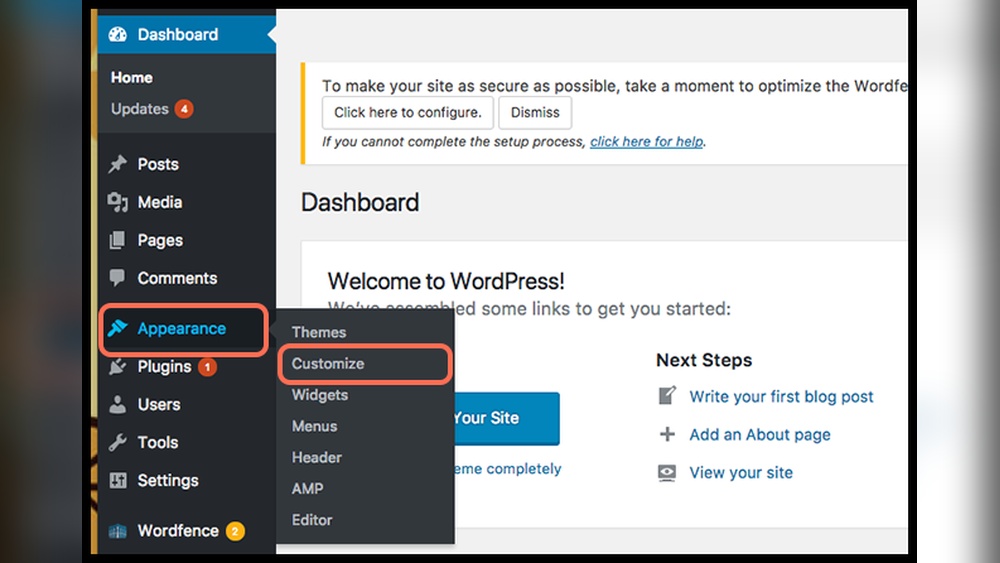
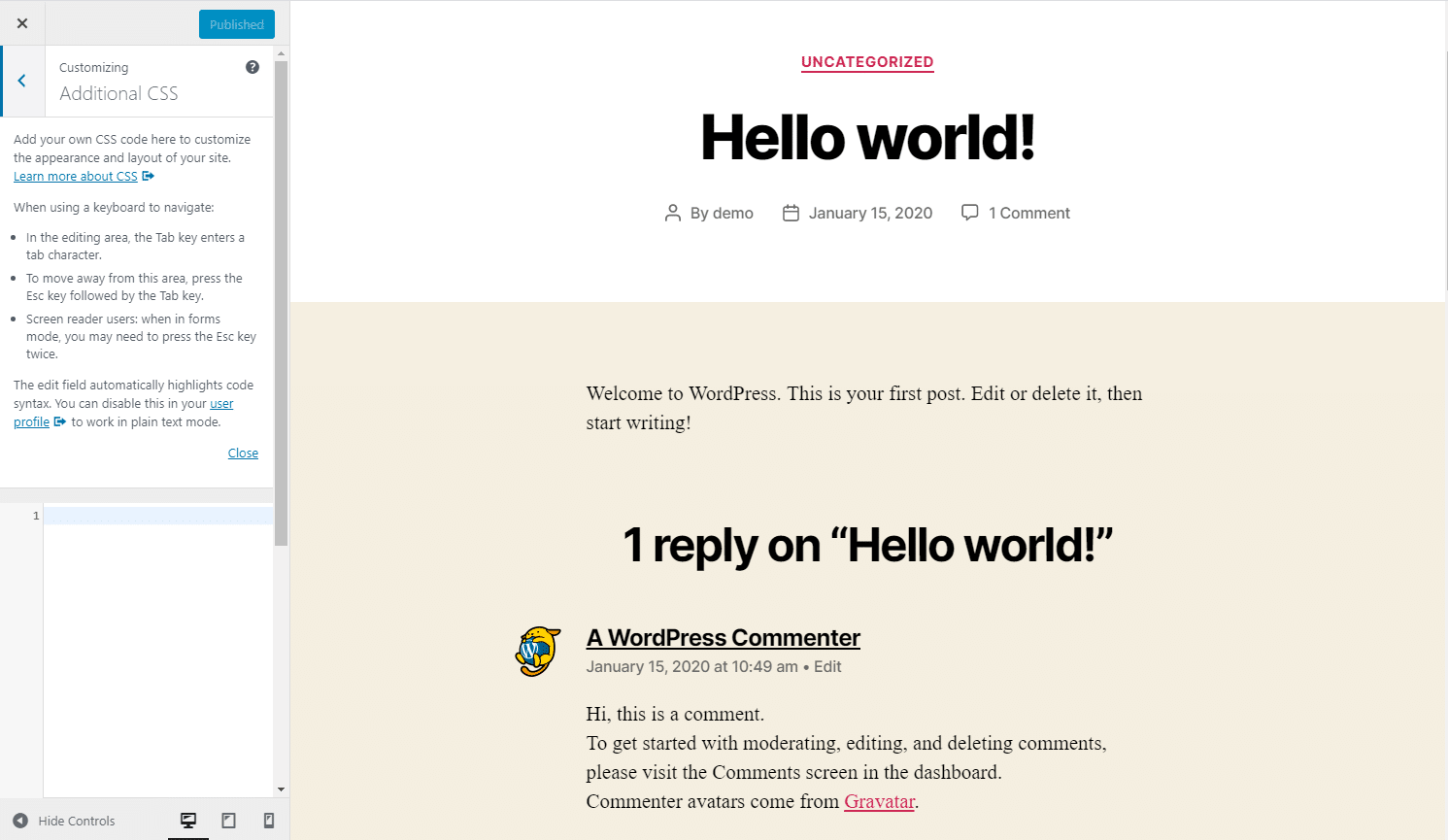
First, go to your WordPress dashboard. Look for the “Appearance” menu and click on “Customize.” The Customizer panel opens on the left side. Scroll down until you find “Additional CSS.” Click it to open a blank area for your CSS code.
Writing Simple Css Rules
Start by typing simple CSS rules. For example, change the background color of your site with body { background-color: f0f0f0; }. Or change font size with p { font-size: 16px; }. Each rule targets parts of your website. Keep rules short and clear.
Previewing Changes Live
As you write CSS, see the effect instantly on the right side. The live preview updates automatically. This helps you adjust the style until it looks right. No need to refresh the page.
Adding Css Via Theme Editor
Adding CSS via the Theme Editor lets you change your site’s look directly. This method is quick and works well for small style tweaks. You edit the style.css file inside your active theme folder. Be careful here. Mistakes can break your site’s design. Always save a backup before you start editing.
Locating The Style.css File
Go to your WordPress dashboard first. Find the Appearance menu on the left side. Click on Theme Editor from the dropdown. You will see a list of theme files on the right. Scroll down to find style.css. This file controls the main styles of your theme. Click on it to open the file editor.
Editing Css Safely
Make small changes at a time. Always add your CSS at the bottom of the file. This keeps your edits separate from the original code. Use comments to mark your changes. For example, write / Custom CSS / before your code. Avoid deleting existing code. It might cause design issues.
Saving And Testing Changes
After editing, click the Update File button. Wait for the confirmation message to appear. Then, open your website in a new tab. Refresh the page to see the changes. If something looks wrong, revert to your backup file. This keeps your site safe from errors.
Using Plugins To Add Custom Css
Using plugins to add custom CSS in WordPress makes styling your site simple. Plugins offer an easy way to insert CSS code without editing theme files. This method is safe and keeps your styles even after theme updates. It suits beginners and users who want quick changes.
Plugins also help organize and manage all CSS code in one place. You can add, edit, or remove styles anytime through the WordPress dashboard. This approach saves time and reduces errors.
Popular Css Plugins
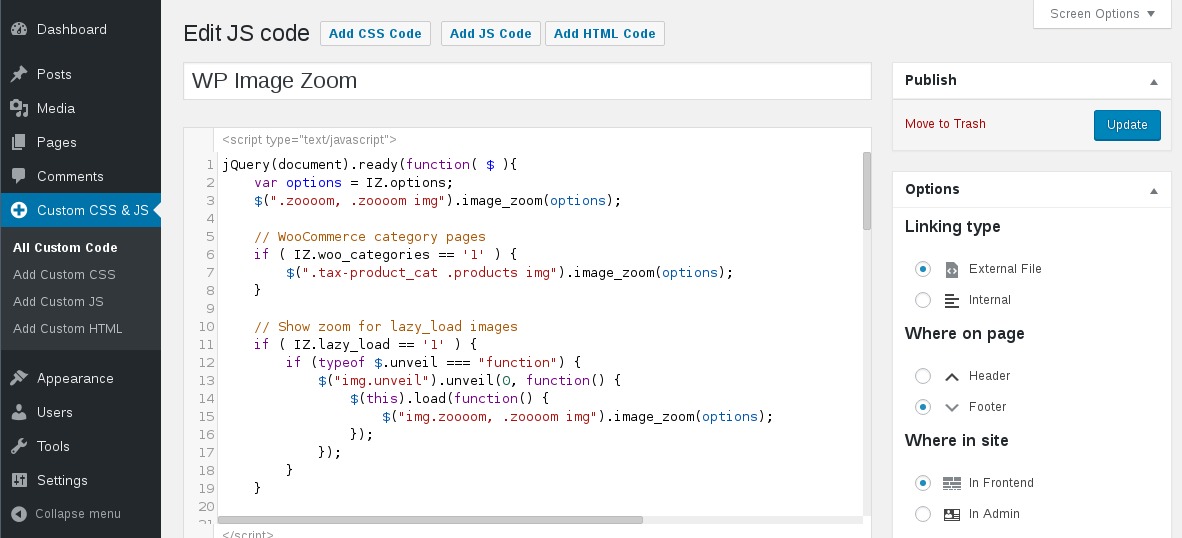
Several plugins make adding custom CSS easy and efficient. “Simple Custom CSS” allows quick CSS entry with live preview. “Custom CSS & JS” supports both CSS and JavaScript editing. “SiteOrigin CSS” offers visual tools for styling without coding skills. These plugins are free and widely used.
Installing And Activating Plugins
Go to your WordPress dashboard and open the Plugins menu. Click “Add New” and search for the CSS plugin you want. Select the plugin and click “Install Now.” After installation, click “Activate” to enable it. The plugin will add a new menu or settings page for CSS input.
Managing Css With Plugins
Open the plugin’s settings to add your CSS code. Type or paste your styles into the text box. Save changes to apply the new styles immediately. Some plugins offer live preview to see changes in real-time. You can edit or delete CSS anytime from the same area.
Using plugins keeps your custom CSS organized and easy to update. It avoids breaking your site and helps keep your design consistent.
Credit: wordpress.org
Tips For Writing Effective Css
Writing effective CSS improves your website’s look and user experience. Clean and clear CSS makes future changes easier. It also helps your site load faster and work well on all devices. Follow simple tips to write CSS that works well and stays organized.
Keeping Code Organized
Organize your CSS by grouping related styles together. Use consistent spacing and indentation for easy reading. Separate sections with blank lines to avoid clutter. Avoid long blocks of code. Break styles into small, logical parts. This practice helps you find and fix errors quickly.
Using Comments
Comments explain your code to yourself and others. Write short notes about what each section does. Use clear language to describe tricky parts. Comments make teamwork easier and speed up editing. They also help when you return to code after some time.
Testing On Different Devices
Check your CSS on phones, tablets, and desktops. Different screens can show styles in new ways. Test buttons, fonts, and layouts for each device size. Fix any problems to keep your site user-friendly. Testing ensures your site looks good everywhere.
Troubleshooting Common Css Issues
Adding CSS to WordPress can sometimes cause issues. The styles may not show up or look different than expected. Troubleshooting common CSS problems helps you fix these quickly. It saves time and keeps your site looking good.
Overriding Theme Styles
The theme controls many styles by default. Your CSS might not work because the theme’s styles are stronger. Use more specific selectors to override them. Add !important to your CSS rules if needed. This forces your styles to apply over the theme’s.
Clearing Cache
Browsers and plugins save CSS files to load sites faster. This can stop new CSS changes from showing. Clear your browser cache first. Then clear any caching plugins you use in WordPress. Refresh the page to see the updated styles.
Debugging Css Errors
Small mistakes can break your CSS. Check for missing semicolons, braces, or wrong property names. Use browser developer tools to inspect elements and see which styles apply. Correct errors step-by-step and test after each change.
Credit: www.seedprod.com
Frequently Asked Questions
How Do I Add Css To WordPress Without A Plugin?
You can add CSS via the WordPress Customizer under Appearance > Customize > Additional CSS. It’s simple and safe for quick style changes. This method doesn’t require plugins and keeps your styles theme-independent.
Where Can I Add Custom Css In WordPress Theme Files?
Custom CSS can be added inside your theme’s style. css file. Use a child theme to avoid losing changes when updating. Editing directly risks breaking your site, so always back up before modifying theme files.
Can I Add Css To WordPress Posts Or Pages Individually?
Yes, use the block editor’s “Additional CSS Class” option for specific blocks. Then add custom CSS targeting those classes in the Customizer or child theme. This method offers precise styling without affecting the whole site.
Is Using A Plugin The Best Way To Add Css In WordPress?
Plugins like Simple Custom CSS offer a user-friendly interface and keep your styles safe during theme updates. They’re ideal for beginners or those wanting to organize custom CSS separately from theme files.
Conclusion
Adding CSS to WordPress helps you control your site’s look and feel. You can change colors, fonts, and layouts easily. Small changes make a big difference in design. Always back up your site before editing code. Use simple CSS to avoid mistakes and keep your site fast.
Practice a little each time to get better. Your website will look unique and professional with custom styles. Keep learning and experimenting to improve your skills. CSS is a useful tool for any WordPress user.



