
Are you looking to make your WordPress site truly stand out? Adding custom CSS code can give your website a unique look and feel that matches your style perfectly.
But maybe you’re not sure where to start or worried about breaking something. Don’t worry—this guide will walk you through simple, clear steps to add CSS to your WordPress site easily and safely. By the end, you’ll have the power to tweak colors, fonts, layouts, and more, making your site exactly how you want it.
Ready to take control of your website’s design? Let’s dive in!
Credit: happyaddons.com
Why Add Custom Css
Adding custom CSS to WordPress lets you change the look of your site easily. It gives you control over colors, fonts, and layouts. You can make your website unique without changing the theme files. Custom CSS helps keep your style changes safe during theme updates. This way, your design stays the same no matter what.
Using custom CSS also improves user experience. You can fix small design issues fast. It helps your site match your brand better. Simple style tweaks make your site look more professional and neat.
Benefits Of Custom Styling
Custom styling lets you change your site’s appearance in many ways. You can adjust colors to fit your brand. Change fonts to make text easy to read. Modify spacing to improve layout and flow. These changes create a better user experience. Your site will look unique and stand out from others. Custom CSS is also lightweight and fast. It does not slow down your website like heavy plugins might.
When To Use Css In WordPress
Use custom CSS to fix design problems quickly. When the theme lacks a feature you want, CSS helps. Want to change a button color or font size? CSS is the answer. If you want to hide elements without deleting content, CSS works well. Use CSS to improve site responsiveness on mobile devices. It is a simple way to update styles without coding a full theme.
Methods To Add Css
Adding custom CSS to a WordPress site changes its look and feel. CSS controls colors, fonts, spacing, and much more. Different methods exist to add CSS code. Each method suits different skill levels and needs. Choose the best way based on your comfort and site setup.
Using The WordPress Customizer
The WordPress Customizer offers a simple way to add CSS. Go to Appearance > Customize > Additional CSS. Paste your CSS code in the box. You will see changes live as you type. This method is safe and does not affect theme files. It is perfect for small tweaks or quick fixes.
Adding Css Via Theme Editor
The Theme Editor lets you add CSS directly to your theme files. Find Appearance > Theme Editor and open style.css. Add your CSS at the end of this file. Save changes carefully to avoid site errors. This method suits users with some coding knowledge. Backup your site before editing theme files.
Applying Css With A Plugin
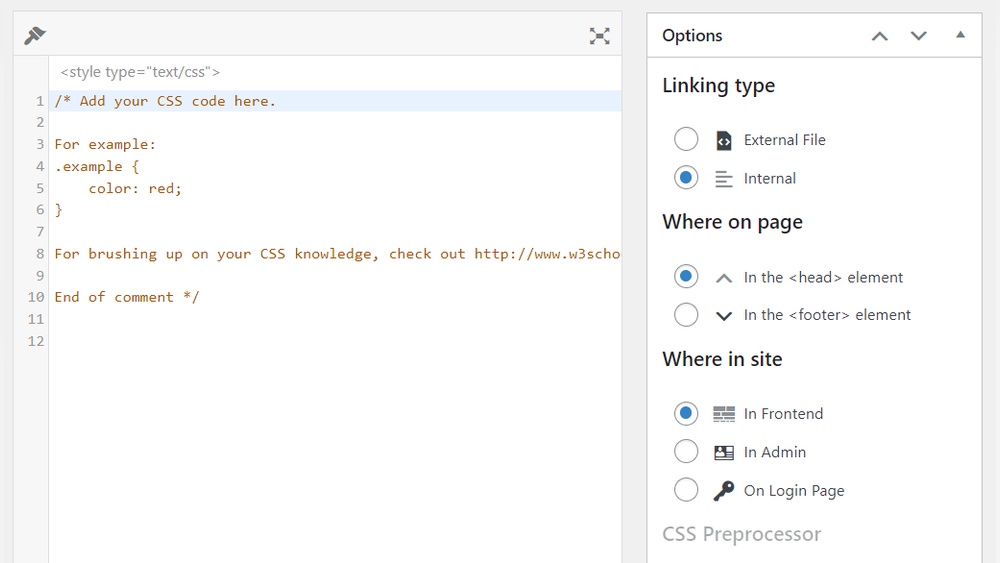
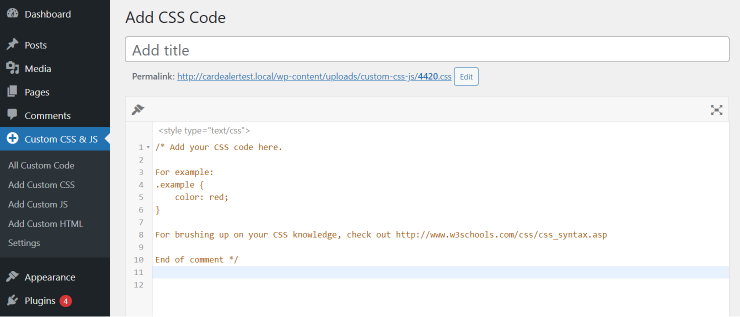
Plugins provide a user-friendly way to add CSS. Install a custom CSS plugin from the WordPress repository. These plugins offer an easy interface to write CSS. Your code stays separate from theme files. This keeps your changes safe during theme updates. It works well for beginners and frequent CSS editors.
Using A Child Theme
A child theme lets you customize CSS without changing the parent theme. Create a child theme folder and add a style.css file. Write your CSS code inside this file. Activate the child theme in WordPress. This method protects your changes during theme updates. It is recommended for advanced users who want full control.
Step-by-step Css Addition
Adding CSS code to WordPress helps you change your website’s look. This step-by-step guide shows how to add CSS easily using the WordPress Customizer. Follow the steps below to style your site without touching theme files.
Accessing The Customizer
Log in to your WordPress dashboard. Find the “Appearance” menu on the left side. Click on “Customize” to open the WordPress Customizer. This tool lets you change your site’s design live. It works with many themes and plugins.
Writing Your First Css Code
Inside the Customizer, find the “Additional CSS” section. Click it to open a blank box. This is where you write your CSS code. Start simple. For example, type body { background-color: f0f0f0; } to change the background color. You can add more styles as you learn.
Saving And Previewing Changes
After writing your CSS, look for the “Publish” button at the top. Click it to save your changes. The preview window updates automatically. Check your site to see how the styles look. If needed, return to the CSS box and edit your code.
Tips For Effective Css
Adding CSS to WordPress is simple, but writing effective CSS is key. Good CSS keeps your site clean and loads fast. It also ensures your design looks right on all devices. Follow these tips to write better CSS code.
Targeting Specific Elements
Use classes and IDs to style exactly what you want. Avoid styling broad tags like
alone. This prevents unwanted changes in other parts of your site. Use unique names for classes. This makes your CSS easier to manage later.
Avoiding Common Mistakes
Write clear and simple CSS rules. Don’t repeat the same styles in many places. Keep your code organized and use comments to explain sections. Avoid using !important too much—it can cause problems later. Check for typos in property names and values. Small errors can stop styles from working.
Testing Across Browsers
Check your site on different browsers like Chrome, Firefox, and Safari. Each browser may display styles a bit differently. Fix any layout or color issues you see. Test on mobile and desktop devices. This helps you catch problems before visitors do.
Troubleshooting Css Issues
Troubleshooting CSS issues is common when adding code to WordPress. Styles may not show correctly or clash with other styles. Small errors can cause big display problems. This section helps fix common CSS problems fast and easy.
Overriding Conflicting Styles
Sometimes WordPress themes or plugins add their own CSS. This can override your custom styles. Use more specific selectors to beat conflicting styles. Add !important to force your CSS to apply. Check for duplicate rules and remove them.
Clearing Cache For Updates
Changes may not appear due to cached files. Clear your browser cache first. If you use a caching plugin, clear its cache too. Also, clear server-side cache if available. Refresh the page to see your new CSS in action.
Using Browser Developer Tools
Browser developer tools help inspect and debug CSS. Right-click the element and select “Inspect” to view applied styles. Check if your CSS is loaded and applied. Edit CSS live to test fixes. Use these tools to find and fix errors quickly.

Credit: kinsta.com
Credit: crocoblock.com
Frequently Asked Questions
How Can I Add Css Code Directly In WordPress?
You can add CSS code in WordPress via the Customizer under Appearance > Customize > Additional CSS. This method is safe and easy for quick style changes without modifying theme files.
What Are The Best Plugins To Add Css In WordPress?
Popular plugins for adding CSS include Simple Custom CSS, WP Add Custom CSS, and SiteOrigin CSS. These plugins offer user-friendly interfaces and keep your custom styles separate from theme files.
Can I Add Css In WordPress Theme Files?
Yes, you can add CSS by editing the style. css file in your theme. However, it’s recommended to use a child theme to avoid losing changes during updates.
Is Adding Css Via Customizer Better Than Theme Editing?
Yes, using the Customizer is safer and update-proof. It prevents your custom styles from being overwritten when you update your theme or plugins.
Conclusion
Adding CSS code to WordPress is simple and quick. You can change your site’s look without touching core files. Use the WordPress Customizer or a child theme to keep things safe. Small CSS tweaks make a big difference in design.
Practice a little, and you will feel more confident. Keep your site fresh and unique with custom styles. Start adding CSS today and see the changes for yourself.



