
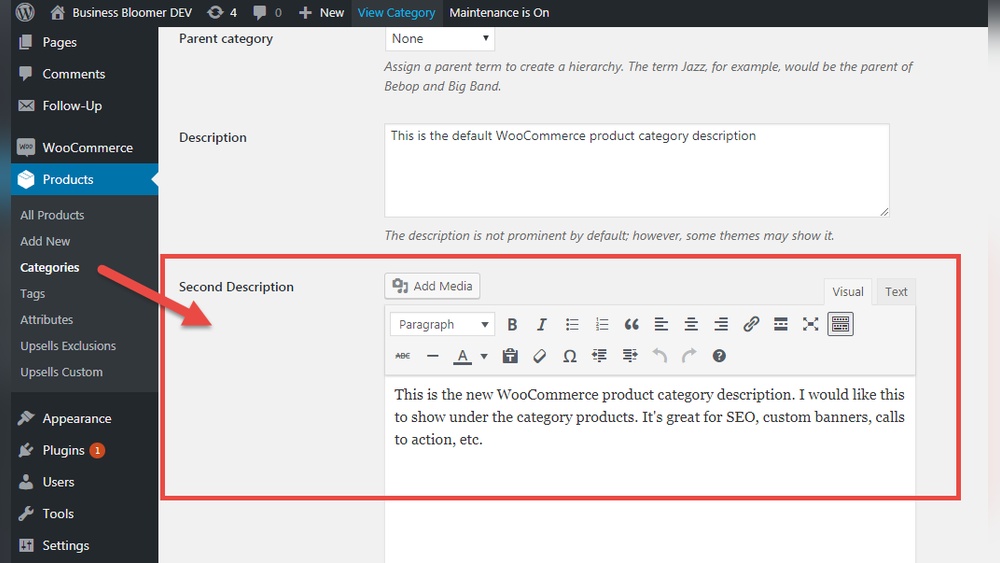
Are you struggling to make your WordPress category pages more engaging? Adding content to these pages can boost your site’s SEO and keep visitors interested longer.
But if you’re not sure where to start, don’t worry—you’re in the right place. You’ll discover simple, step-by-step ways to add content to your category pages. By the end, you’ll know exactly how to improve your site’s structure and attract more visitors without any coding headaches.
Ready to take your WordPress site to the next level? Let’s dive in!
Accessing WordPress Category Pages
Accessing category pages in WordPress is the first step to adding or editing content. These pages group posts under specific topics. Managing them helps organize your website better. WordPress makes it easy to find and edit categories from the dashboard. Follow the steps below to access your category pages quickly.
Navigating To Categories In Dashboard
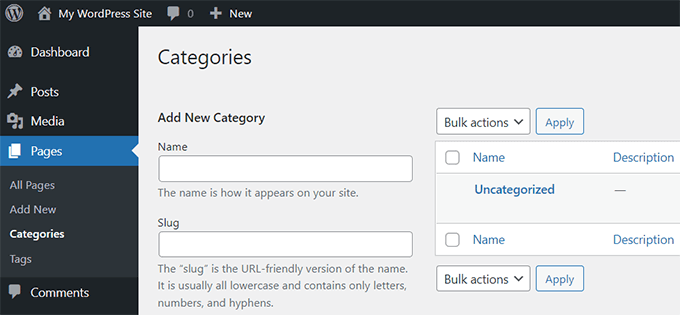
Log in to your WordPress admin panel. On the left side, find the menu labeled “Posts.” Click it to expand the options. Choose “Categories” from the list. This opens the category management page. Here, you can see all existing categories. You can add new ones or edit current categories.
Selecting The Target Category
On the categories page, look through the list to find your target category. You can use the search box to locate it faster. Click the category name to open its settings. This page lets you change the category’s name, description, and slug. You can also add content or custom code here if needed.
Credit: www.wpbeginner.com
Methods To Add Content On Category Pages
Adding content to category pages in WordPress helps improve user experience and SEO. It allows you to provide extra information about each category. There are several simple methods to do this. Choose the best method based on your skills and needs.
Using Category Description Field
WordPress has a built-in category description field. It is easy to use and does not require coding. Go to the WordPress dashboard and open the Categories section. Select the category you want to edit. Add your text in the description box. Save the changes. This content appears on the category page if your theme supports it.
Adding Content Via Widgets
Widgets let you add content without changing code. Go to Appearance > Widgets in the dashboard. Use the Text or Custom HTML widget. Drag it to the widget area shown on category pages. Add your content in the widget. This method is quick and flexible. You can add images, text, or links easily.
Editing Category Template Files
For more control, edit the category template files. This method requires basic knowledge of PHP and HTML. Find the category.php or archive.php file in your theme folder. Add your content directly in the code where you want it to appear. Use WordPress functions to display dynamic content. Save and upload the file to your server. This method offers full customization of category pages.
Enhancing Category Descriptions
Enhancing category descriptions improves user experience and SEO. Clear, rich descriptions help visitors understand the topic quickly. They also make your category pages look professional and inviting.
Properly crafted descriptions can increase the time visitors spend on your site. This can lead to better rankings in search engines. Adding content beyond plain text makes your categories stand out.
Formatting Text And Adding Media
Use headings, bold, and italics to highlight key points. Break text into small paragraphs for easy reading. Bullet points help list important features clearly.
Images add visual interest and explain topics better. Use relevant pictures or icons to support your text. Videos can show tutorials or product demos for more engagement.
Make sure media files are optimized for fast loading. Add alt text to images for better SEO and accessibility.
Using Plugins For Rich Content
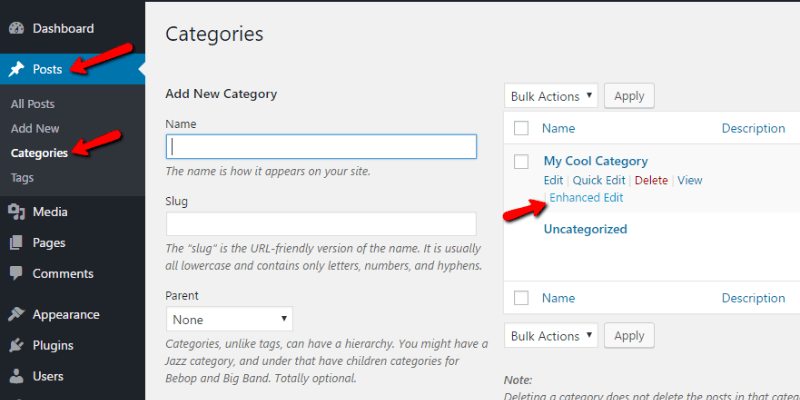
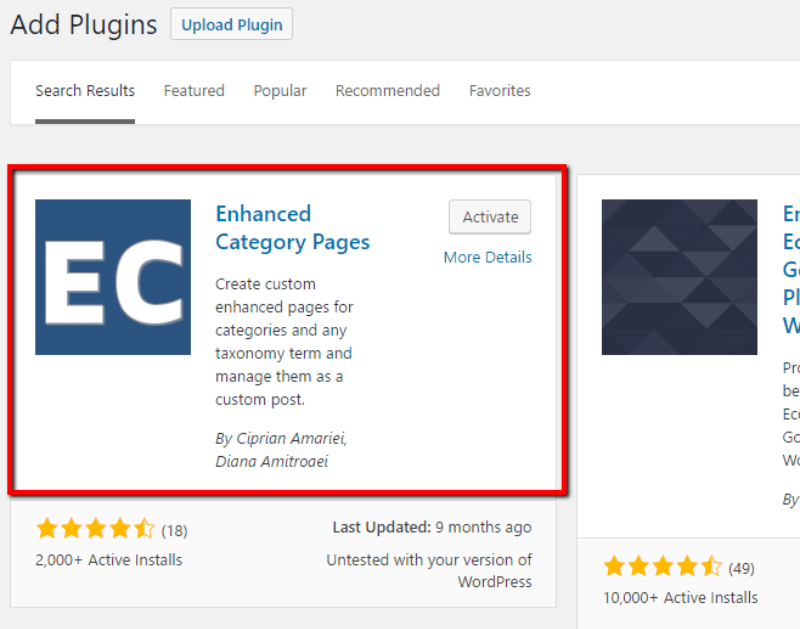
Plugins expand your ability to add content on category pages. Some allow custom HTML or shortcodes for flexible layout options. Others add sliders, tabs, or galleries to showcase products or posts.
Popular plugins offer easy interfaces to update category descriptions without coding. Choose plugins that work well with your theme and keep site speed in mind. Always test changes on a staging site first to avoid errors.
Customizing Category Templates
Customizing category templates lets you control how category pages look. This helps you show content in a clear, attractive way. You can change layouts, add text, or include images. Tailoring these pages improves user experience and SEO.
WordPress uses template files to show category pages. Editing these files lets you add custom content and design.
Locating Template Files
Find your theme folder in the WordPress directory. Look for files named category.php or archive.php. These files control category page layouts. If category.php is missing, WordPress uses archive.php as a fallback. Some themes use folder structures that separate templates. Use a file manager or FTP to access these files.
Editing With Code Snippets
Open the category template file in a code editor. Add HTML or PHP code to customize content. Use WordPress functions like category_description() to show category text. You can insert custom messages or images above posts. Keep code clean and test changes on a staging site. Avoid breaking the site with incorrect code.
Child Theme Best Practices
Create a child theme to keep your changes safe. This avoids losing edits during theme updates. Copy category.php from the parent theme to the child theme folder. Edit the copied file instead of the original. Activate the child theme in WordPress settings. This method protects your customizations and keeps the site stable.
Using Page Builders For Category Pages
Using page builders for category pages in WordPress allows easy and creative content display. These tools help customize layouts without coding. You can control how posts and information appear on category pages. This approach saves time and makes your site look professional. Page builders offer drag-and-drop features to design pages visually.
Compatible Page Builder Plugins
Several page builders work well with WordPress category pages. Elementor is popular and user-friendly. It offers many widgets and templates for customization. Beaver Builder is another option with strong layout control. Divi Builder provides advanced design options and visual editing. These plugins integrate with most themes and support dynamic content.
Designing Custom Category Layouts
Creating custom category layouts improves user experience. Start by selecting a template or blank layout in the page builder. Add elements like post grids, images, and text blocks. Use dynamic content widgets to show posts from the category automatically. Adjust colors, fonts, and spacing to match your site style. Preview changes on different devices to ensure responsiveness.
Credit: pagely.com
Tips For Seo And User Experience
Adding content to your WordPress category pages can boost both SEO and user experience. This section offers useful tips to make your category pages clear and effective. Clear content helps search engines understand your site better. It also guides visitors to find what they need quickly.
Optimizing Category Content
Use relevant keywords naturally in your category descriptions. Keep the text short and focused on the main topic. Avoid stuffing too many keywords, as it can hurt rankings. Add unique content for each category page. Duplicate content confuses search engines. Use simple sentences to explain what visitors will find in the category. This helps both users and search engines understand your site’s structure.
Improving Navigation And Readability
Organize your category page with clear headings and bullet points. This breaks the text into easy parts to read. Use a clean layout with enough space between elements. Make sure category links are easy to find and click. Include images or icons to support the content, but keep them relevant. Fast loading times improve user experience. Test your page on mobile devices to ensure it looks good everywhere.
Troubleshooting Common Issues
Troubleshooting common issues helps you fix problems quickly. Many users face challenges when adding content to category pages in WordPress. Knowing how to handle these problems saves time and effort.
Below are common issues and easy ways to solve them. Each issue affects how your content appears or works.
Content Not Showing Up
Sometimes, content does not appear on category pages. This happens if the content is not assigned to the correct category. Check your posts or pages and confirm they belong to the right category.
Another cause is caching. Clear your site cache to see changes immediately. Also, check if your category page template supports custom content.
Theme Conflicts
The active theme might block or hide content on category pages. Some themes have strict rules about what displays there. Switch to a default theme like Twenty Twenty-One to test if the theme causes the problem.
Look for theme settings that control category page layouts. Adjust or disable these settings to allow your content to show.
Plugin Compatibility
Plugins can interfere with content display on category pages. Disable all plugins and check if content appears. Reactivate plugins one by one to find the culprit.
Some plugins modify query or page output. Look for plugins related to SEO, caching, or page builders. Update plugins to the latest versions for better compatibility.
Credit: pagely.com
Frequently Asked Questions
How Do I Add Content To A WordPress Category Page?
You can add content using a custom category template or plugins. Edit the category. php file or use widgets to include text or images.
Can I Customize Category Pages Without Coding?
Yes, page builder plugins like Elementor let you add content to category pages easily. No coding skills are needed.
Why Add Content To Category Pages In WordPress?
Adding content improves SEO, user engagement, and helps explain the category’s purpose. It makes your site more informative.
Which Plugins Help Add Content On Category Pages?
Plugins like WP Show Posts or Content Views allow easy content addition. They offer customizable layouts without coding.
Conclusion
Adding content to a category page in WordPress is simple and useful. It helps visitors find related posts easily. You can use built-in tools or plugins to add text or images. Clear and organized content improves your site’s look and user experience.
Keep your category pages updated with fresh content. This makes your website more helpful and keeps readers interested. Practice these steps to make your category pages better today.



