
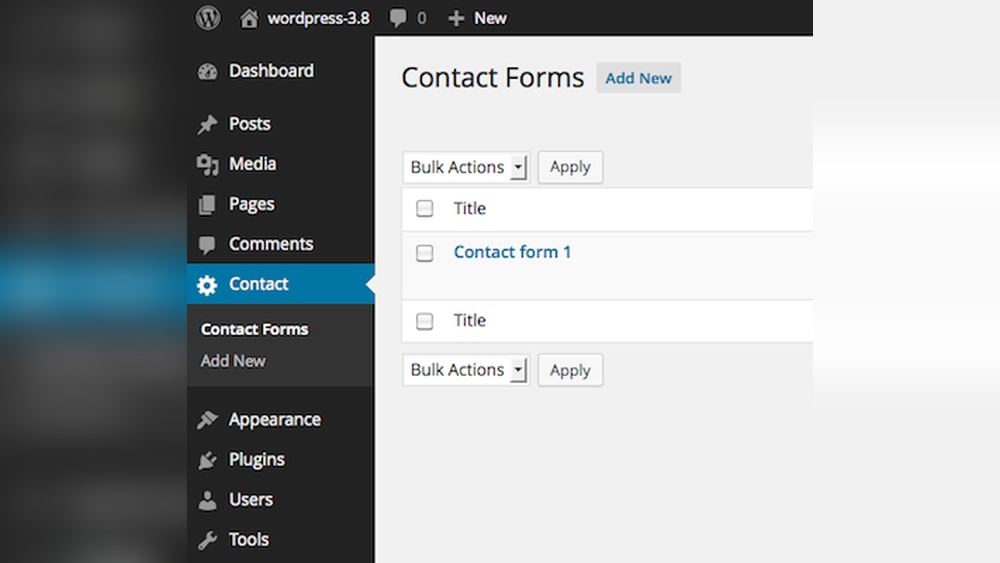
Are you looking to make it easier for visitors to get in touch with you on your WordPress site? Adding a contact form plugin is one of the best ways to do that.
It lets your audience send messages directly, without revealing your email address. But if you’re not sure how to set it up, don’t worry — this guide will walk you through every step. By the end, you’ll have a simple, professional contact form ready to go.
Keep reading, and you’ll see how quick and easy it can be to connect with your visitors like never before.

Credit: wordpress.org
Choosing The Right Contact Form Plugin
Choosing the right contact form plugin is important for your WordPress site. It affects how visitors reach you and how easy it is to manage messages. The right plugin fits your needs and works well with your site.
Many plugins offer different features. Some are simple, others have advanced tools. Picking the best one helps you save time and avoid problems.
Popular Plugins Compared
Several contact form plugins stand out. WPForms is user-friendly and good for beginners. Contact Form 7 is free and highly customizable. Gravity Forms offers advanced features but costs money. Ninja Forms balances ease and options. Each has its strengths and limits.
Features To Consider
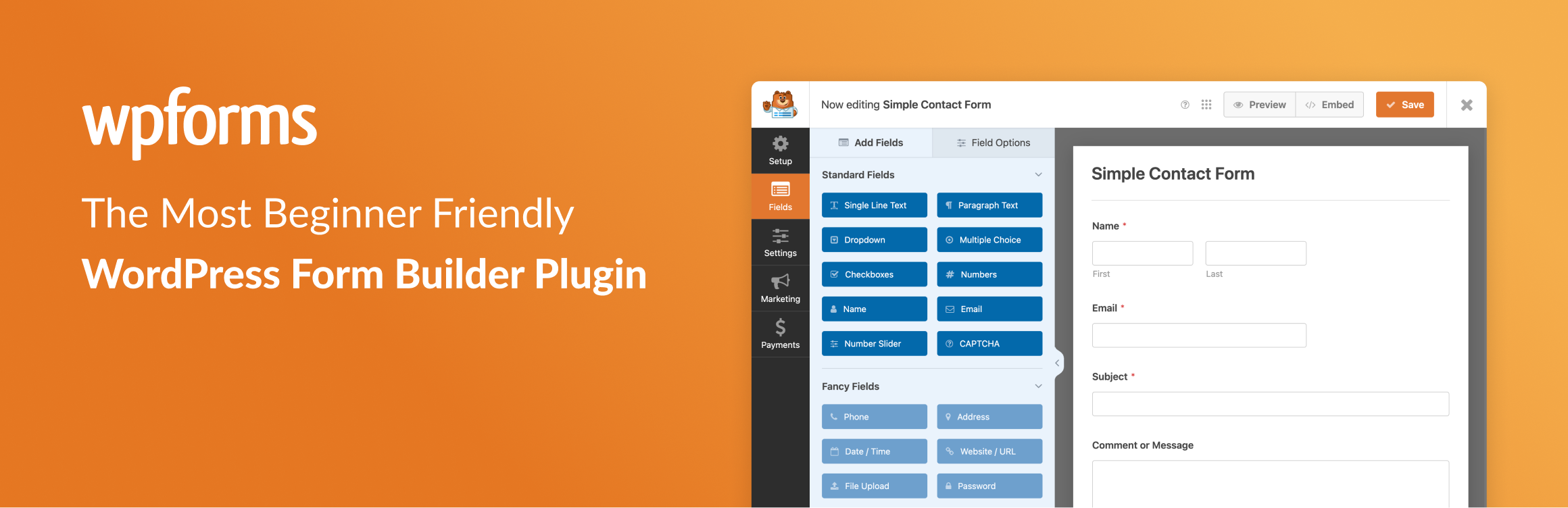
Look for easy setup and clear design. Mobile-friendly forms improve user experience. Email notifications should be reliable. Integration with email services or CRM helps manage contacts. Spam protection is crucial to avoid junk messages. Custom fields let you collect the right info.
Free Vs Premium Options
Free plugins cover basic needs and suit small sites. Premium versions add extra features like payment support and conditional logic. Paid plugins often come with support and updates. Choose based on your budget and goals. Start simple, then upgrade if needed.
Installing The Plugin
Installing a contact form plugin in WordPress is simple. It helps you gather messages from your visitors easily. This part explains how to install the plugin.
You can install plugins in two main ways. Use the WordPress dashboard or upload the plugin manually. Both ways are quick and easy.
Using The WordPress Dashboard
Log in to your WordPress admin area first. On the left menu, click “Plugins,” then select “Add New.”
Type the plugin name in the search box. Find the contact form plugin you want. Click the “Install Now” button next to it.
Wait a moment for WordPress to download and install the plugin. After that, click “Activate.” The plugin is now ready to use.
Uploading A Plugin Manually
Download the plugin file from its website. The file will be a .zip archive.
Go to your WordPress admin panel. Click “Plugins” and then “Add New.”
At the top, click “Upload Plugin.” Choose the .zip file you downloaded. Click “Install Now.”
After installation, click “Activate Plugin.” Your contact form plugin is now active.
Activating And Setting Up The Plugin
Enhancing your contact form improves user experience and protects your site. A simple form works, but adding features makes it better. Features like security, email integration, and styling help your form stand out.
These enhancements ensure visitors trust your site and find it easy to communicate. Let’s explore key ways to improve your contact form.
Adding Captcha For Security
Spam bots can fill your form with junk messages. Captcha stops this by asking users to prove they are human. Popular options include Google reCAPTCHA and hCaptcha. These tools are easy to add and increase security. They protect your inbox from unwanted emails.
Integrating With Email Marketing Tools
Link your contact form to email marketing services like Mailchimp or Constant Contact. This connection helps you collect emails directly from the form. You can send newsletters and updates automatically. Integration saves time and grows your mailing list.
Styling The Form To Match Your Theme
A form that matches your website theme looks professional. Use your site’s colors, fonts, and button styles on the form. Most plugins allow easy customization without coding. Consistent design improves trust and keeps visitors engaged.
Credit: wordpress.org
Credit: wpforms.com
Frequently Asked Questions
What Is The Best Contact Form Plugin For WordPress?
The best contact form plugin depends on your needs. Popular options include WPForms, Contact Form 7, and Ninja Forms. They are user-friendly, customizable, and SEO-friendly. Choose one that offers easy integration and useful features like spam protection and responsive design.
How Do I Install A Contact Form Plugin In WordPress?
To install a contact form plugin, go to your WordPress dashboard. Navigate to Plugins > Add New. Search for your desired plugin, click Install Now, then Activate. After activation, configure the form settings and embed the form on your pages using a shortcode or block.
Can I Customize The Contact Form Fields?
Yes, most WordPress contact form plugins allow full customization. You can add or remove fields like name, email, message, and checkboxes. Custom fields help capture specific information from visitors. This customization improves user interaction and data collection for your website.
How To Embed A Contact Form On A WordPress Page?
After creating the form, copy its shortcode or use the block editor. Open the page or post where you want the form. Paste the shortcode or add the contact form block. Publish or update the page to display the form live on your site.
Conclusion
Adding a contact form plugin in WordPress is simple and useful. It helps visitors reach you quickly and easily. Choose a plugin that fits your needs and install it carefully. Customize the form with the fields you want. Test the form to make sure it works well.
A good contact form improves your website’s communication. Keep it clear and easy for your users. With these steps, your site will stay connected to your audience. Start today and make your website more user-friendly.



