
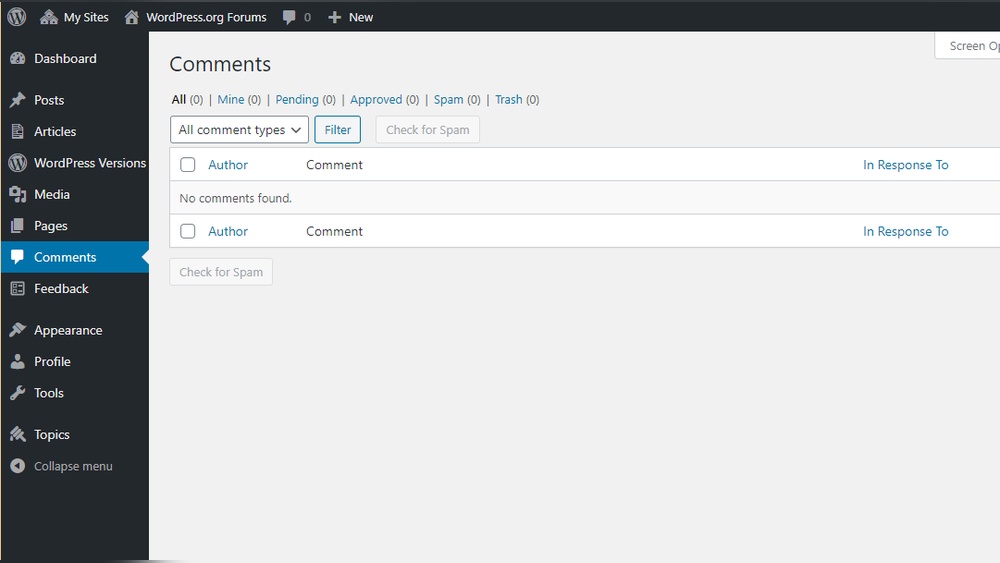
Want to make your WordPress pages more interactive and engaging? Adding comments is a simple way to invite your visitors to share their thoughts, ask questions, and connect with your content.
But if you’ve ever wondered how to add comments to your WordPress page, you’re in the right place. This guide will walk you through easy steps to enable comments on your pages, so you can start building a lively community around your site.
Keep reading, and you’ll learn exactly how to turn your pages into conversation starters.
Enable Comments On WordPress Pages
Enabling comments on WordPress pages allows visitors to share their thoughts. It helps create interaction and build a community around your content. WordPress lets you turn comments on or off easily for pages. Follow these steps to enable comments and start conversations on your site.
Accessing Discussion Settings
First, log in to your WordPress dashboard. Go to the left menu and click on Settings. Then select Discussion. Here, you see options related to comments.
Look for the option labeled Allow people to post comments on new articles. Check this box to enable comments by default on posts and pages. Scroll down and click Save Changes to apply.
Turning On Comments For Individual Pages
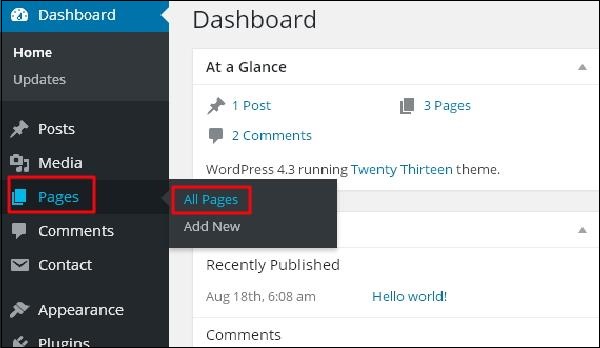
Go to Pages in your WordPress dashboard. Find the page where you want to enable comments. Click Edit below the page title.
In the editor screen, look for the Discussion box. If you don’t see it, click Screen Options at the top right. Check the box for Discussion to show the panel.
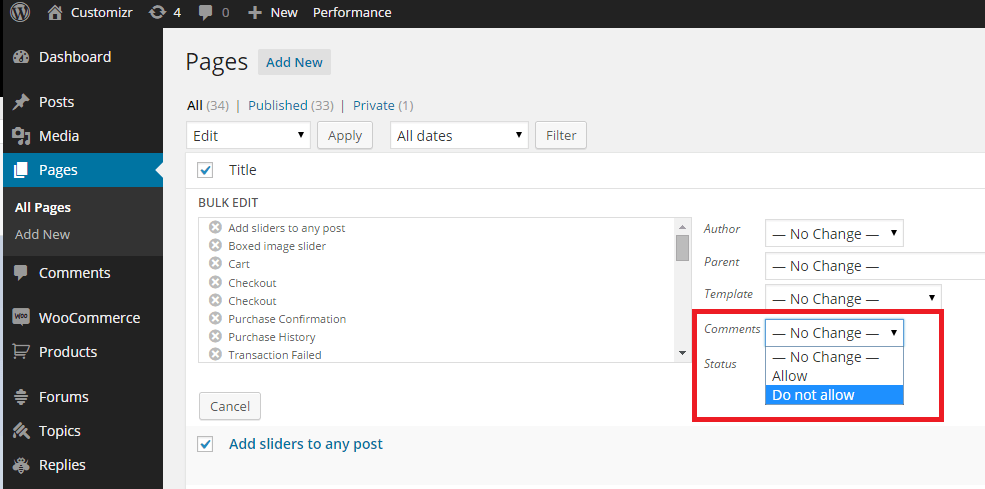
Inside the Discussion box, check Allow comments. Update or publish the page to save changes. Visitors can now leave comments on this page.
Customize Comment Settings
Customizing comment settings lets you control how users interact on your WordPress page. You can decide who can comment and how comments appear. This helps keep your site clean and friendly for visitors. Adjusting these settings also improves your site’s security and user engagement.
Moderation And Notification Options
WordPress lets you review comments before they appear. This stops spam or harmful content from showing up. You can hold comments for approval or allow trusted users to post freely. Notifications alert you when someone leaves a comment. This way, you can respond quickly and keep the conversation active.
Spam Protection Techniques
Spam comments harm your site’s reputation and waste time. Use built-in tools like Akismet to filter spam automatically. Enable CAPTCHA to stop bots from posting. Limit comment links and block certain words to reduce spam. These methods keep your comment section clean and safe for real users.
Add Comment Section Using Plugins
Adding a comment section to your WordPress page can boost user interaction and feedback. Plugins offer an easy way to include comment features without coding. They bring extra options like spam protection and social media integration.
Using plugins saves time and ensures a smooth experience for visitors. You can choose from many plugins to fit your site’s needs. Let’s explore some popular options and how to install them.
Popular Comment Plugins
Several plugins stand out for adding comment sections. Disqus is widely used and offers a clean interface. It supports threaded comments and social login. Jetpack Comments integrates with WordPress and adds extra features like email notifications. WPDiscuz is another popular choice with real-time comment updates and easy customization.
Each plugin works differently, so pick one that fits your style. Some focus on simplicity, others on advanced tools. Check plugin ratings and reviews for guidance.
Installing And Configuring Plugins
Start by logging into your WordPress dashboard. Go to Plugins > Add New. Use the search box to find your chosen comment plugin. Click Install Now and then Activate.
After activation, visit the plugin’s settings page. Adjust options like comment approval, notifications, and style. Save changes and test the comment section on your page. Make sure it works well on desktop and mobile devices.
Credit: www.tutorialspoint.com
Design And Layout Tips For Comment Sections
Design and layout play a big role in the success of comment sections. A clean, clear design invites readers to join the conversation. It helps users find the comment box quickly and makes reading easier. Simple layouts reduce confusion and keep visitors focused.
Improving User Experience
Place the comment section where visitors expect it, usually below the main content. Use clear labels like “Leave a Comment” or “Join the Discussion” to guide users. Show comments in a neat, organized list. Use enough spacing between comments for easy reading. Highlight new or popular comments to draw attention. Avoid clutter and too many buttons that distract readers.
Mobile-friendly Comment Forms
Make sure comment forms work well on phones and tablets. Use large text fields and buttons that are easy to tap. Keep the form short, asking only for needed information like name and comment. Avoid complex captchas that frustrate mobile users. Test your comment section on different devices to ensure smooth use. A mobile-friendly design keeps users engaged and encourages more comments.
Encourage Engagement Through Comments
Comments on your WordPress page create a space for visitors to share thoughts. This boosts interaction and builds a community. Engaged visitors are more likely to return and explore your content further.
Prompting Visitors To Comment
Ask clear questions at the end of your posts. Invite opinions or personal experiences related to the topic. Use simple language that encourages easy responses. A friendly tone makes visitors feel welcome to share.
Place comment prompts near the comment box. This guides visitors to participate without searching. Short prompts work best. For example, “What do you think about this idea?” or “Share your story below.”
Responding To Comments Effectively
Reply to comments quickly to show you value visitor input. Keep responses polite and thoughtful. Acknowledge different opinions respectfully. This encourages more visitors to join the conversation.
Use names to personalize your replies. Thank commenters for their time and ideas. Address questions with clear answers. Avoid long or complicated responses to keep the conversation flowing.

Credit: wordpress.org
Troubleshooting Common Comment Issues
Comments add life to your WordPress pages. They let visitors share thoughts and start conversations. Sometimes, comment features may not work right. This section helps fix common problems fast.
Comments Not Showing Up
Check if comments are enabled on your page. Go to the WordPress editor and find the discussion settings. Make sure the “Allow comments” box is checked.
Clear your site cache. Cached pages may show old versions without new comments. Also, deactivate plugins one by one. Some plugins can block comments.
Review your theme files. A missing or broken comments template can stop comments from showing. Switch to a default theme to test if the theme is the issue.
Dealing With Spam Comments
Spam can fill your comment section quickly. Use built-in WordPress tools like Akismet to filter spam automatically. Set up CAPTCHA to stop bots from posting.
Moderate comments before they appear. This prevents unwanted messages from showing publicly. Delete spam comments regularly to keep your site clean.
Limit links in comments. Spammers often add many links. Adjust your settings to hold comments with too many links for review.
Credit: docs.presscustomizr.com
Frequently Asked Questions
How Do I Enable Comments On A WordPress Page?
To enable comments on a WordPress page, go to the page editor. Locate the “Discussion” box and check “Allow comments. ” If you don’t see it, enable it in the “Screen Options” tab at the top. Save or update the page to apply changes.
Can I Add Comment Sections To Static WordPress Pages?
Yes, you can add comment sections to static WordPress pages. By default, WordPress disables comments on pages, but you can enable them individually in the page settings or use plugins to manage comments site-wide on pages.
Which Plugin Is Best For Managing WordPress Page Comments?
Popular plugins like “WPDiscuz” and “Disqus” enhance WordPress page comments. They offer better moderation, spam control, and user engagement features. Choose a plugin that fits your needs and install it via the WordPress dashboard for improved comment management.
How To Customize Comment Form On A WordPress Page?
To customize the comment form, use theme settings or plugins like “Comment Form Customizer. ” You can change fields, labels, and styles. Customizing improves user experience and matches your site’s design. Always test changes before publishing.
Conclusion
Adding comments to your WordPress page helps visitors share their thoughts. It creates a space for conversation and feedback. You can easily turn comments on or off anytime. This keeps your page active and interesting. Remember to check your settings regularly for the best results.
Engaging with your audience can build trust and community. Keep your site welcoming and easy to use. Comments make your WordPress page more lively and interactive. Try it today and see how it changes your site.



