

Are you looking to add custom code to your WordPress header but don’t know where to start? You’re not alone.
Whether it’s for tracking scripts, custom styles, or verification codes, adding code to your header can boost your site’s performance and functionality. But it can feel tricky if you’re not a developer. Don’t worry—you can do this yourself, step by step.
Keep reading, and you’ll learn simple, clear methods to add code safely and effectively to your WordPress header. This will help you get the results you want without breaking your site.
Why Add Code To WordPress Header
Adding code to your WordPress header allows you to control important elements of your website. The header is a key part of your site that loads on every page. It helps you place scripts, styles, and other code that affect the whole site. This makes it a great spot for code that needs to run everywhere.
Code in the header can improve your site’s performance and tracking. It lets you customize how your site works. This small change can have a big impact on your site’s function and appearance.
Benefits Of Custom Code
Custom code in the header can boost your website’s speed. It helps load essential scripts early. This can make your site feel faster to visitors.
It also allows better control over SEO settings. You can add meta tags or verification codes. These codes help search engines understand your site.
Tracking visitor data becomes easier too. Adding analytics scripts in the header gives quick data collection. This helps improve marketing and site design.
Common Use Cases
Many add Google Analytics or Facebook Pixel codes to the header. These tools track visitor behavior and ad performance.
Custom fonts or stylesheets often go in the header. This changes the look and feel of your site easily.
Verification codes for search engines like Google Search Console are placed here. They confirm site ownership quickly.
Scripts for chatbots or popup tools also load in the header. These improve user interaction and support.
Credit: wordpress.org
Backup Your Website First
Before adding any code to your WordPress header, backing up your website is crucial. A backup saves your site’s data and settings. It protects your content from loss or damage during code changes. Taking this step helps avoid trouble if the new code causes errors.
Importance Of Backups
Backups keep your website safe from mistakes. If a code snippet breaks your site, you can restore it quickly. Without a backup, fixing problems takes more time and effort. Backups also help recover from hacking or server failures. They give peace of mind when making changes.
Simple Backup Methods
Many tools make backups easy. Use a WordPress plugin like UpdraftPlus or BackWPup to save your files and database. These plugins let you schedule automatic backups. Another method is to back up manually via your hosting control panel. Download your website files and export the database regularly. Store backups in a safe place, like cloud storage or your computer.
Using Theme Editor Safely
Editing your WordPress header through the Theme Editor can be quick and useful. It lets you add code like scripts or meta tags directly into your site’s header. Doing this safely keeps your site working well and avoids errors.
Always back up your site before making changes. A small mistake in code can break your site. With care, the Theme Editor helps you customize your header easily.
Accessing Theme Editor
Log in to your WordPress dashboard. On the left menu, find and click “Appearance.” Then select “Theme Editor.” You may see a warning about editing files. Read it carefully and proceed only if you understand the risks.
Locating Header.php File
In the Theme Editor, look at the list of theme files on the right side. Find the file named header.php. This file controls the content inside your site’s header. Click on it to open the file in the editor.
Inserting Code Correctly
Place your code just before the closing tag. This ensures it loads in the header area. Avoid adding code inside other tags or breaking existing code. After inserting, click “Update File” to save changes.
Check your website quickly to see if it works well. If something breaks, restore your backup or remove the added code.
Adding Code With A Plugin
Testing and troubleshooting are key steps after adding code to your WordPress header. They ensure the code works right and does not break your site. You can catch errors early and fix them fast. This keeps your site safe and running smoothly.
Verifying Code Placement
First, check if the code is in the correct place in your header file. Open the header.php file or use a plugin to add code. Make sure the code is inside the section. Wrong placement can stop the code from working or cause display issues.
Use your browser’s view source option to see the live code. Look for your added code snippet in the page’s head area. If it is missing, recheck your steps. Confirm you saved the changes and cleared cache if needed.
Fixing Common Errors
Common issues include missing tags, typos, or broken syntax. These errors can cause your site to load incorrectly or break features. Use an online HTML validator to check your code’s correctness. It highlights missing brackets or wrong tags.
If your site shows a blank page or error, remove the added code. Add it back slowly, piece by piece, to find the problem. Backup your site before editing. This avoids data loss during troubleshooting.
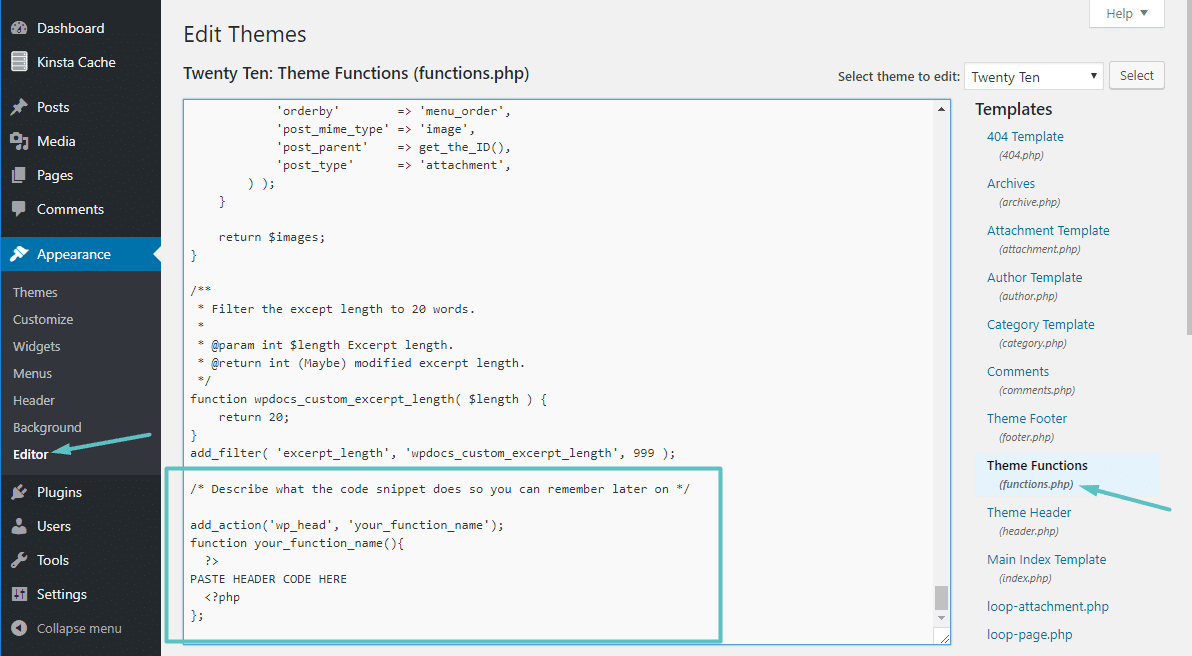
Using Functions.php For Code Insertion
Adding code to your WordPress header can improve your site’s function. Follow best practices to keep your site safe and fast. Proper header code helps your website load quickly and run smoothly.
Keep Code Minimal
Only add code that is necessary for your website. Extra code can slow down your site. Keep scripts and styles light to avoid delays. Minimal code reduces the chance of errors and conflicts.
Use Child Themes
Edit header files through a child theme. This protects your changes from being lost during updates. Child themes let you customize safely without affecting the main theme. They keep your site stable and easy to update.
Regularly Update And Review
Check your header code often for outdated scripts. Remove or update old code to keep your site secure. Regular reviews help avoid bugs and improve speed. Staying current reduces risks and keeps your site healthy.

Credit: cyberchimps.com
Credit: kinsta.com
Frequently Asked Questions
How Do I Add Custom Code To WordPress Header?
You can add custom code via the theme’s header. php file or by using a plugin like “Insert Headers and Footers. ” Editing header. php requires caution to avoid errors.
Can I Add Javascript To The WordPress Header Safely?
Yes, JavaScript can be added safely using a child theme or a plugin. Avoid directly editing core files to prevent issues during updates.
What Is The Easiest Way To Insert Header Code In WordPress?
The easiest way is using a plugin like “Insert Headers and Footers. ” It allows you to add code without editing theme files directly.
Will Adding Code To Header Affect My Website Speed?
Adding excessive or poorly optimized code can slow your site. Use minimal, clean code and test performance after adding header scripts.
Conclusion
Adding code to your WordPress header is simple and useful. It helps you add features like tracking or custom styles quickly. Always back up your site before making changes. Use a child theme or plugins to keep your site safe.
Check your site after adding code to avoid errors. Small steps can improve your site’s function and look. Keep practicing, and soon adding code will feel easy and natural.



