
Are you struggling to add code to your WordPress header? Whether it’s for tracking tools, custom scripts, or verification codes, placing code in the right spot can feel tricky.
But don’t worry—this guide will make it simple and clear. By the end, you’ll know exactly how to add code to your WordPress header without breaking your site or hiring a developer. Keep reading, and take control of your website’s customization like a pro.
Why Add Code To Header
Adding code to the header section of your WordPress site can improve its functionality. The header is part of every page. This makes it a perfect spot for important scripts. These scripts run before the page fully loads. They help your site work better and track visitors.
Benefits For Seo And Analytics
Code in the header can boost your site’s SEO. Search engines read this code first. Proper scripts help search engines understand your site better. This can improve your ranking on search results. Tracking codes also go here. They collect data about your visitors. This data shows how people find and use your site.
Common Use Cases
Many tools require header code. Google Analytics code tracks visitor behavior. Facebook Pixel helps with ads and retargeting. Verification codes prove site ownership to search engines. Custom CSS or JavaScript can change site design or add features. Adding these codes in the header ensures they work on every page.
Methods To Insert Code
Adding code to the header of your WordPress site can improve its function and design. This process needs care to keep your site safe and working well. There are several ways to insert code into your header. Each method suits different users and needs.
Choose the right method based on your comfort with coding and the type of code you want to add. Below are three common methods to add code to the header in WordPress.
Using Theme Editor
The Theme Editor lets you edit your theme files directly from WordPress. You can add code to the header.php file here. Open the Theme Editor in your WordPress dashboard under Appearance.
Find the header.php file on the right side and click it. Place your code inside the section. Save changes carefully. This method works well for small edits but can break your site if done wrong.
Through Functions.php File
The functions.php file controls your theme’s functions. You can add code snippets to this file to insert code into the header. Access functions.php through the Theme Editor or an FTP client.
Use WordPress hooks like wp_head to add code safely. This keeps your code organized and prevents errors. Always backup your site before changing this file.
With Plugins
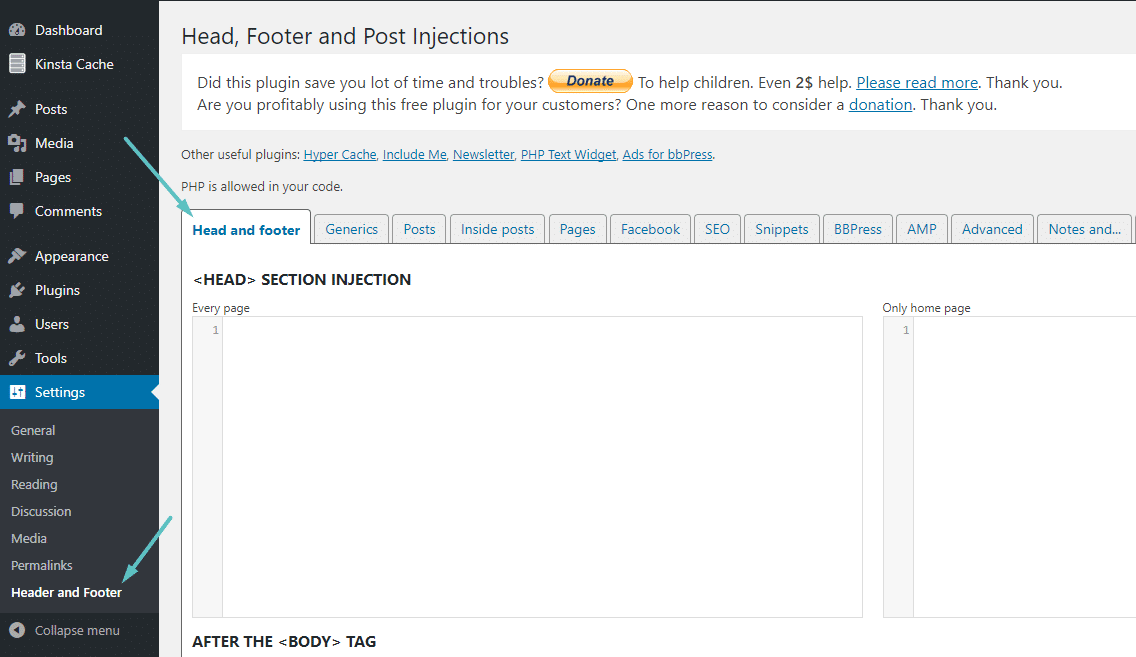
Plugins offer a simple way to add code without touching theme files. Plugins like “Insert Headers and Footers” allow you to paste code into your header easily.
This method is safe and beginner-friendly. It keeps your code even if you change themes. Plugins also help manage different types of code like scripts or meta tags.
Adding Code Via Theme Editor
Adding code to your WordPress header can improve site features and tracking. Using the Theme Editor is a direct way to do this. It allows you to place code right inside your theme files. This method gives full control over where the code goes. It is important to be careful to avoid errors that could break your site.
Accessing Theme Editor
Start by logging into your WordPress dashboard. Find the “Appearance” menu on the left side. Click on “Theme Editor” from the dropdown. You may see a warning about editing theme files. Read it carefully. Proceed only if you understand the risks.
Locating Header File
In the Theme Editor, look for the list of theme files on the right. Find the file named “header.php”. This file controls the code in your site’s header section. Click on “header.php” to open it. You will see the code that runs in your header.
Inserting Code Safely
Place your code just before the closing tag. This spot ensures your code loads correctly. Avoid placing code in the wrong area to stop errors. Save your changes by clicking “Update File”. Check your site after saving. If the site breaks, remove the code using FTP or hosting file manager.
Credit: kinsta.com
Using Functions.php To Add Code
Adding code to your WordPress header can enhance your site’s functionality. Using the functions.php file is a clean way to do this. It helps you insert custom code without editing the theme’s core files. This method keeps your site organized and makes updates easier.
Editing functions.php lets you run PHP code at the right time. This can include scripts, styles, or meta tags. You control exactly where and how the code appears in the header section.
Finding Functions.php
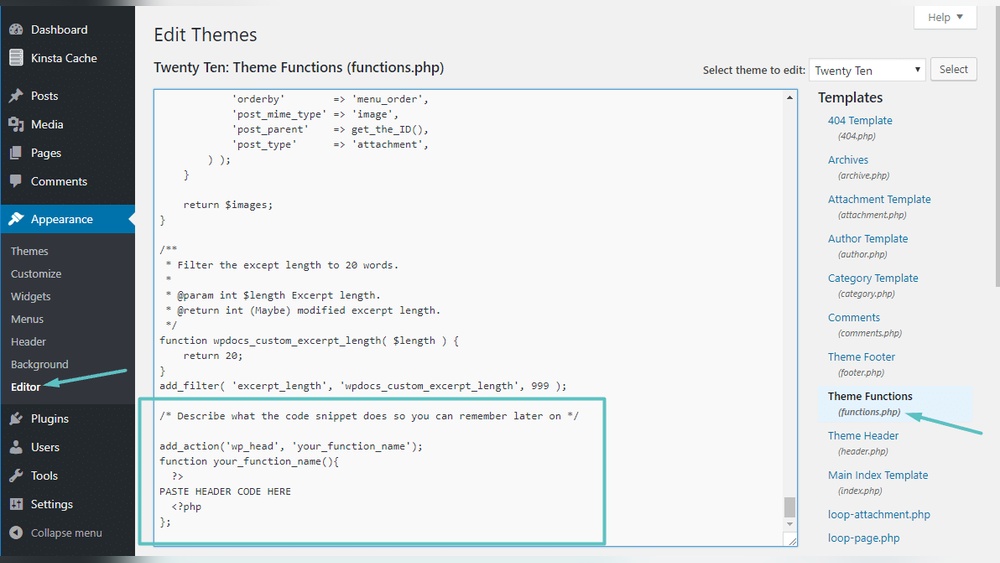
Access your WordPress dashboard first. Go to Appearance > Theme Editor. Find functions.php on the right sidebar. It might be called Theme Functions. Click to open it.
Alternatively, use an FTP client or file manager. Look inside your active theme folder. The file is usually named functions.php. Always back up before editing.
Writing Hook Functions
Use WordPress hooks to insert code safely. The wp_head action hook runs code inside the header. Write a simple PHP function that outputs your code.
Example:
function custom_header_code() { echo ' Your code here '; } add_action('wp_head', 'custom_header_code'); Replace Your code here with your actual code. This method keeps your code separated from the theme’s default files.
Testing Your Changes
After editing functions.php, save the file. Clear your site and browser cache. Visit your website’s front end.
View the page source (right-click > View page source). Check if your code appears inside the
section.Look for errors or broken layout. If errors occur, restore the backup or fix the code quickly. Proper testing avoids site downtime.
Top Plugins For Header Code
Adding code to the header of your WordPress site can improve functionality and track visitor behavior. Plugins make this task simple. They offer easy ways to insert scripts without editing theme files directly. This keeps your site safe during updates and helps manage code snippets efficiently.
Choosing the right plugin matters. It should be easy to use and reliable. The best plugins support different types of code, like JavaScript and CSS. They also provide options to control where and when the code runs. This control helps keep your site fast and error-free.
Features To Look For
Search for plugins with a clear interface and simple setup. It should allow you to add code to the header, footer, or body sections. Look for safety features like code validation to avoid errors. Support for multiple sites is helpful for managing more than one WordPress installation. Check if the plugin offers scheduling or conditional display options. These features let you control when the code appears on your site.
Popular Plugin Options
Insert Headers and Footers is a widely used free plugin. It is easy to install and works well for most users. Header Footer Code Manager offers more advanced controls. It lets you set code visibility by page or user role. Another good choice is WPCode – Insert Headers and Footers. It supports many code types and has a clean interface. These plugins have good ratings and regular updates.
Step-by-step Plugin Setup
First, go to your WordPress dashboard and click Plugins. Then click Add New and search for your chosen plugin. Click Install Now, then Activate the plugin. Next, find the plugin’s settings page, often under Settings or Tools. Paste your code into the header section box. Save your changes. Finally, visit your site and check if the code works as expected.

Credit: www.webnots.com
Best Practices And Tips
Adding code to the header of your WordPress site needs care. Follow best practices to avoid issues. Small mistakes can break your site or slow it down. This section shares tips to keep your site safe and fast.
Backup Before Changes
Create a full backup of your website before adding any code. This step protects your work if errors occur. Use plugins or your hosting control panel for backups. Always save a copy of your original header file too. Restoring is simple with a good backup.
Avoiding Code Conflicts
Check your new code for conflicts with existing scripts. Conflicts can cause errors or stop features from working. Test your code on a staging site first. Use clean, simple code that matches WordPress standards. Avoid duplicate scripts or styles that slow your site.
Performance Considerations
Keep code light and efficient to maintain fast loading times. Avoid large scripts or too many tracking codes in the header. Place heavy scripts in the footer when possible. Use asynchronous loading for third-party scripts. Fast sites improve user experience and SEO ranking.
Credit: wordpress.org
Frequently Asked Questions
How Do I Add Code To WordPress Header Safely?
To add code safely, use a child theme or a plugin like “Insert Headers and Footers. ” Avoid editing core files directly to prevent issues during updates.
Can I Add Google Analytics Code To WordPress Header?
Yes, you can add Google Analytics code by inserting it into the header section using a plugin or by editing the header. php file in a child theme.
Is There A Plugin For Adding Header Code In WordPress?
Yes, plugins like “Insert Headers and Footers” or “Header and Footer Scripts” allow easy, code-free header customization without editing theme files.
Will Adding Code To Header Slow Down My WordPress Site?
Adding small scripts usually won’t affect speed, but large or multiple scripts can slow loading. Always optimize and test your site performance.
Conclusion
Adding code to your WordPress header is simple and quick. You can do it safely using plugins or editing theme files. Always back up your site before making changes. This helps prevent problems if something goes wrong. Remember to test your website after adding code to check everything works well.
By following these steps, you keep your site running smoothly and add new features easily. Keep practicing, and soon it will feel natural.



