
Are you looking to customize your WordPress theme to better fit your brand or functionality needs? Adding code to your WordPress theme can seem daunting at first, but it’s a powerful way to make your website truly your own.
Whether it’s tweaking the design, adding new features, or improving performance, a little coding can go a long way. Imagine having complete control over how your site looks and functions, without being limited to the standard options. This is your chance to unleash your creativity and make your site stand out from the crowd.
By the end of this guide, you’ll feel confident in making these custom changes. Stay with us as we break down the process into simple, actionable steps. Let’s dive in and unlock the full potential of your WordPress theme!

Credit: qodeinteractive.com
Choosing The Right Theme
Choosing a WordPress theme is important. It affects your site’s look and feel. Think about your site’s purpose first. A business site needs a professional theme. Blogs might need something simpler. Always check if the theme is responsive. This means it looks good on all devices. Make sure it’s fast. Slow themes can drive visitors away. Look at the support and updates the theme offers. Regular updates keep your site secure. Check if the theme is customizable. You might want to change colors or fonts. Lastly, read reviews. Other users’ experiences can help you decide.
A parent theme is the main theme. It contains all the design and code. A child theme is an add-on. It lets you change the parent theme without losing updates. Use a child theme for custom changes. This way, updates don’t erase your work. Setting up a child theme is easy. It helps keep your changes safe. Always start with a parent theme. Then make a child theme for edits. This keeps your site up-to-date and secure.
Credit: kinsta.com
Setting Up A Child Theme
First, create a child theme directory. This keeps changes separate. Use FTP or your hosting panel. Make a new folder in wp-content/themes. Name it wisely. Use something like yourthemename-child. This helps in identifying.
Next, add a stylesheet to your child theme. Create a file named style.css in the new folder. This file holds your theme’s styles. Copy the header from the parent theme’s stylesheet. Paste it into your child theme’s stylesheet. Add your custom styles here.
Finally, enqueue parent theme styles. Open the functions.php file. Write a function to load the parent theme’s stylesheet. Use wp_enqueue_style() for this. Make sure it runs after your child theme’s stylesheet. This ensures proper styling.
Adding Custom Code
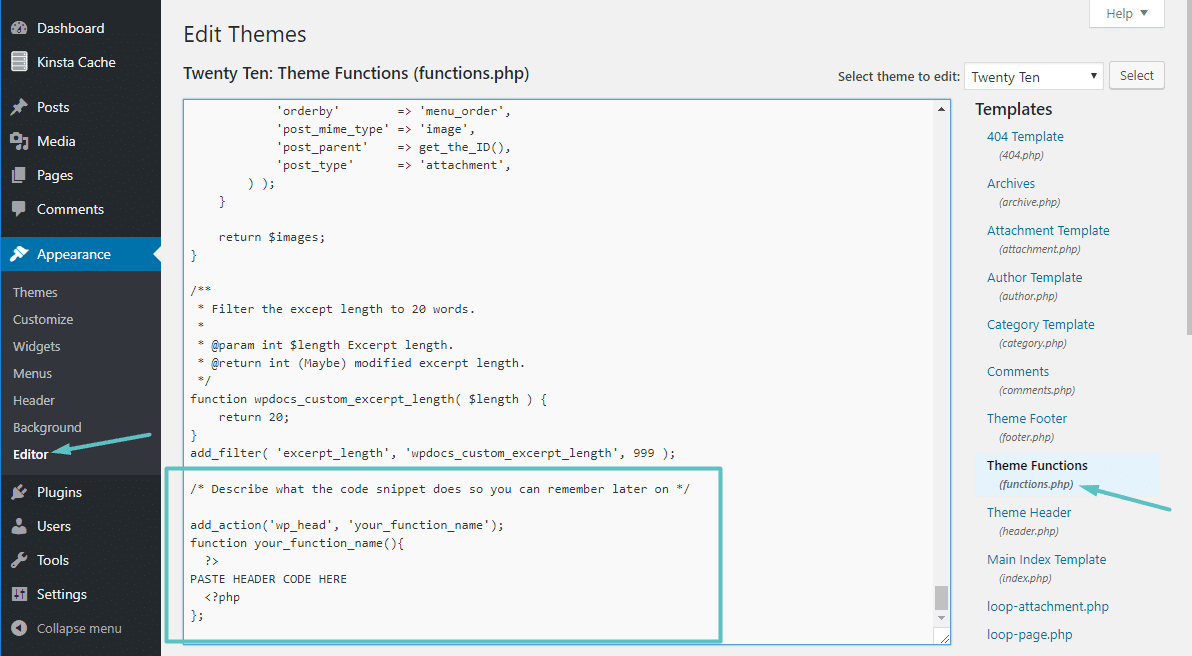
Open your WordPress dashboard. Find the “Appearance” option on the left. Click on “Theme Editor”. This will show your theme files. Locate the file where you want to add code. Be careful. Changes affect your website. Use a child theme for safety. Edit the code with care. Save changes once done.
Access the “Customizer” from the “Appearance” menu. Look for the “Additional CSS” option. Click it to open the CSS editor. Add your CSS code in the box. Preview changes live on the right. Make sure everything looks good. Click “Publish” to save your changes. Always test on different devices.
Go to the “Theme Editor” again. Find the “functions.php” file. This is where you add functions. Add your code at the end of the file. Be cautious. A small error can break your site. Always back up your file before changes. Save your work once complete. Check your site for any errors.
Incorporating Custom Templates
To create a custom page, start by making a new file. Name the file with a unique title. Ensure it ends with .php. Open your text editor and add PHP tags at the top. Inside, write a comment like this: php / Template Name: My Custom Template / ?. This comment tells WordPress about the template. Save the file and upload it to your theme’s folder. Go to your WordPress dashboard. Create a new page. Choose your custom template from the dropdown. That’s it! You now have a special page.
Template tags help in showing content. Use the php the_title(); ? tag to show the page title. To display the content, use php the_content(); ?. Need the author’s name? Use php the_author(); ?. These tags fetch data from your site. Place them inside the PHP tags in your template. Always check your page after adding tags. Make sure it looks right. These tags make your page dynamic and lively.
Utilizing Plugins For Code Addition
Adding code to a WordPress theme becomes straightforward with plugins. These tools offer a safe way to modify themes without altering core files. Plugins simplify the process, ensuring your changes remain intact during updates.
Overview Of Code Snippets Plugin
The Code Snippets Plugin lets users add code easily. No need to touch theme files directly. Users can avoid mistakes that break sites. The plugin provides a safe environment. You can add custom code without fear. A simple interface guides you through the process. It supports HTML, JavaScript, CSS, and PHP. Save, activate, and manage snippets with ease. Users can disable code snippets anytime. This ensures site stability.
Advantages Of Plugin Use
Using plugins reduces risks. No need to alter core theme files. This keeps the website safe. Plugin updates are frequent. They fix bugs and improve features. Users get support from plugin creators. Adding code becomes simple. Beginners find it easy. Experts save time. Code can be tested safely. Errors don’t affect the whole site. Plugins offer flexibility and control. Users can focus on creativity.
Testing And Debugging
Adding code to a WordPress theme involves careful testing and debugging. Ensure your changes don’t break the site. Use tools like error logs and browser developer tools to identify and fix issues quickly.
Previewing Changes Safely
Testing changes before making them live is crucial. Use a staging site for safe previews. This is like a practice area. You can see how changes look without affecting your real site. Remember, never test on the live site. It keeps your main site safe from errors.
Common Debugging Techniques
Debugging helps find and fix code errors. Use error logs to track problems. They show what went wrong. Check your browser console too. It can give hints about issues. Make small changes one at a time. This way, it’s easier to find what causes a problem. Always back up your site before testing. It keeps your work safe.
Best Practices For Code Management
Keep your code clean and organized. Use clear names for files and functions. This helps others understand your work. Follow a consistent style. It makes code look neat. Avoid repeating code. Use functions or shortcodes instead. This saves time and reduces errors.
Use version control like Git. It tracks changes and helps fix mistakes. Always save a backup before making changes. This prevents data loss. Store backups in a safe place. Cloud storage is a good option. Regular backups keep your work safe.
Credit: www.hostinger.com
Frequently Asked Questions
How Do I Safely Add Code To A Theme?
To safely add code, use a child theme. This prevents losing changes during updates. Create a child theme, and modify its functions. php or style. css files. Backup your site before making changes to avoid errors. For complex additions, consider using a plugin for added safety.
Can I Edit WordPress Theme Code Directly?
Editing theme code directly is risky. It can lead to loss of changes during updates. Instead, use a child theme to modify code safely. Alternatively, consider using plugins to add specific functionalities without altering theme files. Always backup your site before making any code changes.
What Tools Help Add Code To Themes?
Several tools can assist with adding code to WordPress themes. Code editors like Atom or Sublime Text offer syntax highlighting and error detection. FTP clients like FileZilla allow easy file uploads. WordPress plugins like Code Snippets provide a user-friendly interface for adding code safely.
Is Using A Child Theme Necessary?
Using a child theme is recommended for adding code to WordPress themes. It ensures your changes remain intact during theme updates. Without a child theme, modifications can be lost. It’s a safer method, allowing customization without directly altering the parent theme files.
Conclusion
Adding code to a WordPress theme can seem tough. Break the task into small steps. Always back up your site before starting. This helps avoid losing important data. Follow coding best practices to ensure smooth functionality. Test changes on a local server first.
This prevents errors on the live site. Keep your code organized for easy edits later. Use comments to explain complex code sections. This aids understanding and future updates. With patience, you can customize your theme effectively. Enjoy the new features and enhanced design on your WordPress site.


