
Are you looking to add custom code to your WordPress site but don’t know where to start? You’re not alone.
Adding code can seem tricky, but it doesn’t have to be. Whether you want to enhance your site’s functionality, improve design, or add new features, knowing how to safely and correctly insert code is key. You’ll discover simple, step-by-step methods to add code on WordPress without breaking your site.
Stick with me, and by the end, you’ll feel confident making these changes yourself. Ready to unlock your site’s full potential? Let’s dive in.
Credit: wpcode.com
Choosing The Right Method
Choosing the right method to add code on WordPress depends on your needs. Some methods are simple and safe. Others give more control but need care. Pick the method that fits your skill and goals. This helps keep your site safe and working well.
Using Plugins
Plugins are the easiest way to add code. They let you insert code without touching files. Many plugins offer options for JavaScript, HTML, or CSS. This method is good for beginners. It keeps your code organized and easy to manage.
Editing Theme Files
Editing theme files lets you add code directly to your site. This method gives full control over where the code goes. It needs some knowledge of PHP and WordPress structure. Be careful. A small mistake can break your site. Always back up files before editing.
Custom Css Options
Custom CSS lets you change your site’s look with code. Many themes and WordPress itself have a place to add custom CSS. This method is safe and easy. It affects only styles, not the site’s function. Use it to tweak colors, fonts, and layouts.
Adding Code With Plugins
Adding code to WordPress can improve your site’s features and design. Plugins make this process easier and safer. They let you insert code snippets without editing theme files directly. This keeps your site stable and prevents errors.
Popular Code Snippet Plugins
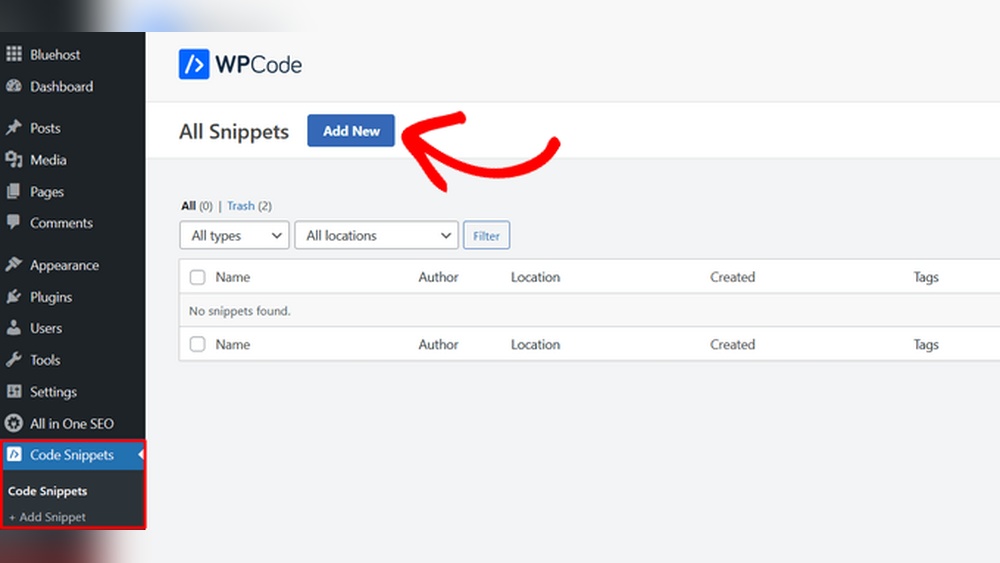
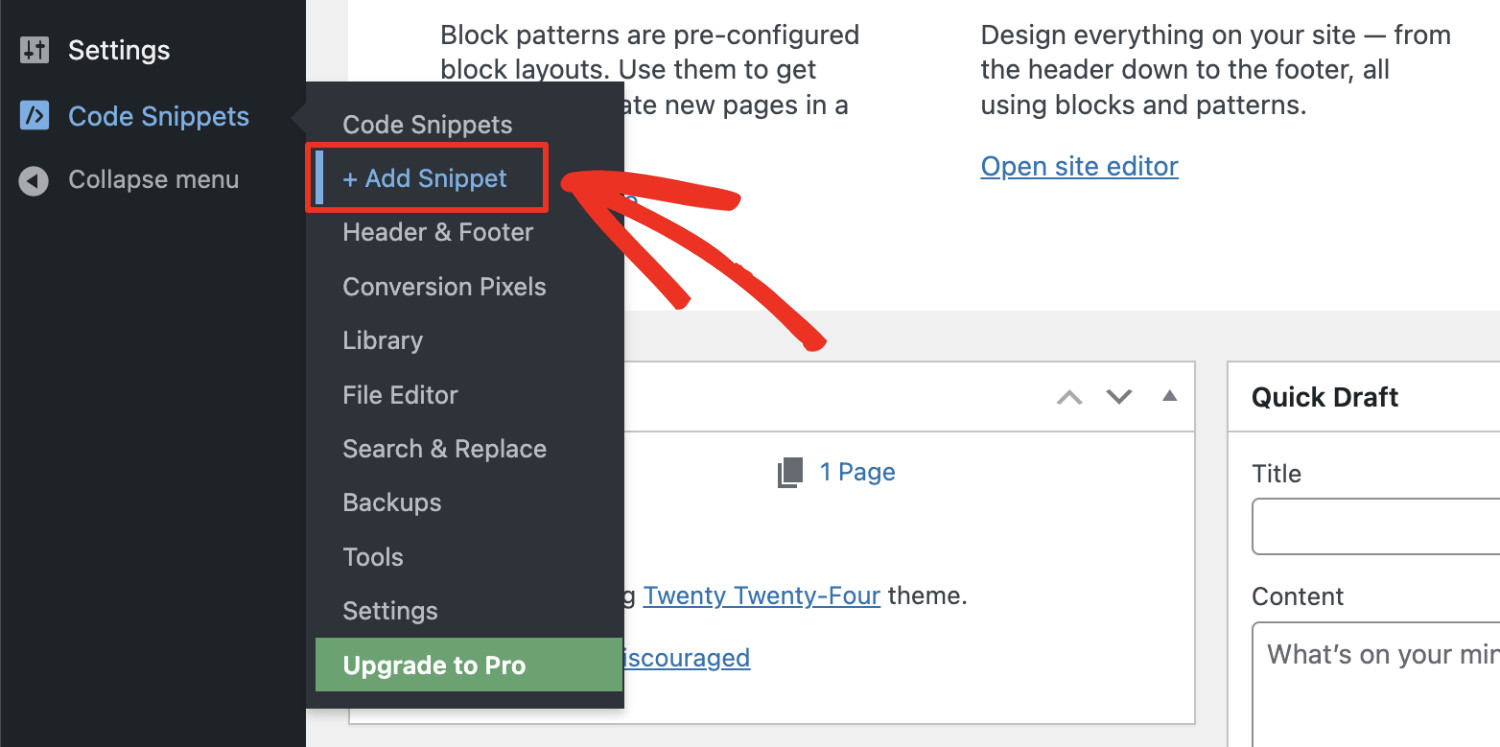
Several plugins help you add code snippets simply. “Code Snippets” is a top choice for many users. It offers a clean interface to manage snippets. Another option is “WPCode – Insert Headers and Footers.” It lets you add code in specific areas like the header or footer. These plugins support PHP, JavaScript, and CSS snippets. Choose one that fits your needs and has good reviews.
Installing And Activating Plugins
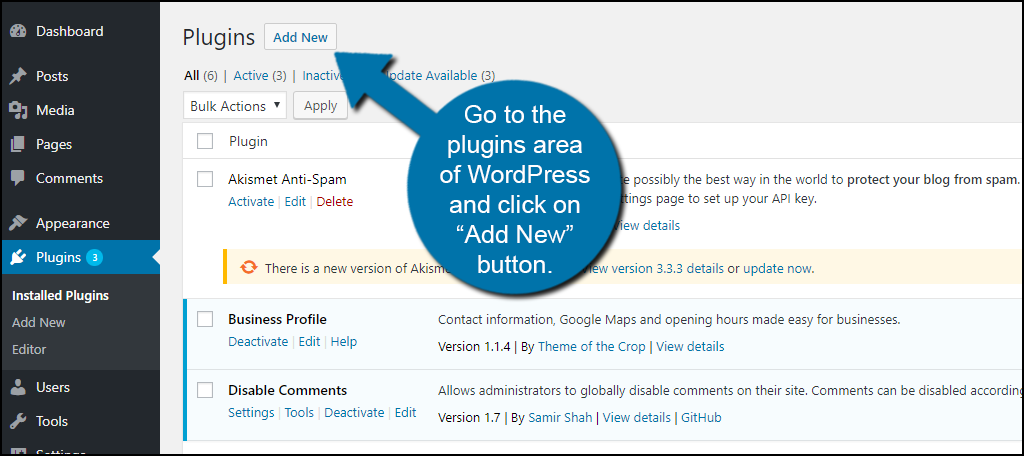
To install a plugin, go to your WordPress dashboard. Click “Plugins” and then “Add New.” Use the search bar to find the plugin by name. Click “Install Now” on your chosen plugin. After installation, activate it by clicking the “Activate” button. The plugin will now appear in your dashboard menu. This process takes only a few minutes.
Inserting Code Snippets Safely
Always add code snippets carefully to avoid site issues. Open the plugin’s interface in your dashboard. Click “Add New Snippet” or a similar option. Paste your code in the provided box. Give the snippet a clear name to identify it later. Select the right location for your code to run. Save and activate the snippet. Test your site to confirm it works well. Disable or delete any snippet causing problems immediately.
Editing Theme Files Directly
Editing theme files directly in WordPress allows you to change how your site looks and works. You can add custom code to improve functionality or design. This method is quick but must be done carefully. Small mistakes can break your site. Always backup your site before making changes.
Accessing Theme Editor
Log in to your WordPress dashboard. Go to Appearance and select Theme Editor. You will see a list of theme files on the right side. Choose the file you want to edit. The editor shows the code inside the selected file. Make sure you understand what you are editing.
Adding Code To Functions.php
The functions.php file is where you add custom PHP code. It controls many theme features. Select functions.php from the Theme Editor. Add your code at the bottom of the file. Avoid removing existing code. Save changes carefully. This file runs every time your site loads.
Precautions When Editing Files
Always create a backup before editing. A small error can cause a white screen or errors. Use a child theme to keep changes safe during updates. Avoid editing live site files directly. Test code on a staging site first. Know how to access your site via FTP to fix errors.
Credit: www.greengeeks.com
Using The Customizer For Css
Using the Customizer for CSS is a simple way to change your WordPress site’s look. It lets you add custom styles without touching theme files. You can see changes live before saving them. This method is safe and easy for beginners.
Opening The Customizer
Go to your WordPress dashboard. Find the menu on the left. Click on “Appearance” then “Customize.” The Customizer panel will open on the left side. Your website preview appears on the right. This setup helps you see changes in real time.
Adding Custom Css
Inside the Customizer, find the “Additional CSS” section. Click it to open a text box. Write your CSS code here. For example, to change text color, type p { color: blue; }. The site preview updates as you type. This helps you check if the style looks right.
Previewing And Publishing Changes
Check the preview area carefully. Make sure your styles appear as you want. The live preview works without saving changes yet. When satisfied, click the “Publish” button at the top. Your custom CSS is now active on the site. You can always return to edit or remove the code.
Testing And Troubleshooting
Testing and troubleshooting are key after adding code to WordPress. They ensure the new code works well without breaking the site. Skipping this step can cause errors and poor user experience.
Testing checks if the code runs correctly. Troubleshooting fixes any issues found during testing. Both tasks keep your website safe and functional.
Checking For Errors
Start by refreshing your website to see if it loads properly. Look for visible errors or broken layouts. Check for error messages on the screen or in the browser console. Use simple tools like browser developer tools to spot problems. Clear your cache to see recent changes. Verify that the code does not slow down the site.
Using Debugging Tools
WordPress has built-in debugging features. Enable WP_DEBUG in the wp-config.php file to show errors. Plugins like Query Monitor help track errors and performance issues. Use browser developer tools to inspect HTML, CSS, and JavaScript. Debugging tools highlight syntax mistakes and conflicts. They save time by pointing directly to problems in the code.
Reverting Changes If Needed
Keep backups before adding new code. If problems appear, restore the backup to undo changes. Use version control if possible to track code edits. Reverting helps avoid long downtime and lost data. Test the site again after restoring to confirm it works. Always keep a safe copy of original files.

Credit: www.youtube.com
Best Practices For Code Management
Managing code on WordPress needs care. It helps keep your site safe and running well. Good code habits reduce errors and save time. Follow these best practices for smooth code handling.
Backing Up Your Site
Create regular backups before changing any code. Backups protect your site from mistakes or crashes. Use plugins or hosting tools to save copies easily. Store backups in a safe place outside your site.
Using Child Themes
Child themes keep your changes separate from the main theme. This way, updates to the main theme won’t erase your code. Always create and activate a child theme first. Place your custom code inside the child theme files.
Keeping Code Organized
Organize code by type and function for easy access. Use clear names for files and folders. Comment your code to explain what it does. Keep code snippets short and focused on one task. Clean code helps fix problems faster and avoid confusion.
Frequently Asked Questions
How Can I Add Custom Code To WordPress?
You can add custom code using the WordPress theme editor, a child theme, or plugins like Code Snippets. Always back up your site before editing code to avoid issues.
What Is The Safest Way To Add Code In WordPress?
The safest way is using a child theme or a code snippet plugin. This prevents losing changes during theme updates and keeps your site secure.
Can I Add Html, Css, And Javascript To WordPress?
Yes, WordPress allows adding HTML, CSS, and JavaScript via the block editor, customizer, or plugins. Make sure to test code for compatibility and performance.
Where Do I Add Php Code In WordPress?
Add PHP code to your child theme’s functions. php file or use a dedicated plugin. Avoid editing the parent theme directly to prevent loss after updates.
Conclusion
Adding code to WordPress can seem hard at first. Take small steps and follow the right method. Use the tools and tips shared here to keep your site safe. Test your changes carefully before going live. With practice, editing code becomes easier and faster.
Keep learning and improving your skills bit by bit. Your WordPress site will grow and work better this way. Simple actions lead to great results. Start now, and enjoy customizing your site the way you want.



