
Are you looking to organize your WordPress site better and make it easier for visitors to find what they need? Adding a category page can be a game-changer for your website’s navigation and user experience.
Imagine your readers quickly accessing all posts on a topic they care about, without endless searching. In this guide, you’ll learn exactly how to create and customize category pages in WordPress, step by step. By the end, you’ll have a clean, professional-looking site that keeps visitors engaged and coming back for more.
Ready to make your site smarter and more user-friendly? Let’s dive in.
Create Categories In WordPress
Creating categories in WordPress helps organize your content. Categories group similar posts together. This makes your site easier to navigate for visitors. It also improves SEO by structuring your content well. Follow the steps below to create and manage categories effectively.
Accessing The Categories Section
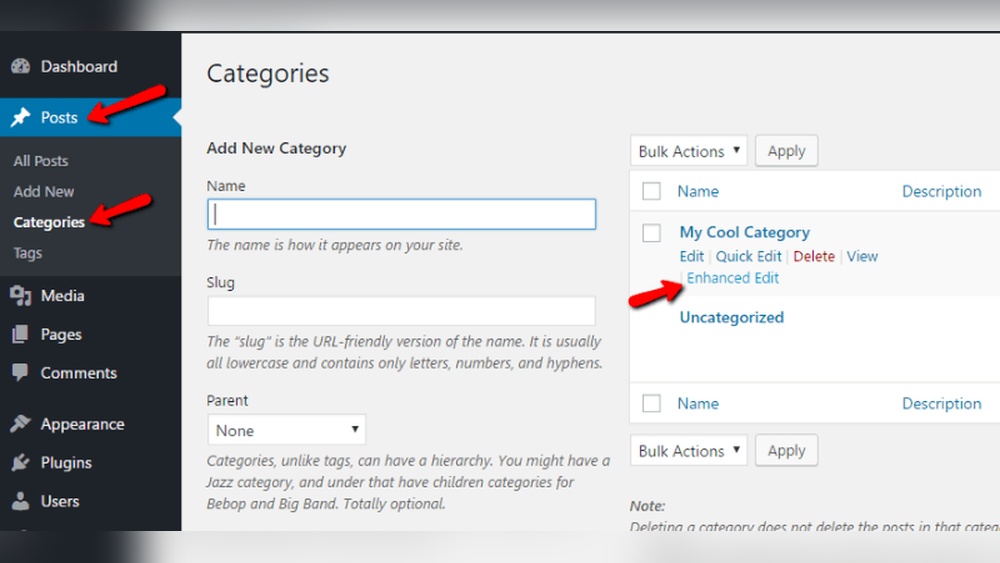
Log in to your WordPress dashboard first. On the left menu, find the “Posts” tab. Click on it to open a submenu. Select “Categories” from the list. This action takes you to the Categories page where you manage categories.
Adding New Categories
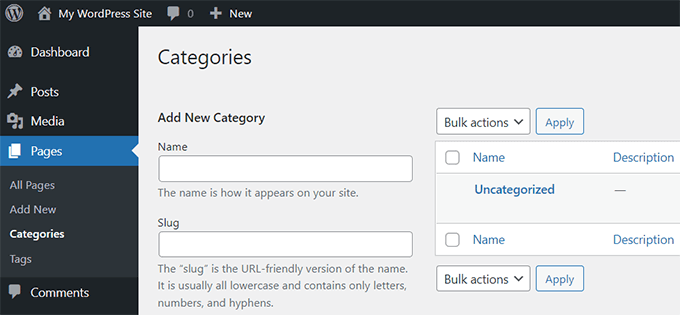
On the Categories page, find the “Add New Category” form. Enter the category name in the first box. You can also add a description if you want. Next, choose a parent category if needed. Click the “Add New Category” button to save it. The new category will appear on the right side list.
Managing Existing Categories
Existing categories appear on the right side of the page. Hover over a category name to see options like Edit, Quick Edit, Delete, and View. Use “Edit” to change the category details. “Quick Edit” lets you change the name and slug fast. Delete removes the category from your site. Be careful not to delete important categories.
Assign Posts To Categories
Assigning posts to categories helps organize your WordPress site. Categories group similar content. This makes it easier for visitors to find related posts. It also improves your site’s SEO by structuring content clearly. WordPress lets you assign categories while creating or editing posts. You can also assign many posts to categories at once.
Editing Posts For Category Assignment
Open the post you want to edit in WordPress. Look for the “Categories” box on the right side. Check the boxes next to the categories you want to assign. You can also create a new category here by clicking “Add New Category.” After choosing categories, save or update the post. The post now belongs to the selected categories. This helps visitors find it under those category pages.
Bulk Assigning Posts To Categories
Go to the Posts list in your WordPress dashboard. Select the posts you want to assign to a category by checking their boxes. From the “Bulk Actions” dropdown, choose “Edit” and click “Apply.” A new panel appears with options. Find the “Categories” section and check the categories you want to add. Click “Update” to save changes. All selected posts will now belong to those categories. This method saves time when managing many posts.
Display Category Pages
Displaying category pages in WordPress helps organize content clearly. These pages group posts under specific topics. Visitors find related articles easily. It improves site navigation and user experience.
WordPress offers built-in options to show category pages. You can use default pages or customize URLs for better clarity. Both ways keep your site neat and accessible.
Using Default Category Pages
WordPress creates category pages automatically. Each category gets a page showing all posts in it. No extra setup is needed to display these pages.
To see a category page, visit the URL with your site’s domain plus “/category/category-name.” For example, “example.com/category/news.” The page lists posts under “news.”
These default pages use your theme’s style. They match your site’s look and feel. You can change how posts appear by editing the theme’s template files.
Customizing Category Page Urls
Default URLs may not suit your needs. You can change category base slugs to make URLs simpler. This improves readability and search engine ranking.
Go to WordPress dashboard, then Settings > Permalinks. Find the “Category base” field. Replace it with a word you prefer or leave it blank for shorter URLs.
For example, changing “category” to “topics” makes URLs like “example.com/topics/news.” Custom URLs help users guess page content quickly.
Credit: pagely.com
Add Category Links To Menus
Adding category links to your WordPress menu helps visitors find content easily. It creates a clear path to different topics on your site. This improves user experience and keeps people exploring your pages longer. Let’s see how to add these links step by step.
Navigating To Menu Settings
First, log in to your WordPress dashboard. Look for the “Appearance” option on the left side. Click on “Menus” under it. This opens the menu editor where you control all navigation links. Choose the menu you want to edit or create a new one. This area lets you add, remove, and reorder items.
Inserting Category Links
On the left side of the menu editor, find the “Categories” box. Click on it to see all your categories listed. Select the categories you want to add by checking the boxes next to their names. Click the “Add to Menu” button. The selected categories now appear in your menu structure on the right.
Organizing Menu Structure
Drag and drop the category links to arrange them as you like. You can place them in any order or create dropdown menus. To make a dropdown, move a category slightly to the right below a main item. Save your menu after organizing. Your site visitors will see the updated menu with category links immediately.
Customize Category Page Layout
Customizing the category page layout helps make your website unique. It improves user experience by showing content clearly. This section guides you to change the look of your category pages easily.
Using WordPress Block Editor
The WordPress Block Editor lets you design pages with blocks. You can add text, images, and buttons quickly. For category pages, use blocks to arrange posts and content.
Create a new page and select the category to display. Drag and drop blocks to change how posts appear. Customize colors, fonts, and spacing without coding.
This method is simple and works well for beginners. It keeps your site fast and easy to update.
Applying Page Builder Plugins
Page builder plugins offer more design options. Popular tools include Elementor, Beaver Builder, and Divi. They provide drag-and-drop interfaces for easy layout creation.
With page builders, design custom category pages with grids, sliders, and filters. Adjust every detail like margins, backgrounds, and animations. No need to write code.
These plugins suit users who want more control over design. They help create professional-looking pages that attract visitors.
Optimize Category Pages For Seo
Optimizing category pages in WordPress helps search engines understand what your site offers. It also improves user experience. Well-optimized category pages can drive more visitors to your site. They help organize content clearly and make navigation easier.
Focus on key SEO elements like meta titles, descriptions, and content quality. These factors boost your category pages in search results. Keep your content relevant and simple. This helps both users and search engines.
Setting Category Meta Titles And Descriptions
Meta titles tell search engines the main topic of your category page. Use clear and concise titles. Include main keywords related to the category. Keep titles under 60 characters to avoid being cut off in results.
Meta descriptions provide a short summary for search listings. Write descriptions that explain the page content well. Use simple language and include important keywords. Limit descriptions to 150-160 characters for best display.
Improving Category Page Content
Category pages should have useful and relevant content. Add a short introduction at the top. Explain what visitors will find in this category.
Use clear headings and bullet points for easy reading. Avoid duplicate content from individual posts. Add unique text that helps users understand the category.
Include internal links to important posts within the category. This helps search engines and keeps visitors engaged longer. Regularly update content to keep it fresh and accurate.
Troubleshoot Common Issues
Troubleshooting common issues with category pages in WordPress helps keep your site functional. Many users face errors that block access or cause SEO problems. Fixing these quickly improves user experience and search rankings.
This section covers simple solutions for frequent category page problems. Follow these steps to solve errors without needing advanced skills.
Fixing Category Page Not Found
The “Category Page Not Found” error often happens after changing permalinks. Refreshing permalinks usually solves this issue.
Go to WordPress dashboard. Click Settings > Permalinks. Scroll down and hit “Save Changes” without altering anything. This action refreshes permalink rules.
Another cause is a missing category slug in the URL. Check the category’s slug under Posts > Categories. Edit the slug to be simple and clear.
Sometimes, plugins conflict with category pages. Deactivate all plugins, then reactivate one by one. Find which plugin causes the error and replace or update it.
Resolving Duplicate Content Problems
Duplicate content on category pages can hurt SEO rankings. WordPress may create multiple URLs for the same category.
Use canonical tags to tell search engines the main URL. Many SEO plugins add these tags automatically.
Another fix is to disable category archives in your theme settings if not needed. This stops the same content from showing in multiple places.
Ensure no other pages or posts have the same titles or slugs as your categories. Unique names help avoid confusion.
Credit: www.wpbeginner.com
Credit: www.wpbeginner.com
Frequently Asked Questions
How Do I Create A Category Page In WordPress?
To create a category page, go to the WordPress dashboard. Click on Posts > Categories. Add a new category name and slug. Save the category, then WordPress automatically generates a category page URL for it.
Can I Customize The Layout Of WordPress Category Pages?
Yes, you can customize category pages using theme templates or page builders. Edit category. php or archive. php files in your theme folder. Use plugins like Elementor for easy drag-and-drop customization without coding.
How To Add Categories To WordPress Menus?
Go to Appearance > Menus in the WordPress dashboard. Check the Categories box, select desired categories, and click “Add to Menu. ” Save the menu to display category links on your site’s navigation bar.
Why Are Category Pages Important For Seo?
Category pages organize content logically, improving user experience and site navigation. They help search engines index related posts better. Well-structured categories boost your website’s SEO by targeting relevant keywords effectively.
Conclusion
Adding a category page in WordPress helps organize your site well. It makes it easy for visitors to find topics they want. The process is simple and quick to follow. Just create categories and assign posts to them. This keeps your content neat and clear.
Visitors will enjoy browsing your site more. Start using category pages today to improve your website’s navigation. It’s a small step that makes a big difference. Keep your site user-friendly and easy to explore.



