
Are you struggling to keep your WordPress blog organized? Adding categories to your blog posts can make a huge difference.
It helps your readers find content faster and improves your site’s overall structure. In this guide, you’ll learn exactly how to add categories to your WordPress blog posts—step by step, with simple instructions you can follow right now. By the end, you’ll have a clear, easy-to-navigate blog that keeps visitors coming back for more.
Let’s get started!
Why Use Categories
Using categories in your WordPress blog helps organize your posts clearly. Categories group similar content together. This makes your blog easier to use and understand. Visitors can find topics they like faster. Categories also improve your site’s structure for search engines. This helps your blog rank better on Google and other search sites.
Improves Site Navigation
Categories create clear paths for visitors. They guide readers to related posts. This keeps visitors on your site longer. Easy navigation increases user satisfaction and reduces bounce rates.
Enhances Seo Performance
Search engines use categories to understand your site. Well-organized categories help search engines find and index content. This can lead to higher rankings and more traffic.
Organizes Content Efficiently
Categories keep your blog tidy and neat. They group posts by topic or theme. This makes managing your blog simple and quick.
Helps Readers Discover More
Categories suggest related posts to readers. This encourages visitors to explore more content. It increases page views and engagement on your blog.
Accessing The WordPress Dashboard
Accessing the WordPress dashboard is the first step to manage your blog posts. This area lets you control everything on your site. From here, you can add new posts, change settings, and organize content.
Knowing how to find and use the dashboard saves time. It helps you work quickly and keep your site updated. The dashboard is simple to use once you understand the basics.
Logging Into Your WordPress Site
Open your web browser and go to your WordPress login page. Usually, it is your website address followed by /wp-admin. Enter your username and password carefully. Click the “Log In” button to proceed.
Understanding The Dashboard Layout
The dashboard has a menu on the left side. This menu shows all the options you can use. The center area displays a summary of your website’s activity.
Finding The Posts Section
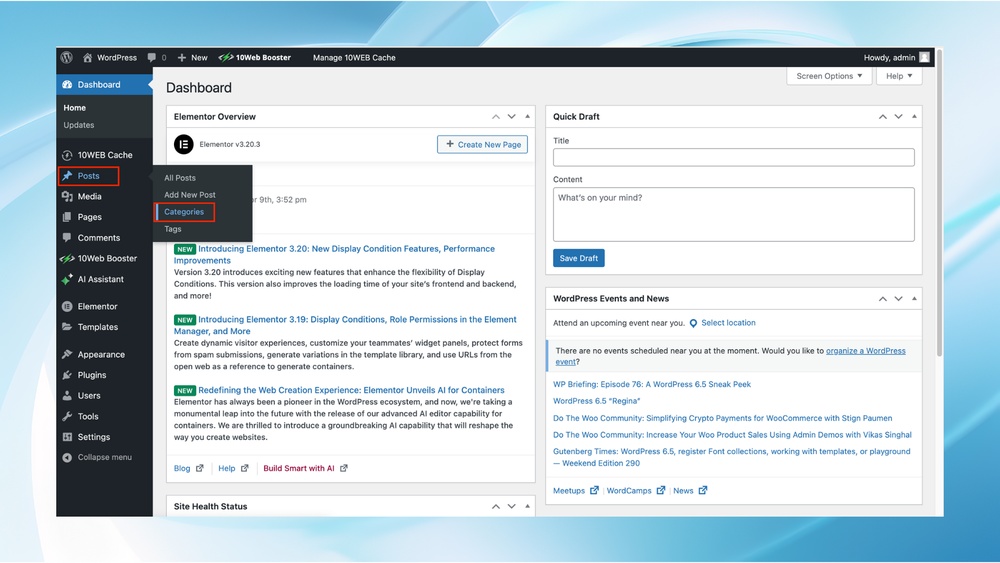
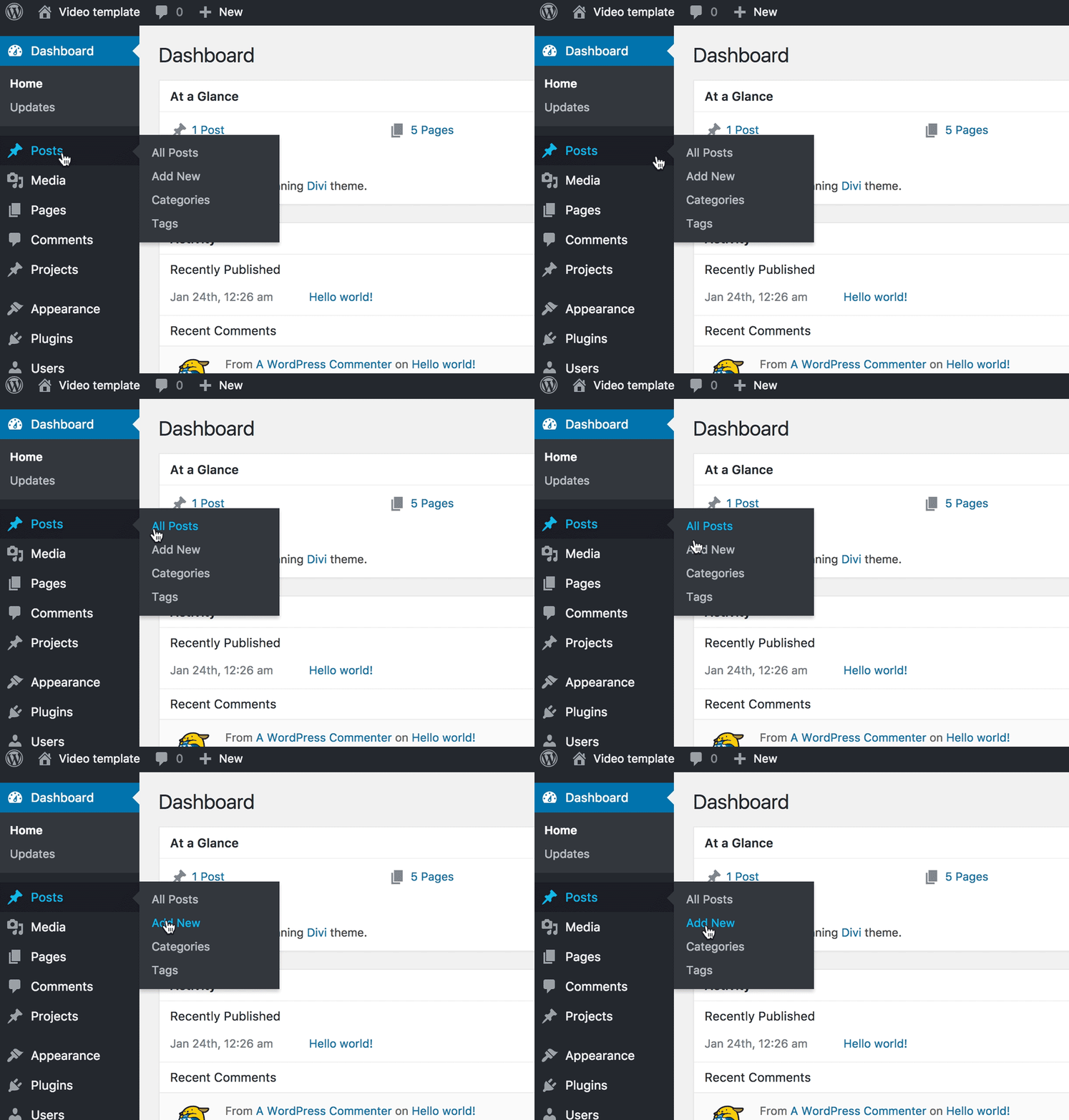
Look at the left menu for the “Posts” option. Click it to see all your blog posts. This is where you add categories and create new posts.
Creating New Categories
Creating new categories in WordPress helps organize your blog posts. It makes your site easier to navigate. Visitors find related posts quickly. Search engines also use categories to understand your content better.
Setting up categories is simple. You can create them before writing posts or during editing. Both ways keep your blog tidy and user-friendly.
Using The Categories Menu
To create new categories, start in the WordPress dashboard. Find the “Posts” section on the left menu. Click on “Categories” to open the category management page.
Here, you see a form to add a new category. Enter the category name you want. Optionally, add a slug, which is the URL-friendly version of the name.
You can also select a parent category. This makes the new category a subcategory. Add a description if needed. Then click the “Add New Category” button.
The new category appears in the list. You can edit or delete it anytime from this page.
Adding Categories While Editing Posts
Categories can be created directly while writing or editing a post. On the post editor screen, find the “Categories” box on the right side. Here, you see existing categories listed.
To add a new one, click the “Add New Category” link below the list. A small box appears to type the new category name. Enter the name and click “Add New Category”.
The new category will be selected automatically for the post. This method saves time and keeps your workflow smooth. You do not need to leave the post editor.
Credit: wpdatatables.com
Assigning Categories To Posts
Assigning categories to posts helps organize your WordPress blog. Categories group similar posts together. This makes it easier for readers to find topics they like. Proper use of categories improves your site’s structure. It also helps search engines understand your content better.
From The Post Editor
Open the post editor to assign categories. On the right side, find the “Categories” box. Here, you can check existing categories or add new ones. Tick the boxes next to the categories that fit your post. To create a new category, click “Add New Category.” Type the name and press “Add.” Your post now belongs to the selected categories. This step helps readers find related content easily.
Bulk Assigning Categories
Manage many posts at once by bulk assigning categories. Go to the “Posts” section in your dashboard. Select the posts you want to categorize by checking their boxes. Choose “Edit” from the “Bulk Actions” dropdown menu. Click “Apply” to open bulk edit options. Find the “Categories” section and select the categories to add. Click “Update” to save changes for all selected posts. This saves time and keeps your blog organized quickly.
Managing And Editing Categories
Managing and editing categories helps keep your WordPress blog organized. Categories group posts by topics. Clear categories make it easier for readers to find content. Editing categories lets you update names or descriptions. It also allows you to delete unused categories. This keeps your blog tidy and user-friendly.
Go to the WordPress dashboard. Click on “Posts” then “Categories.” Enter the category name in the text box. Add a description if needed. Click “Add New Category” to save it. Your new category now appears in the list.
Editing Existing Categories
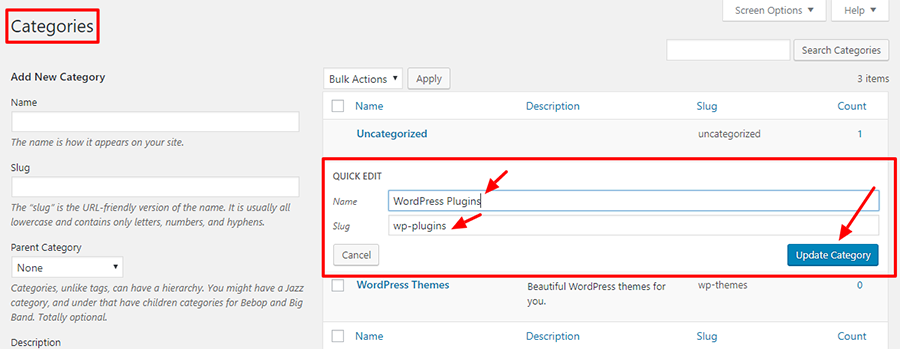
Find the category you want to change. Hover over it and click “Edit.” Change the name or slug as needed. Update the description to explain the category better. Click “Update” to save your changes. The category updates across your blog.
Deleting Unused Categories
Unused categories clutter your blog. Find the category you want to remove. Hover over it and click “Delete.” Confirm the deletion when prompted. WordPress moves posts from deleted categories to “Uncategorized.” This keeps your blog clean and organized.
Credit: shortiedesigns.com
Tips For Effective Category Use
Using categories effectively helps organize your WordPress blog. It makes content easier to find. Visitors can browse topics they like. Categories also improve your site’s SEO by grouping related posts.
Here are simple tips to use categories well on your blog.
Keep Categories Broad And Simple
Choose broad topics for categories. Avoid too many small or detailed categories. Broad categories cover many posts. They help visitors find content quickly. Simple categories reduce confusion and clutter.
Use Consistent Naming
Use clear and consistent names for categories. Avoid synonyms or similar names. For example, use “Travel” not “Trips” and “Travel.” Consistency helps search engines and visitors understand your site.
Limit The Number Of Categories
Use only a few categories. Too many categories make your blog look messy. Limit categories to the main topics you write about. This keeps navigation simple and clean.
Assign Only Relevant Categories
Assign each post to relevant categories only. Don’t use unrelated categories to get more views. Relevant categories improve user experience and SEO. Visitors find what they expect in each category.
Use Categories To Plan Content
Plan your blog posts around categories. Categories show which topics need more content. This helps keep your blog balanced and focused. It also helps attract steady traffic to your site.

Credit: wordpress.com
Frequently Asked Questions
How Do I Add Categories To A WordPress Blog Post?
To add categories, go to your post editor, find the “Categories” box, and select or create a new category. This helps organize your content and improves site navigation.
Can I Assign Multiple Categories To One WordPress Post?
Yes, you can assign multiple categories to a single post. Simply check all relevant categories in the “Categories” section before publishing your post.
Why Are Categories Important For WordPress Blog Posts?
Categories organize your posts into topics, making it easier for readers to find content. They also improve SEO by structuring your website logically.
How Do Categories Differ From Tags In WordPress?
Categories are broad groupings of posts, while tags describe specific details. Categories create a hierarchy; tags offer additional keywords for better searchability.
Conclusion
Adding categories to your WordPress blog helps organize your content well. It makes it easier for readers to find posts they like. Categories also improve your site’s SEO by grouping similar topics. Keep your categories clear and simple for best results.
Regularly update them as your blog grows. This small step can boost your blog’s usability and reach. Start adding categories today to make your blog neat and user-friendly.



