
Are you looking for a simple way to organize your WordPress site and make it easier for visitors to find what they need? Adding categories to your sidebar is one of the best moves you can make.
It helps your readers quickly explore topics that interest them, keeps your site tidy, and boosts your chances of ranking higher on search engines. In this guide, you’ll learn exactly how to add categories to your WordPress sidebar step-by-step, even if you’re not tech-savvy.
Keep reading, and by the end, you’ll have a clean, user-friendly sidebar that keeps your visitors coming back for more.

Credit: www.youtube.com
Choose The Right Sidebar
Choosing the right sidebar is important for your WordPress site. The sidebar holds widgets that show extra information. Categories help visitors find posts easily. Picking the correct sidebar ensures your categories display in the best spot. Not all themes have the same sidebars. Some themes offer multiple sidebars for different pages. Knowing which sidebar to use is the first step in organizing your site.
Identify Active Sidebars
Start by checking which sidebars your theme supports. Go to the WordPress dashboard and open the Appearance menu. Click on Widgets to see available sidebars. Active sidebars show the current widgets in use. Inactive sidebars appear empty or missing. Note the sidebars that are visible on your site’s pages. This helps you decide where to place your categories widget.
Select Sidebar For Categories
Choose the sidebar that fits your site’s layout. Usually, the main sidebar is best for categories. It appears on most blog pages and archives. You can also select sidebars on specific pages if your theme allows. Click and drag the Categories widget into the chosen sidebar area. Save your changes and check the front end. Your categories should now display clearly to visitors.
Access WordPress Widgets
Accessing WordPress widgets is the first step to customizing your sidebar. Widgets allow you to add different features, like categories, to your site’s sidebar. You can control what appears there by managing widgets in your WordPress dashboard.
Navigate To Widgets Section
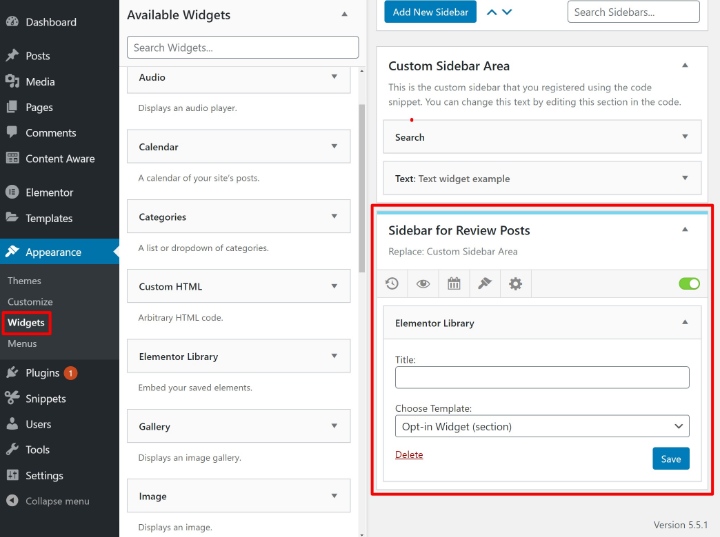
Log in to your WordPress admin area. On the left menu, find and click Appearance. Then select Widgets from the submenu. This opens the Widgets page where you manage all sidebar content.
The Widgets page shows available widget areas on your theme. Sidebars are one of these widget areas. You will add categories here by dragging the Categories widget to the sidebar area.
Locate Available Widgets
On the Widgets page, look at the left side. You will see a list of all available widgets. These include text blocks, search bars, recent posts, and categories.
Scroll through this list to find the Categories widget. This widget displays your post categories in the sidebar. It helps visitors browse your content easily.
Add Categories Widget
Adding a categories widget helps visitors find posts by topic. It organizes your content clearly. This makes your site easier to use. Visitors can click on a category to see related posts. This section explains how to add the categories widget to your sidebar in WordPress.
Drag And Drop Categories Widget
First, go to your WordPress dashboard. Find the “Appearance” menu and click on “Widgets.” Look for the “Categories” widget in the list. Click and hold the widget. Drag it to the sidebar area on the right side. Drop the widget where you want it to appear.
Place Widget In Sidebar
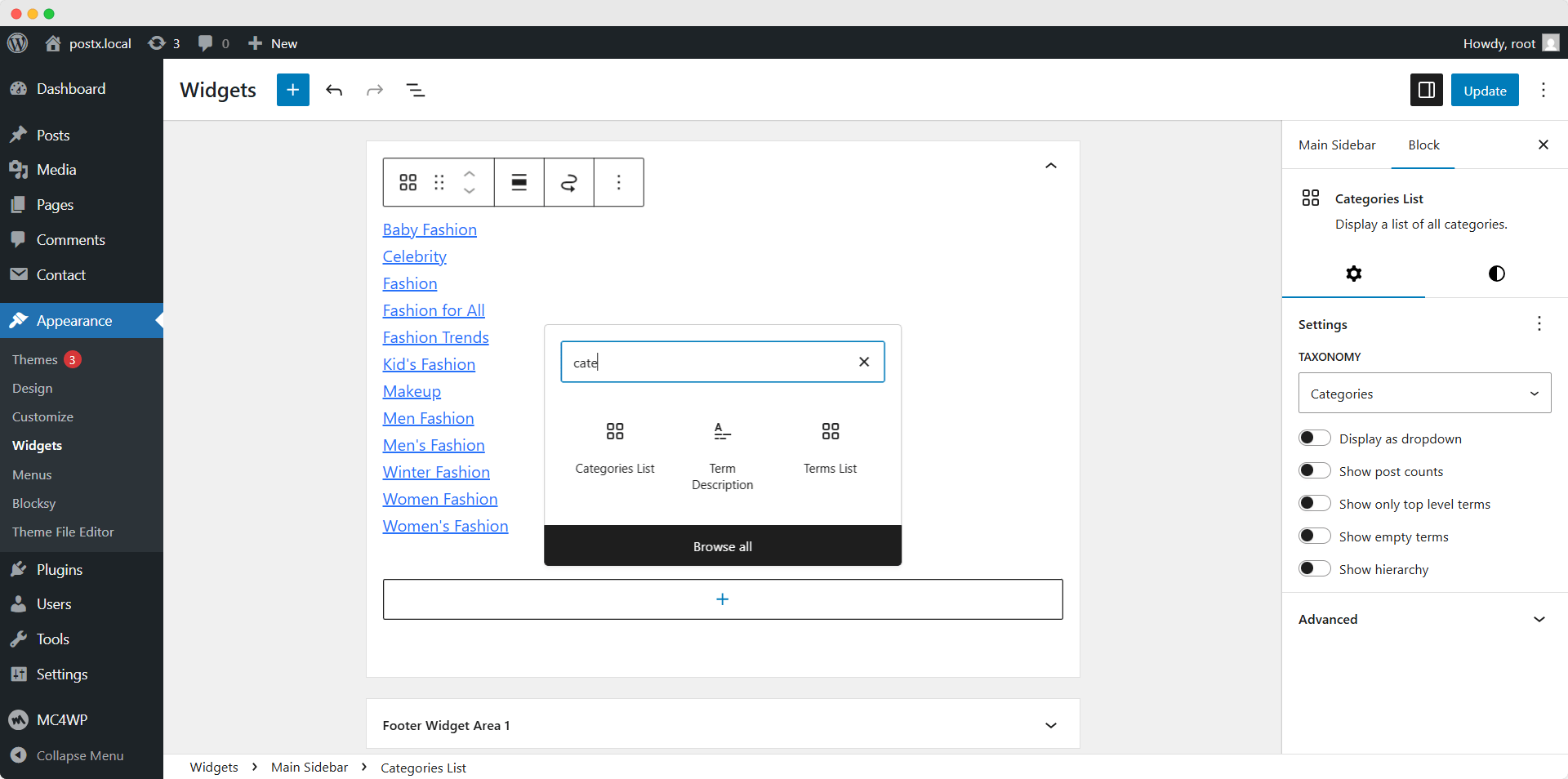
After dropping, the widget settings will open. Enter a title for the widget, like “Categories.” Choose how categories show up—drop-down or list. Select if you want to show post counts or hierarchy. Click “Save” to keep your changes. Visit your site to see the categories in the sidebar.
Credit: elementor.com
Customize Categories Display
Customizing the categories display in your WordPress sidebar helps visitors find content easily. You can control how categories look and behave. This makes your site more organized and user-friendly.
Adjust the title, choose what to show, and set the order of categories. These simple tweaks improve navigation and keep readers engaged.
Set Widget Title
Start by giving your categories widget a clear title. This title appears above the list in the sidebar. Use words like “Categories” or “Topics” to help visitors understand the list.
You can change the title anytime in the widget settings. A good title makes your sidebar look neat and professional.
Choose Display Options
WordPress lets you pick how categories appear. Show category counts to tell visitors how many posts each category has. This can guide readers to popular topics.
You can also show categories as a dropdown menu. This saves space and keeps the sidebar clean. Decide what fits best with your site design.
Sort Categories
Sorting categories helps highlight important topics. Arrange them alphabetically for easy scanning. Or sort by the number of posts to show popular categories first.
Choose the order that makes sense for your content. A clear order improves user experience and helps visitors find posts faster.
Save And Preview Changes
After adding categories to your WordPress sidebar, saving and previewing changes is key. This step ensures your work appears correctly on your site. It also helps you catch any mistakes early. Follow the steps below to save your widget settings and check your sidebar on the frontend.
Save Widget Settings
Locate the widget area where you added the categories. Click the “Save” button to store your changes. WordPress will update the sidebar immediately. Avoid closing the page before saving. Unsaved changes will be lost. Saving confirms your categories are ready to show.
Check Sidebar On Frontend
Open your website’s homepage or a post page. Look at the sidebar area to see the categories list. Refresh the page if the changes do not appear. Confirm that all categories display as expected. Check links to ensure they work correctly. This step verifies your sidebar looks good for visitors.
Troubleshoot Common Issues
Troubleshooting is key when categories don’t show in your WordPress sidebar. Small errors can stop categories from appearing or updating. This section helps solve those common problems. Follow these tips to fix issues fast and keep your sidebar working well.
Categories Not Showing
Check if you have added the Categories widget to the sidebar. Sometimes, the widget is missing or placed in the wrong area. Go to Appearance > Widgets and confirm the Categories widget is active.
Verify that your posts have categories assigned. Empty categories won’t display. Edit your posts and assign proper categories.
Clear your website cache. Cache plugins or browser cache may show old versions without categories. Refresh the cache to see updates.
Check your theme settings. Some themes disable sidebar widgets or hide categories. Review theme options or try switching to a default theme to test.
Sidebar Not Updating
Sometimes, changes do not appear immediately. Clear any caching plugins or server cache to load the new sidebar.
Refresh your browser. Press Ctrl + F5 to force a full reload of the page.
Confirm your widgets are saved. After editing widgets, click Save and refresh your site to see changes.
Deactivate plugins one by one if the problem persists. Some plugins conflict and stop updates.
Check for WordPress updates. Outdated versions may cause widget issues. Update to the latest version for smooth performance.
Use Plugins For Advanced Features
Using plugins helps you add categories to your sidebar with more control. Plugins offer features that go beyond the basic WordPress widgets. They allow you to customize how categories appear and behave. This improves the user experience on your website. Plugins make managing categories easier and more flexible.
Popular Category Plugins
Several plugins focus on category display and management. “Category Widget” lets you show categories with custom styles. “Ultimate Category Excluder” allows you to hide categories from the sidebar. “List category posts” helps you display posts from specific categories. These plugins are easy to install and use. They offer practical options for different needs.
Enhanced Customization Options
Plugins give you more ways to change category layouts. You can adjust colors, fonts, and spacing without coding. Some plugins support icons or images next to category names. Others provide dropdown menus or collapsible lists for neat sidebars. You can also set categories to show post counts or descriptions. These options improve how visitors interact with your site.
Credit: www.wpxpo.com
Frequently Asked Questions
How Do I Add Categories To WordPress Sidebar?
Go to Appearance > Widgets in your WordPress dashboard. Drag the Categories widget to your sidebar area. Customize the title and settings, then save changes. Your categories will now appear in the sidebar for easy visitor navigation.
Can I Customize Category Display In The Sidebar?
Yes, WordPress allows customization of category lists. You can show categories as dropdowns, display post counts, or exclude specific categories. Use the widget settings or install plugins for advanced styling and control over how categories appear in the sidebar.
Why Add Categories To The WordPress Sidebar?
Adding categories improves site navigation and user experience. It helps visitors find related content quickly. Categories also enhance SEO by organizing content logically, making your site easier to crawl and rank on search engines.
Is It Possible To Add Custom Categories To Sidebar?
Yes, you can add custom categories created in WordPress to the sidebar. The Categories widget automatically lists all categories, including custom ones. Ensure your custom categories are assigned to posts to appear properly in the sidebar.
Conclusion
Adding categories to your WordPress sidebar helps visitors find content fast. It organizes your site and improves user experience. You can customize the sidebar anytime through widgets. This simple step makes navigation clear and neat. Keep your categories relevant and updated often.
It helps your site stay fresh and easy to use. Try these tips and see how your visitors respond. Small changes can make a big difference in site usability.



