
Are you looking to make it easier for your visitors to reach you instantly? Adding a call link to your WordPress site lets your audience connect with you at the tap of a button.
Imagine the boost in customer engagement when people can call you directly from your website without searching for your number. In this guide, you’ll learn simple, step-by-step ways to add a call link that works perfectly on any device. Keep reading to discover how this small change can make a big difference for your business.
Benefits Of Call Links
Call links make it easy for visitors to contact you. They help connect your business and potential customers quickly. Adding call links to your WordPress site improves communication and saves time. Visitors can call you directly with just one click. This simple feature brings many benefits for both users and business owners.
Enhancing User Experience
Call links make your website easy to use. Visitors do not need to copy phone numbers or type them manually. One tap starts the call instantly. This reduces effort and frustration. It helps visitors get the help they need faster. A smooth experience keeps visitors happy and more likely to return.
Boosting Customer Engagement
Call links encourage visitors to reach out. They open a direct line of communication. Customers can ask questions and get answers quickly. This builds trust and shows your business cares. More calls mean more chances to assist and connect with customers. It turns visitors into loyal clients.
Improving Conversion Rates
Call links can increase sales and inquiries. Easy contact options make visitors act faster. They do not lose interest by searching for contact details. Quick calls lead to faster decisions and purchases. Better accessibility means more leads and higher conversion rates. Your business grows with every call received.
Credit: wordpress.com
Choosing The Right Call Link Format
Choosing the right call link format is key to making your phone number clickable. This helps visitors call you quickly from your website. The right format ensures links work well on all devices. It also keeps your site clean and professional.
Understanding basic call link formats helps you create links that function smoothly. Customizing the phone number can improve user experience. Testing links for mobile and desktop use is essential for compatibility.
Tel Protocol Basics
The tel protocol starts a phone call directly from a link. It uses this format: tel:+1234567890. The plus sign and country code help with international calls. Keep numbers simple and free of spaces or symbols. This protocol works on most smartphones and some desktops.
Customizing Phone Numbers
Display phone numbers clearly for easy reading. Use dashes or spaces in the visible number. For example, show 123-456-7890 but keep the link as tel:+1234567890. This avoids confusion and keeps links functional. Always include your country code for better reach.
Mobile Vs Desktop Compatibility
Mobile devices recognize tel links and start calls instantly. Desktops may ask to open calling apps like Skype. Test your links on both device types to ensure they work. Avoid complex formats that might break on some browsers. Simple tel links are the safest choice for all users.
Adding Call Links In WordPress Editor
Adding call links in the WordPress editor helps visitors contact you quickly. These links let users tap a phone number and start a call immediately. Placing call links on your site boosts customer engagement and improves user experience.
WordPress offers two main editors: Gutenberg and Classic. Each editor has a simple way to add call links. The process is easy and requires no coding skills. Follow the steps below to make your phone numbers clickable.
Using Gutenberg Block Editor
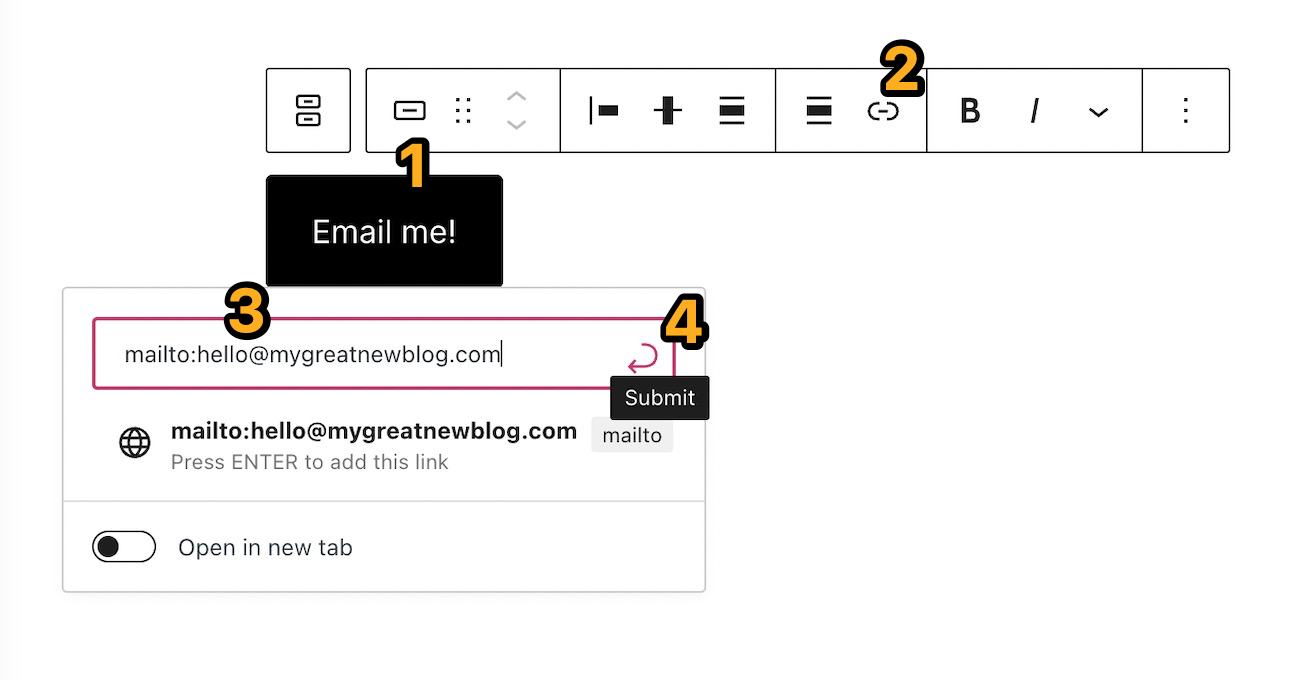
Open the page or post in the Gutenberg editor. Select the block where you want the call link. Highlight the text or number that will become the call link.
Click the link icon in the toolbar. Type tel: followed by the phone number. For example, tel:+1234567890. Press Enter or click the Apply button.
The text changes into a clickable call link. Save or update the post to apply changes.
Adding Call Links In Classic Editor
Open the post or page in the Classic editor. Highlight the phone number or text you want to link. Click the Insert/edit link button in the toolbar.
In the URL field, enter tel: plus the phone number. For example, tel:+1234567890. Click Add Link to save.
Update or publish the content. The phone number now works as a call link.
Best Practices For Link Text
Use clear, simple text for call links. Examples: “Call Now” or the full phone number. Avoid vague phrases like “Click here.”
Keep phone numbers in international format. This helps users from different countries call easily. Make the link stand out by using bold or a different color.
Test call links on mobile devices. Ensure they open the phone app instantly. Good link text improves user trust and increases calls.
Credit: www.seedprod.com
Inserting Call Links With Plugins
Adding call links to your WordPress site helps visitors contact you quickly. Using plugins makes the process simple and fast. Plugins offer ready-made call buttons without coding.
Plugins handle the link creation and button display. They save time and ensure mobile-friendly buttons. These plugins also let you customize the call button style easily.
Top Plugins For Call Buttons
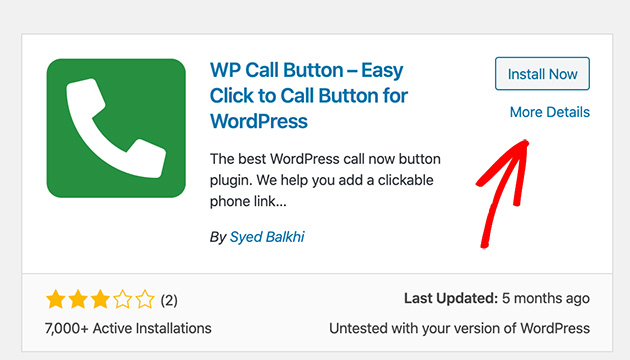
Several plugins create call links in WordPress. “WP Call Button” is popular and easy to use. “Call Now Button” offers flexible button placement options. “Click to Call” plugin supports mobile devices well. Choose a plugin that fits your site’s needs.
Configuring Plugin Settings
After installing, open the plugin settings page. Enter your phone number in international format. Select where the call button should appear on your site. You can choose header, footer, or a floating button. Save settings and check if the button shows correctly.
Styling Call Link Buttons
Most plugins let you change button colors and size. Pick colors that match your website’s theme. Adjust the button shape for a neat look. You can add a call icon to make it clear. Test your button on mobile to ensure it looks good.
Embedding Call Links In Widgets And Menus
Embedding call links in widgets and menus makes your website easy to contact. Visitors can call you with one click. This improves user experience and can boost sales or support requests.
WordPress offers simple ways to add call links in different site areas. Widgets and menus are popular spots for these links. They stay visible as visitors browse your site.
Adding Call Links To Sidebar Widgets
Go to the WordPress dashboard and click Appearance > Widgets. Choose a Text or Custom HTML widget. Drag it to the sidebar area where you want the call link.
Enter the call link code like this: Call Us. Replace the phone number with yours. Save the widget and check your site’s sidebar.
Integrating Call Links In Navigation Menus
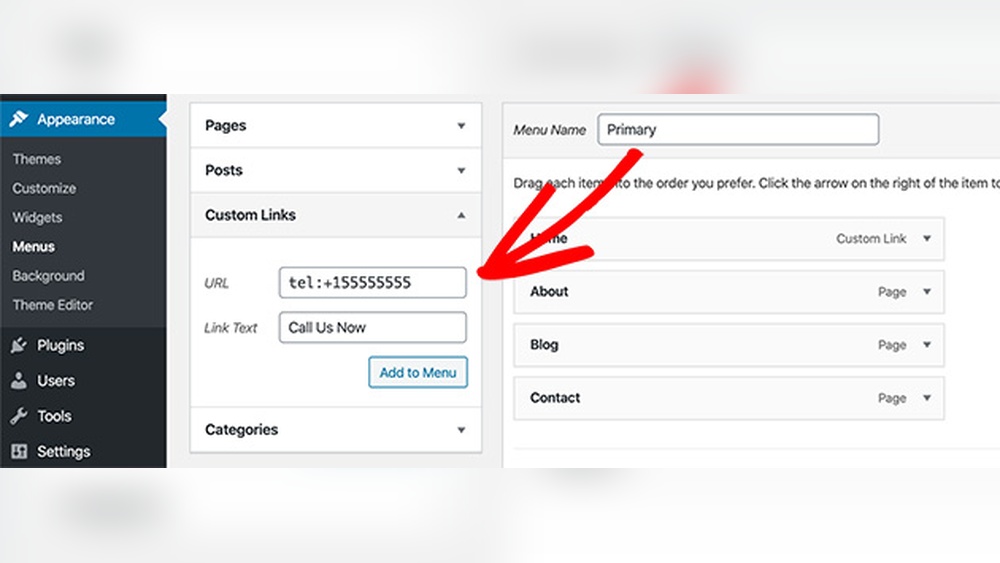
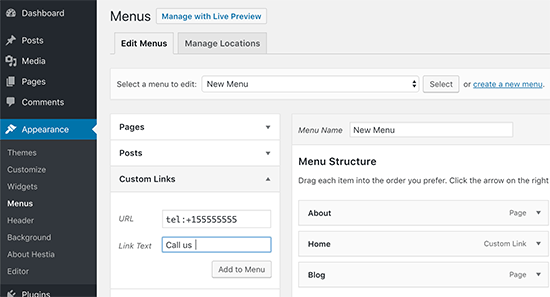
Open Appearance > Menus from the dashboard. Select the menu to edit. Click “Custom Links” on the left panel. Type tel:1234567890 in the URL box.
Type the link label, such as “Call Now,” in the Link Text box. Click Add to Menu, then Save Menu. The call link will appear in your site’s navigation.
Using Html Widgets For Custom Links
HTML widgets allow more styling freedom for call links. In Appearance > Widgets, add a Custom HTML widget. Paste your call link code inside.
Example: Call Us Now. Customize the style to match your site. Save and preview for best results.
Testing And Troubleshooting Call Links
Testing and troubleshooting call links ensures visitors can easily reach you. Proper checks help avoid missed calls and improve user experience. This section guides you through simple steps to test and fix call links on your WordPress site.
Checking Link Functionality On Devices
Test your call link on different devices like smartphones and tablets. Click the link to see if it opens the phone dialer automatically. Check both Android and iOS devices for compatibility. Use a desktop browser with phone emulation tools to simulate calls. Confirm the displayed phone number is correct and clickable. Verify the link works in popular browsers such as Chrome, Safari, and Firefox.
Common Issues And Fixes
Links may not work if the phone number is formatted incorrectly. Use the format tel:+1234567890 without spaces or special characters. Avoid adding letters or symbols inside the phone link. Some browsers block call links if the site is not secure (HTTPS). Ensure your website has an SSL certificate installed. Clear your browser cache if the call link does not update after changes. Disable conflicting plugins that might affect link behavior.
Optimizing For Speed And Performance
Call links should not slow down your website. Use simple HTML code for call links without heavy scripts. Minimize the number of plugins used to avoid conflicts. Test your site speed using tools like Google PageSpeed Insights. Compress images and files to improve loading times. A fast site helps visitors access call links quickly and easily.
Credit: www.wpbeginner.com
Frequently Asked Questions
How Do I Add A Call Link In WordPress?
To add a call link, use the anchor tag with “tel:” followed by the phone number. Insert it in your post or widget. For example: Call Us. This makes the number clickable on mobile devices.
Can I Add Call Links Without Plugins In WordPress?
Yes, you can add call links manually using HTML in your WordPress editor. Simply insert the Call link. No plugin is needed for basic call link functionality.
Which WordPress Block Supports Call Links?
The Paragraph block and Button block support call links. Just add your phone number in the URL field with “tel:” prefix. This ensures your call link is clickable and mobile-friendly.
Are Call Links Mobile-friendly In WordPress?
Yes, call links work perfectly on mobile devices. When users tap the link, their phone’s dialer opens with the number pre-filled. This improves user experience and increases call conversions.
Conclusion
Adding a call link to your WordPress site helps visitors reach you fast. It makes your site more user-friendly and interactive. You only need simple steps to add the link. Testing the link ensures it works well on phones. Keep your contact easy to find for better visitor experience.
Try adding a call link today and see the difference. Small changes can improve how people connect with you.



