
Are you ready to make your WordPress blog shine by adding new posts effortlessly? Whether you’re just starting or want to keep your blog page fresh and engaging, knowing how to add a blog post to your WordPress blog page is a must.
Imagine your visitors coming back again and again because your content is easy to find and beautifully displayed. In this guide, you’ll learn simple, step-by-step ways to add posts that grab attention and keep readers hooked. Let’s dive in and make your blog page the place everyone wants to visit!
Credit: www.wpbeginner.com
Set Up Your Blog Page
Setting up your blog page is an important step in managing your WordPress site. It helps visitors find all your blog posts in one place. This section guides you through creating and assigning a blog page easily.
Create A New Page
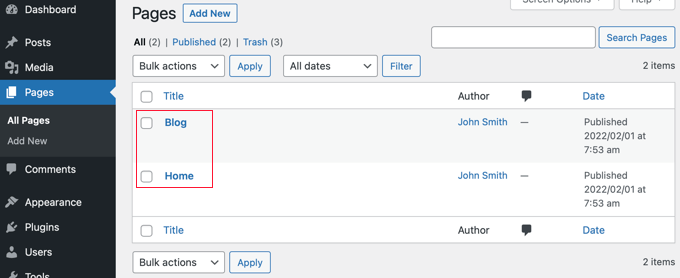
First, log in to your WordPress dashboard. Go to the Pages menu and click “Add New.” Name this page “Blog” or anything you prefer. Leave the content area blank. This page will display your blog posts automatically. Click “Publish” to save the page.
Assign The Blog Page In Settings
Next, go to Settings and select “Reading.” Find the option “Posts page.” Choose the page you just created from the dropdown list. Save your changes by clicking “Save Changes” at the bottom. Now, your blog posts will appear on this page.
Create A New Blog Post
Creating a new blog post is the first step to share your ideas on WordPress. This process is simple and quick. You can write, format, and publish your content with ease. Follow these steps to create a post that fits your blog perfectly.
Access The Post Editor
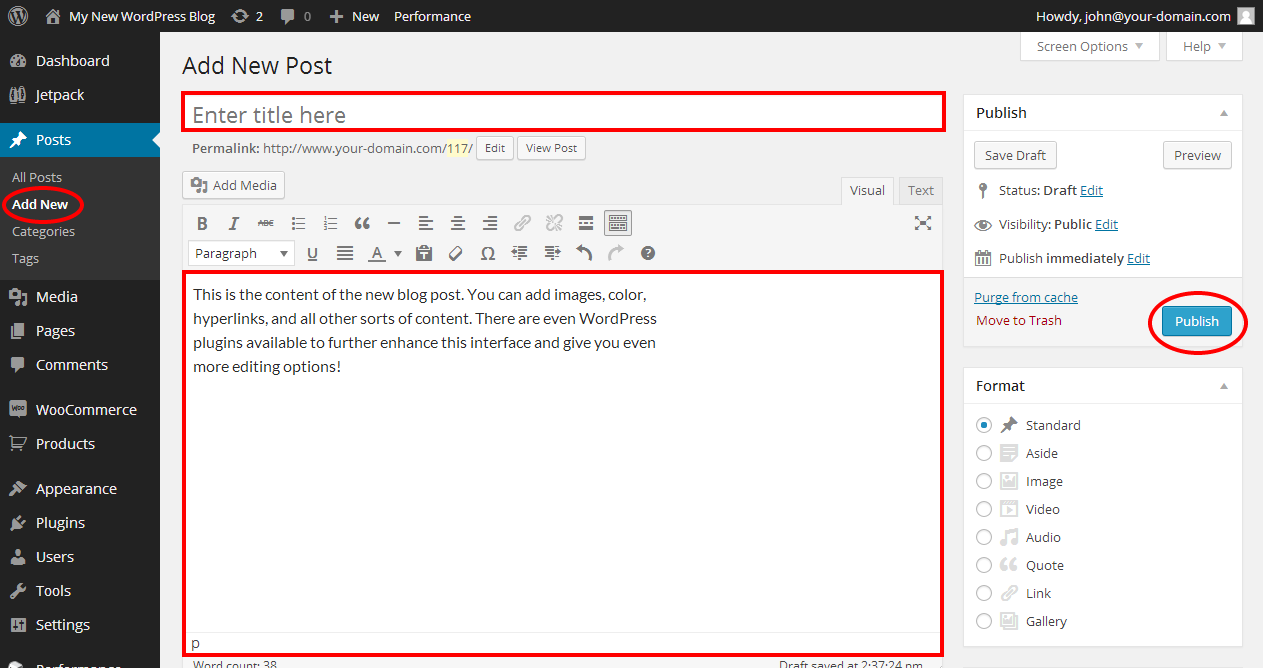
Log in to your WordPress dashboard. Look for the “Posts” menu on the left side. Click “Add New” to open the post editor. This is where you write and edit your blog post. The editor has tools for text formatting and media upload.
Add Title And Content
Start by typing your post title in the top field. Make it clear and interesting. Next, write your blog content in the main editor box. Use short paragraphs and simple words. Add images or videos to make your post more engaging. Preview your post to check how it looks.
Use Categories And Tags
Assign categories to organize your posts by topic. This helps readers find similar content. Add tags to highlight key points and keywords. Categories group posts broadly, while tags are more specific. Both improve your blog’s navigation and SEO.
Publish Your Blog Post
Publishing your blog post is the final step before your content goes live. It lets readers see your work and share their thoughts. This step ensures your post looks great and reaches the right audience at the right time. Follow these simple steps to publish your blog post smoothly on WordPress.
Preview The Post
Check how your post appears before publishing. Click the “Preview” button to open a new tab. Review the layout, images, and text. Make sure everything looks clear and professional. Fix any mistakes or formatting issues. This step helps avoid errors on the live site.
Set Visibility Options
Choose who can see your post. Options include Public, Private, and Password Protected. Public means everyone can read it. Private limits access to site admins and editors only. Password Protected lets you share the post with selected people. Pick the option that fits your needs.
Publish Immediately Or Schedule
Decide when your post goes live. Select “Publish” to post immediately. Or use the “Schedule” option to set a future date and time. Scheduling helps you plan content ahead. It keeps your blog active even when you are busy. Choose the best timing for your audience.

Credit: www.youtube.com
Customize Blog Page Appearance
Customizing your blog page appearance makes your site more attractive and user-friendly. It helps visitors enjoy reading your posts and find content easily. Small changes can create a big impact on how your blog looks and feels.
Choose A Suitable Theme
Start by picking a theme that fits your blog’s style. WordPress offers many free and paid themes. Choose one that is clean, simple, and mobile-friendly. A good theme improves readability and keeps visitors on your site longer.
Adjust Layout Settings
Change the layout to organize your posts clearly. You can set the number of columns or use a single column. Control how many posts appear on each page. Use spacing and font settings to make text easy to read.
Add Widgets And Plugins
Widgets add extra features like search bars, recent posts, or categories. Place them in sidebars or footers to enhance navigation. Plugins help with SEO, social sharing, and page speed. Choose only what you need to keep your site fast.
Manage Posts On Your Blog Page
Managing posts on your WordPress blog page is essential for keeping your content fresh and organized. Regular updates help maintain reader interest and improve your site’s SEO. You can easily edit, delete, or organize posts using built-in WordPress tools. This section explains how to handle these tasks effectively.
Edit Or Update Posts
To edit a post, go to your WordPress dashboard and click “Posts.” Find the post you want to change and click “Edit.” Update the content, images, or settings as needed. After making changes, click “Update” to save. This keeps your blog current and accurate.
Delete Unwanted Posts
Removing old or irrelevant posts helps keep your blog clean. In the “Posts” section, select the post to delete. Click “Trash” to move it to the recycle bin. You can restore or permanently delete it later. Deleting posts improves site performance and user experience.
Organize With Categories
Categories group similar posts, making it easy for visitors to find topics. Assign categories when creating or editing a post. You can add new categories from the “Categories” menu. Organized posts help search engines understand your content better. This boosts your blog’s visibility and usability.
Credit: www.ipage.com
Frequently Asked Questions
How Do I Add A Blog Post To My WordPress Blog Page?
To add a blog post, go to your WordPress dashboard, click “Posts,” then “Add New. ” Write your content, set categories, and click “Publish. ” Your post will appear automatically on your blog page if the page is set as your posts page.
Can I Customize The Blog Page Layout In WordPress?
Yes, you can customize your blog layout using WordPress themes or page builders. Many themes offer built-in options for blog style, while page builders allow drag-and-drop customization to create a unique look for your blog page.
How Do I Set A Specific Page As My WordPress Blog Page?
Go to WordPress dashboard > Settings > Reading. Under “Your homepage displays,” select “A static page,” then choose your blog page from the “Posts page” dropdown. Save changes to display your posts on the selected blog page.
Why Aren’t My New Posts Showing On The Blog Page?
Ensure the blog page is correctly set in Settings > Reading as the posts page. Also, check post status is “Published” and categories or visibility settings are not restricting display on the blog page.
Conclusion
Adding a blog post to your WordPress blog page is simple and quick. Follow the steps carefully to ensure your post appears correctly. Regular posting helps keep your blog fresh and interesting. Use clear titles and images to attract readers.
Check your settings to display posts in the right order. Keep practicing to get more comfortable with WordPress. Soon, managing your blog will feel easy and natural. Stay consistent and enjoy sharing your ideas with the world.



