
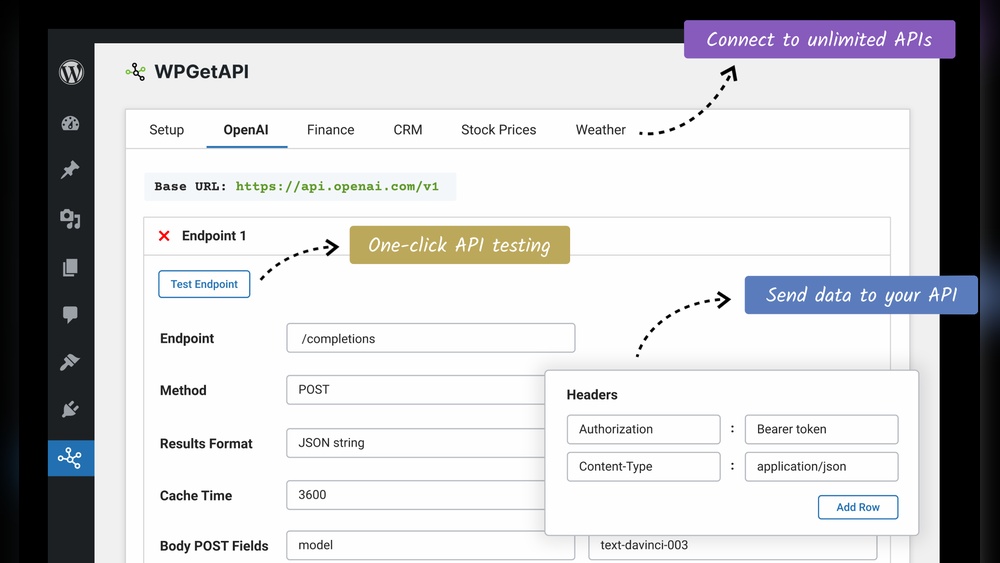
Are you looking to make your WordPress site more powerful and interactive? Adding an API to your WordPress can open up a whole new world of possibilities, from connecting with other apps to automating tasks.
But if you’re not a tech expert, the idea might feel overwhelming. Don’t worry—this guide will walk you through the process step by step. By the end, you’ll know exactly how to add an API to your WordPress site and start using it to its full potential.
Ready to take your website to the next level? Let’s dive in.
Benefits Of Api Integration
API integration brings many benefits to your WordPress website. It helps connect different systems and services easily. This connection improves how your website works and how visitors interact with it. APIs can save time by automating tasks and sharing data smoothly.
Enhancing Website Functionality
APIs add new features to your website without extra coding. You can show real-time data like weather, maps, or social media feeds. They also allow you to connect payment gateways or booking systems. This makes your site more useful and versatile.
Improving User Experience
APIs help create a smooth and fast browsing experience. Visitors get updated content without reloading pages. They can log in using social media accounts easily. This reduces frustration and keeps users engaged longer.
Automating Data Exchange
APIs transfer data between your website and other platforms automatically. You avoid manual data entry and errors. Orders, customer info, or inventory updates happen in real time. This saves time and keeps your data accurate.

Credit: www.youtube.com
Choosing The Right Api
Choosing the right API for your WordPress site is very important. It affects how well your site works and what features you can add. Picking the correct API helps you save time and avoid problems. It also makes your site faster and more reliable.
Before adding any API, you should know what you want it to do. Some APIs help with social media, others with payments or maps. The best choice fits your site’s needs and your technical skills.
Popular Apis For WordPress
Many APIs work well with WordPress. For example, the Google Maps API adds interactive maps to your site. The WooCommerce API helps manage online stores easily. Social media APIs like Facebook and Twitter let you share posts automatically. These popular APIs have many users and good support.
Evaluating Api Compatibility
Check if the API matches your WordPress version. Some APIs need newer WordPress updates. Look at your site’s theme and plugins to avoid conflicts. The API should work smoothly without breaking other features. Also, consider your hosting environment. Some APIs need specific server settings.
Checking Api Documentation
Good API documentation is clear and easy to follow. It shows how to install and use the API step-by-step. Look for examples and code snippets in the docs. Check if the API has support forums or contact options. Well-documented APIs reduce mistakes and save time.
Preparing Your WordPress Site
Preparing your WordPress site is a key step before adding any API. It ensures your site runs smoothly and avoids issues during integration. Taking time to update, backup, and organize your theme helps protect your content and settings. Follow these steps to get your site ready for a seamless API connection.
Updating WordPress And Plugins
Start by updating WordPress to the latest version. Updates fix bugs and improve security. Next, update all plugins. Outdated plugins can cause conflicts with new APIs. Check for compatibility and install any available updates. This keeps your site stable and ready for new features.
Backing Up Your Site
Backing up your site protects your data from loss. Use a reliable backup plugin or your hosting service tools. Save a full copy of your files and database. Store backups in a safe place outside your server. This step ensures you can restore your site if something goes wrong.
Setting Up A Child Theme
Create a child theme before making changes to your site’s design or code. A child theme keeps your customizations safe during theme updates. It lets you add API features without altering the main theme files. This method helps maintain your site’s look and functionality over time.
Methods To Add Api To WordPress
Adding an API to WordPress can improve your site’s features. APIs allow your site to connect with other services. There are several ways to add APIs to WordPress. Some methods require little coding, while others offer more control.
Choosing the right method depends on your skills and needs. Each approach has its benefits and challenges. Understanding these options helps you pick the best way to integrate an API.
Using Plugins For Api Integration
Plugins simplify API integration in WordPress. Many plugins support popular APIs like social media or payment gateways. You install a plugin, enter API keys, and configure settings. No coding is needed, making it easy for beginners. Plugins also get updates, so they stay compatible with WordPress.
Adding Custom Code To Functions.php
Adding API calls in your theme’s functions.php file is a flexible option. This method requires basic PHP knowledge. You write code to connect and fetch data from the API. Functions.php is part of your theme, so changes affect your site directly. Be careful to back up files before editing. This method works well for small tweaks and custom features.
Creating A Custom Plugin
Building a custom plugin offers full control over API integration. You write all the code needed to connect with the API. This keeps your API code separate from your theme. It makes updating themes easier without losing API functions. Custom plugins can be reused on different sites. This method suits developers or advanced users who want clean code and flexibility.
Step-by-step Api Integration Guide
Integrating an API into WordPress helps connect your site to external services. This guide breaks down the process into clear steps. Follow these steps to add API features smoothly and correctly.
Generating Api Credentials
API credentials are keys that allow your site to access the API. Start by signing up on the API provider’s platform. Find the section for creating new API keys or tokens. Copy the generated key carefully. Keep these credentials safe and private.
Writing Api Request Code
Use PHP or JavaScript to write code that sends requests to the API. Specify the API endpoint URL in your code. Include your API credentials in the request headers or URL. Set the request method, usually GET or POST, based on the API’s documentation.
Handling Api Responses
After sending a request, the API sends back data called a response. Check if the response status is successful. Extract the data you need from the response body. Use this data to update your WordPress content or display it to users.
Testing The Integration
Test the API connection to ensure it works correctly. Use tools like Postman or your browser’s developer console. Check for errors or unexpected results. Fix issues by reviewing your code and credentials. Keep testing until the API runs smoothly.

Credit: rudrastyh.com
Troubleshooting Common Issues
Adding an API to WordPress can sometimes lead to issues that stop it from working right. Troubleshooting helps find and fix these problems quickly. This section covers common troubles and how to solve them easily.
Fixing Authentication Errors
Authentication errors happen when your API keys or tokens are wrong. Check if the keys match what the API provider gave you. Make sure you copy them exactly, without spaces or extra characters. Also, confirm your API user has enough permissions. Reset keys if you suspect they are compromised.
Resolving Data Fetch Problems
Data fetch problems occur if your API call does not return data. Check the API endpoint URL for mistakes. Ensure your request uses the correct method like GET or POST. Look for limits on the number of requests allowed. Slow or no response may mean the API server is down. Try again later or contact support.
Debugging Code Snippets
Code errors can break your API connection. Use error logs to find where the code fails. Test small parts of the code to isolate problems. Verify your code matches the API documentation. Use simple print or echo statements to check variables. Fix syntax errors and missing parameters carefully.
Best Practices For Api Use
Using APIs in WordPress can improve your site’s functionality a lot. Following best practices keeps your site safe and running well. It helps avoid errors and keeps data safe. These practices also make managing APIs easier over time.
Securing Api Keys
Keep your API keys private. Do not share them in public code or forums. Store keys in secure places like environment files or WordPress configuration files. Use plugins that hide keys from the front end. Change keys regularly to reduce risk. Limit key permissions to only needed actions.
Managing Rate Limits
APIs often have limits on how many requests you can make. Track your usage to avoid hitting these limits. Use caching to reduce repeated requests. Space out calls over time instead of sending many at once. Handle errors gracefully if the limit is reached. This keeps your site working smoothly.
Maintaining Api Updates
API providers update their services often. Check for updates regularly to avoid broken features. Update your code to match new API versions. Test changes on a staging site before going live. Follow provider news or blogs for important changes. Staying current keeps your site stable and secure.
Credit: realtyna.com
Frequently Asked Questions
What Is The Easiest Way To Add Api To WordPress?
The easiest way is using WordPress plugins like WP API or REST API plugins. They simplify integration and require minimal coding.
How Do I Authenticate Api Requests In WordPress?
Use methods like OAuth, API keys, or JWT tokens for secure API authentication in WordPress. Plugins often support these.
Can I Add Custom Apis To My WordPress Site?
Yes, you can create custom REST APIs using WordPress hooks and PHP functions to extend your site’s functionality.
Which Plugins Help Integrate Apis Into WordPress?
Popular plugins include WP REST API, Advanced Custom Fields, and WP Webhooks, which streamline API integration.
Conclusion
Adding an API to WordPress can improve your site’s features. It helps your website share data and work with other apps. The process is simple when you follow clear steps. You can connect your site to useful tools fast. Keep your API keys safe to avoid problems.
Test your setup to ensure everything works well. This guide makes adding APIs easy for everyone. Now, your WordPress site can do more than before. Try it today and see the difference yourself.



