
Are you looking for a simple way to make your WordPress posts easier to navigate? Adding anchor links in the WordPress Block Editor can help your readers jump straight to the content they want.
This not only improves user experience but also keeps visitors engaged longer on your site. In this guide, you’ll learn exactly how to add anchor links step-by-step, even if you’re new to WordPress. By the end, you’ll be able to create smooth, clickable links that boost your content’s usability and professionalism.
Let’s get started!
Anchor Links Basics
Anchor links help users jump to specific parts of a page. They make navigation simple and fast. Many websites use anchor links to improve user experience and content flow. Understanding the basics of anchor links helps you use them wisely in WordPress Block Editor.
What Are Anchor Links
Anchor links connect one part of a page to another. They use special tags called anchors. When clicked, the page scrolls to the anchor location. Anchors are invisible markers set on headings or sections. This lets visitors move quickly to the content they want.
Benefits Of Using Anchors
Anchor links save time for readers. They find important information without scrolling. This keeps users engaged and reduces frustration. Search engines also like pages with clear structure. Anchors improve page SEO by helping bots understand content sections. Your site becomes easier to use and better ranked.
Credit: www.bluehost.com
Preparing Your Content
Preparing your content is the first step in adding anchor links in WordPress Block Editor. It helps you organize your page and guides readers. Well-prepared content improves user experience and SEO. Start by deciding where to place anchor links. Then, create clear names for each anchor.
Choosing Sections For Anchors
Pick important sections or headings for your anchors. These areas should be easy to find and useful for readers. Good anchor points include titles, subtitles, or key paragraphs. Avoid placing anchors on very short or unclear sections. Choose sections that help users navigate your content fast.
Naming Your Anchors
Use simple and clear names for your anchors. Names should describe the section’s content in a few words. Avoid spaces and special characters in anchor names. Use only lowercase letters, numbers, and hyphens. For example, use “contact-info” instead of “Contact Info”. This keeps your links clean and easy to use.
Adding Anchor Links In Block Editor
Adding anchor links in the WordPress Block Editor helps readers jump to specific parts of a page. This improves navigation and user experience. Anchor links are useful in long posts or pages with many sections.
WordPress Block Editor allows easy insertion of these links without extra plugins. You can link to headings or other blocks by setting anchors. Below are simple steps to add anchor links effectively.
Inserting Anchors In Headings
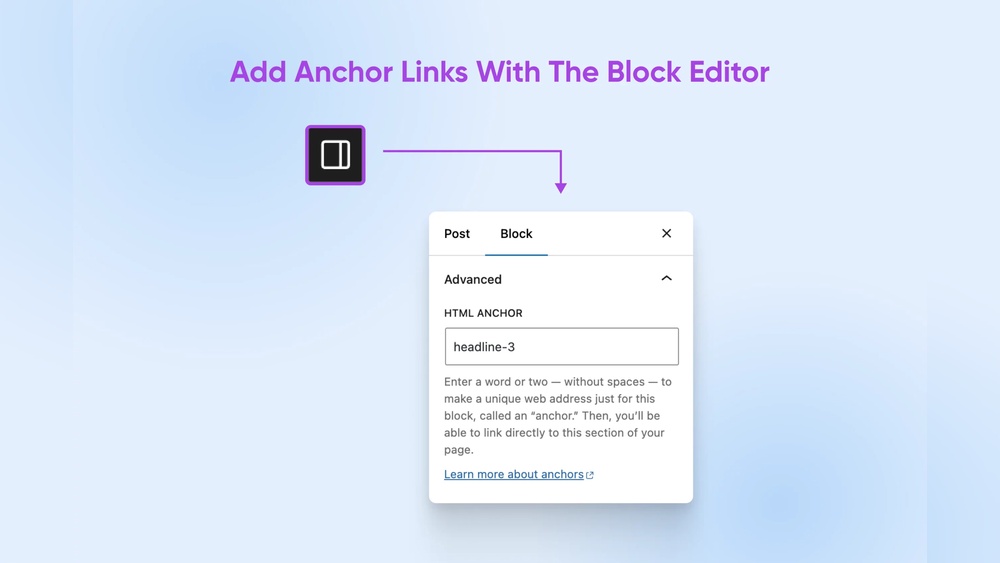
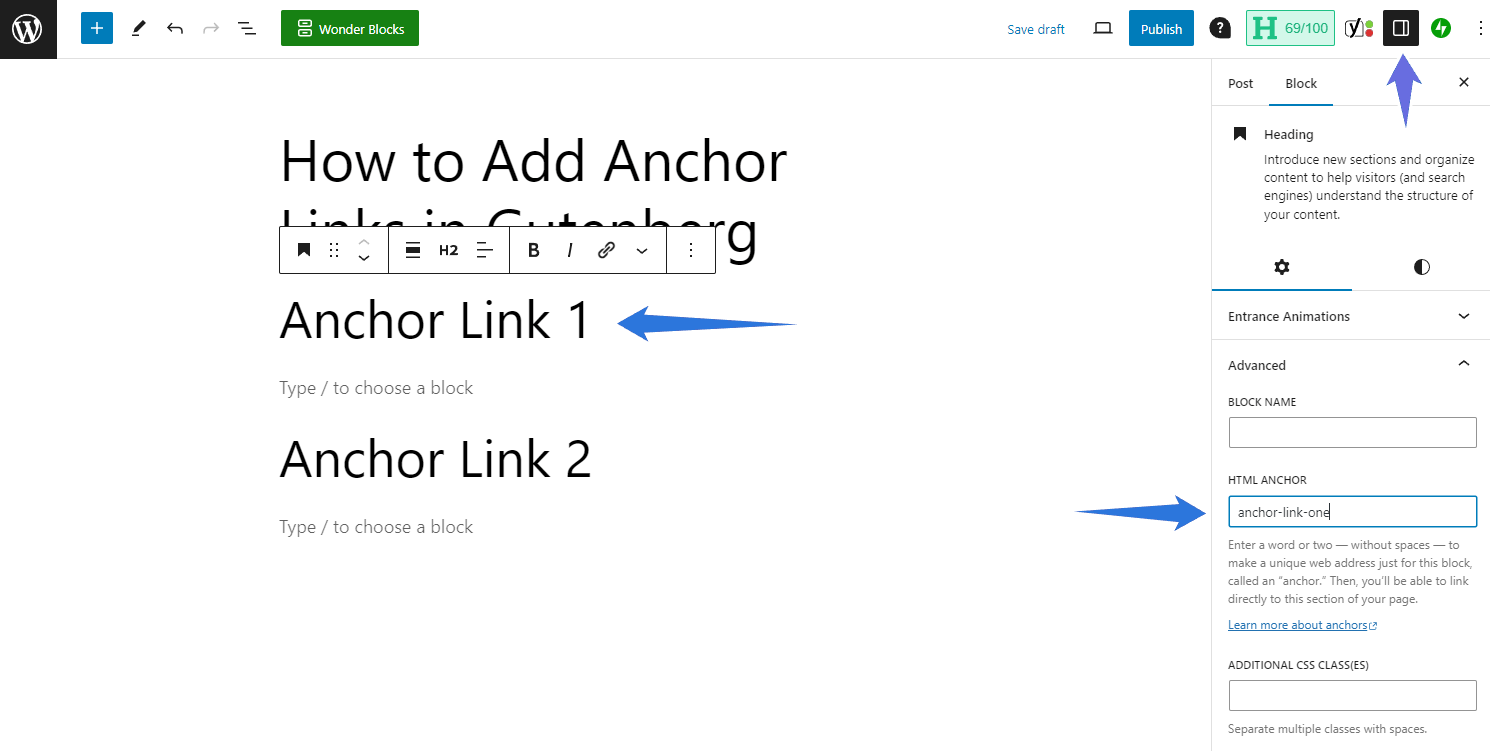
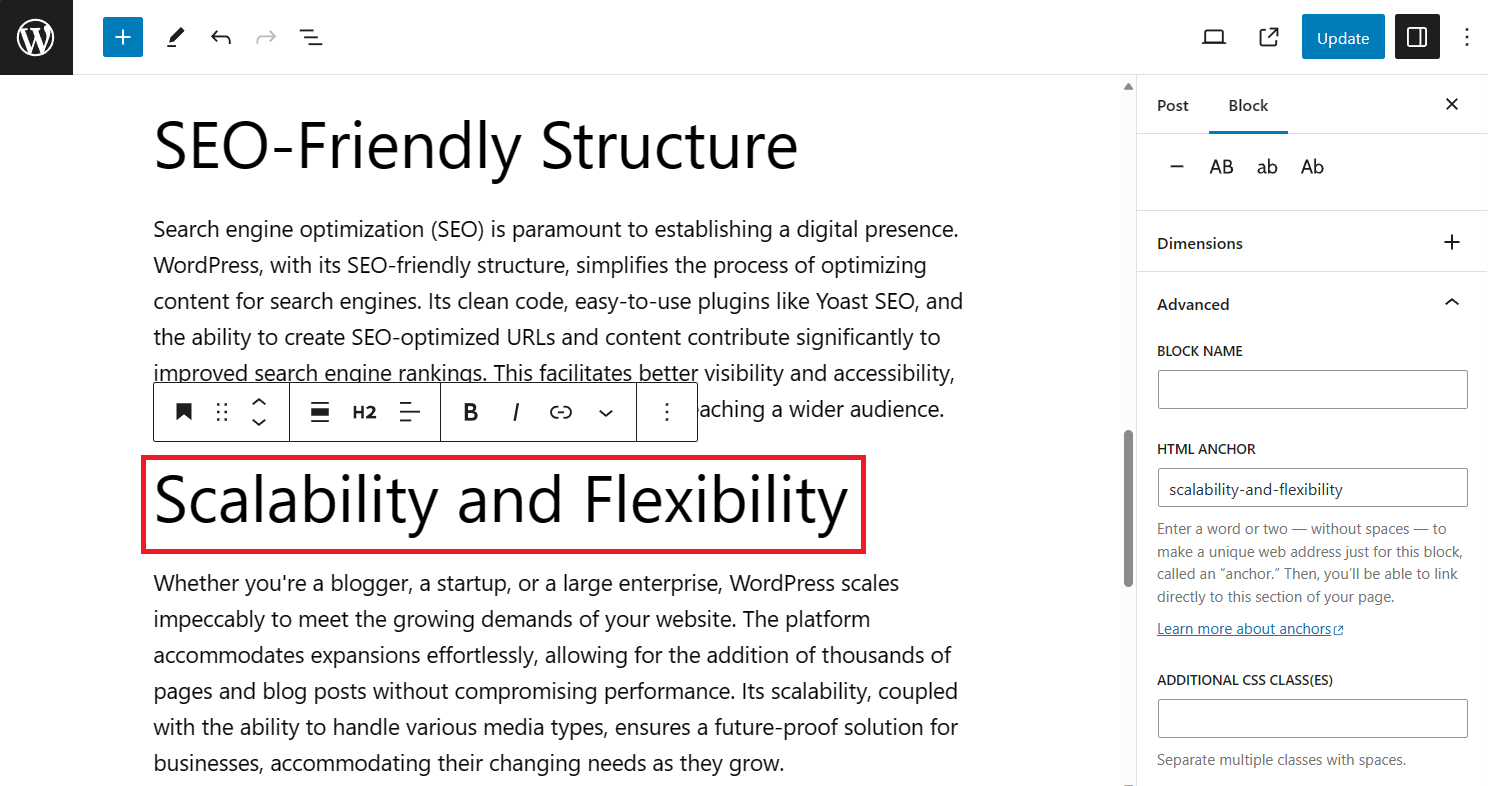
Select the heading block where you want the anchor. In the block settings panel on the right, find the “HTML anchor” field. Enter a unique name without spaces or special characters. For example, use “contact-section” or “services.” This name becomes the anchor ID.
Once set, this heading can be targeted by links. The anchor name must be simple and easy to remember. It helps both you and your visitors find sections fast.
Linking To Anchors Within Content
Highlight the text or button you want to turn into a link. Click the link icon in the toolbar. Type a hash () followed by the anchor name you created. For example, “contact-section.”
Press enter to apply the link. Now, clicking this link will scroll the page to the chosen heading. Test the link to ensure it works smoothly.
Credit: bdthemes.com
Using Html Anchor Tags
Using HTML anchor tags in the WordPress block editor helps create links that jump to specific parts of a page. This technique improves navigation and user experience. It allows visitors to find important sections quickly without scrolling too much.
HTML anchors work by assigning an ID to a heading or block. This ID acts as a target for links. When a user clicks the link, the page scrolls smoothly to the anchored section. This method is simple and effective for long posts or pages with many topics.
Adding Custom Html Anchors
To add a custom HTML anchor, select the block you want to link to. In the block settings on the right, find the “Advanced” section. Enter a unique word or phrase in the “HTML anchor” field. This becomes the ID for that block.
Use only letters, numbers, and hyphens in the anchor. Avoid spaces and special characters. For example, use “contact-us” instead of “Contact Us”. This ensures the anchor works correctly in URLs.
Editing Anchor Ids
Editing anchor IDs is easy in the WordPress block editor. Click the block with the existing anchor. Go to the “Advanced” settings panel. Change the text in the “HTML anchor” box to update the ID.
Remember to update any links pointing to the old anchor ID. Otherwise, the links will not work. Use clear and descriptive IDs to help visitors and search engines understand the page structure better.
Testing Anchor Links
Testing anchor links is important to ensure they work correctly. It helps visitors jump to specific parts of your page easily. You can catch errors early and fix them fast. Two main ways to test anchor links are using the editor preview and checking the live site.
Previewing In Editor
Start by previewing your post in the WordPress block editor. Click the preview button to open a new tab with your page. Try clicking the anchor links inside this preview. Check if they scroll smoothly to the right section. Look for any broken or incorrect links. This step saves time before publishing.
Checking On Live Site
After publishing, open the live page in a browser. Test each anchor link again by clicking on them. Make sure the page jumps correctly to the target area. Watch out for URL errors or missing anchors. Testing on the live site confirms everything works for visitors.
Troubleshooting Common Issues
Troubleshooting common issues with anchor links helps keep your website user-friendly. Problems can stop visitors from quickly finding what they want. Fixing these problems improves site navigation and user experience.
Check your anchor links carefully. Small errors can cause big problems. Below are two frequent issues and how to solve them.
Anchor Not Working
Anchors may not work if the ID is missing or incorrect. Verify the anchor ID matches exactly with the link’s href value. The ID must be unique on the page. Avoid spaces or special characters in the ID.
Sometimes, themes or plugins block anchor functionality. Test your page with plugins disabled. Switch to a default theme to see if the problem clears. Clear your browser cache to make sure you see the latest changes.
Duplicate Anchor Ids
Using the same anchor ID on multiple elements breaks navigation. Browsers get confused and jump to the wrong spot. Each anchor ID must be unique. Rename duplicate IDs with clear, distinct names.
Use the block editor’s HTML view to find and edit duplicate IDs. Keeping IDs unique ensures smooth scrolling and correct link behavior.
Enhancing User Experience
Enhancing user experience is key to keeping visitors on your website. Anchor links help users find important content quickly. They make navigation easier and save time. A good experience encourages visitors to explore more pages.
Smooth Scrolling Effects
Smooth scrolling makes moving between sections feel natural. Instead of jumping abruptly, the page glides to the linked part. This effect reduces confusion and helps users stay oriented. It creates a polished and professional look for your site.
Accessible Anchor Links
Accessible anchor links work for everyone, including people with disabilities. Screen readers can identify these links easily. Clear link names improve understanding and navigation for all users. Accessibility ensures your website is inclusive and user-friendly.
Credit: www.hostinger.com
Frequently Asked Questions
What Are Anchor Links In WordPress Block Editor?
Anchor links allow you to link directly to specific sections of a page. In WordPress block editor, they help users navigate quickly. You add them by assigning unique IDs to blocks and linking to those IDs within your content.
How Do I Create Anchor Links In WordPress Blocks?
To create anchor links, select a block, open its settings, and add a unique HTML anchor name. Then, create a hyperlink pointing to this anchor using a hashtag followed by the anchor name (e. g. , section1).
Can Anchor Links Improve Seo On WordPress Sites?
Yes, anchor links enhance user experience by making content easier to navigate. Improved navigation reduces bounce rates and increases page engagement, positively impacting SEO performance.
Are Anchor Links Compatible With All WordPress Themes?
Most modern WordPress themes support anchor links as they rely on standard HTML. However, some older or custom themes may require testing to ensure smooth functionality.
Conclusion
Adding anchor links in the WordPress block editor is simple and useful. It helps readers find information fast. You can link to sections within the same page easily. This improves user experience and keeps visitors engaged longer. Practice a few times to get comfortable with the steps.
Soon, adding anchor links will become part of your routine. Start adding them today to make your content clearer and easier to navigate.



