
Are you looking to make your WordPress posts easier to navigate? Adding anchors can help your readers jump straight to the sections they care about.
This simple trick not only improves user experience but also boosts your site’s SEO. You’ll learn exactly how to add anchors in WordPress step-by-step, even if you’re not tech-savvy. By the end, you’ll have a clear, clickable table of contents or quick links that keep your visitors engaged longer.
Ready to make your content more user-friendly? Let’s dive in!
Credit: www.elegantthemes.com
Anchor Links In WordPress
Anchor links in WordPress help users jump to specific parts of a page. They improve site navigation and user experience. These links are useful for long pages or articles. Visitors find information faster without scrolling endlessly.
What Are Anchor Links
Anchor links connect to a specific section on the same page. They work by using an ID attribute in the HTML code. When clicked, the page scrolls directly to that section. This saves time and makes browsing easier.
Benefits Of Using Anchors
Anchors make content easier to explore. They help visitors reach important details quickly. This can reduce bounce rates on your site. Search engines also notice well-structured pages. Anchors improve SEO by organizing content clearly. They help readers stay longer on your site. Overall, anchors create a smoother reading experience.
Creating Anchors In WordPress
Creating anchors in WordPress helps users jump directly to specific parts of a page. This improves navigation and user experience. Anchors are also useful for long posts or FAQs.
WordPress offers different ways to create anchors depending on the editor you use. The Block Editor and the Classic Editor have simple methods to add anchors. Both ways do not require coding knowledge.
Using The Block Editor
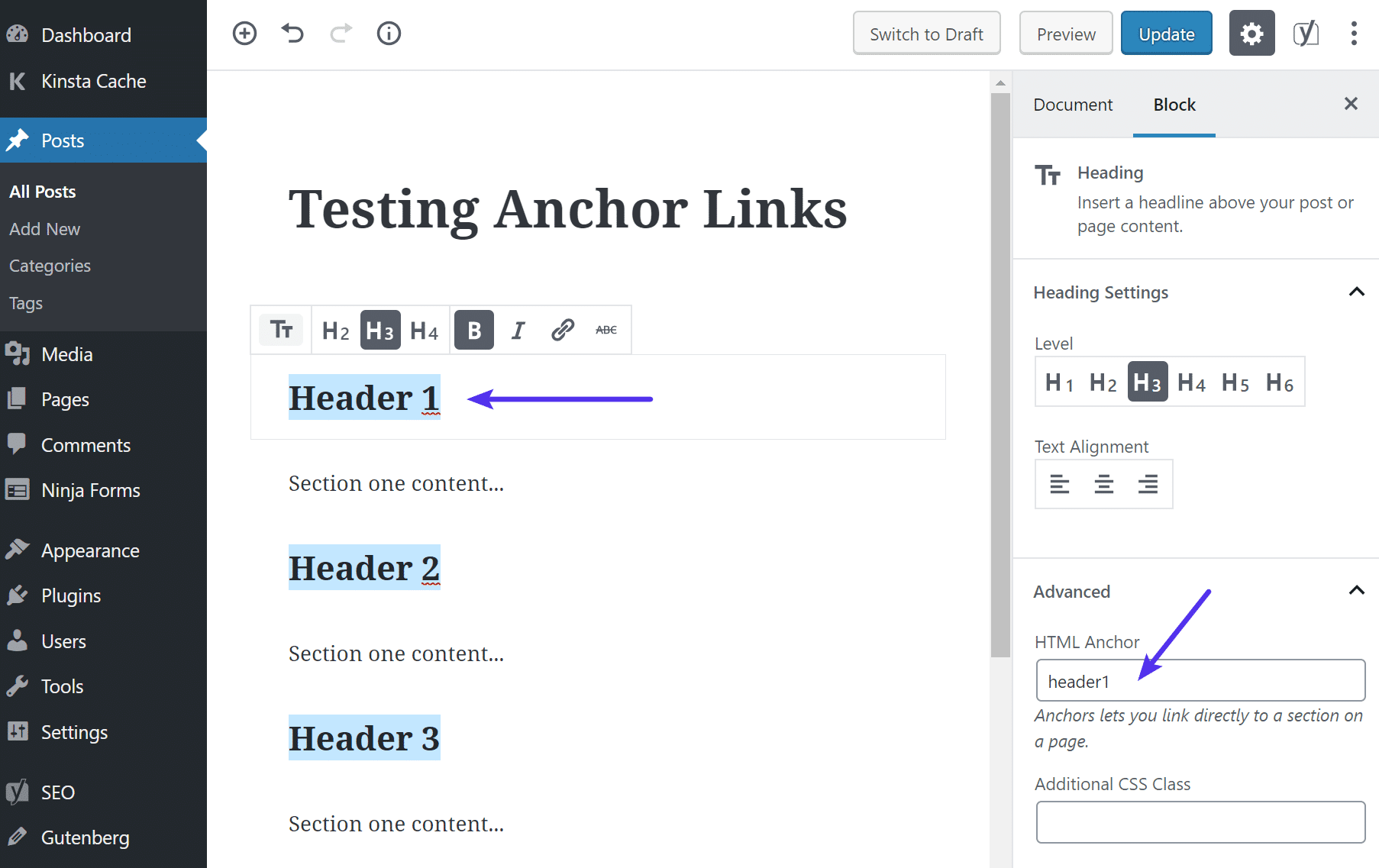
The Block Editor allows easy anchor creation within any block. Select the block where you want the anchor. In the right sidebar, find the “Advanced” section.
Enter a unique word or phrase in the “HTML Anchor” field. This acts as the anchor name. Use only letters, numbers, and hyphens. No spaces or special characters.
To link to this anchor, use a URL with a hashtag and the anchor name. For example, section1. Clicking this link scrolls the page to that block.
Adding Anchors In Classic Editor
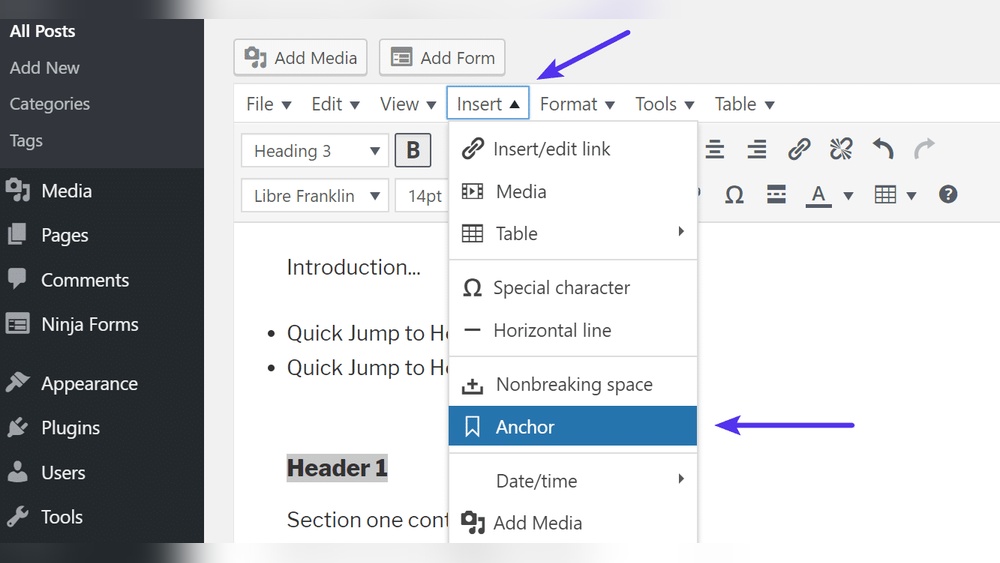
The Classic Editor requires a small HTML step to add anchors. Switch from Visual to Text mode. Find the spot where you want the anchor.
Add an anchor tag like this: . Replace “section1” with your unique anchor name. Save or update the post.
To link to the anchor, use a link with a hashtag and anchor ID. For example, section1. This scrolls the user to that part of the page.
Linking To Anchors
Linking to anchors helps visitors jump to specific parts of a page quickly. It improves site navigation and user experience. Anchors are useful for long content or FAQ sections. You can create links that point directly to these anchors. This guide explains how to set up internal links and menu links using anchors in WordPress.
Internal Links Setup
Create internal links to anchors by adding the anchor ID to your URL. First, add an anchor to a heading or section using the HTML id attribute. For example: Section 1
section1 at the end of the page URL or just section1 for the same page. This takes users directly to that part of the page.
Menu Links With Anchors
Menu links can also point to anchors to improve navigation. Go to Appearance > Menus in WordPress. Add a custom link and enter the anchor ID with a hash. For example, section1 will link to the anchor on the current page. Save the menu. Now visitors can click the menu item and jump straight to the chosen section.
Using Plugins For Anchors
Adding anchors in WordPress can be easier with plugins. These tools help you create links that jump to specific parts of your pages. Plugins save time and avoid manual coding. They also work well with many themes and editors. Using plugins is a good choice for beginners and busy site owners.
Popular Anchor Plugins
Several plugins help add anchors quickly. “Easy Table of Contents” creates a clickable list of anchors. “Page scroll to id” lets users scroll smoothly to sections. “Table of Contents Plus” offers anchors and page navigation. These plugins have simple interfaces. They fit most WordPress setups. You can pick one based on your needs and site style.
Plugin Setup And Features
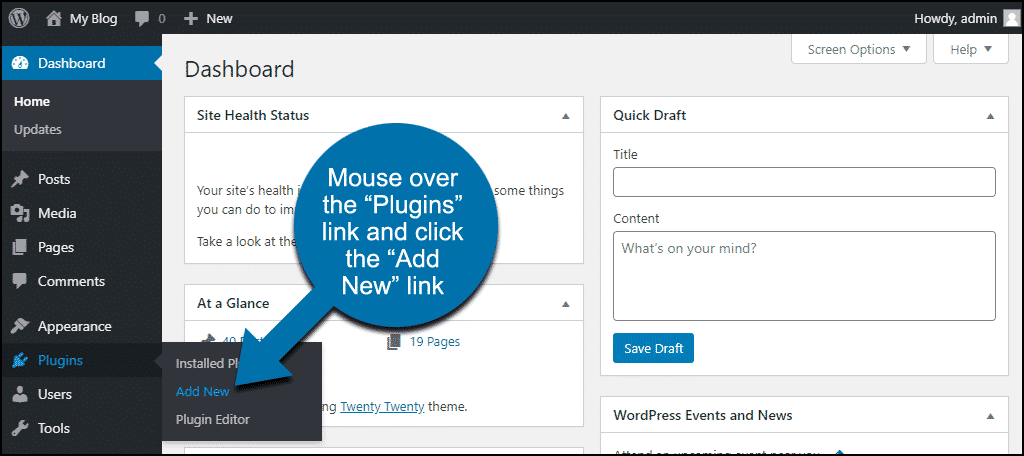
Installing anchor plugins is straightforward. Go to the WordPress dashboard, click “Plugins,” then “Add New.” Search for the plugin name. Click “Install” and then “Activate.” After activation, find the plugin settings. Adjust options like anchor style, link colors, and scrolling speed. Some plugins auto-generate anchors from headings. Others let you add anchors manually with shortcodes or buttons. Most plugins work well with Gutenberg and classic editors.
Troubleshooting Anchor Links
Troubleshooting anchor links helps keep your site easy to navigate. Anchor links jump visitors to specific parts of a page. Sometimes, these links do not work as expected. Understanding common issues can save time and frustration. Fixing anchor navigation problems makes your site user-friendly.
Common Issues
Anchor links may not work if the anchor ID is missing. Typos in the anchor name cause broken links. Using spaces or special characters in IDs can stop links from working. Sometimes, themes or plugins interfere with anchor behavior. Browsers may also handle anchors differently.
Fixing Anchor Navigation Problems
Check that each anchor has a unique ID without spaces. Use only letters, numbers, hyphens, or underscores. Match the anchor link exactly to the ID. Clear your browser cache to see changes. Disable conflicting plugins to test if they cause issues. Use simple anchor names to avoid errors. Test links on different devices and browsers. This ensures smooth navigation for all visitors.
Credit: kinsta.com
Best Practices For Anchors
Using anchors in WordPress improves navigation and page structure. Good practices make anchors clear and useful. They help visitors find content faster. Proper anchors also boost SEO by signaling page sections.
Follow these best practices to create effective anchors. Keep them simple and user-friendly. This section covers naming conventions and ways to enhance user experience.
Naming Conventions
Choose short and clear names for anchors. Use words that describe the section well. Avoid spaces and special characters in anchor names. Use hyphens or underscores if needed. Stick to lowercase letters to keep consistency. Clear names help users and search engines understand the link.
Enhancing User Experience
Place anchors at logical points in your content. Make sure links scroll smoothly to the right spot. Test anchors on mobile devices for easy use. Add visible cues like highlighted text or buttons. Keep anchor links visible and easy to find. Good user experience keeps visitors engaged longer.
Credit: www.greengeeks.com
Frequently Asked Questions
How Do I Create An Anchor Link In WordPress?
To create an anchor link, add an HTML ID to a heading or section. Then, link to it using “ID” in your URL or menu.
Can I Add Anchors Using The WordPress Block Editor?
Yes, use the block editor’s Advanced settings to add an HTML anchor ID to any block. It’s simple and requires no coding.
Why Use Anchor Links In WordPress Posts?
Anchor links improve navigation, letting readers jump to specific content. This enhances user experience and keeps visitors engaged longer.
Are Anchor Links Seo Friendly In WordPress?
Yes, anchor links help search engines understand your page structure. They can improve ranking by making content easier to navigate.
Conclusion
Adding anchors in WordPress helps visitors find information fast. It makes your content easier to navigate. You can link to specific sections within a page smoothly. This simple step improves user experience on your site. Try adding anchors to your posts today.
Watch how it helps readers and keeps them engaged. Small changes can make your site clearer and more useful. Give it a try and see the difference.



