
Are you struggling to make your images work harder for your website? Adding alt tags to your images in WordPress is a simple step that can boost your SEO, improve accessibility, and help your site rank higher in search results.
If you’re wondering how to do this quickly and correctly, you’re in the right place. You’ll learn exactly how to add alt tags to your images, even if you’re not a tech expert. Keep reading to unlock a straightforward way to make your website more powerful and user-friendly.
Why Alt Tags Matter
Alt tags are small pieces of text that describe images on a website. They help search engines and users understand what the image shows. Adding alt tags to images in WordPress is simple but very important. It improves your site in many ways.
Impact On Seo
Search engines cannot see images like humans do. They read alt tags to know what the image is about. Clear alt tags help your images rank in search results. This brings more visitors to your site. Alt tags also improve overall page SEO by adding relevant keywords.
Accessibility Benefits
Alt tags make your website easier to use for people with disabilities. Screen readers read alt tags aloud to describe images. This helps visually impaired users understand your content better. Without alt tags, important information in images is lost to these users.
User Experience Enhancement
Alt tags show text if an image does not load properly. This avoids confusion and keeps visitors engaged. They provide context and meaning to images. Good alt tags make your site more user-friendly and professional.

Credit: wordpress.stackexchange.com
Locating The Image Editor
Finding the image editor in WordPress is simple. It helps you manage and edit your images easily. This section guides you to access the editor quickly. You will learn how to open your media library and select an image. These steps are essential before adding alt tags.
Accessing The Media Library
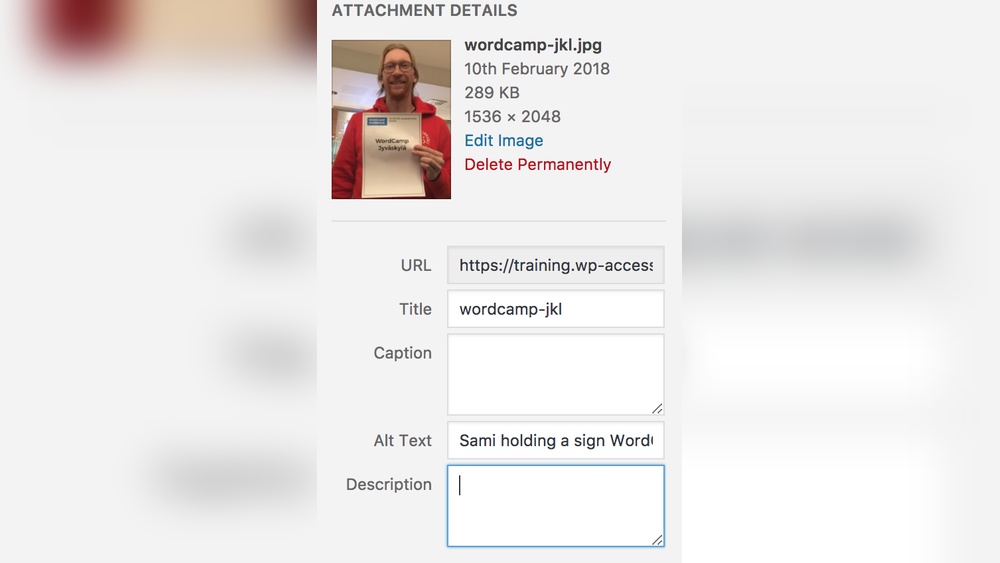
Start by logging into your WordPress dashboard. On the left menu, find and click on “Media.” This opens the Media Library, where all your uploaded images are stored. The library shows images in a grid or list view. You can browse through your files or use the search bar to find a specific image.
Selecting An Image
Click on any image to open its details. This action brings up the image editor screen. Here, you see options like title, caption, and alt text. The alt text field is where you add a description for the image. Making the right selection is key to editing the correct image.
Adding Alt Text In WordPress
Adding alt text to images in WordPress improves website accessibility and SEO. Alt text describes images to search engines and helps users with screen readers understand the content. It also shows up if an image fails to load. This guide covers how to add alt text using WordPress editors.
Using The Block Editor
Open your post or page in the WordPress Block Editor. Click on the image you want to edit. On the right side, find the “Image Settings” panel. Locate the “Alt Text (alternative text)” field. Type a clear, brief description of the image. Keep it simple and relevant. The alt text updates immediately. Remember to save or update your post after adding alt text.
Using The Classic Editor
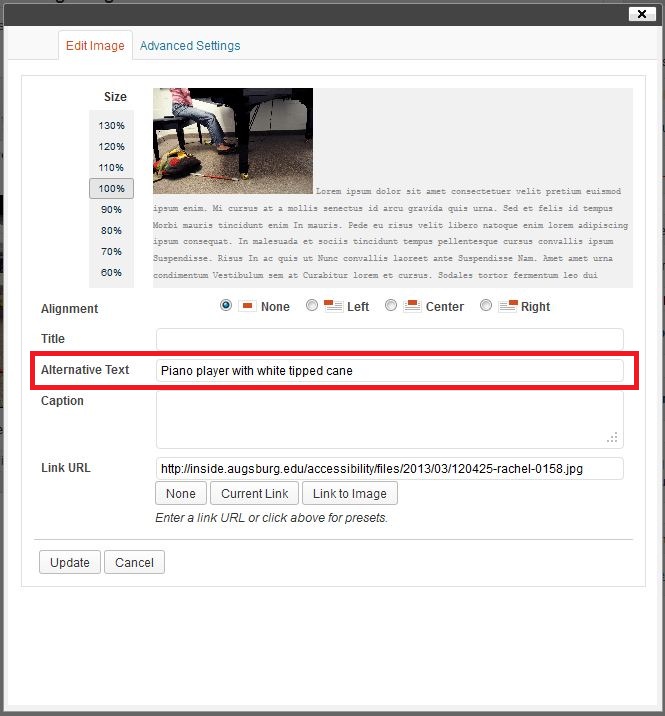
In the Classic Editor, click the image inside your post. Select the “Edit” option that appears. A popup window opens with image details. Find the “Alternative Text” box. Enter a short, descriptive phrase about the image. Click “Update” to save changes. Finally, update your post to apply the new alt text.

Credit: wpmudev.com
Crafting Effective Alt Text
Crafting effective alt text is essential for website accessibility and SEO. Alt text helps search engines understand your images. It also assists users who rely on screen readers. Writing clear and useful descriptions improves user experience and site ranking.
Each alt tag should convey the image’s purpose. It must be concise and meaningful. Avoid vague or generic phrases. Focus on describing the image precisely in a few words.
Keeping It Descriptive
Describe what the image shows clearly. Use simple and direct language. Mention important details that relate to the image. This helps users who cannot see the image understand its content.
For example, instead of “image1,” write “a red apple on a wooden table.”
Using Relevant Keywords
Include keywords that match the page topic naturally. Keywords should fit the image description without forcing. This boosts SEO without sounding awkward. Use words that users might type to find your content.
For instance, use “blue running shoes” on a sports blog about footwear.
Avoiding Keyword Stuffing
Do not fill alt text with too many keywords. It makes the text hard to read and less useful. Keyword stuffing can harm your SEO rankings. Keep the alt text natural and focused on the image meaning.
Write alt text for people first, not just for search engines.
Bulk Editing Alt Tags
Bulk editing alt tags saves time and improves SEO quickly. It helps update many images with descriptive text at once. This method is useful for websites with many pictures. Proper alt tags make images accessible to all users. They also help search engines understand your content better.
Plugins For Bulk Alt Text
Several WordPress plugins allow bulk editing of alt tags. These tools show all images in one place. You can add or change alt text fast without opening each file. Some popular plugins include Media Library Assistant and SEO Friendly Images. They provide simple interfaces and useful filters. Plugins help maintain consistent alt tags across the site.
Manual Bulk Editing Tips
Manually editing alt tags in bulk takes more effort but is free. Use the WordPress Media Library to select multiple images. Open the details panel and edit alt text fields one by one. Group images by category or post to stay organized. Keep alt descriptions clear and relevant to the image. Short, simple phrases work best for accessibility and SEO.
Credit: support.augsburg.edu
Common Mistakes To Avoid
Adding alt tags to images is important for SEO and accessibility. Many beginners make mistakes that reduce their benefits. Avoiding these common errors helps your website rank better and serve all users.
Leaving Alt Tags Empty
Empty alt tags miss the chance to describe images. Screen readers cannot explain the image content to users. Always write a clear, short description. It should explain what the image shows.
Overloading With Keywords
Stuffing alt tags with many keywords hurts SEO. Search engines may see this as spam. Use one or two relevant keywords naturally. Focus on describing the image, not on keyword count.
Using Generic Descriptions
Generic alt tags like “image” or “photo” add no value. They do not help users or search engines understand the image. Write specific, meaningful descriptions instead. Describe the image’s content clearly and simply.
Testing Your Alt Tags
Testing your alt tags is an important step after adding them to your images. It helps ensure your tags describe the images correctly. This improves accessibility and boosts SEO. Testing confirms that screen readers and search engines read the alt text properly. It also helps catch mistakes or missing tags early.
Using Seo Tools
SEO tools scan your website for missing or weak alt tags. They give reports on images without alt text or with poor descriptions. Tools like Screaming Frog or SEMrush help find these issues fast. They allow quick fixes to improve your site’s SEO and accessibility. Using SEO tools regularly keeps your website optimized.
Screen Reader Testing
Screen reader testing checks how alt tags sound to users with vision problems. Screen readers read the alt text aloud in place of images. Testing with screen readers like NVDA or VoiceOver ensures alt tags make sense. This step helps create a better experience for all visitors. It also confirms that alt text clearly describes the image content.
Frequently Asked Questions
What Is An Alt Tag In WordPress Images?
An alt tag is alternative text for images. It improves accessibility and SEO by describing the image content to search engines and screen readers.
Why Should I Add Alt Tags To WordPress Images?
Alt tags boost SEO by helping search engines understand images. They also enhance website accessibility for visually impaired users.
How Do I Add An Alt Tag To Images In WordPress?
In the WordPress editor, select an image, then enter descriptive text in the “Alt Text” field in the media settings.
Can Alt Tags Improve My WordPress Site’s Seo?
Yes, alt tags provide context to search engines. Properly written alt text can improve image ranking and overall SEO performance.
Conclusion
Adding alt tags to images in WordPress helps improve website accessibility. It also boosts SEO by making images easier to find. Use clear, short descriptions for each image. This small step can make your site more user-friendly. Remember to update alt tags whenever you add new images.
Keep your site organized and accessible for all visitors. Alt tags matter more than many think. Start adding them today for better results.



