
Are you looking to make money from your WordPress site? Adding ads is one of the easiest and most effective ways to do just that.
But how do you get started without feeling overwhelmed? This guide will walk you through simple steps to add ads to your WordPress site, even if you’re not tech-savvy. By the end, you’ll know exactly how to place ads that attract clicks and boost your income.
Ready to unlock your website’s full earning potential? Let’s dive in.
Credit: www.wpbeginner.com
Choosing The Right Ad Network
Choosing the right ad network is key to earning money from your WordPress site. The right network fits your content and audience. It should offer good pay and easy setup. Picking carefully helps avoid low earnings and poor user experience.
Popular Ad Networks For WordPress
Google AdSense is the most common choice. It offers many ad types and easy integration. Media.net works well with content-focused sites. It uses Yahoo and Bing ads. Amazon Associates lets you promote products and earn commissions. AdThrive suits high-traffic blogs with quality content. Ezoic uses AI to optimize ad placement and income.
Factors To Consider When Selecting
Check the payout rates and payment methods. Consider how ads look on your site. User experience matters. Choose networks with good support and easy setup. Review ad formats and customization options. Make sure the network accepts your site type. Look for networks with clear policies and no hidden fees.
Setting Up Your WordPress Site For Ads
Setting up your WordPress site properly helps ads perform better. A well-prepared site loads fast and looks good on all devices. This makes visitors stay longer and interact with ads.
Before placing ads, focus on site speed and design. These factors affect user experience and ad revenue. Clear steps make the process smooth and effective.
Optimizing Site Performance
Fast sites keep visitors happy and improve ad views. Use caching plugins to reduce load times. Compress images without losing quality for quicker page loads. Limit the number of plugins to avoid slowdowns. Choose a reliable hosting provider for better speed and uptime.
Choosing A Compatible Theme
Select themes that support ad placements easily. Themes should be lightweight and mobile-friendly. Avoid themes that are cluttered or slow. Check if the theme has built-in ad spots or widget areas. Clean and simple designs help ads stand out and attract clicks.
Installing Ad Plugins
Installing ad plugins on WordPress simplifies managing ads on your site. These tools help place ads in the best spots to catch visitor attention. They also allow easy control over ad types and schedules. Using plugins saves time and ensures ads run smoothly.
Top Ad Management Plugins
Several ad plugins work well with WordPress. Ad Inserter is popular for its easy setup and many features. Advanced Ads offers flexible placement and supports various ad networks. WP Quads is simple and fast, great for beginners. These plugins support banner ads, Google Ads, and more.
Plugin Installation And Activation
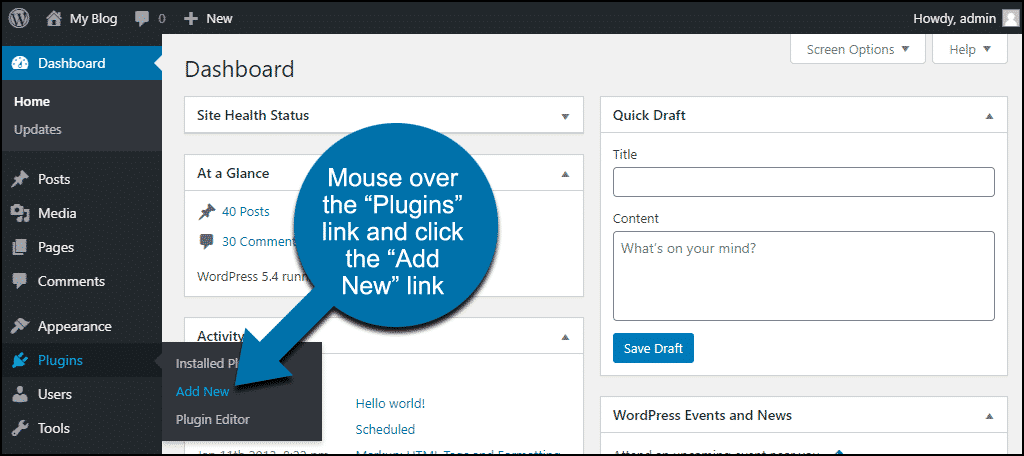
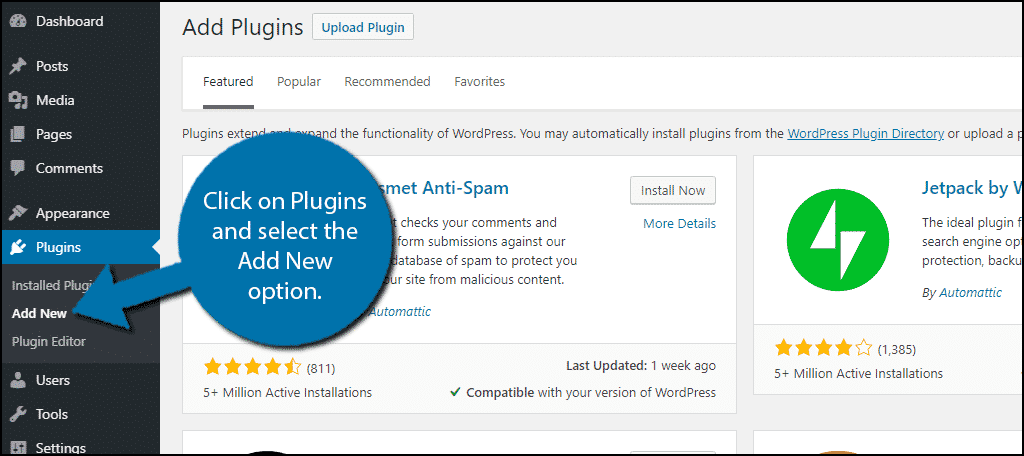
Start by logging into your WordPress dashboard. Go to Plugins, then click Add New. Type the plugin name in the search box. Click Install Now next to your chosen plugin. After installation, click Activate to start using it. Once active, configure the settings to fit your ad needs.
Credit: www.greengeeks.com
Creating And Adding Ad Units
Creating and adding ad units to your WordPress site helps you earn revenue. Ads must look good and fit well on your pages. The process starts with designing ad units that catch attention but do not annoy visitors. Then, place the ads in spots where visitors see them without disrupting content. This balance improves user experience and ad performance.
Designing Effective Ad Units
Effective ad units use clear images and short text. Choose colors that match your site but stand out from the background. Use simple fonts that are easy to read. Avoid clutter and keep the message direct. Size matters. Use standard ad sizes like 300×250 or 728×90 pixels. These sizes work well on most devices.
Test different designs to see which gets more clicks. Use tools or plugins that help create ad units easily. Make sure ads load fast to avoid slowing down your site. Keep ad content relevant to your audience for better results.
Placing Ads On Pages And Posts
Place ads in areas where visitors focus most. Common spots include above the content, below paragraphs, or in sidebars. Use WordPress widgets or blocks to add ads without coding. For better control, use plugins that insert ads automatically.
Try placing ads inside posts, especially after the first or second paragraph. Avoid placing too many ads close together. This can annoy visitors and reduce clicks. Check your site on mobile devices to ensure ads display correctly. Adjust placement if ads block important content or slow down loading.
Using Widgets And Custom Code
Adding ads to your WordPress site can improve your earnings. Two easy methods are using widgets and custom code. These let you place ads where visitors will see them. Both ways do not need complex tools or plugins. You can control ad placement and style. This helps keep your site neat and user-friendly.
Adding Ads Via Widgets
Widgets are simple blocks you add to sidebars or footers. WordPress has a built-in widget called “Custom HTML.” Use this to paste your ad code. Open your WordPress dashboard and go to Appearance > Widgets. Drag the “Custom HTML” widget to your chosen area. Paste the ad code inside the widget box. Save the changes and check your site. The ad will appear where you placed the widget.
Inserting Ads With Custom Html
Custom HTML gives more control over ad placement in posts or pages. Switch your editor to the HTML view. Paste your ad code in the spot you want the ad to appear. This method works well for inline ads or banner placements. It does not require extra plugins or widgets. Preview your page to ensure the ad looks right and loads properly.
Monitoring Ad Performance
Monitoring ad performance helps you understand how well your ads work. It shows which ads attract visitors and which do not. Tracking this data helps improve your ad strategy. You can increase earnings by focusing on ads that perform best.
Tracking Clicks And Impressions
Clicks tell how many times visitors press your ads. Impressions count how often ads appear on your site. Both numbers are important to see ad effectiveness. Use tools like Google AdSense or WordPress plugins for tracking. These tools give clear reports on clicks and views.
Check if clicks match your visitor count. Low clicks with high impressions may mean ads are not interesting. High clicks with low impressions show ads work well but need more exposure. Adjust ad placement based on this data to boost results.
Analyzing Revenue Reports
Revenue reports show how much money your ads earn. They break down earnings by ad type and time period. Study these reports regularly to spot trends. Notice which ads bring the most income. Remove or change low-performing ads to increase profit.
Compare daily and monthly earnings to track growth. Use this data to plan future ad campaigns. Understanding revenue helps make smart decisions for your website’s ads.
Best Practices For Ad Placement
Placing ads on your WordPress site needs care. Ads should bring income but not annoy visitors. Good ad placement keeps visitors happy and earns money. The right spots help ads get noticed without disturbing the content. Follow these best practices to place ads well on your site.
Balancing User Experience And Revenue
Keep ads clear but not too many. Too many ads make the site look crowded. Visitors might leave if ads block content. Place ads where they fit naturally with text. Try top banners, sidebars, or between paragraphs. Test different spots to see what works best.
Use ad sizes that fit your site layout. Large ads can distract, while too small ads may be ignored. Match ads with your site’s style and colors. This helps ads feel part of your page, not like a popup.
Avoiding Common Mistakes
Don’t place ads too close to clickable buttons or links. This causes accidental clicks and frustrates visitors. Avoid placing ads only at the bottom of pages. Many visitors do not scroll that far. Avoid using too many pop-ups or auto-play ads. These can drive visitors away quickly.
Make sure ads do not slow down your site speed. A slow site hurts visitor experience and SEO. Use tools to check your site’s loading time after adding ads. Remove or resize ads if they cause delays.
Credit: www.greengeeks.com
Troubleshooting Common Issues
Adding ads to your WordPress site can sometimes cause problems. These issues may stop ads from showing or cause your site to slow down. Troubleshooting helps you fix these problems quickly. It keeps your site running smoothly and your ads visible. Below are common issues and easy ways to solve them.
Fixing Ad Display Problems
Ads might not show because of incorrect code placement. Check if you copied the ad code exactly as given. Place the code in the correct widget or theme area.
Sometimes, ads do not appear due to caching. Clear your site cache and browser cache to refresh the page. This step often restores ad visibility.
Make sure your ad account is active and approved. An inactive account stops ads from loading. Also, check if your ads are blocked by browser extensions or ad blockers.
Handling Plugin Conflicts
Plugins can clash and stop ads from working. Deactivate all plugins except your ad plugin. Turn them on one by one to find the conflict.
Update all plugins to the latest version. Outdated plugins may cause errors. Using compatible versions ensures smooth ad display.
If a plugin conflicts with your ad plugin, try finding an alternative plugin. Sometimes, switching plugins solves the problem quickly.
Frequently Asked Questions
How Do I Add Ads To WordPress Without Plugins?
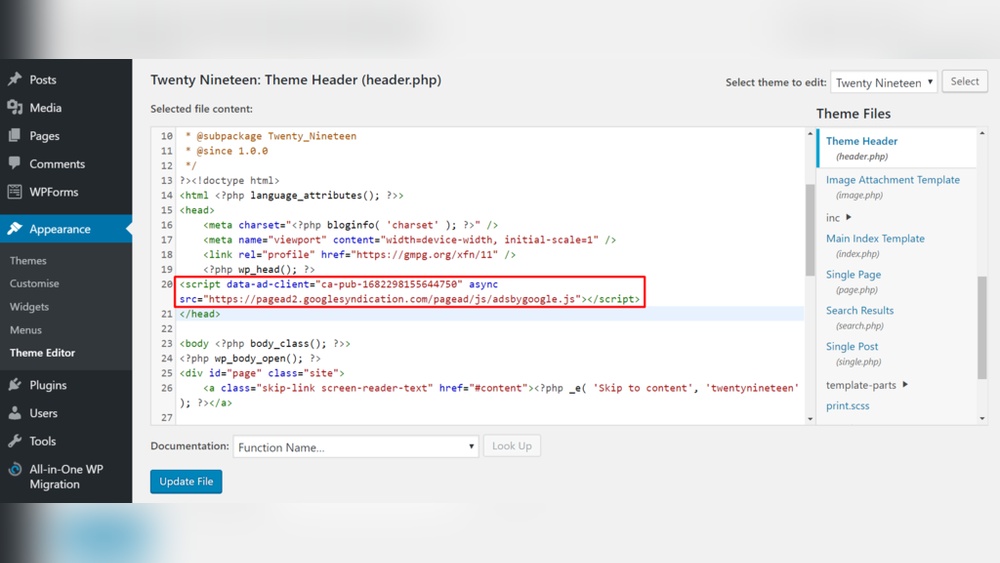
You can add ads by inserting ad code directly into your theme’s header, footer, or sidebar. Use widgets or edit theme files carefully to avoid errors.
What Are The Best Ad Networks For WordPress Sites?
Google AdSense, Media. net, and Amazon Associates are popular ad networks. They offer easy integration and good revenue for WordPress blogs.
Can I Control Ad Placement On WordPress?
Yes, you can control ad placement using widgets, shortcodes, or page builders. Many plugins also allow precise ad positioning and customization.
How Do I Avoid Slowdowns From Ads On WordPress?
Use asynchronous ad scripts and lightweight ad plugins. Avoid too many ads and optimize your site’s speed for better user experience.
Conclusion
Adding ads to your WordPress site can boost your earnings. Choose the right ad type for your content and audience. Place ads carefully to keep your site user-friendly. Regularly check ad performance to improve results. Stay patient—ads take time to show good income.
Keep your site content fresh and engaging for visitors. Simple steps lead to steady ad revenue growth.



