
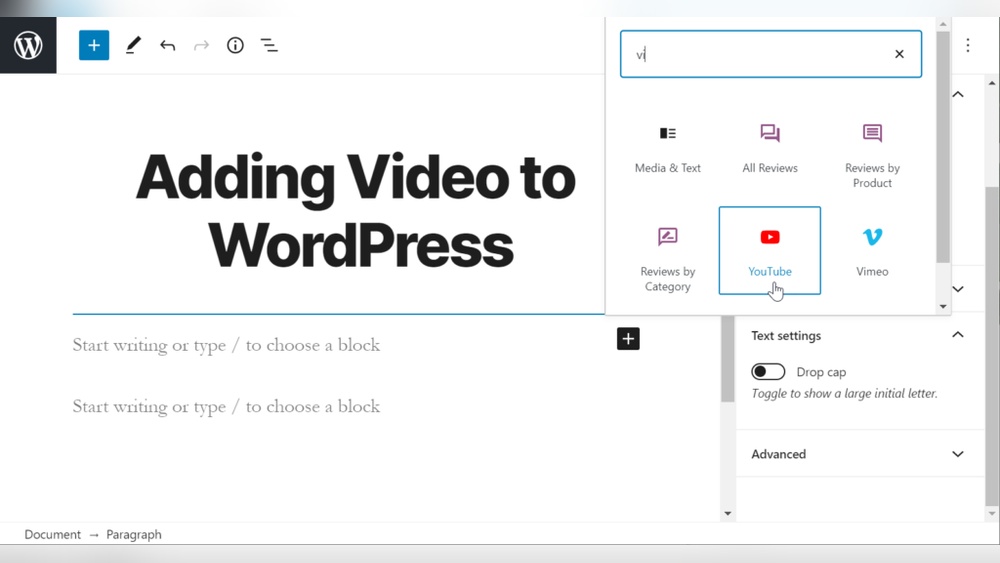
Adding a video to your WordPress website can instantly make your content more engaging and memorable. Whether you want to showcase a product, share a tutorial, or simply grab your visitors’ attention, videos are powerful tools.
But if you’re unsure where to start, don’t worry—you’re in the right place. You’ll discover simple, step-by-step ways to add videos to your site without any hassle. By the end, you’ll have the confidence to make your website stand out with eye-catching videos that keep visitors coming back for more.
Ready to transform your site? Let’s dive in.
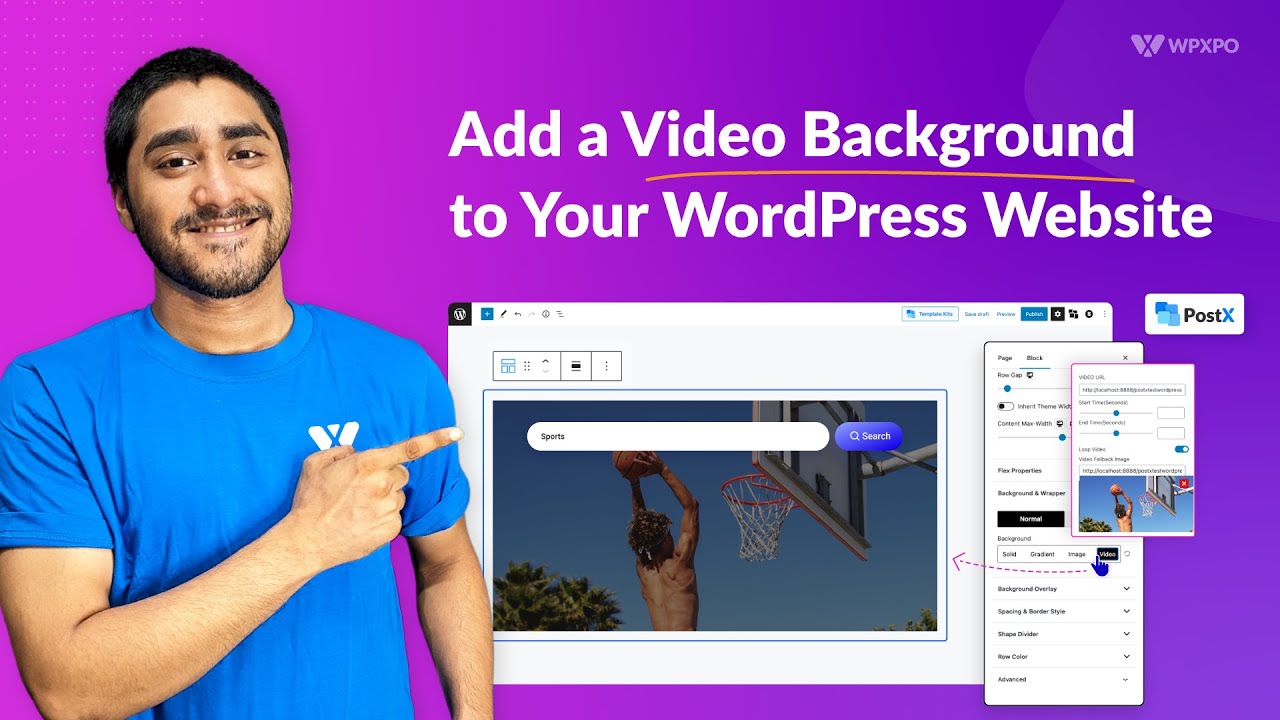
Credit: www.youtube.com
Choosing The Right Video Format
Choosing the right video format is key to a smooth experience on your WordPress site. The format affects how fast your video loads and how well it plays on different devices. Picking the correct format helps your visitors watch videos without problems. It also helps keep your site fast and user-friendly.
Supported Video Formats In WordPress
WordPress supports several common video formats. MP4 is the most popular and works on most browsers. WebM and Ogg are also supported but less common. Using MP4 ensures the video plays on almost all devices. It uses the H.264 codec, which balances quality and file size. Avoid rare or old formats that might not play well.
Optimizing Video Size And Quality
Large video files can slow down your website. Keep the file size small without losing too much quality. Compress videos using tools like HandBrake or online compressors. Choose a resolution that fits your site layout, like 720p or 1080p. Lower resolutions load faster but look less sharp. Test your video to find the best balance for speed and clarity.
Credit: www.youtube.com
Uploading Videos Directly To WordPress
Uploading videos directly to WordPress lets you keep your content all in one place. It helps visitors watch videos without leaving your site. This method is simple and fast for small video files. Large files might slow down your website, so use this carefully.
Using The Media Library
The Media Library stores all your images, audio, and videos. To upload a video, go to the WordPress dashboard. Click on “Media” and then “Add New.”
Drag your video file or click “Select Files” to choose from your computer. WordPress accepts common video formats like MP4, MOV, and AVI. After upload, the video appears in your library. You can view details like file size and URL here.
Inserting Videos Into Posts And Pages
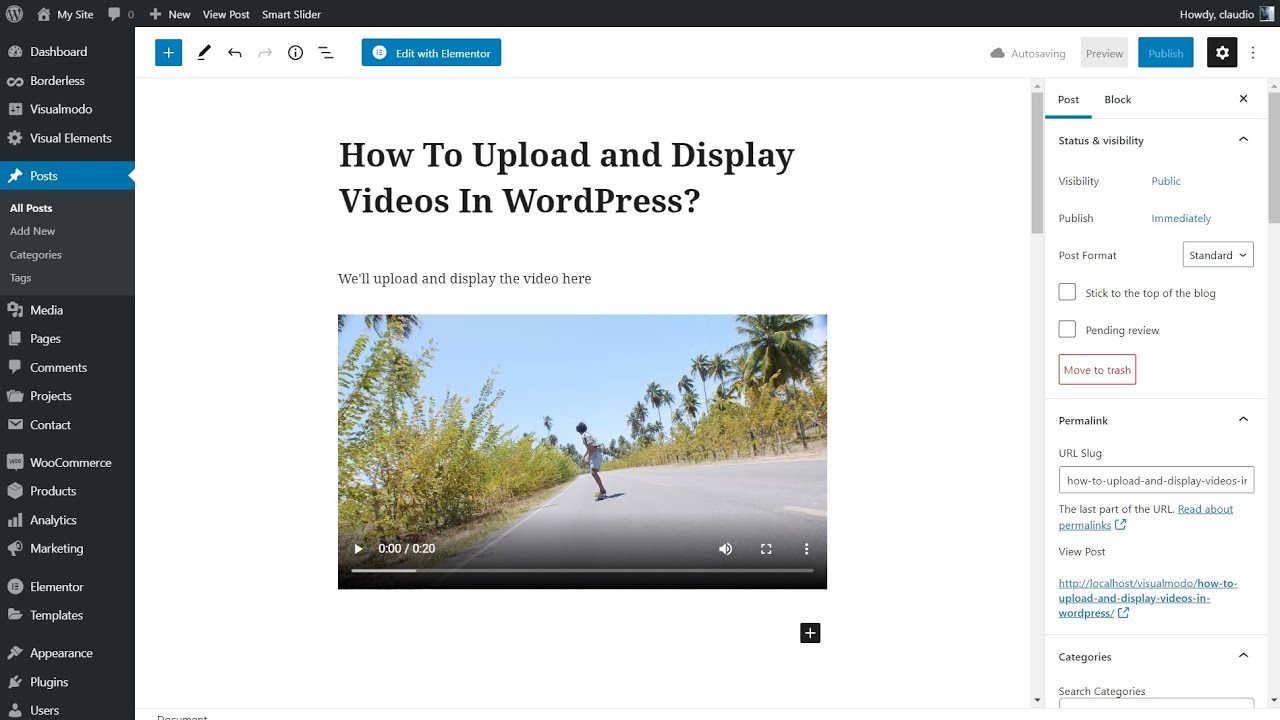
Edit a post or page where you want the video. Click the “+” button to add a new block. Choose the “Video” block from the options.
Select “Media Library” to pick your uploaded video. Click the video, then “Select.” The video appears in your content area. You can resize or align it easily.
Publish or update your page. Visitors will see the video embedded and ready to play.
Embedding Videos From External Platforms
Embedding videos from external platforms is a simple way to enrich your WordPress website. Videos can explain ideas clearly and keep visitors interested. You do not need to upload large files. Instead, use popular video sites to share videos easily and save space on your server.
Most video platforms provide embed codes. These codes let you place videos on your pages or posts. WordPress supports embedding from many sources. Just copy and paste the code. The video will appear perfectly on your site.
Adding Youtube Videos
YouTube is the biggest video platform worldwide. Find the video you want on YouTube. Below the video, click the “Share” button. Then select “Embed.” Copy the provided HTML code. In your WordPress editor, switch to the HTML view. Paste the embed code where you want the video to appear. Save or update your post. The video will show up with the correct size and controls.
Adding Vimeo Videos
Vimeo offers high-quality video hosting. Choose a Vimeo video to embed. Click the “Share” icon on the video page. Copy the embed code from the pop-up window. Open your WordPress editor and go to the HTML tab. Paste the code in the content area. Update your page or post. The video will load with smooth playback and custom settings.
Other Popular Video Platforms
Many other platforms support embedding. Dailymotion and Facebook videos also work well. Find the video and look for a share or embed option. Copy the embed code provided. Paste it into the WordPress HTML editor. Save your changes. The video player will appear automatically. This method keeps your website fast and your visitors happy.
Using WordPress Video Plugins
Using WordPress video plugins makes adding videos simple and effective. These plugins offer extra tools to manage videos on your site. They improve video quality, loading speed, and user experience. Plugins also support different video formats and platforms. This helps your website look professional and work well on all devices.
Top Video Plugin Options
Several video plugins stand out for WordPress users. Video.js provides a customizable video player. WP Video Lightbox opens videos in a popup window. FV Flowplayer supports many video formats and offers easy controls. Embed Plus helps add YouTube and Vimeo videos with extra features. These plugins suit various needs and skill levels.
Installing And Configuring Plugins
To install, go to your WordPress dashboard. Select “Plugins” then “Add New.” Search for the video plugin by name. Click “Install Now” and then “Activate.” After activation, find the plugin settings in the dashboard. Adjust video size, playback options, and appearance. Save your changes and test the video on your site. This process ensures videos show correctly and work smoothly.
Customizing Video Display
Customizing how your video looks on your WordPress site helps improve visitor experience. A well-displayed video can grab attention and fit your page style. Adjusting size, alignment, captions, and thumbnails makes your video more engaging and accessible.
Adjusting Video Size And Alignment
Start by setting the right video size to fit your page layout. Use WordPress block editor controls to choose width and height. You can also enter custom dimensions for exact control. Align your video to the left, right, or center to match your content flow. Proper alignment keeps your page neat and easy to read.
Adding Captions And Thumbnails
Captions help viewers understand the video, especially in noisy places. Add text captions directly in WordPress or upload a caption file. Thumbnails act as video previews and attract clicks. Choose a clear, interesting thumbnail image to encourage views. Both captions and thumbnails improve accessibility and user engagement.

Credit: thewebsitearchitect.com
Improving Video Performance
Videos make websites lively and engaging. But slow videos can frustrate visitors. Improving video performance helps videos load faster and play smoothly. It also reduces the strain on your server. Visitors stay longer and enjoy the content more. Here are key methods to boost video speed and quality.
Using Video Caching And Cdn
Video caching stores copies of your video on different servers. This cuts down the distance data travels to reach visitors. A Content Delivery Network (CDN) spreads videos across many servers worldwide. Visitors get video data from the nearest server. This makes videos load faster and reduces buffering. Using a CDN also lowers server costs and handles traffic spikes well.
Lazy Loading Videos
Lazy loading delays video loading until visitors scroll near the video. This speeds up the initial page load. It saves bandwidth by not loading videos visitors might skip. Use plugins or simple code snippets to enable lazy loading in WordPress. This method improves user experience and helps your website rank better on search engines.
Troubleshooting Common Video Issues
Adding videos to your WordPress site can boost engagement. Yet, video issues may arise. These problems often stop your video from playing or showing correctly. Troubleshooting helps fix these issues quickly. It improves user experience and keeps visitors on your site.
Playback Problems
Videos may not play smoothly or stop loading. This often happens due to slow internet or large file sizes. Compress your video to reduce its size. Clear browser cache if videos freeze or do not load. Check your hosting server speed. Sometimes, plugins can cause conflicts, so try disabling them temporarily. Use the WordPress video block or trusted plugins for better playback support.
Compatibility Issues
Different browsers support different video formats. MP4 is the most widely supported format. Avoid using rare formats like AVI or MOV. Test your video on Chrome, Firefox, Safari, and Edge. If it fails on some browsers, convert the video to MP4. Mobile devices may need special settings to display videos correctly. Use responsive video players to ensure compatibility across devices. Always update WordPress and plugins to avoid outdated technology issues.
Frequently Asked Questions
How Do I Upload A Video To WordPress?
To upload a video, go to your WordPress dashboard, click “Media,” then “Add New. ” Select your video file and upload it. Once uploaded, copy the video URL or insert it directly into a post or page using the block editor.
Can I Embed Videos From Youtube On WordPress?
Yes, you can easily embed YouTube videos by pasting the video URL directly into the WordPress editor. WordPress automatically converts the URL into an embedded video player without needing extra plugins.
What Video Formats Does WordPress Support?
WordPress supports common video formats like MP4, WebM, and Ogg. MP4 is the most widely used due to compatibility with most browsers and devices, ensuring smooth playback for your visitors.
How Do I Add Videos To WordPress Pages Or Posts?
Use the block editor’s “Video” block to add videos. You can upload files, paste URLs, or embed from platforms like YouTube. Adjust settings for autoplay, controls, and size directly in the editor.
Conclusion
Adding a video to your WordPress site makes it more lively and engaging. Videos help visitors understand your message quickly. The process is simple and does not need advanced skills. Use the built-in tools or embed codes from popular platforms.
Always check your video’s size and format for fast loading. Keep your content clear and easy to follow. With these steps, anyone can enhance their website easily. Start adding videos today to connect better with your audience.



