

Are you looking to make your WordPress page more organized and user-friendly? Adding a sidebar can help you do just that.
A sidebar lets you display extra content, like menus, ads, or social media links, without cluttering your main page. If you’ve ever wondered how to add a sidebar to your WordPress page but didn’t know where to start, this guide is for you.
Keep reading, and you’ll learn simple, step-by-step ways to create a sidebar that fits your site perfectly. By the end, you’ll have a clear and attractive layout that keeps your visitors engaged and coming back for more.
Choosing The Right Sidebar
Choosing the right sidebar is important for your WordPress page. A good sidebar can improve user experience and help visitors find key information quickly. It should fit your site’s style and purpose. Think about what content your visitors need most. The sidebar should support your main content, not distract from it.
Sidebar Types In WordPress
WordPress offers different sidebar types. You can use a fixed sidebar that stays visible while scrolling. Another option is a dynamic sidebar that changes based on the page. Some themes offer multiple sidebars for different pages or sections. Choose a sidebar type that matches your site’s layout and content needs. Keep it simple and clear to avoid clutter.
Selecting Widgets For Your Sidebar
Widgets are small blocks that add features to your sidebar. Common widgets include search bars, recent posts, categories, and social media links. Pick widgets that help visitors navigate your site. Avoid too many widgets; this can slow down your site and confuse users. Focus on useful and relevant widgets that support your content and goals.

Credit: visualmodo.com
Creating A Sidebar Area
Creating a sidebar area in WordPress lets you add extra content on your pages. Sidebars can hold widgets like menus, search bars, or recent posts. This makes your site easier to navigate and more user-friendly.
To create a sidebar, you need to register a new sidebar area in your theme. This process involves editing the theme’s code safely. Let’s see how to do it step by step.
Editing The Functions.php File
Open your theme folder and find the functions.php file. This file controls many features of your WordPress theme. You can add code here to create new features.
Use a code editor or the WordPress theme editor to open it. Be careful when editing this file. A small mistake can break your site.
Registering A New Sidebar
Add this code snippet to your functions.php file to register a sidebar:
function my_custom_sidebar() { register_sidebar(array( 'name' => 'Custom Sidebar', 'id' => 'custom-sidebar', 'description' => 'A new sidebar for pages', 'before_widget' => '', 'before_title' => '', 'after_title' => '
', )); } add_action('widgets_init', 'my_custom_sidebar');This code creates a sidebar named “Custom Sidebar”. It defines where widgets will appear and their HTML structure.
After saving the file, the new sidebar appears in your WordPress widgets area. You can now add widgets to this sidebar and display it on your pages.
Adding Sidebar To Theme Files
Adding a sidebar to your WordPress theme files helps customize your site layout. Sidebars show extra content like menus, ads, or recent posts. Editing theme files gives more control over sidebar placement and style. You can add the sidebar to specific pages by changing the page template.
Modifying The Page Template
First, find the page template file in your theme folder. It is usually named page.php or similar. Open this file using a code editor. Decide where you want the sidebar to appear. Common spots are beside the main content or below it.
Insert a new section or div for the sidebar area. Give it a class or ID for styling. Save your changes to the template file. This change prepares the template to hold the sidebar content.
Inserting The Sidebar Code
Use the WordPress function get_sidebar(); to add the sidebar. Place this code inside the new sidebar section or div. This function loads the sidebar.php file from your theme. You can also create custom sidebar files if needed.
Save the template file and refresh your page. The sidebar should now appear where you placed the code. You can add widgets in the WordPress admin under Appearance > Widgets to fill your sidebar.
Customizing Sidebar Appearance
Customizing the sidebar appearance helps your website look unique and professional. A well-styled sidebar improves user experience and keeps visitors engaged. Small changes can make a big difference in how your sidebar fits with your site’s design.
Focus on colors, fonts, spacing, and borders. These details create a clean, readable sidebar that matches your brand. You can style your sidebar with simple CSS rules. This approach gives you more control over the look and feel.
Using Css For Styling
CSS lets you change the sidebar’s background color and text style easily. Use CSS selectors to target sidebar elements like widgets and titles. Adjust padding and margins to create space around content. Add borders or shadows to separate the sidebar from the main content.
Changing font size and color improves readability. Use Google Fonts for unique typography. Keep your styles consistent with the rest of your site. Save your CSS in the theme’s style.css or a custom CSS plugin.
Responsive Design Tips
Make sure the sidebar looks good on phones and tablets. Use CSS media queries to change the sidebar layout on smaller screens. Consider moving the sidebar below the main content on narrow screens.
Keep sidebar width flexible using percentage or max-width values. Avoid fixed widths that break the layout on mobile devices. Test your sidebar on different screen sizes to ensure usability. A responsive sidebar keeps your site user-friendly everywhere.
Managing Sidebar Widgets
Managing sidebar widgets in WordPress lets you control what visitors see on your page. Widgets add useful features like menus, search bars, and recent posts. You can change these widgets anytime to keep your sidebar fresh and helpful.
Organizing widgets is simple and does not need coding skills. This section explains how to add, organize, and remove widgets easily.
Adding Widgets Via WordPress Dashboard
Log in to your WordPress dashboard. Go to Appearance and select Widgets. You will see available widgets on the left. Drag any widget to the Sidebar area on the right. Drop the widget where you want it to appear. Customize the widget settings if needed. Click Save to keep changes. Your new widget will show on your site’s sidebar immediately.
Organizing And Removing Widgets
To reorder widgets, drag them up or down in the Sidebar area. This changes their position on your page. To remove a widget, click the down arrow on the widget box. Press Delete or Drag it back to the available widgets area. Removed widgets no longer show on your sidebar. Organize widgets to highlight important content and improve user experience.
Credit: qodeinteractive.com
Using Plugins For Sidebar Management
Using plugins for sidebar management in WordPress makes the process simple and flexible. Plugins let you add, remove, or customize sidebars without touching any code. This is perfect for beginners or anyone who wants quick results.
Plugins offer many features like drag-and-drop controls, widget support, and conditional display options. They help you control where and how sidebars appear on your pages. This improves your site’s design and user experience.
Popular Sidebar Plugins
Several plugins are popular for managing sidebars in WordPress. “Custom Sidebars” allows you to create and assign different sidebars to pages or posts. “Content Aware Sidebars” lets you show sidebars based on categories or tags. “WooSidebars” works well for WooCommerce sites, offering sidebar control on shop pages.
Benefits Of Plugin Use
Plugins save time by avoiding manual coding. They provide user-friendly interfaces for easy sidebar setup. Plugins also offer more control over sidebar placement and visibility. They keep your site organized and help maintain a consistent look. Updates and support come with most plugins, ensuring smooth operation.
Troubleshooting Common Issues
Adding a sidebar to your WordPress page can improve navigation and user experience. Sometimes, the sidebar may not appear as expected. This section helps solve common sidebar problems quickly. Follow these simple tips to fix issues and get your sidebar working properly.
Sidebar Not Showing
Check if your theme supports sidebars. Some themes do not have sidebar areas by default. Look in the theme settings or documentation for sidebar options. Make sure you added widgets to the sidebar area in the WordPress dashboard. Clear your site cache if you use a caching plugin. Refresh the page after clearing. Also, check page templates. Some templates hide sidebars. Try switching to a template that shows sidebars.
Widget Conflicts
Widgets may cause conflicts and stop the sidebar from displaying. Disable all widgets temporarily to see if the sidebar returns. Reactivate widgets one by one to find the problem. Some plugins add widgets that can cause issues. Deactivate plugins that add widgets and check again. Update all plugins and themes to their latest versions. Outdated plugins may cause conflicts. Fixing widget conflicts will help your sidebar show correctly.
Credit: docs.themefuse.com
Frequently Asked Questions
How Do I Add A Sidebar To A WordPress Page?
To add a sidebar, go to Appearance > Widgets in your WordPress dashboard. Drag and drop widgets into the sidebar area. Customize the sidebar content and save the changes. Some themes also allow sidebar options in page settings.
Can I Customize Sidebar Content For Different Pages?
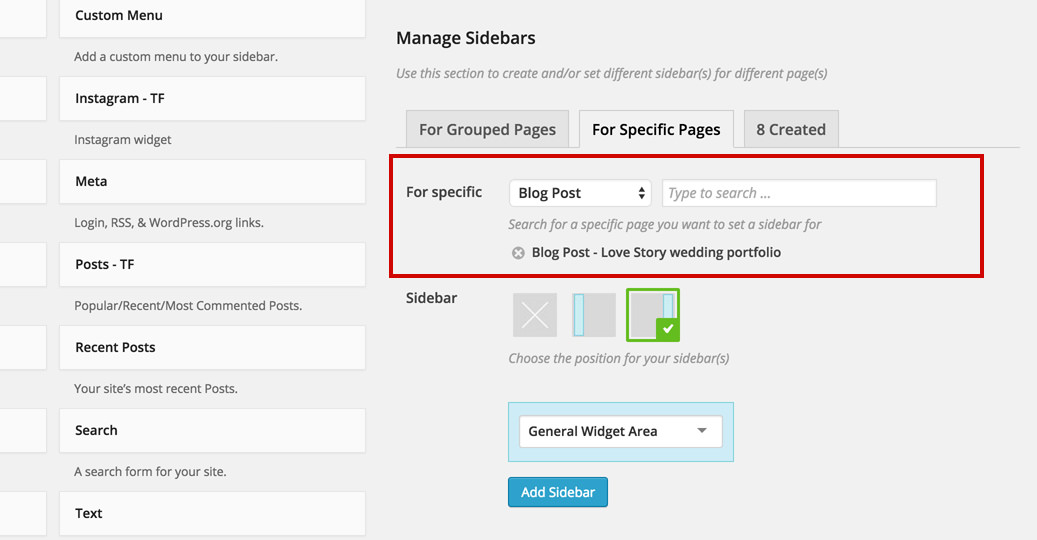
Yes, you can use plugins like Widget Logic or Custom Sidebars. They let you display unique sidebar content on specific pages. This enhances user experience by showing relevant information on each page.
What Is The Best Plugin For WordPress Sidebars?
Custom Sidebars by WPMU DEV is popular and easy to use. It allows you to create and assign multiple sidebars to different pages. This plugin offers flexible control over sidebar content and placement.
How To Make Sidebar Responsive On Mobile Devices?
Most modern WordPress themes have built-in responsive sidebars. You can also add custom CSS or use plugins to improve mobile display. Test your sidebar on various devices to ensure it looks good and functions well.
Conclusion
Adding a sidebar to your WordPress page is simple and useful. It helps organize your content and shows extra information. You can add widgets like menus, search bars, or recent posts easily. This makes your site look neat and professional.
Try different sidebar layouts to see what fits best. Keep your sidebar clean to avoid clutter. Now, your website has more space to share important details with visitors. Practice these steps, and your page will stand out.



