

Are you looking to keep your WordPress site fresh with the latest content from your favorite sources? Adding an RSS feed to your WordPress site is one of the easiest ways to do just that.
Imagine your visitors always finding new, relevant updates without you lifting a finger. You’ll discover simple steps to add an RSS feed to your WordPress site quickly and effectively. By the end, you’ll have a powerful tool that keeps your site dynamic and your audience engaged.
Ready to make your site smarter and more appealing? Let’s dive in!
What Is An Rss Feed
An RSS feed is a tool that shares updates from websites. It helps you see new content in one place. Many websites use RSS feeds to share blog posts, news, or podcasts.
RSS stands for Really Simple Syndication. It is a type of web feed that shows the latest content quickly. Instead of visiting each website, you get updates automatically.
How Does An Rss Feed Work?
Websites create an RSS feed with code that lists new content. Feed readers or apps check this feed often. They show new posts or articles to users immediately.
Why Use An Rss Feed?
RSS feeds save time. They let you follow many sites without visiting each one. Readers get fresh content in a single place. It keeps you updated easily and fast.
Where Can You Find Rss Feeds?
Many blogs and news sites have RSS feeds. Look for an orange icon or “RSS” link. You can copy the feed URL to use in readers or websites.
Benefits Of Adding Rss To WordPress
Adding an RSS feed to WordPress offers many benefits for your website. It helps you share content easily and keeps visitors updated. RSS feeds bring fresh content to your site without much effort.
They improve user experience by delivering new posts directly to readers. RSS feeds also help your site stay connected with your audience. These advantages make RSS a smart choice for WordPress users.
Improves Content Delivery
RSS feeds send your latest posts directly to subscribers. This means readers get updates without visiting your site. It keeps your audience engaged and informed.
Boosts Website Traffic
Regular updates through RSS can increase visits to your site. Readers follow links from feeds back to your pages. This steady traffic helps your site grow over time.
Enhances Seo Performance
Search engines notice fresh content on your site. RSS feeds make it easier to publish updates quickly. This can improve your search engine rankings and visibility.
Supports Content Syndication
RSS allows other websites to share your posts. This spreads your content to a wider audience. It builds more exposure and potential new readers.
Saves Time And Effort
Once set up, RSS feeds update content automatically. You don’t need to post manually on other platforms. This saves time and keeps your content consistent.
Finding The Rss Feed Url
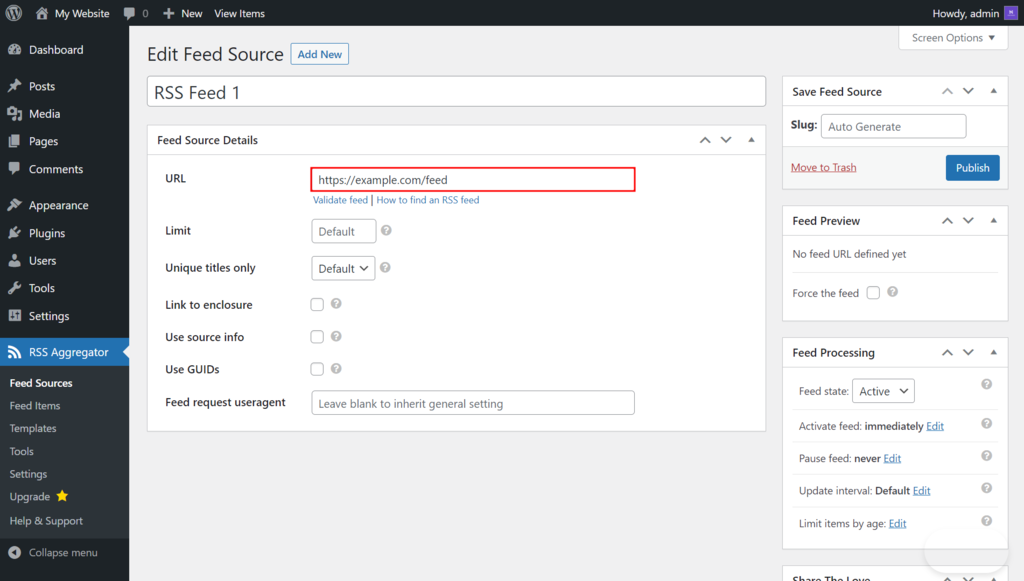
Finding the RSS feed URL is the first step to add an RSS feed to WordPress. The URL connects your site to the feed source. Knowing this URL helps you display fresh content easily.
Many websites have an RSS feed by default. The challenge is to find the exact URL for the feed you want.
Check The Website Footer Or Header
Most websites place their RSS feed link in the footer or header. Scroll down to the bottom or look at the top of the homepage. Look for the orange RSS icon or a link labeled “RSS.” Right-click and copy the link address. This is often the RSS feed URL.
Add /feed Or /rss To The Website Url
Many WordPress sites have a simple way to find the feed. Add “/feed” or “/rss” at the end of the website’s main URL. For example, “example.com/feed” or “example.com/rss”. Visit these links in your browser. If you see a list of posts or updates, you found the feed URL.
Use The Browser’s View Page Source Option
Open the website in your browser. Right-click anywhere on the page and select “View Page Source.” Search for “rss” or “feed” in the source code. Find the link tag with “application/rss+xml” in the type attribute. The href value in that tag is the RSS feed URL.
Credit: www.hostinger.com
Adding Rss Feed Using Widgets
Adding an RSS feed to your WordPress site using widgets is simple and effective. Widgets let you place the feed in sidebars or footers. This method helps show fresh content from other sites right on your page. It keeps visitors engaged and returning for updates. The process requires no coding and works with most themes.
Accessing The Widgets Area
Start by logging into your WordPress dashboard. Go to Appearance, then click Widgets. This section shows all available widgets and widget areas. Widget areas depend on your theme and can include sidebars or footers. Find the area where you want the RSS feed to appear. Click on it to open the editing options.
Configuring The Rss Widget
Look for the RSS widget in the list of available widgets. Drag the RSS widget to your chosen widget area. A form will appear for you to enter the RSS feed URL. Paste the feed URL from the site you want to display. Save the widget settings to apply the changes. The feed will now show in the selected widget area.
Customizing Display Options
The RSS widget offers several display options. You can set how many items to show from the feed. Choose whether to display the item content or just titles. You can also show the date of each post. These options help match the feed with your site’s style. Adjust settings and save to see the final look.
Using Plugins To Add Rss Feeds
Adding RSS feeds to your WordPress site can be simple with plugins. Plugins help you display content from other sites easily. They save time and avoid coding. Using plugins is a popular choice for beginners and experts alike.
Popular Rss Feed Plugins
Several plugins work well for RSS feeds. WP RSS Aggregator is a top choice. It lets you import and show multiple feeds. Feedzy RSS Feeds is another good option. It offers easy setup and customization. RSSImport is lightweight and simple for basic needs.
Installing And Activating Plugins
Go to your WordPress dashboard to install plugins. Click on “Plugins” then “Add New.” Type the plugin name in the search box. Click “Install Now” on the plugin you want. After installing, click “Activate” to start using it. Activation makes the plugin ready on your site.
Setting Up The Plugin
Each plugin has its own settings page. Find it under the “Settings” or “Plugins” menu. Add the RSS feed URL you want to display. Choose how many items to show and layout style. Save your settings. Check your site to see the feed appear.
Credit: www.youtube.com
Embedding Rss Feeds In Posts Or Pages
Embedding RSS feeds in WordPress posts or pages helps display fresh content automatically. It keeps your site dynamic and updated without manual work. Visitors see the latest news or blog updates from other sites right on your page.
Two easy methods let you add RSS feeds: using shortcodes and adding RSS feed blocks. Both methods fit well with WordPress and do not require coding skills.
Using Shortcodes
Shortcodes are simple codes you place inside posts or pages. WordPress reads them and shows the feed content automatically. You only need the RSS feed URL.
To use shortcodes, type [rss feed="URL"] in the editor. Replace URL with the actual RSS link. WordPress will pull the latest posts from that feed.
Shortcodes allow some customization. You can set the number of items to show or add excerpts. This makes your feed look clean and organized.
Adding Rss Feed Blocks
The block editor in WordPress has a built-in RSS block. It lets you add feeds visually without typing code. Just search for the RSS block in the editor’s block list.
After adding the block, paste the RSS feed URL into the block settings. The feed will display instantly on your page or post.
This method is user-friendly and perfect for beginners. You can adjust how many items appear and show the date or author.
Troubleshooting Common Issues
Adding an RSS feed to WordPress is usually simple. Sometimes, problems appear. Knowing common issues helps fix them fast. This saves time and keeps your site working well.
Feed Not Displaying
Check the feed URL first. Make sure it is correct and active. Clear your browser cache. Sometimes, old data blocks the feed from showing. Disable plugins that may block feeds. Some security plugins stop external feeds. Test your site with plugins off. If the feed shows, enable plugins one by one to find the problem.
Formatting Problems
RSS feeds can look messy if the format is wrong. Check the feed source for errors. Use an online RSS validator tool. Fix errors found in the feed code. Adjust your WordPress theme settings. Some themes change how feeds appear. Use a simple theme to test formatting. Plugins that handle feeds may also change styles. Update or switch these plugins if needed.
Performance Concerns
Feeds can slow down your website. Large feeds take time to load. Limit the number of items shown in the feed. Use caching plugins to speed up loading. Caching saves feed data temporarily. This reduces server requests and load time. Check your hosting server speed. Slow servers affect feed performance. Upgrade your hosting if needed for better speed.
Credit: www.wpbeginner.com
Tips For Managing Multiple Rss Feeds
Managing multiple RSS feeds on WordPress can feel tricky. Each feed brings fresh content, but too many can clutter your site. Good management keeps your site clean and your readers happy. Here are some simple tips to handle many RSS feeds well.
Use A Feed Aggregator Plugin
Feed aggregator plugins gather all your RSS feeds into one place. They save time by showing all updates together. These tools let you control how feeds appear on your site. Choose plugins that allow filtering and sorting for better organization.
Set Clear Categories For Each Feed
Categories help separate content types from different feeds. Assign each feed to a specific category on your site. This keeps content organized and easy to find. Visitors can browse topics without confusion.
Limit The Number Of Items Displayed
Show only a few recent posts from each feed. Too many items slow down your site and overwhelm readers. Set a limit, like five items per feed. This keeps your pages fast and clean.
Regularly Review And Update Feeds
Check your RSS feeds often. Remove feeds that no longer add value. Add new feeds that match your site’s focus. Regular updates keep content fresh and relevant.
Use Caching To Improve Performance
Caching stores feed data temporarily. It reduces loading time for visitors. Use caching plugins or settings in your aggregator. This makes your site faster and smoother.
Frequently Asked Questions
What Is An Rss Feed In WordPress?
An RSS feed in WordPress delivers your website’s latest content to subscribers. It helps users stay updated automatically. Adding an RSS feed improves content distribution and boosts engagement. WordPress supports RSS feeds by default, making it easy to share posts with readers and other platforms.
How Do I Add An Rss Feed To My WordPress Site?
To add an RSS feed, copy the feed URL from your source. Use WordPress widgets or plugins to insert the feed. Go to Appearance > Widgets, add the RSS widget, and paste the feed URL. This method displays external content directly on your site.
Can I Customize The Appearance Of Rss Feeds In WordPress?
Yes, you can customize RSS feed appearance using plugins or custom CSS. Plugins offer layout options and control over items displayed. Custom CSS allows styling changes for fonts, colors, and spacing. Customizing feeds improves your site’s look and matches your branding.
Are There Plugins To Manage Rss Feeds On WordPress?
Several plugins help manage RSS feeds on WordPress. Popular options include Feedzy, WP RSS Aggregator, and RSSImport. These plugins simplify feed integration, customization, and caching. Using plugins enhances feed functionality and user experience without coding.
Conclusion
Adding an RSS feed to WordPress keeps your site fresh and active. It helps you share updates quickly with your readers. The process is simple and requires only a few steps. You can use plugins or built-in tools to do this.
This small addition improves your site’s content flow and user experience. Start adding RSS feeds today to keep your visitors informed and engaged. It’s a smart way to make your website more dynamic and useful.



