
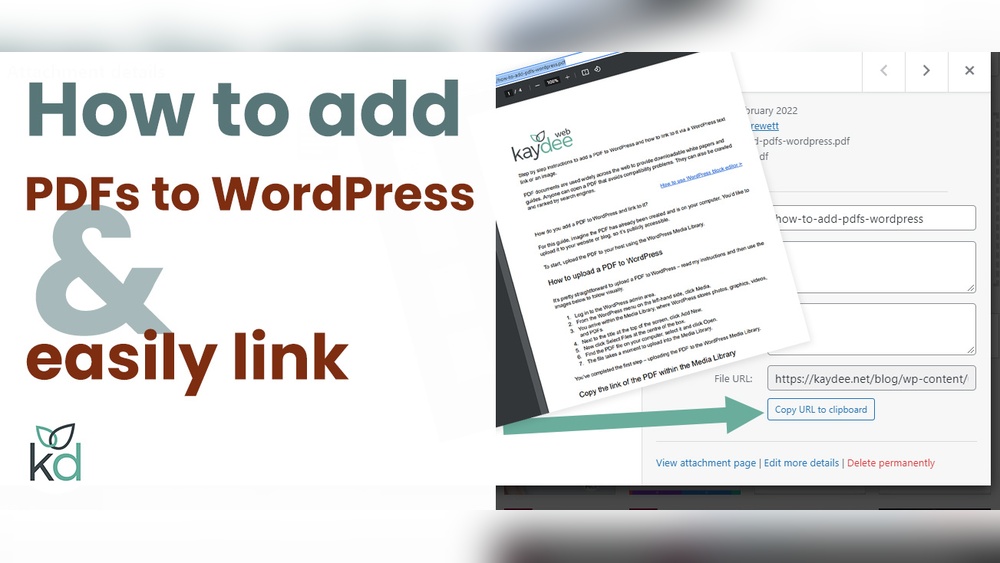
Are you struggling to add a PDF to your WordPress page? You’re not alone.
Sharing important documents, guides, or resources in PDF format can boost your site’s value and keep your visitors engaged. But if you’re unsure how to do it quickly and without hassle, this guide is exactly what you need. Keep reading, and you’ll learn simple, step-by-step methods to upload and display PDFs on your WordPress page—no tech skills required.
By the end, you’ll have your PDF ready for your audience to view or download in just minutes. Let’s get started!
Credit: www.monsterinsights.com
Prepare Your Pdf File
Preparing your PDF file is a key step before adding it to a WordPress page. This step helps your file load faster and works well on all devices. A well-prepared PDF improves user experience and site performance.
Check File Size And Format
Start by checking the PDF file size. Large files can slow down your website. Aim for a file size under 10 MB for faster loading. Also, confirm the file format is .pdf. WordPress supports PDF files natively, so no conversion is needed.
Optimize Pdf For Web
Optimizing your PDF reduces file size without losing quality. Use tools like Adobe Acrobat or online compressors to shrink the file. Remove unnecessary images or large graphics. This keeps the PDF clear and quick to open on any device.
Upload Pdf To WordPress
Uploading a PDF to a WordPress page is simple and quick. It helps share documents, guides, or manuals with your visitors. WordPress offers easy ways to upload PDFs and display them on your site. Here are two common methods to upload your PDF files smoothly.
Use The Media Library
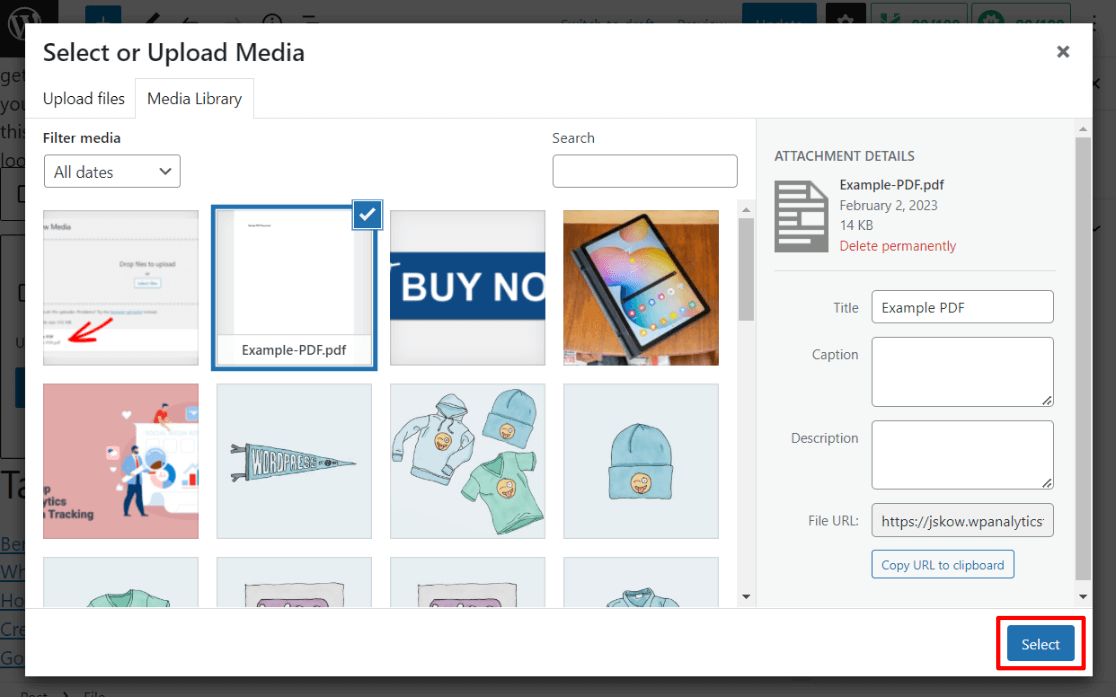
The Media Library is the main place to store files in WordPress. To upload a PDF, go to your WordPress dashboard and click on “Media.” Then, select “Add New.” Click the “Select Files” button and choose your PDF from your computer. WordPress will upload the file and save it in the library.
After uploading, you can copy the PDF URL or insert the file directly into a page or post. Using the Media Library keeps all your files organized and easy to access later.
Drag And Drop Method
Dragging and dropping is a faster way to upload PDFs. Open the page or post editor in WordPress. Find the area where you want to add the PDF. Then, simply drag the PDF file from your computer and drop it into the editor window.
WordPress will upload the file automatically and add a link to the PDF in your content. This method saves time and works well for quick uploads without opening the Media Library.
Insert Pdf Link In A Page
Inserting a PDF link in a WordPress page helps visitors access important documents easily. It lets you share files like reports, guides, or menus directly on your site. This method keeps your page clean and user-friendly. Visitors click the link to view or download the PDF.
Add Link Using Block Editor
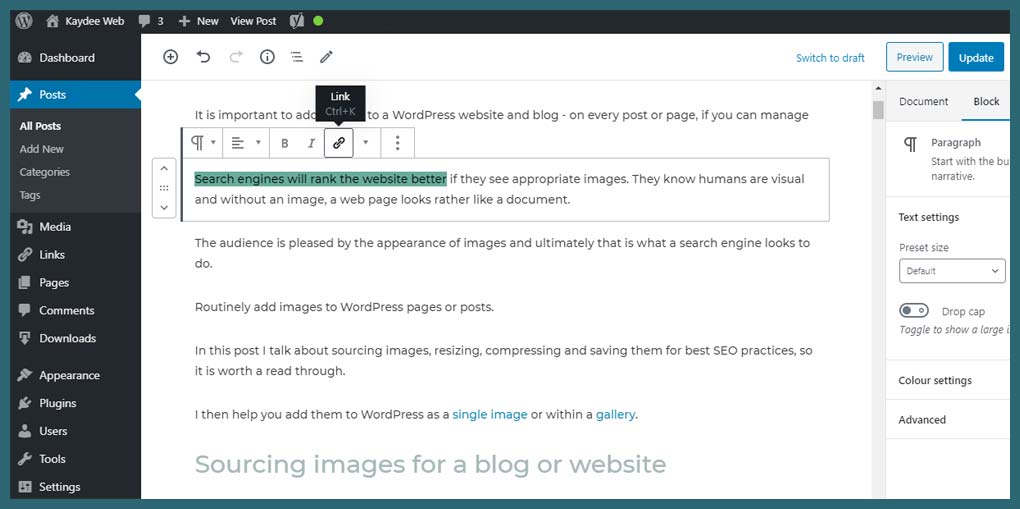
Start by opening your WordPress page in the Block Editor. Click the spot where you want to add the PDF link. Select the “File” block from the block options. Upload your PDF file or choose one from the media library. WordPress will create a link to the PDF automatically. You can preview the link to check it works correctly. This method is simple and fast for adding PDF links.
Customize Link Text
After adding the PDF, customize the link text to make it clear. Click the link text in the block editor. Type a short, descriptive phrase like “Download PDF” or “View Report.” Clear text tells visitors what to expect. Avoid using “Click here” as it is less informative. Good link text improves user experience and helps SEO. Keep it simple and direct for better results.
Credit: kaydee.net
Embed Pdf For Inline Viewing
Embedding a PDF for inline viewing lets visitors read documents without leaving your page. It keeps users engaged and makes your content easy to access. This method is perfect for reports, menus, guides, or any document you want to share directly.
You can embed PDFs using WordPress tools or plugins. Both ways show the PDF right inside your page. Visitors can scroll through pages or zoom in without extra downloads.
Use Pdf Embed Block
WordPress now includes a simple PDF embed block. It allows you to add PDF files directly into posts or pages. Upload your PDF file using the block. WordPress will show the file inline for easy reading.
This block supports scrolling and zooming. It works well on desktop and mobile devices. No coding skills are needed. Just drag, drop, and publish.
Install Pdf Viewer Plugin
For more control, install a PDF viewer plugin. These plugins offer extra features like page thumbnails and search options. Some popular plugins include PDF Embedder and PDF.js Viewer.
Install the plugin from your dashboard. Upload your PDF through the plugin’s interface. Use the shortcode or block provided to embed the file. Plugins improve user experience with smoother navigation.
Test Pdf On Your Page
Testing your PDF on the WordPress page is important. It ensures visitors see it properly. Testing helps find issues before publishing. This improves user experience and site performance.
Check Mobile Compatibility
Many users open sites on phones. Make sure your PDF works well on small screens. Check if the PDF loads quickly on mobile devices. Test zoom and scroll functions. A good mobile view keeps visitors engaged.
Verify Download And View Options
Check if the PDF can be downloaded easily. Make sure the view option works smoothly. Confirm the file opens in the browser or a new tab. Test different browsers to avoid issues. Clear download and view options help visitors use your PDF.

Credit: www.wpbeaverbuilder.com
Troubleshoot Common Issues
Troubleshooting common issues helps keep your PDF files working well on WordPress pages. Problems like broken links or slow loading can frustrate visitors. Fixing these quickly improves user experience and site performance. Below are simple steps to solve typical PDF problems.
Fix Broken Links
Broken links stop visitors from opening your PDF files. Check the file URL to ensure it is correct. Make sure the PDF is uploaded to the WordPress media library. Use the full URL path starting with “https://” to avoid errors. Update links if you move or rename the PDF file. Test each link after fixing to confirm it works.
Resolve Loading Problems
Slow loading or failure to open PDFs can annoy visitors. Large PDF files take longer to load. Reduce file size by compressing the PDF before uploading. Use a stable internet connection when uploading. Clear your browser cache if the PDF doesn’t load correctly. Try a different browser or device to check if the issue is local.
Frequently Asked Questions
How Do I Upload A Pdf To A WordPress Page?
To upload a PDF, go to your WordPress dashboard, select Media > Add New, and upload your file. Then copy the PDF URL to insert it into your page.
Can I Embed A Pdf Directly On A WordPress Page?
Yes, you can embed PDFs using plugins like PDF Embedder or Google Docs Viewer for better user experience.
Is It Possible To Link A Pdf In WordPress Without Plugins?
Yes, upload your PDF to the media library, then add a hyperlink to the PDF URL within your page content.
How Do I Make Pdfs Downloadable On WordPress?
Add a link to your PDF file and instruct visitors to click it. The file will open or download depending on browser settings.
Conclusion
Adding a PDF to your WordPress page is simple and quick. Just follow the steps to upload and link your file. This helps visitors access important documents easily. Keep your files organized and check links regularly. A clear PDF can improve your site’s usefulness and user experience.
Try adding a PDF today to share information better.



