
Are you looking to organize your WordPress site better? Adding a page to a category can make your content easier to find and boost your site’s navigation.
But if you’ve ever wondered how to do this quickly and without hassle, you’re in the right place. In this guide, you’ll discover simple, step-by-step instructions to add a page to a category in WordPress. By the end, you’ll have a cleaner, more user-friendly website that keeps visitors engaged and coming back for more.
Let’s get started!
Categories In WordPress
Categories in WordPress help organize your website content. They group related posts together. This makes it easier for visitors to find topics they want. Categories also improve your site’s structure and SEO. Using clear categories helps search engines understand your content better.
Purpose Of Categories
Categories sort your posts into broad groups. They create a simple navigation system for readers. Categories can cover topics like news, tutorials, or reviews. This organization helps visitors explore your site quickly. Search engines use categories to index your pages accurately. Well-chosen categories improve your website’s visibility online.
Difference Between Pages And Posts
Pages and posts serve different roles in WordPress. Posts are timely and appear in reverse order on blogs. They often use categories and tags for sorting. Pages are static and hold permanent information. Examples include About Us or Contact pages. Unlike posts, pages do not use categories. Understanding this helps decide how to organize content properly.

Credit: docs.themeisle.com
Preparing Your Page
Preparing your page is the first step before adding it to a category in WordPress. This step ensures your content is ready and fits well within your site’s structure. Take time to create or edit your page carefully. Clear, organized content helps visitors and improves your site’s SEO.
Creating A New Page
Start by logging into your WordPress dashboard. Navigate to the “Pages” section and click “Add New.” Enter a clear, descriptive title for your page. Write your content in short paragraphs for easy reading. Use headings to break the text and highlight key points. Add images or media to support your content. Preview the page to check its appearance before saving.
Editing An Existing Page
Go to the “Pages” section in your dashboard. Find the page you want to edit and click its title. Update the title or content as needed. Make sure the text is clear and free of errors. Check that images and links work correctly. Preview your changes to see how the page looks. Save your updates to keep them live on your site.
Assigning Categories To Pages
Assigning categories to pages in WordPress helps organize your site content. By grouping pages under categories, visitors find related information quickly. Unlike posts, pages do not support categories by default. You must enable this feature manually or use plugins. This section explains two easy methods to assign categories to pages.
Using Plugins For Category Support
Plugins add category support to WordPress pages without coding. Many free plugins are available in the WordPress repository. After installing, these plugins enable category options on page edit screens.
Users can select or create categories just like with posts. This method is simple and requires no technical knowledge. Plugins also keep categories linked with pages for better site structure. Check plugin reviews and update frequency before installation. Popular choices include “Category Tag Pages” and “WP Custom Categories.”
Manual Code Approach
The manual code method involves adding code to your theme’s functions.php file. This enables categories for pages without plugins. Use this code snippet:
function add_categories_to_pages() { register_taxonomy_for_object_type('category', 'page'); } add_action('init', 'add_categories_to_pages'); This code tells WordPress to allow categories on pages. After adding, category options appear on the page editor. This method keeps your site light without extra plugins. Always back up your site before editing theme files.
Managing Categories
Managing categories in WordPress helps organize your content clearly. Categories group pages by topics, making navigation easier. Proper category management improves your site’s structure and SEO. Understanding how to add, edit, and delete categories is essential for a clean website.
Adding New Categories
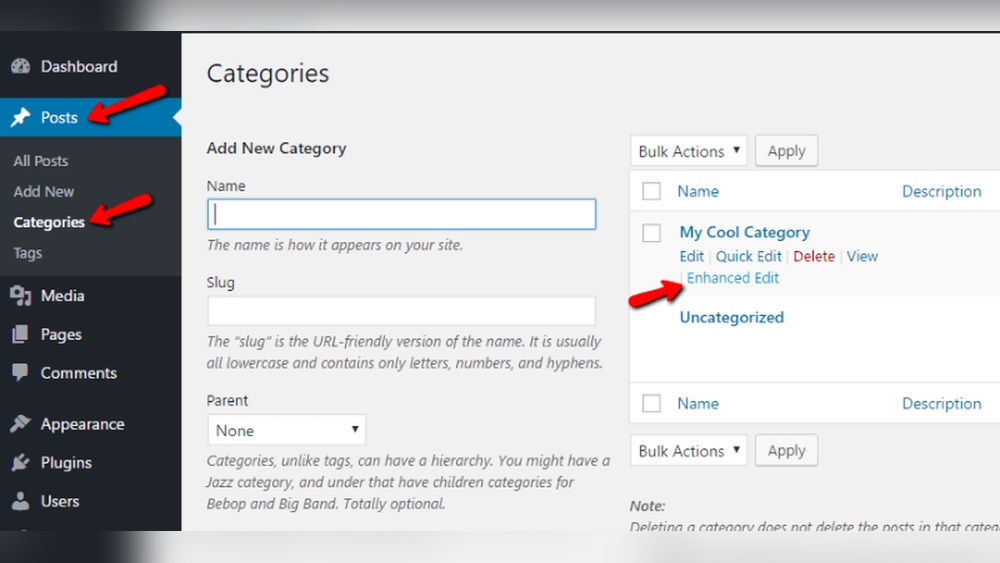
To add a new category, go to the WordPress dashboard. Click on “Posts” and then “Categories.” Enter the category name in the text box. You can add a description, but it is optional. Click “Add New Category” to save it. The new category will appear in the list and be ready to use.
Editing And Deleting Categories
Edit categories by hovering over the category name in the list. Click “Edit” to change the name or description. Make sure to save changes before leaving the page. To delete a category, click “Delete” under the category name. Confirm the deletion when prompted. Deleted categories will remove from your list but not delete pages assigned to them.
Displaying Pages By Category
Displaying pages by category in WordPress helps organize your site content. Visitors find related pages quickly. This improves user experience and site navigation. WordPress offers simple tools to show pages by their categories. Use these tools to make your site easier to browse.
Using Category Archives
Category archives group all pages under the same category. WordPress creates these archives automatically. Visitors click a category link to see all pages in it. You can access archives using category URLs or links. This method keeps your site organized and easy to explore.
Custom Menus And Widgets
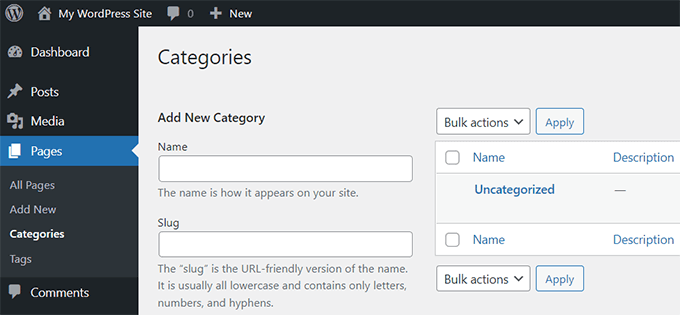
Custom menus let you add category links to your site’s navigation. Create menus in the WordPress dashboard under Appearance > Menus. Add category pages or archive links to the menu. Widgets also help by showing categories in sidebars or footers. Use the Categories widget to list categories and their pages. This boosts site usability and page visibility.
Credit: www.wpbeginner.com
Troubleshooting Tips
Troubleshooting issues while adding a page to a category in WordPress can save you time. Small errors often cause big problems. Knowing common issues helps fix them quickly. Plugins may also cause conflicts that block category assignments. Follow these tips to identify and solve problems fast.
Common Issues
Pages may not show categories if the theme does not support it. Some themes only assign categories to posts. Double-check your theme settings. Also, ensure the page is published, not in draft mode. Sometimes, categories do not appear because of caching. Clear your site and browser cache. Check user permissions. Low-level user roles might not edit categories. Verify your role has the right access.
Plugin Conflicts
Plugins can block category features on pages. Disable all plugins temporarily to find the problem. Reactivate them one by one. Notice if the category option returns after disabling a plugin. Popular plugins for SEO or page builders may cause this. Update all plugins to the latest version. Outdated plugins often cause conflicts. Consider using a plugin designed to add categories to pages if needed.

Credit: wpsites.net
Frequently Asked Questions
How Do I Assign A Page To A Category In WordPress?
In WordPress, pages don’t have categories by default. Use a plugin like “Category Tag Pages” to add category functionality to pages. After installing, you can assign categories to pages just like posts.
Can I Organize WordPress Pages Using Categories?
By default, WordPress only allows categories for posts. To organize pages, you must install a plugin that enables categories for pages. This helps improve site structure and navigation.
Why Add A Page To A Category In WordPress?
Adding pages to categories improves content organization and user experience. It helps visitors find related content easily and boosts SEO by structuring your site logically.
Is There A Plugin To Categorize WordPress Pages?
Yes, plugins like “Category Tag Pages” or “Posts Table Pro” let you add categories to pages. These plugins enable category management and improve site navigation for pages.
Conclusion
Adding a page to a category in WordPress helps organize your site well. It makes it easier for visitors to find content they want. The process is simple and quick, even for beginners. Just follow the steps carefully, and you will succeed.
Keep your categories clear and relevant to improve user experience. This small action can make your site look more professional. Try it today and see how your website feels more organized and user-friendly.



