
Are you looking to make your WordPress site easier to navigate? Adding a new menu tab is a simple way to guide your visitors exactly where you want them to go.
Whether you want to highlight a new service, showcase a special offer, or organize your content better, a clear menu can make all the difference. You’ll discover step-by-step how to add a new menu tab in WordPress quickly and without any coding.
By the end, you’ll have a smooth, professional menu that keeps your visitors engaged and coming back for more. Let’s get started!
Accessing WordPress Dashboard
Accessing the WordPress dashboard is the first step to managing your website. This area lets you control menus, posts, pages, and more. It acts as the command center for your site.
Knowing how to get to the dashboard quickly saves time. It also helps you make changes smoothly. Let’s explore the simple steps to reach this important section.
Opening The Login Page
Start by typing your website address in the browser. Add /wp-admin or /wp-login.php at the end. Press enter to go to the login screen.
Entering Your Username And Password
Type your username and password in the fields shown. These credentials were created during WordPress setup. Double-check for typos before clicking the login button.
Understanding The Dashboard Layout
Once logged in, the dashboard appears. The left menu shows different options like Posts and Appearance. The main area displays recent activity and quick links.
Navigating To Menu Settings
Navigating to the menu settings in WordPress is a simple task. This step is essential for managing your site’s navigation. The menu settings allow you to create, edit, and organize menu tabs easily.
Start by logging into your WordPress dashboard. This is where you control all your website settings. The dashboard shows various options to customize your site.
Accessing The Appearance Section
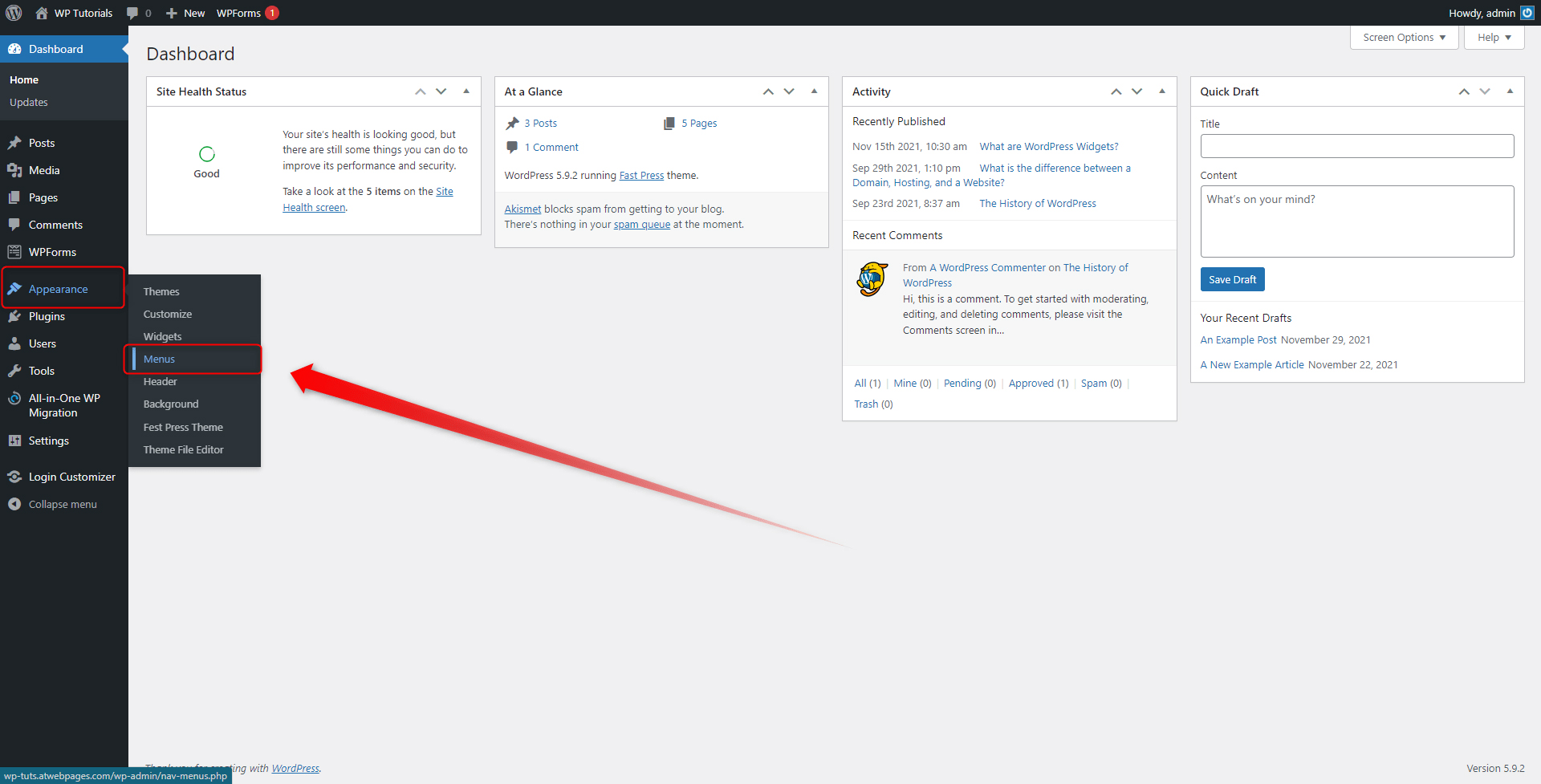
Look for the “Appearance” option in the left sidebar of the dashboard. It is usually near the bottom of the menu. Clicking on “Appearance” expands several customization options.
Finding The Menus Option
Within the “Appearance” menu, find and click on “Menus.” This opens the menu management screen. Here, you can create new menus or edit existing ones.
Understanding The Menu Management Screen
The menu screen displays your current menus and menu locations. You can add new tabs or rearrange them easily. This screen is your main tool for menu customization.
Creating A New Menu Tab
Creating a new menu tab in WordPress helps visitors find important pages easily. Menus guide users to different parts of your website. Adding a new tab makes navigation clear and simple. This section explains how to create a menu tab with custom links, pages, and categories.
Adding Custom Links
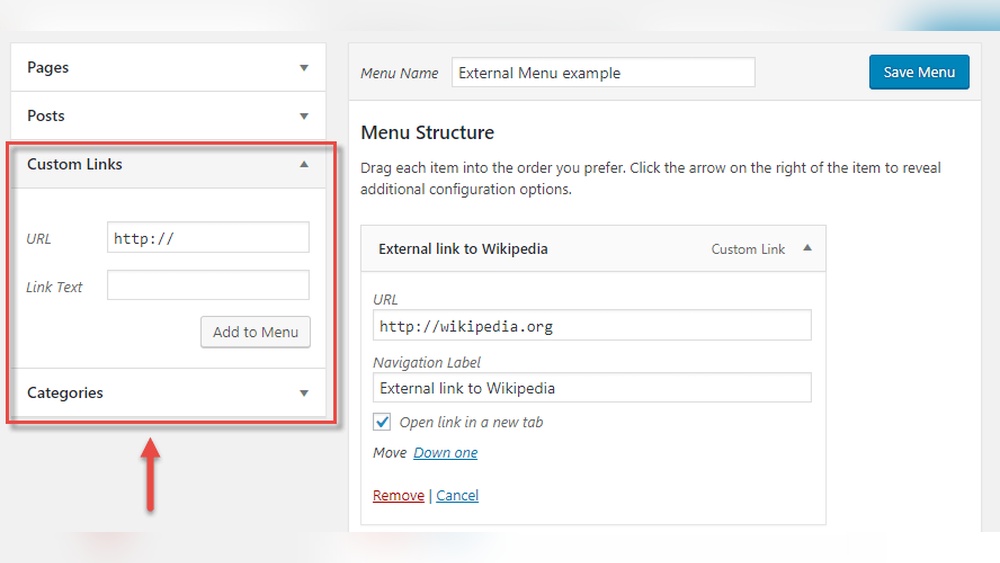
Custom links let you add any URL to your menu. You can link to external websites or specific parts of your site. To add a custom link, open the WordPress dashboard. Go to Appearance > Menus. Select Custom Links on the left side.
Enter the URL and link text for the menu tab. The link text is the name visitors see on your menu. Click Add to Menu. The new tab appears in the menu structure. Drag it to the place you want. Save the menu to apply changes.
Including Pages And Categories
Pages and categories are common menu items. Pages show fixed content like About or Contact. Categories group posts by topic. To add pages, go to Appearance > Menus. Look for the Pages box. Check the boxes of pages to add.
For categories, find the Categories box. Select categories you want on the menu. Click Add to Menu. The items appear in the menu structure. Move them to the desired order. Save the menu to update your site.
Credit: www.zettahost.com
Organizing Menu Structure
Organizing your menu structure helps visitors find pages quickly. A clear menu boosts user experience and keeps your site tidy.
WordPress lets you customize menus easily. You can change the order of items or create dropdown menus for better navigation.
Reordering Menu Items
To reorder menu items, go to Appearance > Menus in your dashboard. Click and hold the menu item you want to move. Drag it up or down to change its position. Drop it where you want it to appear. This way, you control the flow of your menu.
Creating Dropdown Menus
Dropdown menus group related links under one main tab. To create one, drag a menu item slightly to the right under another. This makes it a sub-item. Save your menu, and the main tab will show a dropdown arrow. Visitors can see more options without cluttering the menu bar.
Assigning Menu Location
Assigning a menu location in WordPress is key to showing your new menu tab on the site. This step tells WordPress where to display the menu you created. Without assigning a location, your menu will not appear on the website.
WordPress themes usually offer several menu locations. These can be header menus, footer menus, or other custom spots. Choosing the right location fits your site’s design and navigation needs.
Accessing The Menu Settings
Start by logging into your WordPress dashboard. Go to the Appearance section and click on Menus. Here, you see your created menus and options to manage them.
Selecting Your Menu
Choose the menu you want to assign from the dropdown list. This ensures you work with the correct menu for your site.
Choosing The Menu Location
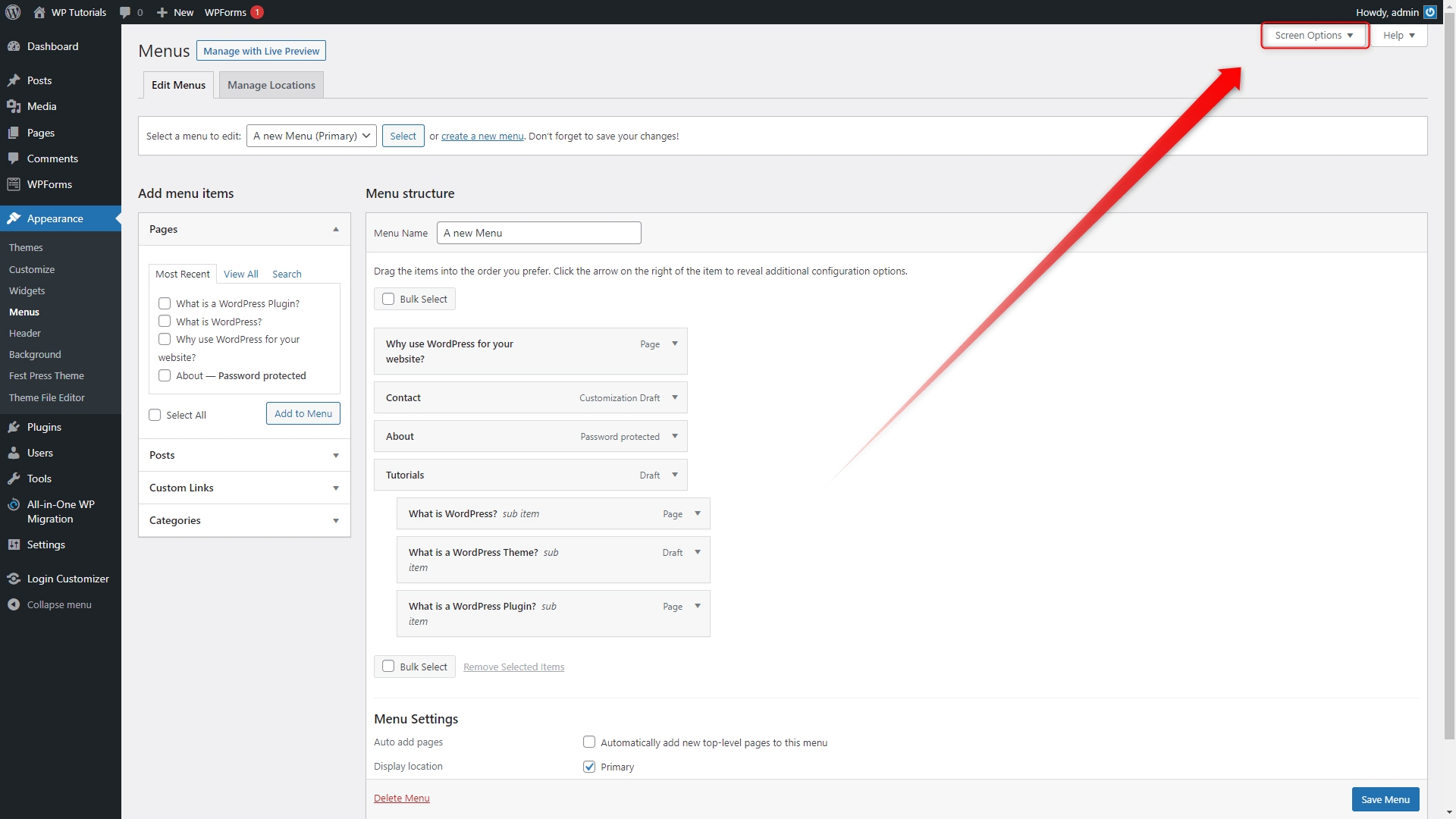
Look for the “Menu Settings” or “Display location” area. Tick the checkbox for the location where you want the menu to show. The names may vary based on your theme.
Saving Your Changes
After selecting the location, click the “Save Menu” button. This action updates your website with the menu in the chosen spot.
Credit: www.zettahost.com
Saving And Previewing Changes
Saving and previewing changes is a key step when adding a new menu tab in WordPress. It ensures your work is not lost and appears as expected on your site. Taking a moment to save avoids accidental data loss.
Previewing helps you see how the menu looks before making it live. This step lets you check for errors or design issues. It gives confidence that your new menu tab fits well.
Saving Your Menu Changes
After adding a new menu tab, locate the “Save Menu” button. It is usually at the top or bottom of the menu editor. Click this button to store your changes securely. Without saving, your new tab will not appear on the site.
WordPress will confirm the menu was saved successfully. Avoid closing the browser or moving away before saving. This keeps your work safe and ready for preview.
Previewing The Menu Before Publishing
Use the “Manage Locations” or “Preview” option in the menu editor. This shows how the menu looks on your live site. Check the tab’s position and text for clarity.
Previewing lets you spot any mistakes quickly. Adjust the menu tab if needed before finalizing. This step saves time and improves your site’s appearance.
Troubleshooting Common Issues
Troubleshooting common issues helps keep your menu working well. Problems can stop your new menu tab from showing or linking correctly. Fixing these quickly improves user experience on your site. Here are some easy ways to solve the usual problems.
Menu Not Displaying
Check if you assigned the menu to the right location. Many themes have specific spots for menus. Go to Appearance > Menus and verify the menu is set in the correct area. Clear your browser cache to see recent changes. Sometimes old data hides updates.
Disable plugins that might block menus temporarily. Some plugins conflict with menu functions. Reactivate them one by one to find the cause. Make sure your theme supports custom menus. Using an incompatible theme can cause display issues.
Link Errors
Double-check URLs in your menu items. Incorrect or broken links frustrate visitors. Edit the menu and fix any typos in the web addresses. Use full URLs starting with http or https for external links.
Ensure all pages you link to are published and live. Draft or deleted pages cause link errors. Test each link by clicking on it from the menu. Replace or remove any links that lead to error pages.

Credit: docs.presscustomizr.com
Frequently Asked Questions
How Do I Create A New Menu Tab In WordPress?
To create a new menu tab, go to Appearance > Menus in your WordPress dashboard. Click “Create New Menu,” name it, and add menu items. Save your changes to display the new tab on your website.
Can I Add Custom Links To WordPress Menus?
Yes, WordPress allows adding custom links to menus. In the Menus section, use the “Custom Links” option. Enter your URL and link text, then click “Add to Menu. ” Save to include the custom link in your menu tab.
How Do I Reorder Menu Tabs In WordPress?
To reorder menu tabs, drag and drop menu items in the Menus editor. You can nest items to create dropdowns. After arranging tabs, click “Save Menu” to update the order on your site.
What Menu Locations Are Available In WordPress Themes?
Menu locations depend on your theme. Common spots include header, footer, and sidebar areas. Check the “Manage Locations” tab under Menus to assign your menu to a specific theme location.
Conclusion
Adding a new menu tab in WordPress is simple and quick. You can organize your site better and help visitors find pages easily. Just follow the steps carefully, and you will see your menu updated in no time. Keep your menus clear and relevant for a good user experience.
Practice often to get comfortable with WordPress menus. This small change can make your website look more professional and user-friendly. Start editing your menus today and improve your site navigation.



