
Are you looking to make your WordPress site more connected and user-friendly? Adding links to other pages on your site is one of the easiest and most effective ways to guide your visitors exactly where you want them to go.
Whether you want to link to your blog, a product page, or any other part of your website, knowing how to do it right can boost your site’s navigation and keep visitors engaged longer. You’ll learn simple, step-by-step methods to add links to other pages in WordPress—no technical skills needed.
Ready to make your site smarter and more powerful? Let’s dive in!
Choose The Link Destination
Choosing the right link destination is important for your WordPress site. It directs visitors to the right content. Picking the correct link helps users find more information easily. It also improves your site’s navigation and SEO.
Select An Internal Page
Linking to an internal page means connecting to another page on your own website. This keeps visitors on your site longer. It helps share related content smoothly. Use this option to guide users to blog posts, product pages, or important information. WordPress shows a list of your pages to choose from. Just pick the page that fits best.
Link To An External Site
External links go to websites outside your domain. Use them to share useful resources or references. External links build trust and add value for readers. Make sure the site is reliable and relevant. Enter the full web address to create the link. Visitors can access helpful information beyond your site.
Use Custom Urls
Custom URLs let you type any web address as a link. This is useful for special cases. For example, link to a file, a social media profile, or a specific page not listed. Simply enter the exact URL you want to use. This gives you control over where your visitors go.
Credit: www.youtube.com
Add A Link In The WordPress Editor
Adding links in WordPress helps guide visitors to other pages or websites. Links improve user experience and boost your site’s SEO. The WordPress editor makes it easy to insert links in your content. Two main editors exist: the Block Editor and the Classic Editor. Each has a simple way to add links to text.
Using The Block Editor
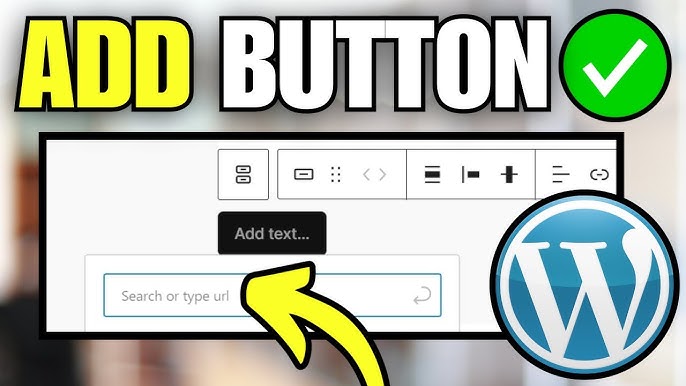
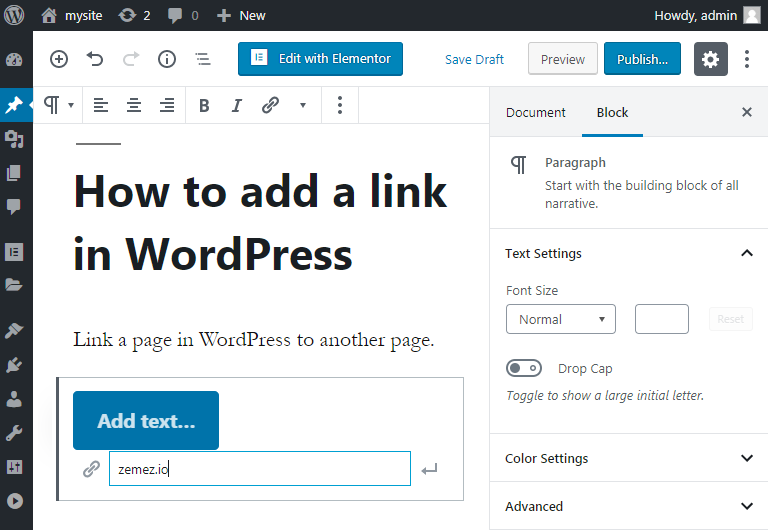
The Block Editor uses blocks for each content type. To add a link, first select the text you want to link. A small toolbar appears above the text.
Click the link icon in this toolbar. A field will show where you can enter a URL.
Paste or type the URL of the page you want to link. Press Enter or click the arrow to apply the link. You can also link to existing pages on your site by searching for them here.
To remove the link, select the linked text again and click the unlink icon.
Using The Classic Editor
The Classic Editor looks like a simple word processor. Highlight the text to link by dragging your mouse over it.
Click the chain link icon in the toolbar above the editor. A popup box appears for the URL.
Enter the full web address of the page you want to link. Click “Add Link” to insert it.
To edit or remove the link, click the linked text. Then click the chain icon again to update or remove it.
Insert Links In Menus
Inserting links in your WordPress menu helps visitors find important pages quickly. Menus appear at the top or side of your site and guide users through your content. This section explains how to add links to menus easily.
Access The Menu Settings
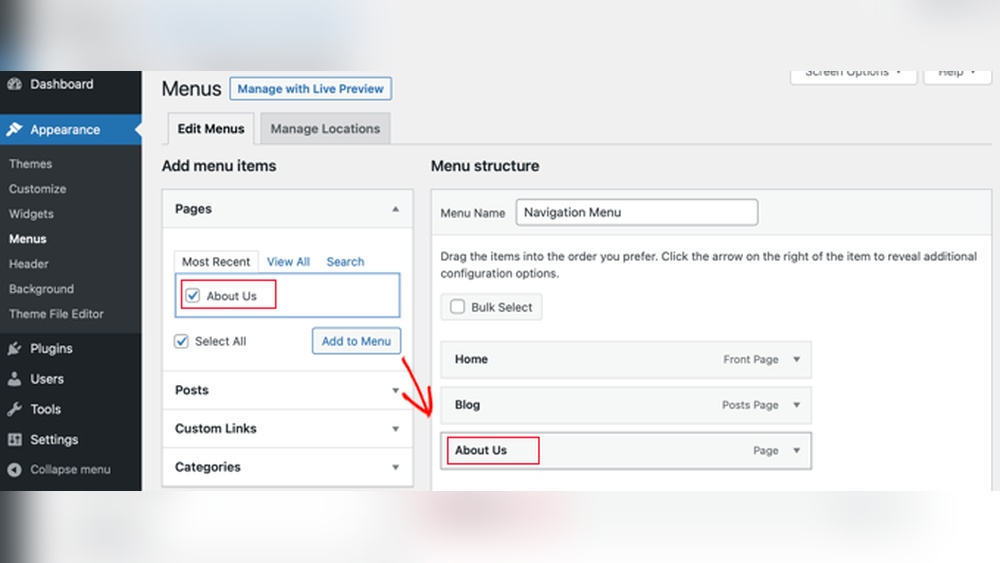
Start by logging into your WordPress dashboard. Go to the “Appearance” tab and click “Menus.” This opens the menu editor where you manage your site’s navigation. Select the menu you want to edit or create a new one if needed.
Add Pages And Custom Links
On the left side, you see options to add items. Choose from existing pages or use “Custom Links” to add any URL. Enter the link address and label, then click “Add to Menu.” The new item appears in the menu structure on the right.
Organize Menu Items
Drag and drop menu items to reorder them. Create sub-menus by placing items slightly to the right under a parent link. This helps group related pages and makes navigation clearer. Save the menu to apply changes to your website.
Link Within Widgets
Adding links inside widgets helps visitors find other pages easily. Widgets appear in sidebars, footers, or other parts of your site. They allow you to share links without changing the main content. This keeps your site neat and user-friendly.
Add Links In Text Widgets
Text widgets let you add simple text and links. Go to Appearance > Widgets in your WordPress dashboard. Drag a Text widget to your desired area. Type the text you want, like “Visit our blog.” Highlight the words and click the link icon. Paste the URL of the page you want to link. Save the widget. The link will show in your chosen widget area.
Use Custom Html Widgets
Custom HTML widgets allow more control over links. You can write your own HTML code. Add a Custom HTML widget via Appearance > Widgets. Enter the link code like Link text. Replace “URL” with the target page address. Replace “Link text” with your clickable words. Save the widget to display the link. This method works for more complex link setups.
Optimize Links For Seo
Optimizing links in WordPress improves your website’s SEO and user experience. Search engines use links to understand your site structure and content relevance. Proper link optimization helps your pages rank better and keeps visitors engaged longer.
Use Descriptive Anchor Text
Anchor text is the clickable part of a link. Use clear and descriptive words that explain the linked page. Avoid generic phrases like “click here” or “read more.” Descriptive anchor text helps search engines and users know what to expect. It also improves keyword relevance for SEO.
Open Links In New Tabs When Needed
Opening links in new tabs keeps visitors on your site longer. Use this for external links or resources that take users away from your page. It prevents losing traffic and improves user experience. Be careful not to overuse this, as it can confuse some users.
Credit: zemez.io
Troubleshoot Common Link Issues
Link issues can make your WordPress site hard to use. Visitors may get frustrated by broken or wrong links. Fixing these problems keeps your site smooth and professional. This section helps you solve common link problems fast.
Fix Broken Links
Broken links lead to error pages. They hurt user experience and SEO. Check links often using tools like Broken Link Checker. Update or remove links that do not work. Correct URLs if they have typos. Replace old links with new ones if pages move.
Manage Redirects
Redirects send visitors from old URLs to new ones. Use redirects when you change page addresses. This keeps visitors from seeing errors. Use plugins like Redirection to create and manage redirects. Choose 301 redirects for permanent moves. Test redirects to ensure they work well.
Credit: zemez.io
Frequently Asked Questions
How Do I Add A Hyperlink In WordPress Editor?
To add a hyperlink, highlight the text, click the link icon, and paste the URL. Then, press Enter or click Apply. This creates a clickable link to another page on your WordPress site.
Can I Link To External Websites In WordPress?
Yes, you can link to external websites by pasting the full URL in the link field. WordPress allows linking to any valid webpage inside or outside your site easily.
How To Open WordPress Links In A New Tab?
When adding a link, click the gear icon and check “Open link in a new tab. ” This keeps visitors on your site while opening the linked page separately.
Is It Possible To Add Links In WordPress Menus?
Yes, you can add links to custom menus via Appearance > Menus. Add pages, posts, or custom URLs to create navigation links.
Conclusion
Adding a link to another page in WordPress is simple and useful. It helps visitors find related content easily. Use the steps shared here to add links confidently. Try different link styles to see what suits your site best. Keep practicing to improve your website’s navigation.
Good links make your site better and keep readers longer. Start adding links today and watch your site grow.



