
Want to make your WordPress site look more professional and complete? Adding a footer is one of the easiest ways to do that.
A footer isn’t just a spot for contact info—it’s a powerful tool to boost your site’s credibility and keep visitors engaged. If you’re wondering how to add a footer in WordPress, you’re in the right place. This guide will show you simple steps to create a footer that fits your style and needs, even if you’re not tech-savvy.
Keep reading, and you’ll have a polished footer on your site in no time.

Credit: visualmodo.com
Choosing The Right Footer Style
Choosing the right footer style is important for your WordPress site. The footer is the last thing visitors see. It leaves a lasting impression. A good footer supports your website’s purpose. It helps visitors find important links or information fast.
Consider your website’s design and content. Choose a footer style that fits your brand. Keep it clear and easy to read. Different footer styles serve different needs. Pick one that matches your goals and audience.
Simple Footers
Simple footers are clean and minimal. They usually include basic information like copyright and contact details. This style works well for blogs or small sites. It keeps the focus on the main content. Simple footers load quickly and do not distract visitors.
Multi-column Footers
Multi-column footers divide the space into several sections. Each column can hold different links or info. This style is great for websites with many pages. It helps organize content clearly. Visitors can find what they need without scrolling too much.
Sticky Footers
Sticky footers stay visible at the bottom of the screen. They follow visitors as they scroll down. This style is useful for calls to action or important links. Sticky footers improve user experience by keeping key info always accessible. Use this style carefully to avoid clutter.
Using The WordPress Customizer
The WordPress Customizer is a simple tool to change your website’s look. It lets you update your footer without touching any code. This makes it easy for beginners and saves time. You can see your changes live before saving them. This section explains how to use the Customizer to add and edit your footer.
Accessing Footer Settings
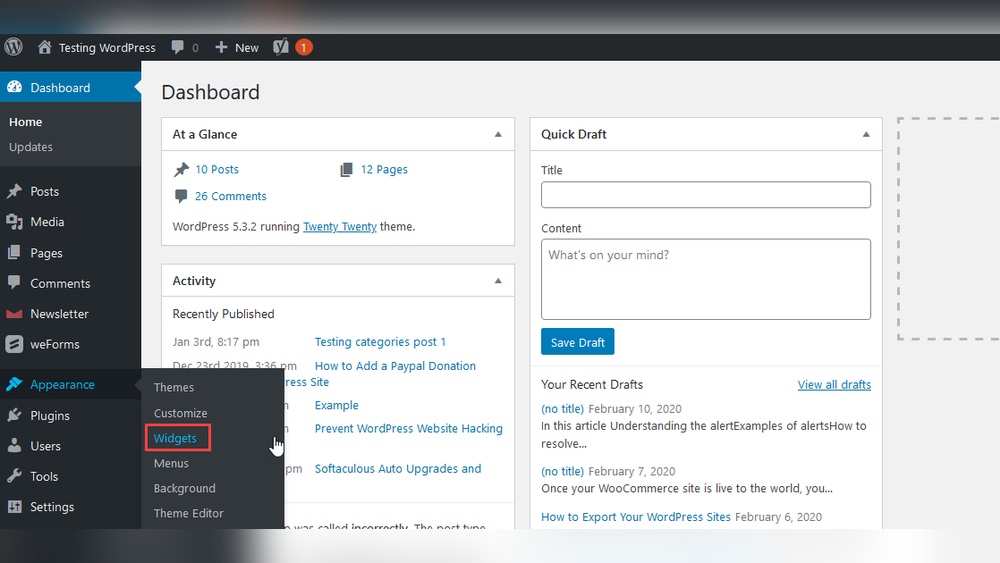
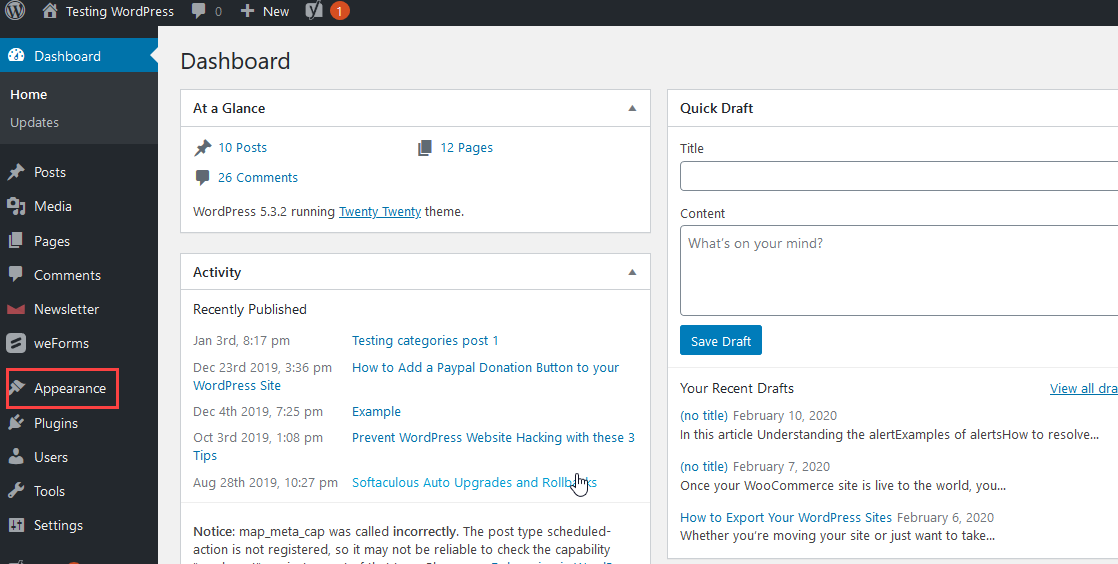
Start by logging into your WordPress dashboard. Go to Appearance, then click on Customize. This opens the Customizer panel on the left side. Scroll down to find the Footer section or Footer Settings. Click on it to open all footer options. Some themes might name it differently but look for footer-related settings. This is where you control what appears at the bottom of your site.
Adding Widgets To Footer
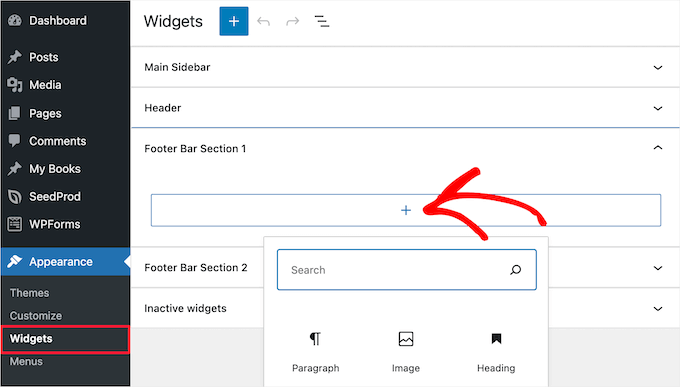
Inside the Footer settings, find the Widgets option. Widgets add content blocks like menus, text, or images. Click on Add a Widget to see the list of available widgets. Choose the ones you want to use in your footer area. You can add multiple widgets to show different info. Drag and drop to reorder them if your theme allows. Widgets make your footer more useful and engaging.
Editing Footer Text
Look for Footer Text or similar settings in the Customizer. This lets you change the copyright or any message at the bottom. Type your new text in the box provided. Keep the text short and clear. Use plain language so all visitors understand. Preview the changes on the right side. When happy, click Publish to save your edits. This personalizes your site and adds a professional touch.
Adding Footers With Plugins
Adding footers with plugins is a simple way to improve your WordPress site’s look. Plugins give you more control over footer design without coding. They offer ready-made options and easy customization. This method is perfect for beginners and busy site owners.
Top Footer Plugins
Several plugins help you create footers quickly. “Elementor” is a popular choice with drag-and-drop features. “WPForms” allows adding contact forms to footers. “Footer Mega Grid Columns” organizes footer content in neat columns. Each plugin has unique tools to fit different needs.
Plugin Installation Steps
Start by logging into your WordPress dashboard. Go to the “Plugins” section and click “Add New.” Search for the footer plugin you want. Click “Install Now” and then “Activate.” The plugin is ready to use on your site. This process takes only a few minutes.
Customizing Plugin Footers
Open the plugin settings from your dashboard menu. Choose layout styles and colors that match your site. Add text, links, or images to the footer area. Save changes and preview the footer on your website. Adjust settings until the footer looks just right.
Editing Footer Via Theme Files
Editing the footer through theme files gives you full control over your website’s footer content. You can add custom text, links, or scripts directly into the code. This method requires basic knowledge of PHP and HTML.
Making changes this way lets you customize the footer beyond what themes or plugins allow. It also helps keep your footer lightweight and fast. Take care to back up your files before editing to avoid errors.
Locating Footer.php
The footer code lives in a file named footer.php. You can find it inside your theme folder. Use an FTP client or the WordPress theme editor to access this file.
Look under /wp-content/themes/your-theme-name/. The footer.php file controls the footer area of your site. Open it in a text editor to view the code.
Adding Custom Code
Insert your custom HTML or PHP inside the footer.php file. Place the code before the closing or just before .
For example, add copyright text or social media links. You can also add tracking scripts or small widgets here.
Best Practices And Safety Tips
Always back up your site before changing theme files. Mistakes can break your site or cause errors. Use a child theme to keep your changes safe during updates.
Test your edits on a staging site or local environment first. Avoid adding large scripts that slow down your site. Keep code clean and simple for easy fixes later.
Incorporating Social Media And Contact Info
Adding social media links and contact information to your WordPress footer helps visitors connect with you easily. It also builds trust and improves user experience. Including these elements ensures your site looks professional and complete.
Adding Social Icons
Social icons allow visitors to find your profiles quickly. Use a widget or a plugin that supports social media icons. Choose icons for platforms you use most, like Facebook, Twitter, or Instagram. Place them neatly in your footer area. Make sure the icons link directly to your social pages.
Including Contact Details
Contact information helps users reach you without hassle. Add your email address, phone number, or physical address in the footer. Use clear, simple text for easy reading. Avoid clutter by only listing key contact points. This boosts your site’s credibility and accessibility.
Linking To Privacy Policies
Privacy policies protect your visitors and your site. Add a link to your privacy policy in the footer. Keep the link visible but not overpowering. This shows you respect user privacy and follow legal rules. It also improves your site’s trustworthiness and SEO.
Credit: www.wpbeginner.com
Optimizing Footer For Mobile
Optimizing your footer for mobile devices ensures visitors have a smooth experience. Mobile users often face small screens and slower connections. A well-designed footer improves navigation and site usability on smartphones and tablets.
Keep the footer simple and clear. Avoid clutter and large images that slow loading. Focus on essential links and contact information. Make buttons and links easy to tap with fingers.
Responsive Design Tips
Use flexible layouts that adjust to screen size. CSS media queries help create different styles for mobile devices. Choose readable font sizes and enough spacing. Avoid fixed-width elements that break the layout on small screens. Test font colors and backgrounds for good contrast and visibility.
Testing Footer On Devices
Check your footer on various devices like phones and tablets. Use browser developer tools to simulate screen sizes. Look for overlapping text or hidden links. Tap all buttons to confirm they work well. Fix any layout issues before launching your site.
Enhancing Footer With Seo Elements
The footer of a website is more than just a space for contact info or copyright notes. It can play a key role in improving your site’s SEO. By adding the right SEO elements, you help search engines understand your site better. This makes your site more visible and easier to find.
Enhancing your footer with SEO elements helps boost your website’s ranking on search engines. Small changes can make a big difference in how search engines read your site. Let’s explore two simple ways to add SEO value to your WordPress footer.
Adding Keywords
Including keywords in your footer helps search engines connect your site with relevant searches. Use important words that relate to your business or content. Place them naturally in short phrases or sentences. Avoid stuffing too many keywords, as it can hurt your SEO.
Focus on key terms that your audience uses. Examples include your location, products, or services. This helps search engines link your site to those specific topics.
Using Structured Data
Structured data is a way to label your footer content so search engines understand it better. It uses special code to highlight things like your business name, address, or phone number. This can improve how your site appears in search results.
Adding structured data to the footer helps search engines show rich results. These results can include extra details, making your site stand out. Use tools or plugins to add this code easily in WordPress.
Credit: www.inmotionhosting.com
Frequently Asked Questions
How Do I Add A Footer In WordPress Without Coding?
You can add a footer in WordPress using the Customizer or a footer widget area. Go to Appearance > Customize > Widgets, then add content to the Footer widget. Alternatively, use a footer plugin or a page builder for more design options without coding.
Can I Customize The WordPress Footer Text?
Yes, you can customize footer text in WordPress. Use the Customizer or theme settings to change it. For more control, edit the footer. php file or use a plugin to add copyright or custom messages easily.
What Plugins Help Create A Footer In WordPress?
Popular footer plugins include Elementor, WPForms, and Footer Putter. These plugins offer easy drag-and-drop footer creation, custom text, social icons, and more. Choose one based on your design needs and skill level for quick footer customization.
Is It Possible To Add Social Media Links To The Footer?
Yes, adding social media links to the footer is easy. Use widgets, menu options, or plugins to insert social icons. This improves site navigation and boosts user engagement directly from your WordPress footer area.
Conclusion
Adding a footer in WordPress helps improve your website’s look and function. You can add important links, contact info, or social icons there. It also gives visitors easy access to key details. Follow simple steps to create a footer that fits your site style.
Keep it clear and organized for best results. A good footer makes your site feel complete and user-friendly. Try customizing your footer today and see the difference it makes.



