
If you want to get the most out of your Facebook ads, adding a Facebook Pixel to your WordPress site is a must. This small piece of code helps you track visitors, measure conversions, and fine-tune your marketing efforts.
But maybe you’re worried it sounds too technical or time-consuming. Don’t be. In this guide, you’ll learn exactly how to add the Facebook Pixel to your WordPress site—step by step, clearly and simply. By the end, you’ll have a powerful tool ready to boost your online success.
Keep reading, and let’s make your ads work smarter for you.
Why Use Facebook Pixel
Facebook Pixel is a tool that helps you understand how visitors use your WordPress site. It collects data to improve your marketing efforts. This tool tracks actions like page visits, purchases, and sign-ups. Using Facebook Pixel gives you useful insights for your business.
Benefits For Tracking
Facebook Pixel tracks visitor actions on your website. It shows what users do after clicking your ads. You learn which pages get the most views. It also tracks when people buy products or sign up for newsletters. This data helps you know your audience better. You can see which ads bring the best results.
Improving Ad Performance
Facebook Pixel helps you create better ads. It shows which ads lead to sales or leads. You can target people who visited your site but did not buy. This leads to better use of your ad budget. You can also test different ads to find the best one. This improves your return on investment.
Credit: wp-rocket.me
Prepare Your Facebook Pixel
Preparing your Facebook Pixel is the first step to track your website visitors. It helps you understand how people interact with your WordPress site. You can use this data to improve your ads and grow your business.
This part covers how to create a Pixel in Facebook Business and get your Pixel ID. Follow these steps carefully to set up your Pixel correctly.
Create A Pixel In Facebook Business
Start by logging into your Facebook Business account. Find the Events Manager tool in the menu. Click on “Connect Data Sources” and select “Web.” Choose “Facebook Pixel” and click “Connect.”
Give your Pixel a name. Use something easy to remember. Add your website URL, then click “Continue.” Facebook will now create your Pixel.
Get Your Pixel Id
After creating your Pixel, look for the Pixel ID in the Events Manager. It is a string of numbers under the Pixel name. Copy this ID carefully.
You will need this Pixel ID to link your Pixel to your WordPress site. Keep it safe and ready for the next step in your setup process.
Add Pixel Using A Plugin
Adding a Facebook Pixel to WordPress can be simple with a plugin. Plugins help insert the pixel code without touching any code files. This method is great for beginners. It saves time and avoids errors. You just install, activate, and enter your Pixel ID. The plugin handles the rest. Here is how to do it step-by-step.
Choose The Right Plugin
Select a plugin made for Facebook Pixel integration. Popular choices include “PixelYourSite” and “Facebook for WordPress.” Check reviews and updates. Make sure it works with your WordPress version. A good plugin keeps your website fast and secure. Avoid plugins with low ratings or no recent updates.
Install And Activate Plugin
Go to your WordPress dashboard. Navigate to “Plugins” and click “Add New.” Type the plugin name in the search box. Click “Install Now” next to the plugin you want. After installation, click “Activate.” The plugin will appear in your dashboard menu.
Insert Pixel Id
Open the plugin settings from the dashboard menu. Find the field labeled “Facebook Pixel ID.” Enter your unique Pixel ID number here. Save your changes. The plugin automatically adds the pixel code to every page. Your Facebook Pixel is now live on your site.
Credit: www.monsterinsights.com
Add Pixel Manually
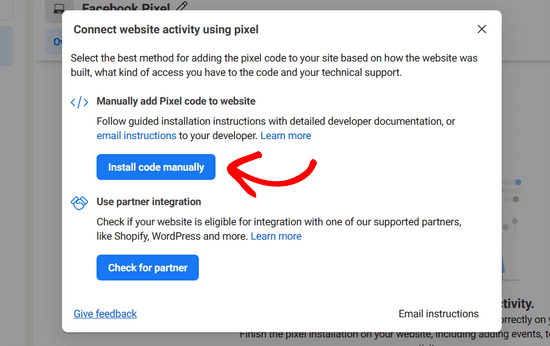
Adding the Facebook Pixel manually lets you place the code exactly where you want. It helps track visitors and their actions on your site. This way, you can gather useful data for your ads and marketing efforts.
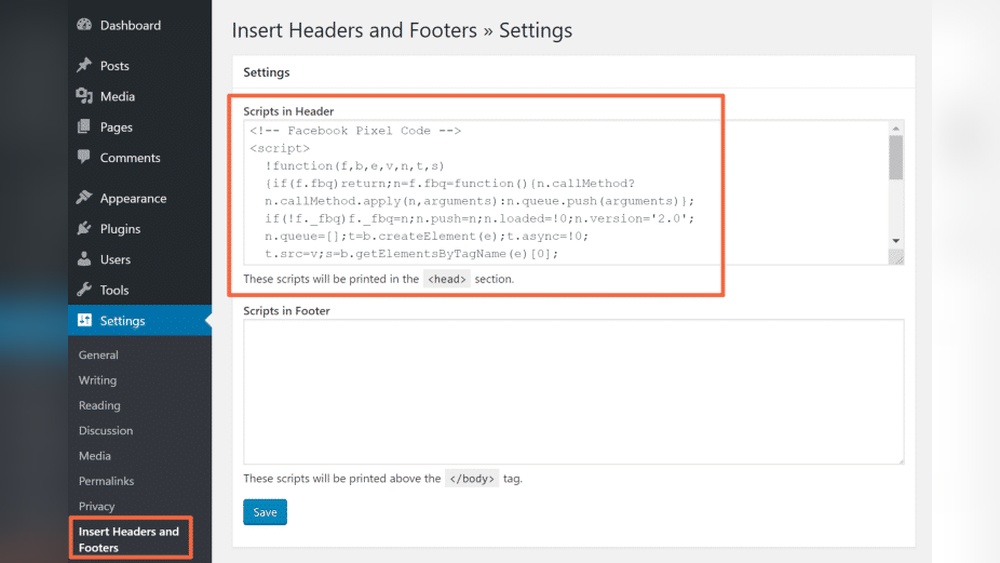
The process involves editing your WordPress theme files. You will insert the Pixel code into your site’s header. Follow these steps carefully to avoid mistakes.
Access WordPress Theme Editor
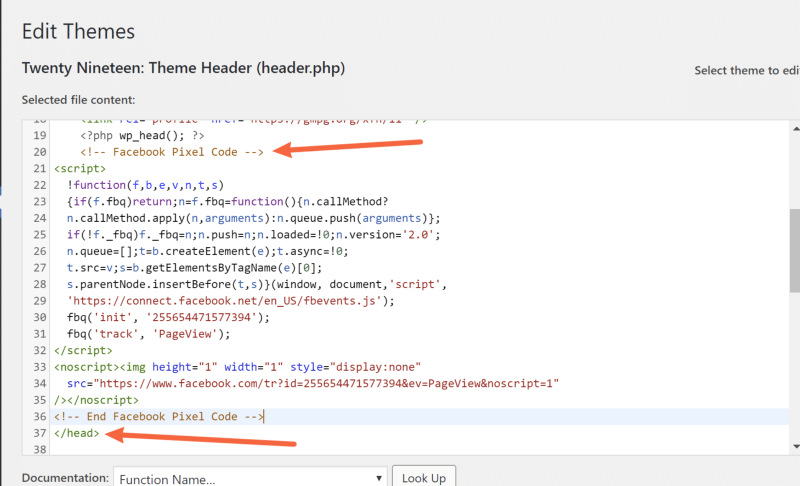
Log in to your WordPress dashboard. Go to “Appearance” and click “Theme Editor.” A warning may appear; proceed with caution. Find the “header.php” file in the right sidebar. This file controls the header section of your website.
Add Pixel Code To Header
Copy your Facebook Pixel base code from your Facebook Events Manager. Paste the code right before the closing tag in the “header.php” file. Make sure the code is complete and correct. This placement loads the Pixel on every page.
Save And Verify
Click the “Update File” button to save changes. Clear your site cache if you use a caching plugin. Use the Facebook Pixel Helper extension in your browser. It confirms if the Pixel works on your site.
Test Pixel Installation
Testing the Facebook Pixel installation on your WordPress site is crucial. It confirms the pixel works correctly. This step helps track visitor actions accurately. Without testing, you may miss important data for your ads.
Use simple tools to check if the pixel is active. Make sure it records the right events. This process saves time and improves ad performance.
Use Facebook Pixel Helper
Facebook Pixel Helper is a free Chrome extension. It detects the pixel on your website pages. Install it and open your WordPress site. The icon will show a number if the pixel is found.
Click the icon to see details. It lists pixel IDs and any errors. Fix errors before moving forward. The tool updates in real time as you browse.
Verify Events Are Firing
Events track user actions like clicks or purchases. Check if these events fire correctly after installation. Use Facebook Events Manager to see live activity.
Perform actions on your site, such as adding items to cart. Watch the Events Manager for event confirmations. If events do not appear, review your pixel setup.
Accurate event tracking helps you target ads better. Confirm each event matches your marketing goals.

Credit: themeisle.com
Troubleshoot Common Issues
Troubleshooting common issues helps keep your Facebook Pixel working well on WordPress. Problems can stop your pixel from tracking visitor actions correctly. Finding and fixing these problems saves time and improves your site’s marketing results. This section covers two frequent problems and easy ways to solve them.
Pixel Not Firing
The pixel not firing means it does not send data to Facebook. This can happen if the pixel code is not placed correctly in your WordPress site. Make sure the code is added in the header section of your theme. Using a plugin to insert the pixel can help avoid mistakes.
Clear your browser cache and test the pixel with Facebook’s Pixel Helper tool. This tool shows if the pixel is active or if there are errors. Check for conflicts with other plugins that may block the pixel from working. Update your WordPress and plugins regularly to prevent issues.
Duplicate Pixel Problems
Duplicate pixels mean the same pixel code loads multiple times on a page. This causes inaccurate data and can confuse Facebook analytics. Check your site for multiple pixel installations. This often happens when using both a plugin and manual code insertion.
Remove extra pixel codes to keep only one active pixel per page. Use Facebook’s Pixel Helper to spot duplicates. Review your theme files and plugins to avoid double loading. Keeping only one pixel ensures correct data tracking and better ad performance.
Frequently Asked Questions
What Is A Facebook Pixel And Why Use It?
A Facebook Pixel is a tracking code for your WordPress site. It helps measure ad effectiveness, optimize campaigns, and retarget visitors to increase conversions.
How Do I Create A Facebook Pixel?
Create a Facebook Pixel by going to Facebook Events Manager. Click “Add” under Pixels, name your pixel, enter your website URL, and generate the code.
Can I Add Facebook Pixel Without Plugins?
Yes, you can manually add the Facebook Pixel code by inserting it into your WordPress theme’s header.php file before the closing tag.
How To Verify Facebook Pixel Installation On WordPress?
Use Facebook Pixel Helper, a Chrome extension, to check if your pixel is active. It shows if the pixel is firing correctly on your site.
Conclusion
Adding a Facebook Pixel to WordPress helps track your website visitors easily. It shows which ads work best for your audience. You can collect useful data to improve your marketing. Setting it up is simple and takes just a few minutes.
With this tool, you can reach the right people better. Keep checking your pixel data to make smart decisions. Your website and ads will perform better over time. Start using Facebook Pixel today to see clear results soon.



