
Are you ready to give your WordPress site a fresh, new look? Adding a downloaded theme can completely transform your website’s appearance and make it stand out.
But if you’re not sure where to start, don’t worry—you’re in the right place. This guide will walk you through the simple steps to upload and activate a theme you’ve downloaded, even if you’re not tech-savvy. By the end, you’ll have a stunning site that reflects your style and grabs your visitors’ attention.
Let’s dive in and make your website shine!
Credit: www.kadencewp.com
Choose The Right Theme
Choosing the right theme is a key step in setting up your WordPress site. It shapes how your site looks and feels. A good theme makes your site easy to use and attractive. It also affects how fast your site runs and how visitors interact with it.
Picking the right theme means more than just a pretty design. It means finding one that fits your site’s purpose and works well with WordPress. This helps your site perform better and keeps visitors coming back.
Sources For Downloading Themes
Start by finding safe places to download themes. The official WordPress theme directory is the best option. It offers many free themes tested for quality. Other trusted sites sell themes with extra features and support.
Check reviews and ratings before downloading. Avoid sites that offer free themes from unknown sources. These can have security risks or poor code that slows your site down.
Checking Theme Compatibility
Ensure the theme works with your WordPress version. An incompatible theme can cause errors or slow performance. Check if the theme supports popular plugins you plan to use.
Also, look for themes updated regularly. Updates fix bugs and keep the theme secure. A theme that is not updated may cause problems with your site.
Considering Responsive Design
Choose a theme that looks good on all devices. Responsive design adjusts the layout for phones, tablets, and desktops. This improves user experience and helps with search engine rankings.
Test the theme demo on different screen sizes. A responsive theme ensures your site is easy to read and navigate everywhere.
Credit: www.greengeeks.com
Prepare Your WordPress Site
Preparing your WordPress site is the first step before adding a new theme. This ensures the process goes smoothly and protects your site from any problems. Taking a few simple actions can save time and prevent data loss. Follow these steps carefully to get ready for the theme installation.
Backup Your Website
Backing up your website keeps your data safe. It saves your posts, pages, images, and settings. Use a backup plugin or your hosting service to create a full backup. Store the backup file on your computer or cloud storage. This step helps you restore your site if anything goes wrong.
Accessing The WordPress Dashboard
The WordPress dashboard is where you manage your site. Log in using your username and password. You will see the main menu on the left side. This is where you can add themes, plugins, and make changes. Familiarize yourself with the dashboard before continuing.
Ensure WordPress Is Updated
Running the latest WordPress version improves security and performance. Go to Dashboard > Updates to check your version. If an update is available, click the update button. Updated software works better with new themes. It also reduces the risk of errors during installation.
Upload The Theme Manually
Uploading a theme manually to WordPress lets you use custom or premium themes easily. This method works well when you have a theme file saved on your computer. It is simple and fast. Follow the steps below to upload your theme without hassle.
Locate The Theme Zip File
Find the theme file on your computer. It should be a ZIP file. This file contains all theme elements needed for installation. Keep it handy for the upload process.
Navigate To Theme Upload Section
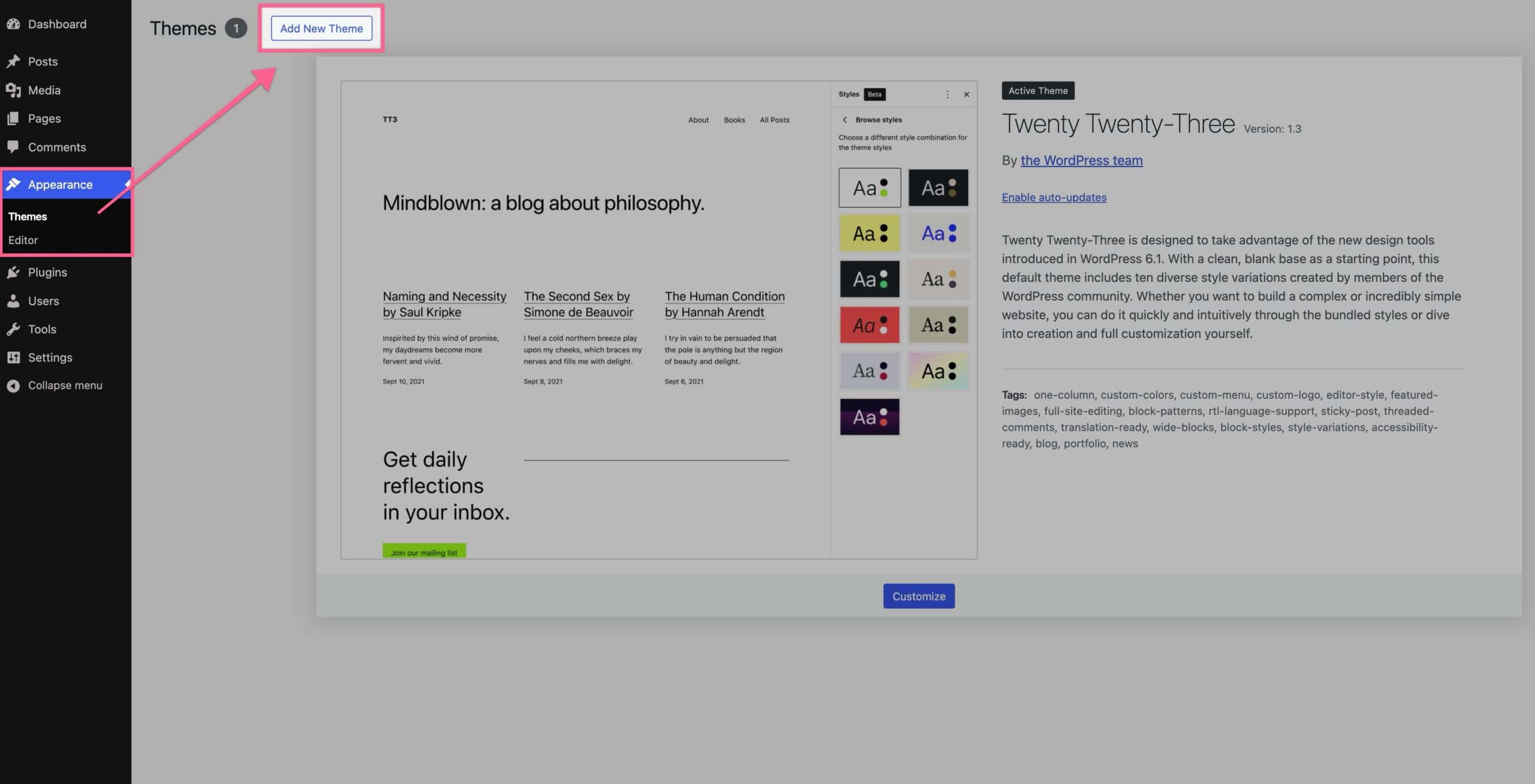
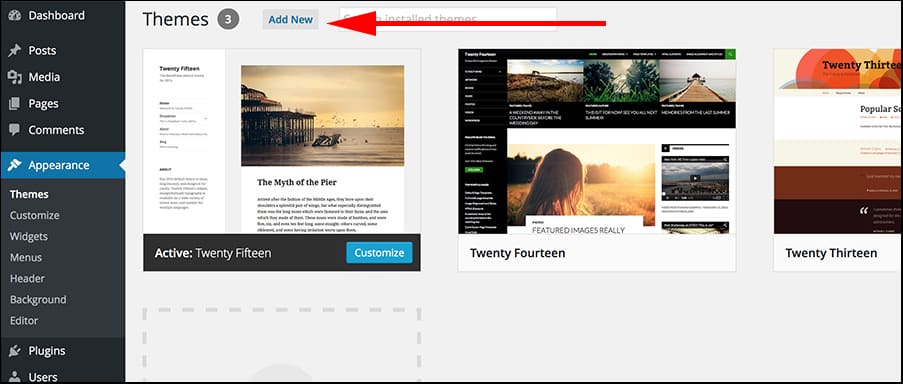
Log in to your WordPress dashboard. Go to Appearance > Themes. Click the “Add New” button at the top. Then select “Upload Theme” to open the upload screen.
Install The Theme From Zip
Click “Choose File” and select the ZIP file from your computer. Press “Install Now” to start uploading. Wait for WordPress to upload and extract the theme files. After installation, click “Activate” to use the new theme.
Activate The New Theme
Activating a new theme in WordPress is a key step after installation. It changes your website’s look instantly. The activation process is simple but important. This section guides you through activating your new theme with ease.
Find The Installed Theme
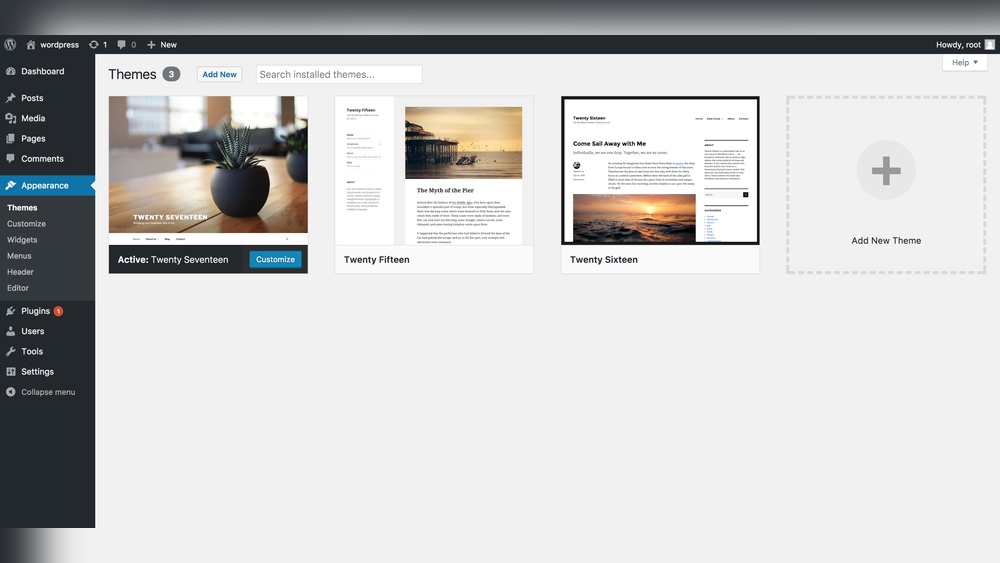
Start by logging into your WordPress dashboard. Go to the “Appearance” menu. Click on “Themes” to see all installed themes. Your new theme should appear here. It may show as inactive or with a thumbnail. Locate it carefully to move to activation.
Activate And Preview
Hover over the new theme’s thumbnail. Click the “Activate” button that appears. Your site will switch to the new design immediately. To check how it looks, click “Live Preview”. This shows your site with the theme without making changes live. Adjust settings if needed before final activation.
Troubleshoot Activation Issues
Sometimes themes do not activate properly. Clear your browser cache and refresh the page. Disable plugins that might conflict with the theme. Check if the theme is compatible with your WordPress version. If errors persist, switch to a default theme and try activating again. Contact theme support if problems continue.
Customize The Theme
Customizing your WordPress theme helps make your website unique. It lets you change colors, fonts, and layouts. You can also add features that suit your needs. This section explains how to customize your theme easily.
Use The WordPress Customizer
The WordPress Customizer lets you see changes live. Go to Appearance > Customize in your dashboard. Adjust site identity, colors, and header images. Change fonts and background without coding. Save and publish your changes instantly.
Add Widgets And Menus
Widgets add extra content blocks to your site. Use them for search bars, recent posts, or calendars. Go to Appearance > Widgets to manage them. Menus help visitors navigate your site. Create and organize menus under Appearance > Menus. Link pages, categories, or custom links easily.
Import Demo Content If Available
Some themes include demo content for quick setup. It shows sample pages, posts, and images. Check your theme documentation for demo import options. Use the demo to learn how your site can look. Replace the demo content with your own later.

Credit: www.youtube.com
Verify Theme Functionality
Verifying a theme’s functionality is a vital step after installation. This step ensures your website looks good and works well. Testing the theme helps avoid issues that can affect visitor experience. It also confirms the theme fits your website’s needs. Follow these checks to confirm your theme performs correctly.
Check Website Responsiveness
Test your website on different devices. Use phones, tablets, and desktops. Make sure the layout adjusts to each screen size. Text should be readable without zooming. Images must resize properly. Buttons and menus should be easy to use on small screens. Responsive design keeps visitors engaged.
Test Browser Compatibility
Open your website in various browsers. Try Chrome, Firefox, Safari, and Edge. Look for any design or loading issues. Check if fonts, colors, and images appear as expected. Ensure interactive elements work smoothly. Browser compatibility ensures all users have a good experience.
Review Performance Impact
Measure your website’s loading speed after adding the theme. Use tools like Google PageSpeed Insights. Identify any delays caused by the theme. A slow website can lose visitors. Optimize images and scripts if needed. Fast performance improves user satisfaction and SEO.
Keep Your Theme Updated
Keeping your WordPress theme updated is important for security and performance. Updates fix bugs and add new features. They also help your site stay compatible with the latest WordPress version. Regular updates protect your site from hackers and improve user experience.
Enable Automatic Updates
Automatic updates save time and keep your theme current. WordPress allows you to turn on automatic updates for themes. Go to your dashboard, find the theme, and click “Enable Auto-Updates.” Your theme will update itself safely in the background.
Manual Theme Update Process
Manual updates give you control over when to update. Download the latest theme version from the source. In your WordPress dashboard, go to Appearance > Themes. Click “Add New” and upload the new theme file. Activate the updated theme to complete the process.
Backup Before Updates
Backing up your site is a must before updating. It protects your content if something goes wrong. Use a plugin or your hosting service to create a full backup. Store the backup safely. You can restore your site quickly if an update fails.
Frequently Asked Questions
How Do I Upload A Downloaded Theme To WordPress?
To upload a downloaded theme, go to your WordPress dashboard. Navigate to Appearance > Themes > Add New > Upload Theme. Choose the theme ZIP file from your computer, then click Install Now and activate the theme after installation.
Can I Install Themes From Outside WordPress Repository?
Yes, WordPress allows you to install themes from third-party sources. Just ensure the theme file is in ZIP format. Upload it via the Appearance > Themes > Add New > Upload Theme option in your dashboard.
What File Format Is Required For WordPress Theme Upload?
WordPress requires themes to be in a ZIP file format for upload. This format contains all theme files and folders. Ensure your downloaded theme is zipped before uploading through the dashboard.
How Do I Activate A Downloaded Theme In WordPress?
After uploading your theme, click the Activate button on the installation success page. Alternatively, go to Appearance > Themes, find your theme, and click Activate to apply it to your site.
Conclusion
Adding a downloaded theme to WordPress is simple and quick. You only need to follow clear steps. Upload the theme file, activate it, and customize as you like. This lets you change your website’s look easily. Try different themes to find the best fit.
Keep your site fresh and inviting. Enjoy building a site that suits your style and needs.



