
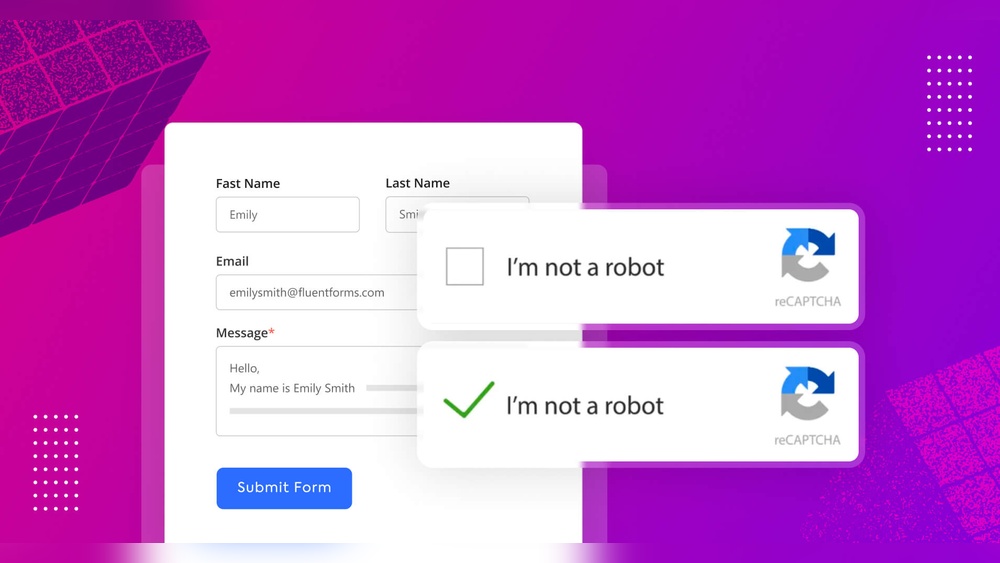
Are you tired of spam filling up your WordPress forms? Adding a captcha can be the simple fix you need to keep your site secure and your inbox clutter-free.
In this post, you’ll learn exactly how to add a captcha to your WordPress forms—step by step, without any confusing jargon. By the end, you’ll have a stronger, smarter form that protects your site and gives you peace of mind.
Let’s get started and make your WordPress forms work better for you!
Why Add Captcha To Your WordPress Form
Adding a Captcha to your WordPress form helps protect your website. It stops unwanted spam and keeps your site safe. Captchas make sure real people fill out your forms, not bots. This improves the quality of your submissions and keeps your site running smoothly. Below are key reasons to add a Captcha to your forms.
Preventing Spam Submissions
Spam submissions waste time and clutter your inbox. Bots send fake messages that can flood your form. Captchas block these automated entries easily. This keeps your form data clean and useful. You will spend less time sorting through junk messages.
Enhancing Site Security
Captchas help protect your site from hackers. They stop bots from trying to break in through forms. This adds a layer of security to your website. It reduces the risk of attacks and data theft. A safer site builds trust with your visitors.
Improving User Experience
Captchas tell real users that your site is secure. They stop annoying spam messages from showing up. Simple Captchas do not take long to complete. Users can easily finish forms without frustration. This keeps visitors happy and more likely to return.
Choosing The Right Captcha Plugin
Choosing the right captcha plugin for your WordPress form is important. It helps protect your site from spam and bots. The right plugin fits your needs and is easy to use. It should work well with your form builder and not slow down your site.
Consider what features matter most. Think about how the captcha looks and if it is user-friendly. Some plugins offer advanced security, while others focus on simplicity.
Popular Captcha Plugins For WordPress
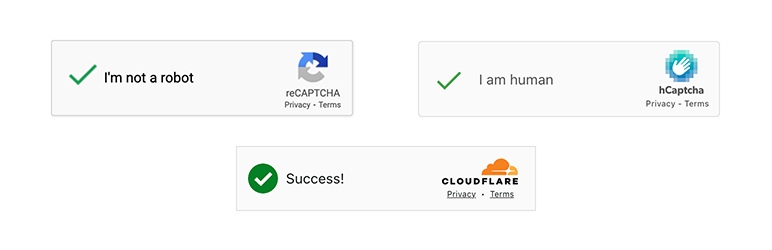
Many captcha plugins are available for WordPress. Google reCAPTCHA is popular and free. It offers invisible and checkbox options. Another option is hCaptcha, known for privacy and simplicity. WPForms has built-in captcha features for easy use. Really Simple CAPTCHA is good for basic needs and works with many forms.
Features To Consider
Check the plugin’s ease of use. Look for clear instructions and simple setup. Compatibility with your form plugin is key. Strong spam protection keeps your site safe. Accessibility matters for users with disabilities. Some plugins offer customization to match your site design.
Free Vs Premium Options
Free plugins cover basic captcha needs. They work well for small sites and low traffic. Premium plugins offer extra features like better security and support. They often include advanced customization and analytics. Choose based on your budget and site goals. Start with free, upgrade if needed.
Installing A Captcha Plugin
Installing a captcha plugin on your WordPress site helps protect your forms from spam. It stops bots from submitting fake entries. The process is simple and quick. You do not need any coding skills. Follow these steps to add a captcha plugin and secure your forms.
Accessing The WordPress Plugin Directory
Log in to your WordPress dashboard first. On the left menu, find and click “Plugins.” Then click “Add New.” This opens the WordPress Plugin Directory. Here, you can search for many plugins, including captcha options. Use the search bar to find “captcha” plugins. Look for plugins with good ratings and many active installs.
Steps To Install And Activate
Once you find the plugin you want, click “Install Now.” Wait for a few seconds. The button changes to “Activate.” Click “Activate” to enable the plugin on your site. After activation, go to the plugin settings page. Usually, you find this in the left menu or under “Settings.” Configure the captcha according to your needs. Save your settings before leaving the page.
Common Installation Issues
Sometimes, plugins fail to install or activate. This can happen due to server limits or conflicts with other plugins. Clear your browser cache and try again. If problems continue, check your WordPress version. Some plugins need the latest WordPress update. Disable other plugins temporarily to test conflicts. Contact your hosting provider if issues persist.

Credit: wpmailsmtp.com
Configuring Captcha Settings
Configuring Captcha settings is an important step to protect your WordPress forms from spam. It ensures only real users can submit the forms. Setting up Captcha correctly improves user experience and site security. This section explains how to generate API keys, customize the Captcha look, and apply it to specific forms.
Generating Api Keys
Start by visiting the Captcha provider’s website. Create an account if needed. Then, register your website to get API keys. Usually, you will receive two keys: a site key and a secret key. Copy these keys carefully. Paste them into the Captcha plugin settings on WordPress. These keys link your site to the Captcha service. Without them, Captcha won’t work.
Customizing Captcha Appearance
Most plugins let you change how Captcha looks. Choose from themes like light or dark to match your site. You can also pick the Captcha size. Small, normal, or large sizes fit different form styles. Some plugins allow language changes for better user understanding. Adjust these settings in the plugin dashboard. A clean and clear Captcha boosts form completion rates.
Setting Captcha On Specific Forms
You do not have to add Captcha to every form. Select forms that need protection most, like login or contact forms. In your plugin settings, find the option to assign Captcha to specific forms. Enable Captcha for those forms only. This saves time and avoids annoying users on simple forms. Test each form to make sure Captcha works as expected.
Adding Captcha To Popular WordPress Forms
Adding Captcha to popular WordPress forms helps stop spam and fake submissions. Captcha tests make sure users are real humans, not bots. Many form plugins support Captcha to keep your site safe.
Below are simple steps for adding Captcha to common WordPress forms. Each plugin has its own method, but all are easy to follow.
Contact Form 7
Contact Form 7 is a popular free plugin. To add Captcha, install and activate the “Really Simple CAPTCHA” plugin. Then, go to Contact Form 7 settings. Add the shortcode [recaptcha] inside your form. You must get site and secret keys from Google reCAPTCHA first. Paste keys in Contact Form 7’s integration tab. Save changes and test the form. Captcha will appear, blocking spam bots.
Wpforms
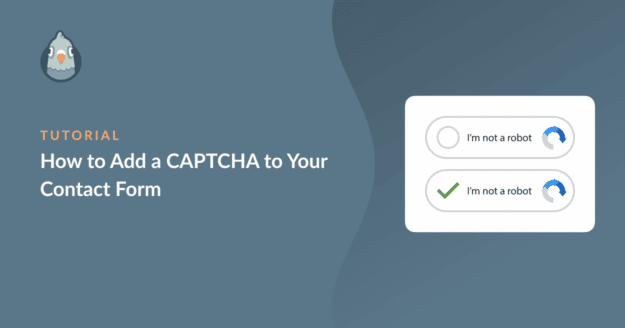
WPForms is user-friendly and powerful. To add Captcha, go to WPForms > Settings. Click on the CAPTCHA tab. Enable Google reCAPTCHA and enter your site and secret keys. Next, edit your form and drag the Captcha field into place. Save the form. Visitors will see the Captcha challenge before submitting. This reduces unwanted spam entries.
Gravity Forms
Gravity Forms supports Captcha through add-ons. First, activate the reCAPTCHA add-on in Gravity Forms settings. Then, get your Google reCAPTCHA keys and enter them in the plugin settings. Open your form editor and add the CAPTCHA field from the Advanced Fields section. Save the form and test it. Captcha helps protect your form from spam bots easily.
Credit: wpmailsmtp.com
Testing Captcha Functionality
Testing the captcha on your WordPress form ensures it works well. It stops spam and lets real users submit forms easily. Checking the captcha helps catch errors early. It makes sure your form is secure and user-friendly.
Testing also improves user experience. Visitors feel confident that your site is safe. Let’s explore how to verify form submission and fix common captcha issues.
Verifying Form Submission
Start by filling out the form like a regular user. Enter correct data and complete the captcha challenge. Submit the form and watch for a success message. This message shows the form and captcha worked.
Check your email or database to confirm form data arrived. If the data is missing, the captcha might block submissions. Try submitting again to rule out temporary glitches. Testing multiple times helps find consistent results.
Troubleshooting Common Errors
Captcha errors can confuse users and stop form use. Look for common problems like missing keys or wrong site settings. Make sure your captcha keys match those in your Google reCAPTCHA account.
Clear your browser cache and reload the form page. Sometimes cached files cause display or submission errors. Disable other plugins briefly to find conflicts. Conflicts often cause captcha to fail silently.
Check your site’s error logs for messages about captcha failures. These logs help spot issues fast. Fixing these errors keeps your forms working smoothly and spam-free.
Tips To Optimize Captcha Use
Using a captcha on your WordPress form can stop spam and keep your site safe. Optimizing captcha use helps keep the balance between protecting your site and giving visitors a smooth experience. Follow these tips to make sure your captcha works well and does not annoy users.
Regular care and smart settings improve captcha effectiveness and user satisfaction.
Balancing Security And Usability
Choose a captcha that is easy for humans but hard for bots. Simple challenges reduce user frustration. Avoid captchas that take too long or confuse visitors. Test your form on different devices. Make sure users can quickly finish without trouble.
Updating Plugins Regularly
Keep your captcha plugin up to date. Updates fix bugs and improve security. Old plugins might let spam through. Set a schedule to check for updates weekly. Use trusted plugins from reliable sources only.
Monitoring Spam Activity
Check your form for spam often. Look at submitted data for strange or repeated entries. Adjust captcha difficulty if spam increases. Use logs to track unusual activity. Monitoring helps keep your site clean and safe.
Credit: wordpress.org
Frequently Asked Questions
How Do I Add A Captcha To A WordPress Form?
To add a captcha, install a plugin like Google reCAPTCHA. Activate it, then configure settings in the form builder. This protects your site from spam effectively.
Which Captcha Plugins Work Best With WordPress Forms?
Popular plugins include Google reCAPTCHA, WPForms, and Contact Form 7. These are user-friendly, reliable, and integrate smoothly with WordPress forms.
Can Captcha Improve My WordPress Form Security?
Yes, captcha blocks automated bots from submitting forms. It reduces spam and enhances site security by verifying human users only.
Is Google Recaptcha Free For WordPress Sites?
Google reCAPTCHA is free for most websites. It offers strong spam protection without cost, making it ideal for WordPress forms.
Conclusion
Adding a captcha to your WordPress form helps stop spam and fake entries. It keeps your site safe and trustworthy. Many free plugins make it easy to add captchas. Choose one that fits your needs and follow simple steps. Test your form after adding the captcha to ensure it works well.
Keep your website secure with this small but important step. Your visitors will appreciate a safer and cleaner experience.



