
If your WordPress site has long pages, you know how frustrating it can be for visitors to scroll all the way back to the top. What if you could give your users a simple, one-click solution to get there instantly?
Adding a “Back to Top” button not only improves user experience but also keeps visitors engaged longer on your site. In this guide, you’ll learn exactly how to add this handy feature to your WordPress site—no coding skills needed. Keep reading, and by the end, your visitors will thank you for making navigation easier than ever.
Why Add A Back To Top Button
Adding a back to top button improves user experience on your WordPress site. Long pages require a quick way to return to the top. This button saves time and effort for visitors. It makes navigation smoother and faster.
This small feature can reduce frustration. Visitors don’t need to scroll all the way back manually. It also helps mobile users who scroll more often. Easy navigation keeps visitors on your site longer.
Improves Site Navigation
A back to top button helps users move easily. It offers a simple way to jump back to the start. Visitors can find menus or search bars without scrolling up.
Enhances Mobile User Experience
Mobile users scroll more than desktop users. A back to top button saves their time. It makes browsing on small screens easier.
Reduces Bounce Rates
Visitors get frustrated when navigation is hard. They may leave your site quickly. A back to top button keeps them engaged longer.
Supports Accessibility
This button helps users with mobility issues. It reduces the need for excessive scrolling. Everyone can navigate your site with ease.
Credit: elfsight.com
Choose The Right Method
Choosing the right method to add a back to top button is important for your website. The method affects how easy it is to use and how well it fits your site. Some methods need no coding skills, while others give more control but require technical work. Think about your comfort with technology and the features you want.
Using Plugins
Plugins are the easiest way to add a back to top button. They install quickly and work right away. Many plugins let you customize the button’s look and position. No need to touch any code. Great for beginners and those who want a fast solution. Some popular plugins also offer extra features, like smooth scrolling or animation. Choose a plugin with good reviews and regular updates. Plugins keep your site safe and stable.
Manual Code Integration
Manual code integration involves adding HTML, CSS, and JavaScript to your site. This method suits those who want full control over the button’s style and behavior. You can make the button match your site perfectly. It needs basic coding skills and access to your theme files. Manual integration keeps your site light and fast because it adds no extra plugins. Good for developers or users ready to learn simple coding. Always back up your site before editing code.
Adding A Back To Top Button With Plugins
Adding a back to top button using plugins is easy. Plugins save time and avoid coding. You get many options to customize the button. Most plugins work well with popular WordPress themes. This method suits beginners and busy site owners.
Selecting A Plugin
Choose a plugin with good reviews and regular updates. Check compatibility with your WordPress version. Look for simple settings and clear instructions. Popular plugins often have free and premium versions. Pick one that fits your style and site needs.
Installing And Activating
Go to your WordPress dashboard. Click on “Plugins” then “Add New.” Search the plugin by name. Click “Install Now” and wait a moment. Once installed, click “Activate” to enable it on your site.
Configuring Button Appearance
Find the plugin’s settings in the dashboard. Choose button style, size, and color. Set the scroll speed and position on the page. Test different looks to see what fits best. Save changes before leaving the settings page.
Testing The Button
Open your website and scroll down. Look for the back to top button’s visibility. Click the button and watch the page scroll up smoothly. Check on mobile and desktop for consistency. Adjust settings if the button does not work well.

Credit: www.youtube.com
Adding A Back To Top Button Manually
Adding a back to top button manually in WordPress gives full control over its design and function. This method suits users who want a simple, custom button without extra plugins. It involves editing theme files, adding HTML and CSS, and using JavaScript for smooth scrolling. Each step ensures the button fits perfectly on your site and works well on all devices.
Editing Theme Files
Start by accessing your theme’s footer file, usually named footer.php. Use a child theme to avoid losing changes after updates. Open the file in a code editor or via WordPress’s theme editor. Insert the back to top button code just before the closing tag. Save the file to apply changes.
Adding Html And Css
Add simple HTML for the button, like a link with an ID. Example: Top. Next, add CSS to style it. Place CSS in the theme’s stylesheet or customizer. Style the button to stay fixed at the screen’s bottom right corner. Use colors and size that match your site’s design.
Implementing Javascript For Smooth Scroll
Add JavaScript to create smooth scrolling effect. Use a script that listens for clicks on the button. When clicked, the page scrolls smoothly to the top. Insert this script in the footer or enqueue it properly in WordPress. This improves user experience by avoiding sudden jumps.
Ensuring Mobile Responsiveness
Make sure the button looks good on all screen sizes. Use media queries in your CSS to adjust button size and position for phones and tablets. Check that the button does not block other content. Test the button on different devices to confirm it works smoothly and remains easy to tap.
Customizing Button Style And Position
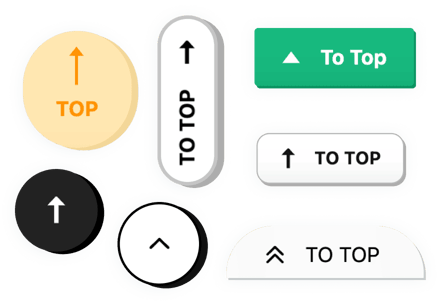
Customizing the style and position of your back to top button makes it fit your website design. It also improves user experience by making the button easy to see and use. Simple changes can create a clean, professional look that matches your brand. Focus on colors, size, placement, and animation to attract visitors’ attention without being distracting.
Changing Colors And Size
Choose colors that match your website’s palette. Use contrasting colors to make the button stand out. Adjust the size to be visible but not too large. A small, clear button works best for all screen types. You can change these settings in the plugin or add custom CSS code.
Adjusting Placement On Screen
Place the button where users expect it. The bottom right corner is common and easy to reach. Some prefer the bottom left or center. Test different spots to see which works best. Make sure the button does not cover important content or menus.
Adding Animation Effects
Use simple animations like fade-in or slide-up to catch attention. Avoid fast or flashy effects that annoy visitors. Smooth animation helps users notice the button without distraction. Many plugins offer built-in animation options you can enable with one click.
Troubleshooting Common Issues
Adding a back to top button improves user experience on your WordPress site. Sometimes, issues may arise that stop the button from working correctly. Troubleshooting these common problems helps keep the button functional and easy to use.
Button Not Showing
Check if the button is enabled in your plugin or theme settings. Some themes require you to activate the button manually. Clear your browser cache and refresh the page. Sometimes, the button is hidden by CSS styles. Inspect the page code to see if the button is present but invisible. Make sure your WordPress and plugins are updated.
Scroll Behavior Problems
The button should scroll smoothly to the top. If it jumps or does not work, check your JavaScript settings. Conflicts with other scripts can cause issues. Disable smooth scroll features in other plugins. Test the button in different browsers to rule out browser-specific problems. Adjust the scroll speed in your plugin settings if available.
Conflicts With Other Plugins
Some plugins may interfere with the back to top button. Disable other plugins one by one to find the conflict. Pay attention to plugins that change site layout or add scripts. Once found, look for an alternative plugin or contact support. Keeping your plugins updated reduces the risk of conflicts. Use plugins from trusted sources to avoid compatibility issues.
Improving User Experience
Adding a Back to Top button improves user experience on your WordPress site. It helps visitors navigate long pages quickly. This small feature saves time and reduces frustration. Users can jump back to the top with one click. It makes browsing easier and more enjoyable. Easy navigation keeps visitors on your site longer and lowers bounce rates.
Accessibility Considerations
Make sure the Back to Top button is easy to find and use. Use clear colors that stand out from the background. The button should be large enough to tap on mobile devices. Add descriptive text or aria-labels for screen readers. Ensure keyboard users can access the button with the Tab key. These steps make your site friendly for all visitors.
Performance Optimization
Keep the button code light to avoid slowing down your site. Use simple CSS and minimal JavaScript. Load scripts only when needed to save resources. Test the button on different devices and browsers. Fast loading times improve overall user experience. A smooth and quick Back to Top button keeps visitors happy.

Credit: aoxoa.co
Frequently Asked Questions
What Is A Back To Top Button In WordPress?
A Back to Top button helps users quickly return to the top of a page. It improves navigation and user experience on long posts or pages.
How Do I Add A Back To Top Button Without Plugins?
You can add custom HTML, CSS, and JavaScript code to your theme files. This method requires basic coding knowledge and editing theme files carefully.
Which WordPress Plugins Add Back To Top Buttons?
Popular plugins include “WPFront Scroll Top,” “Simple Back To Top,” and “To Top. ” They are easy to install and customize without coding.
Can I Customize The Back To Top Button’s Design?
Yes, most plugins and custom codes allow you to change colors, size, shape, and animation to match your website’s style.
Conclusion
Adding a back to top button makes your site easier to use. Visitors can quickly return to the top of any page. This small feature improves user experience and keeps people on your site longer. You don’t need to be a coding expert to add it.
Many plugins and simple steps can help. Try adding the button today to see the difference it makes. Your WordPress site will feel more professional and user-friendly. Simple changes can have a big impact.



