
You’ve worked hard to build your WordPress site, so keeping it safe should be a top priority. Adding Two-Factor Authentication (2FA) is one of the best ways to protect your login from hackers and unwanted access.
But how exactly do you add 2FA to your WordPress site without getting lost in complicated tech steps? In this guide, you’ll learn simple, clear steps to set up 2FA quickly and easily. By the end, you’ll have peace of mind knowing your site is much more secure.
Ready to take control of your site’s safety? Let’s dive in.

Credit: www.elegantthemes.com
Why 2fa Matters
Two-factor authentication (2FA) adds an extra layer of security to your WordPress site. It protects your site beyond just a password. Many websites face attacks due to weak login protection. 2FA helps stop unauthorized access even if passwords are stolen. Understanding why 2FA matters can help you keep your site safe.
Risks Of Weak Passwords
Weak passwords are easy to guess or crack. Hackers use tools to try many passwords quickly. Simple passwords like “123456” or “password” are common targets. If a hacker gets your password, they can enter your site freely. This can lead to stolen data or damaged reputation. Passwords alone are not enough to protect your site.
Benefits Of Two-factor Authentication
Two-factor authentication requires a second step to log in. Usually, this is a code sent to your phone or email. Even if someone knows your password, they cannot log in without this code. 2FA blocks most hacking attempts and keeps your site safe. It builds trust with your visitors by showing you care about security. Setting up 2FA is quick and worth the effort.
Choosing The Right 2fa Method
Choosing the right two-factor authentication (2FA) method is important for your WordPress site’s security. Different methods offer different levels of protection and ease of use. Picking the best option depends on your needs and how you want to balance security with convenience.
Some methods are simple but less secure, while others provide strong protection but require extra steps. Understanding the options helps you make a smart choice for your website.
Authenticator Apps
Authenticator apps generate time-based codes on your phone. These apps work offline and refresh codes every 30 seconds. Popular apps include Google Authenticator and Authy. They are very secure and quick to use. You scan a QR code once to set up the app. Then, enter the code each time you log in. This method reduces risks from SIM swapping or phishing.
Sms-based Codes
SMS codes send a text message with a verification number. You enter this code after your password. This method is easy and familiar to many users. It does not require installing an app. But SMS can be intercepted or delayed. It is less secure than authenticator apps or hardware tokens. Still, it adds a good extra layer of security for many sites.
Hardware Tokens
Hardware tokens are physical devices that generate login codes. You press a button to get a code or use USB keys like YubiKey. These tokens offer very high security. They are hard to hack or duplicate. Hardware tokens do not rely on a phone or internet connection. They can be a bit expensive and less convenient. Best for users needing strong protection for sensitive sites.
Email Verification
Email verification sends a code to your registered email address. You enter this code after typing your password. This method is simple and uses existing email access. It is less secure than apps or hardware tokens. Email accounts can be hacked or delayed. Good for sites with low security needs or as a backup option.
Preparing Your WordPress Site
Setting up Two-Factor Authentication (2FA) on your WordPress site starts with good preparation. You need a safe and updated website before adding extra security layers. Taking the right steps helps prevent problems during the setup process.
Begin by securing a backup of your entire site. This step is important in case anything goes wrong. Next, make sure WordPress and all plugins are up to date. Updated software works better with new security features like 2FA.
Backup Your Website
Create a full backup of your WordPress site before making changes. Save copies of your files and database. Use reliable plugins or your hosting service’s tools to do this. A backup keeps your data safe if you need to restore the site later.
Update WordPress And Plugins
Check for updates to WordPress core and plugins. Install all available updates to fix bugs and security issues. Updated software ensures compatibility with 2FA plugins. It also keeps your site running smoothly and safely.
Top 2fa Plugins For WordPress
Adding two-factor authentication (2FA) is a smart step to secure your WordPress site. It adds an extra layer of protection beyond just a password. Many plugins offer easy ways to set up 2FA. Here are some top 2FA plugins that work well with WordPress. Each plugin has its own strengths and features. Choose one that fits your needs and skill level.
Google Authenticator
Google Authenticator is a popular choice for 2FA on WordPress. It uses a mobile app to generate time-based codes. Users enter these codes along with their password to log in. The plugin is simple to set up and use. It supports multiple users and works with many authentication apps. This plugin keeps your login process secure without much hassle.
Wordfence Login Security
Wordfence Login Security adds 2FA along with other security features. It offers two-factor login using a code sent to your phone. The plugin also protects against brute force attacks. It is easy to install and configure. Wordfence includes real-time threat defense, making it a good all-around security tool.
Two Factor Authentication Plugin
This plugin focuses solely on adding 2FA to WordPress. It supports multiple verification methods, including email and apps. Users can choose their preferred authentication method. The plugin is lightweight and works smoothly with other plugins. It offers clear settings and easy management for site admins.
Duo Two-factor Authentication
Duo Two-Factor Authentication is a strong choice for businesses. It supports push notifications, phone calls, and passcodes. The plugin integrates well with WordPress login pages. Duo offers detailed security policies and user management. It suits sites needing advanced and flexible authentication options.
Step-by-step 2fa Setup
Setting up Two-Factor Authentication (2FA) on WordPress adds a strong security layer. Follow these simple steps to enable 2FA. It protects your site from unauthorized access quickly and easily.
Each step guides you through installing, configuring, and testing 2FA. This makes your WordPress login safer for all users.
Install And Activate Plugin
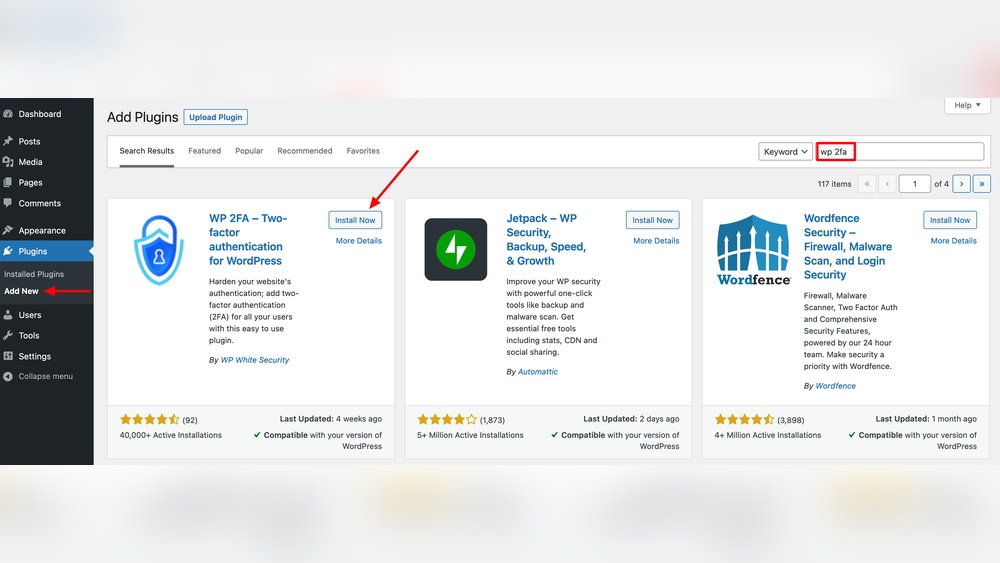
First, log into your WordPress dashboard. Go to the Plugins section and click “Add New.” Search for a trusted 2FA plugin like “Two Factor” or “Google Authenticator.”
Click “Install Now” and then “Activate.” The plugin will now be ready to use on your site.
Configure 2fa Settings
Open the plugin settings from the dashboard menu. Choose the 2FA methods you want to offer, such as app-based codes or email codes.
Set up options like code expiration time and backup codes. Save the changes to apply your settings.
Enable 2fa For User Roles
Decide which user roles must use 2FA. Usually, admins and editors should have it enabled for extra protection.
Select the roles in the plugin settings and turn on 2FA for them. This controls who needs the extra login step.
Test 2fa Functionality
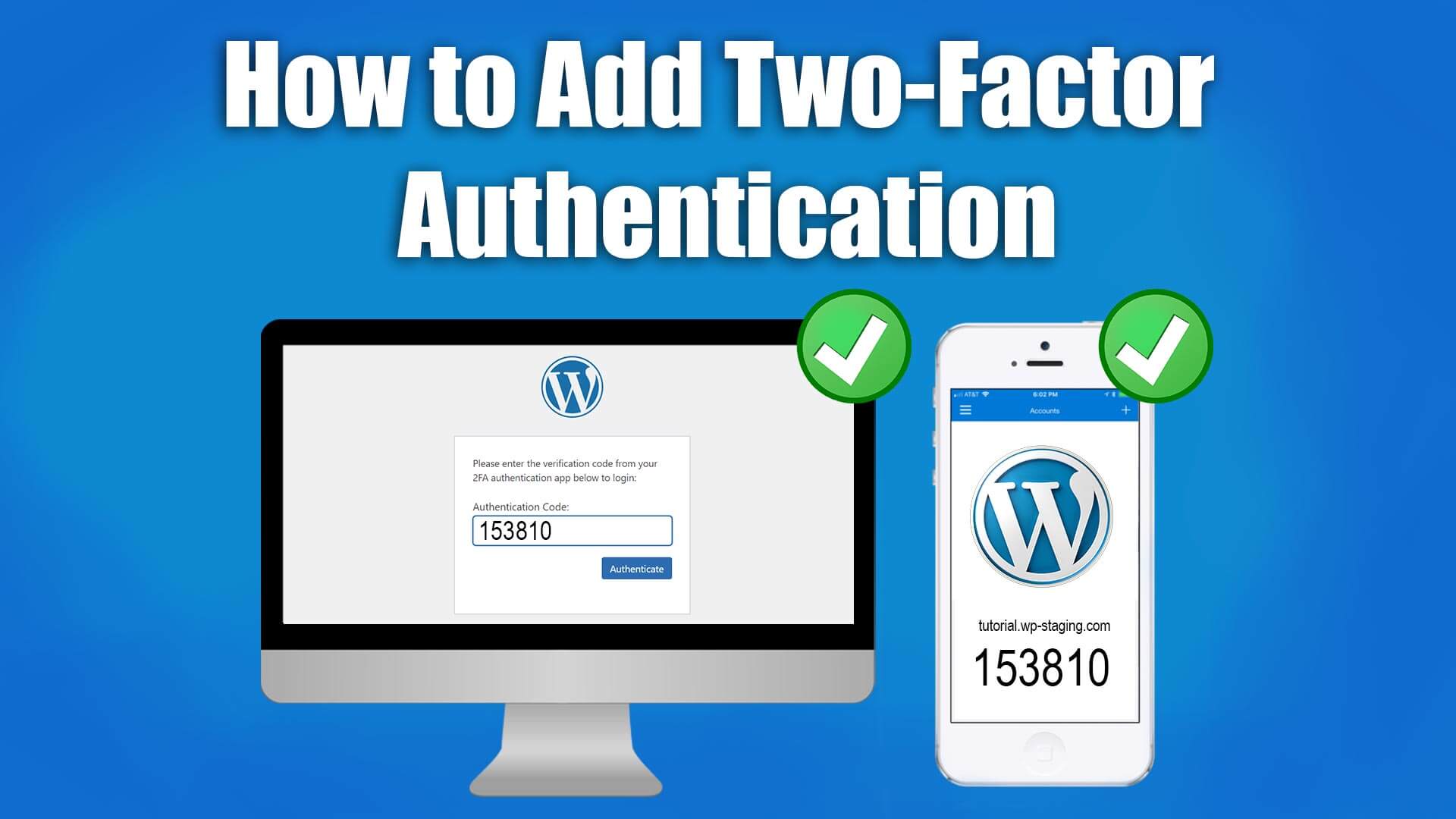
Log out of WordPress and try to log in again. After entering your password, the system will ask for the 2FA code.
Enter the code from your chosen method. Confirm that the login works smoothly with 2FA enabled.
Credit: wp-staging.com
Managing 2fa For Users
Managing 2FA for users is key to keeping your WordPress site secure. It helps protect accounts from unauthorized access. Proper management ensures smooth user experience and strong security.
Admins must set clear rules and provide support. This makes 2FA easy for users and stops security gaps. Handling common issues like lost devices is part of good management.
Enforcing 2fa On All Users
Set 2FA as mandatory for every user with access. This stops weak points in your site’s defenses. Use plugins that allow forced 2FA activation during login.
Notify users about the new rule. Guide them through the setup process step-by-step. This helps avoid confusion and login problems.
Handling Lost 2fa Devices
Users may lose phones or authentication apps. Provide a clear way to regain account access safely. Admins can temporarily disable 2FA after verifying user identity.
Have a backup plan ready. Support teams should help users reset 2FA quickly and securely.
Providing Backup Codes
Backup codes offer a safety net. Users save these codes and use them if they lose their 2FA device. Encourage users to store codes in a safe place.
Make sure your 2FA plugin supports generating and managing backup codes. This simple step prevents users from being locked out of accounts.
Troubleshooting Common Issues
Adding two-factor authentication (2FA) to your WordPress site improves security. Sometimes, users face issues after setting up 2FA. This section helps fix common problems. It guides you through simple solutions. You can keep your site safe without stress.
2fa Not Working After Plugin Update
Plugin updates can change settings or cause conflicts. This may stop 2FA from working correctly. Clear your browser cache and cookies first. Disable and re-enable the 2FA plugin. Check for new plugin instructions or known issues. Restoring a backup before the update can help. Contact plugin support if problems persist.
Bypassing 2fa In Emergencies
Sometimes, you may lose access to your 2FA device. Prepare backup codes and store them safely. Most 2FA plugins offer emergency bypass options. Use these methods only in urgent cases. Reset 2FA through your hosting control panel if needed. Always set a new 2FA after bypassing to keep security strong.
Compatibility With Other Plugins
Some plugins do not work well with 2FA tools. This causes login errors or site crashes. Test 2FA with your other plugins in a staging environment. Deactivate conflicting plugins one by one to find the issue. Choose 2FA plugins known for good compatibility. Keep all plugins updated to reduce conflicts.
Advanced 2fa Security Tips
Advanced 2FA security tips help protect your WordPress site better. Two-factor authentication stops many common attacks. You can make 2FA even stronger with a few smart steps. These tips keep your login process safer from hackers.
Combining 2fa With Strong Passwords
2FA is powerful but works best with strong passwords. Use long passwords with letters, numbers, and symbols. Avoid simple words or repeated characters. Change passwords regularly to reduce risk. This makes it harder for attackers to guess your login details.
Using Ssl For Secure Login
SSL encrypts data sent between your browser and server. It protects your login details from being stolen. Use HTTPS on your WordPress site to enable SSL. This gives an extra layer of security during login. Make sure your SSL certificate is valid and updated.
Monitoring Login Attempts
Watch for unusual login activity on your site. Many failed attempts may mean someone tries to break in. Use plugins that track login attempts and block suspicious IPs. Set alerts for too many failed logins. Early detection helps prevent attacks before damage occurs.
Credit: www.wpbeginner.com
Frequently Asked Questions
What Is 2fa And Why Add It To WordPress?
2FA, or two-factor authentication, adds an extra security layer. It protects your WordPress login by requiring a second verification step beyond the password. This reduces hacking risks and enhances site security significantly.
How Do I Enable 2fa In WordPress?
To enable 2FA, install a reliable plugin like Google Authenticator or Wordfence. Configure the plugin settings and link it to an authenticator app. After setup, users must verify login with a code from the app.
Which 2fa Plugins Work Best For WordPress?
Popular 2FA plugins include Google Authenticator, Wordfence, and Duo Security. They offer easy setup, compatibility, and strong security features. Choose one based on your site’s needs and user experience preferences.
Can 2fa Prevent WordPress Brute Force Attacks?
Yes, 2FA effectively blocks brute force attacks. It requires attackers to have both the password and a second verification code. This extra step makes unauthorized access much harder.
Conclusion
Adding 2FA to your WordPress site boosts its security. It helps protect your login from hackers and bots. The setup is simple and takes only a few minutes. Choose a trusted plugin and follow the steps carefully. Regularly update your plugins and WordPress for better safety.
Strong security gives peace of mind for site owners. Start using 2FA today to keep your site safe. Small steps can make a big difference in security.



