
Are you ready to make your WordPress website more secure and trustworthy? Activating SSL is the key step you need to take right now.
Without SSL, your site risks losing visitors and hurting your search rankings. But don’t worry—setting up SSL on WordPress is easier than you think. In this guide, you’ll discover simple, clear steps to get your site protected fast. Keep reading to unlock the full potential of your website’s security and boost your visitors’ confidence instantly.
Credit: njkingpalace.com
Why Ssl Matters For WordPress
SSL is important for every WordPress website. It keeps your site safe and protects visitors’ data. Without SSL, information can be stolen by hackers. This makes your website less trustworthy and less secure.
Activating SSL improves your site’s performance and reputation. It helps your website meet modern internet standards. Visitors expect websites to be secure, especially when sharing personal details.
Benefits Of Ssl
SSL encrypts data sent between your website and visitors. This protects passwords, credit card numbers, and other sensitive info. It prevents hackers from stealing or changing this data. SSL also helps prevent phishing attacks by verifying your site’s identity.
Impact On Seo
Google prefers secure websites. Sites with SSL get a ranking boost in search results. This means your site can appear higher and get more visitors. SSL is a factor Google uses to judge website quality and safety.
Building User Trust
Visitors feel safer on a website with SSL. Browsers show a padlock icon for secure sites. This simple sign builds trust and confidence. Users are more likely to stay and interact with your site.
Choosing The Right Ssl Certificate
Choosing the right SSL certificate is important for your WordPress site’s security. It protects your visitors’ information and builds trust. Picking the best certificate depends on your needs, budget, and website type. Understanding the differences helps you make a smart choice.
Free Vs Paid Certificates
Free SSL certificates are easy to get and work well for small blogs or personal sites. They offer basic encryption but usually lack extra features. Paid certificates cost money but provide stronger security and more options. Businesses often choose paid SSL to get warranties and better support.
Types Of Ssl Certificates
There are three main types of SSL certificates. Domain Validation (DV) certificates check only domain ownership. Organization Validation (OV) certificates verify your company details. Extended Validation (EV) certificates offer the highest trust with a green address bar. Choose the type that fits your site’s purpose.
Where To Get Ssl
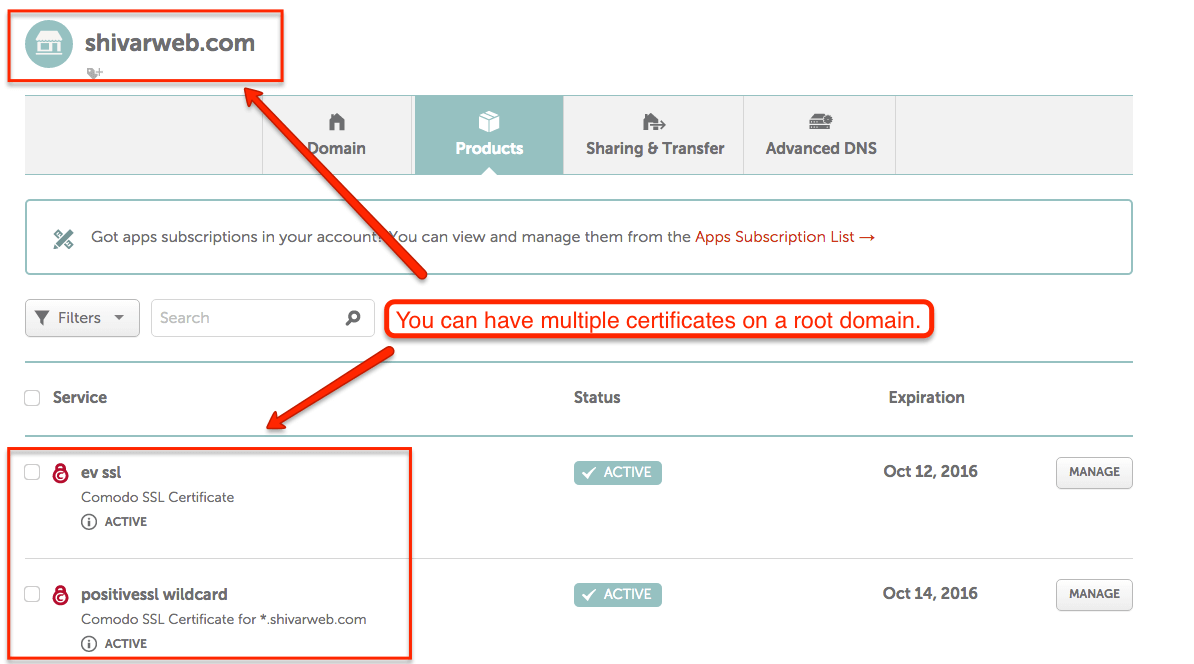
You can get SSL certificates from many sources. Hosting providers often include free or paid SSL options. Certificate Authorities (CAs) sell trusted certificates directly. Some popular CAs are Let’s Encrypt, Comodo, and DigiCert. Always pick a trusted provider to ensure security.
Preparing Your WordPress Site
Preparing your WordPress site is an important first step before activating SSL. This process helps avoid problems and keeps your website safe. Follow these key actions to get ready for SSL activation.
Backup Your Site
Always create a full backup of your WordPress site. This includes your database and all files. Backups protect your site if something goes wrong during SSL setup. Use plugins like UpdraftPlus or your hosting backup tools. Store the backup in a safe place outside your server.
Check Hosting Compatibility
Ensure your hosting provider supports SSL certificates. Most hosts offer free SSL with Let’s Encrypt. Some require manual activation or provide paid SSL options. Check your hosting control panel or contact support. Confirm your hosting environment allows SSL installation and configuration.
Update WordPress And Plugins
Keep your WordPress core, themes, and plugins up to date. Updates improve security and compatibility with SSL. Outdated software can cause errors during or after SSL activation. Use the WordPress dashboard to update everything before proceeding.
Activating Ssl Via Hosting Provider
Activating SSL via your hosting provider is a simple way to secure your WordPress site. Most hosting companies offer free or paid SSL certificates. They handle the technical parts for you. This method is fast and requires little effort. Follow these steps to activate SSL directly through your hosting account.
Accessing Hosting Control Panel
First, log in to your hosting control panel. This is usually cPanel, Plesk, or a custom dashboard. Look for the security section or SSL/TLS manager. If unsure, check your hosting provider’s help guides. Accessing the control panel is the first step to installing SSL.
Installing Ssl Certificate
Most hosts offer free SSL certificates from Let’s Encrypt. Find the option to install or activate SSL. Click the button to add SSL to your domain. The system will handle the certificate installation automatically. If you have a paid SSL, upload the certificate files here.
Enabling Https
After SSL installation, force your site to use HTTPS. This option may be in your control panel or WordPress settings. Enabling HTTPS ensures all traffic is secure. Check your website to confirm the green padlock icon appears. Your site is now protected with SSL.
Activating Ssl With Plugins
Activating SSL on your WordPress site improves security and trust. Using plugins makes this process simple and quick. Plugins handle most technical steps automatically. This helps avoid errors and saves time.
Popular Ssl Plugins
Several plugins help add SSL to WordPress sites. Really Simple SSL is the top choice for many. It detects your SSL certificate and updates settings. WP Force SSL redirects visitors to the secure version of your site. SSL Zen also helps create and install free SSL certificates easily. These plugins suit beginners and experts alike.
Installing And Configuring Plugins
Log in to your WordPress dashboard. Go to the Plugins menu and click Add New. Search for the SSL plugin by name. Click Install Now and then Activate. Follow the plugin’s setup wizard or instructions. Usually, it will detect the SSL certificate automatically. The plugin will update your site URLs to HTTPS. Save the changes and clear your site cache if needed.
Testing Ssl Activation
After activation, test your site’s security. Open your website in a new browser tab. Check for a padlock icon next to the address bar. This shows SSL is working correctly. Use online tools like SSL Labs for a deep check. Verify all pages load with HTTPS without errors. Fix any mixed content warnings to ensure full security.
Fixing Mixed Content Issues
Fixing mixed content issues is a key step after activating SSL on your WordPress site. Mixed content happens when your website loads some files through HTTPS and others through HTTP. This can cause security warnings in browsers and affect your site’s trust and ranking.
Solving these problems improves your site’s security and user experience. There are simple ways to fix mixed content in WordPress, using plugins or manual methods.
What Causes Mixed Content
Mixed content appears when a webpage loads resources via HTTP instead of HTTPS. These resources include images, scripts, stylesheets, or videos. The main cause is links or URLs hard-coded with HTTP in your WordPress database or theme files. Sometimes plugins or external sources also load insecure content.
Browsers block or warn about these insecure elements, which breaks the secure connection. Fixing mixed content means making sure every file loads over HTTPS.
Using Plugins To Fix
Plugins offer an easy way to fix mixed content without coding. They scan your site for insecure URLs and replace them with HTTPS versions. Popular plugins like Really Simple SSL or Better Search Replace handle this task well.
These tools update your database URLs and adjust content automatically. They also manage redirects to ensure all traffic uses HTTPS. Plugins save time and reduce errors for beginners.
Manual Fixes In WordPress
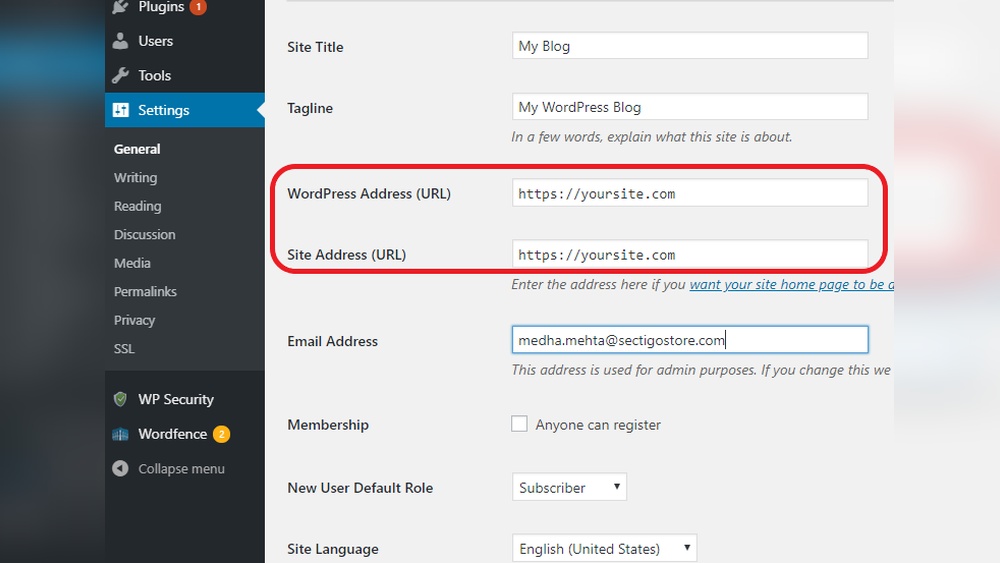
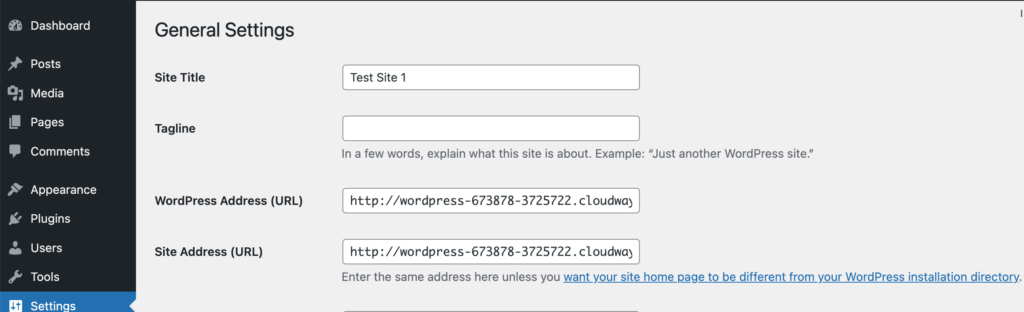
You can fix mixed content manually by editing theme files and database entries. First, check your WordPress and site address URLs under Settings > General. Change both to HTTPS if not set already.
Next, search your database for HTTP links using a tool like phpMyAdmin. Replace them with HTTPS carefully. Also, review your theme files, widgets, and custom code for hard-coded HTTP links.
Update these URLs to HTTPS to stop mixed content warnings. Clear your cache after changes to see results.
Updating WordPress Settings
Maintaining SSL security is crucial for keeping your WordPress site safe. It protects data and builds trust with visitors. SSL needs regular care to work well. Small steps keep your site secure and running smoothly.
Renewing Ssl Certificates
SSL certificates do not last forever. They expire after a set time, usually one year. Renew your certificate before it expires. An expired certificate causes browser warnings. These warnings scare visitors away. Use your hosting service or SSL provider to renew. Set reminders to avoid missing renewal dates.
Regular Site Audits
Check your site often for security issues. Look for broken links and outdated content. Scan for malware and vulnerabilities. Use tools designed for WordPress security checks. Fix problems quickly to prevent attacks. Regular audits keep SSL effective and your site safe.
Keeping Plugins Updated
Plugins add features but can cause security risks if outdated. Update plugins regularly to patch security holes. Check plugin compatibility before updating. Remove plugins you no longer use. Updated plugins help maintain your SSL protection and overall site security.
Credit: www.wpzoom.com
Credit: www.malcare.com
Frequently Asked Questions
What Is Ssl And Why Activate It On WordPress?
SSL (Secure Sockets Layer) encrypts data between your website and visitors. Activating SSL on WordPress secures user information and improves trust. It also boosts your site’s SEO ranking by enabling HTTPS.
How Do I Get An Ssl Certificate For WordPress?
You can obtain an SSL certificate from your web host or use free options like Let’s Encrypt. Some hosts offer one-click SSL activation for WordPress sites.
Can I Activate Ssl Without Technical Skills?
Yes, many hosting providers offer easy SSL activation tools. WordPress plugins like Really Simple SSL also help activate SSL with minimal technical knowledge.
Will Activating Ssl Affect My WordPress Site’s Seo?
Activating SSL improves SEO by enabling HTTPS, which Google favors. It also increases user trust, reducing bounce rates and improving search rankings.
Conclusion
Activating SSL on your WordPress site improves security and trust. Visitors see a secure padlock icon in their browser. This helps protect data and keeps your site safe. Regularly check your SSL certificate to avoid issues. Many hosting providers offer free SSL certificates today.
Follow simple steps to activate SSL quickly. A secure website builds confidence with your visitors. Take action now to protect your WordPress site. Your online presence deserves this basic security step.



