
Are you tired of spam flooding your WordPress site? Activating reCAPTCHA is a simple way to protect your website from unwanted bots and keep your comments and forms secure.
You’ll learn exactly how to set up reCAPTCHA step-by-step, even if you’re not tech-savvy. By the end, your site will be safer, and you’ll have peace of mind knowing your visitors have a smoother, spam-free experience. Keep reading to make your WordPress site smarter and more secure!
Credit: www.wpbeginner.com
Why Use Recaptcha
Recaptcha is a tool that helps protect websites from harmful activity. It separates real users from automated bots. This keeps your WordPress site safe and reliable. Recaptcha improves user experience by reducing spam and blocking threats.
Preventing Spam And Bots
Spam can harm your website’s reputation. Bots often fill forms with fake data. Recaptcha stops these bots from submitting unwanted content. This keeps your site clean and professional. Visitors enjoy a smoother experience without spam clutter.
Enhancing Site Security
Security is vital for every website. Recaptcha adds an extra layer of defense. It blocks harmful bots trying to access your site. This reduces risks of hacking and data theft. With Recaptcha, your WordPress site stays safer and trustworthy.
Choosing The Right Recaptcha Version
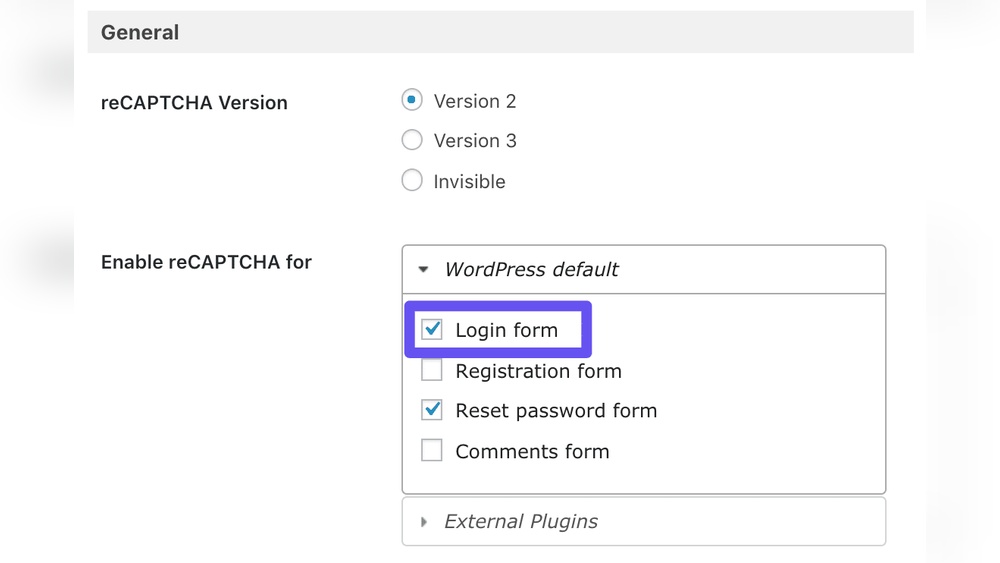
Choosing the right reCAPTCHA version for your WordPress site helps protect it effectively. Each version offers different features and user experiences. Picking the best one depends on your website’s needs and how you want visitors to interact with security checks.
Recaptcha V2 Vs V3
Recaptcha v2 asks users to click a checkbox or solve a challenge. It clearly shows visitors that a security test is happening. This version is easy to understand for most people. It works well on contact forms and login pages.
Recaptcha v3 runs in the background without user interaction. It scores visitors based on behavior to detect bots. This version keeps the user experience smooth and fast. It suits websites wanting less interruption but still needing protection.
Invisible Recaptcha Features
Invisible reCAPTCHA triggers only when suspicious activity is detected. Visitors do not see a checkbox or challenge unless needed. This makes the site look clean and professional. It uses advanced risk analysis to block spam and bots effectively.
This version fits sites wanting strong security without bothering users. It activates only on form submission or button clicks. Invisible reCAPTCHA balances protection with a seamless visitor experience.
Getting Recaptcha Keys
Getting Recaptcha keys is the first step to secure your WordPress site. These keys connect your website to Google’s Recaptcha service. They help stop spam and bots from accessing your site. The process is simple and only takes a few minutes. Follow these steps to get your keys.
Creating A Google Recaptcha Account
Start by visiting the Google Recaptcha website. Use your Google account to sign in. If you don’t have one, create a new account. Signing in allows you to manage your Recaptcha keys easily. This step is necessary before you register your website.
Registering Your Website
After signing in, click on the “Admin Console” button. Enter a label for your site to identify it later. Choose the type of Recaptcha you want to use, such as v2 or v3. Add your website domain name without “http://” or “https://”. Accept the terms of service to continue. Finally, click “Submit” to generate your site key and secret key. Save these keys safely for later use in WordPress.
Credit: www.webhostinghub.com
Installing A Recaptcha Plugin
Installing a Recaptcha plugin in WordPress helps protect your site from spam and bots. It adds a security layer to forms like login, registration, and comments. The process is simple and does not require coding skills.
Choosing the right plugin is important. Some plugins offer more features, while others focus on ease of use. This section covers popular plugins and easy steps to install them.
Popular Recaptcha Plugins For WordPress
Several Recaptcha plugins work well with WordPress. “Google Captcha (reCAPTCHA) by BestWebSoft” is user-friendly and supports multiple forms. “WPForms” includes Recaptcha options in its form builder. “Advanced noCaptcha & invisible Captcha” supports both visible and invisible Recaptcha versions. These plugins receive frequent updates and have good ratings.
Plugin Installation Steps
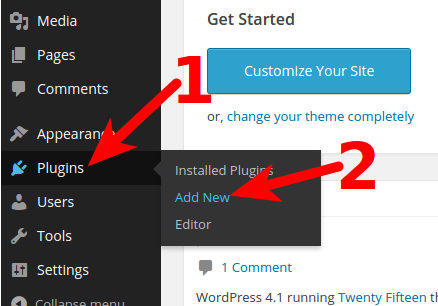
Start by logging into your WordPress dashboard. Navigate to Plugins > Add New. Type “Recaptcha” in the search box. Find the plugin you want and click “Install Now.” After installation, click “Activate.”
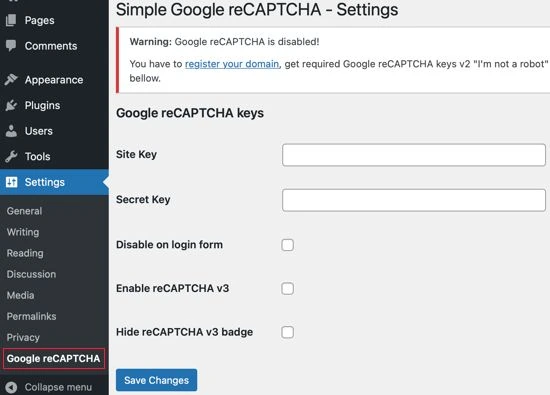
Next, go to the plugin settings. Enter the site key and secret key from your Google Recaptcha account. Choose the forms to protect, like login or contact forms. Save the settings. Your Recaptcha is now active and ready to secure your site.
Configuring Recaptcha Settings
Configuring Recaptcha settings is a key step to keep your WordPress site safe. It stops spam and bots from misusing your forms. Proper setup ensures Recaptcha works smoothly and protects your site effectively.
Adding Site And Secret Keys
First, you need two keys: site key and secret key. These come from Google’s Recaptcha website. Copy and paste them into your WordPress Recaptcha plugin settings. The site key shows the Recaptcha badge on your site. The secret key lets your site talk with Google securely. Both keys must be correct for Recaptcha to work.
Choosing Forms To Protect
Select which forms should have Recaptcha enabled. Common forms include login, registration, and contact forms. Protecting important forms stops spam without annoying visitors. Your plugin will list available forms for easy selection. Turn on Recaptcha only for forms that need protection. This keeps the site fast and user-friendly.
Credit: www.liquidweb.com
Testing Recaptcha On Your Site
After activating reCAPTCHA on your WordPress site, testing it is essential. Testing ensures the tool works as expected. It helps secure your forms from spam and bots.
Testing also confirms the user experience stays smooth. Visitors should not face issues while completing forms. Follow these steps to verify and troubleshoot reCAPTCHA on your site.
Verifying Functionality
Start by visiting the page with reCAPTCHA enabled. Check if the reCAPTCHA widget appears clearly on the form. Try submitting the form without completing the reCAPTCHA challenge. The form should block submission and show an error.
Complete the reCAPTCHA challenge and submit again. The form should accept the submission this time. Test on different browsers and devices to ensure wide compatibility. This step confirms the reCAPTCHA works properly for all users.
Troubleshooting Common Issues
If reCAPTCHA does not show up, check your site keys. Ensure you entered the correct site key and secret key in the plugin settings. Clear your website cache and reload the page. Sometimes, caching hides recent changes.
Look for JavaScript errors in your browser console. Errors can stop reCAPTCHA from loading. Disable other plugins to find conflicts. Some plugins may interfere with reCAPTCHA scripts.
Verify your site domain matches the domain registered with Google reCAPTCHA. Mismatched domains cause verification failures. Check your internet connection for security restrictions blocking Google services.
Tips For Maximizing Recaptcha Effectiveness
Activating Recaptcha on your WordPress site is just the first step. To get the best results, you must use it wisely. These tips will help you make Recaptcha more effective. They focus on keeping your site safe without annoying your visitors. Follow these simple guidelines for better security and user satisfaction.
Balancing User Experience And Security
Strong security can sometimes slow down your site. It can make users frustrated. Choose Recaptcha settings that stop bots but stay easy to use. Use invisible Recaptcha or the newest versions. These options check users quietly and quickly. Avoid too many challenges that confuse real visitors. Test your site often to find the right balance.
Regular Plugin Updates
Keep your Recaptcha plugin up to date. Updates fix bugs and improve security features. Old versions may have weaknesses hackers can use. Set reminders to check for updates every month. Update WordPress and other related plugins too. This keeps your entire site safer and running smoothly.
Frequently Asked Questions
What Is Recaptcha And Why Use It In WordPress?
ReCAPTCHA is a security tool that stops spam and bots. Using it in WordPress protects your site from fake submissions and hacks. It improves user experience by ensuring only humans interact with forms and comments.
How To Generate Recaptcha Keys For WordPress?
To generate reCAPTCHA keys, visit Google’s reCAPTCHA site. Register your WordPress domain, choose reCAPTCHA type, and get Site and Secret keys. These keys are essential to connect reCAPTCHA with your WordPress site.
Which WordPress Plugins Support Recaptcha Activation?
Popular plugins like Google Captcha (reCAPTCHA), WPForms, and Contact Form 7 support reCAPTCHA. Install and activate one, then enter your keys to enable protection. Choose plugins compatible with your WordPress version for best results.
Can Recaptcha Reduce Spam On WordPress Contact Forms?
Yes, reCAPTCHA effectively reduces spam by verifying users are human. It blocks automated bots from submitting fake data. This helps maintain clean and trustworthy contact form submissions.
Conclusion
Activating reCAPTCHA in WordPress keeps your site safe from spam. It stops fake users and protects your forms. The steps are simple and quick to follow. You only need a Google reCAPTCHA key and a plugin. After setup, test it to make sure it works well.
Keep your site secure and user-friendly at the same time. This small change can make a big difference. Try it today and enjoy a cleaner website.



