
Are you struggling to access your WordPress website? Whether you’re a beginner or have some experience, knowing exactly how to log in and manage your site is crucial.
Imagine having full control at your fingertips, ready to update content, fix issues, or customize your design anytime you want. This guide will walk you through simple, clear steps to access your WordPress website quickly and confidently. Keep reading, and you’ll never worry about getting locked out or lost again.
Your website’s power is just a few clicks away!
Locate Your Login Url
Finding your WordPress login URL is the first step to managing your website. This URL lets you access the admin area. Here, you can update content, change settings, and add new features. Knowing your login URL saves time and avoids confusion. It is important to understand where to find it.
Default Login Addresses
Most WordPress sites use a standard login URL. You can try adding /wp-login.php or /wp-admin after your website’s main address. For example, www.yoursite.com/wp-login.php takes you directly to the login page. These are the most common URLs WordPress creates automatically. If you have not changed your login page, one of these will work.
Custom Login Urls
Some website owners change the login URL to make their sites safer. Custom URLs are different from the default ones. You or your developer might have set a unique login address. This helps stop hackers from guessing your login page. To find your custom URL, check any security plugins you use. These plugins usually show the custom login link in their settings. Remember to save this URL for future use.
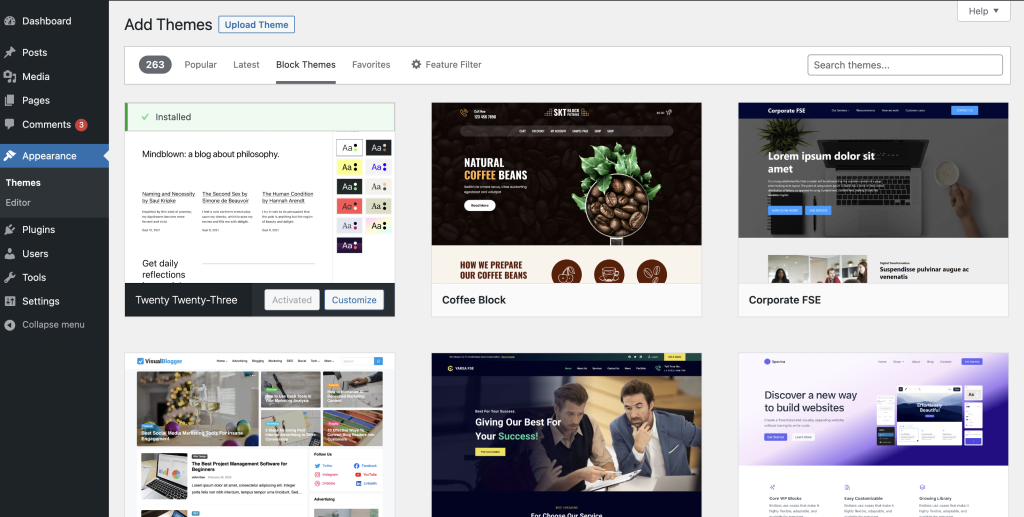
Credit: wordpress.org
Use Credentials To Log In
Accessing your WordPress website starts with using the right credentials. These credentials include your username and password. They protect your site and ensure only you can log in. Entering them correctly takes you to the WordPress dashboard. This is where you manage your website’s content and settings.
Keep your login details safe. Avoid sharing them with others. Use a strong password to keep your site secure. Let’s explore some tips for usernames and passwords. Also, learn how to reset your password if you forget it.
Username And Password Tips
Choose a username that is easy to remember. Avoid using “admin” or common names. Unique usernames reduce the risk of hacking attempts.
Create a strong password. Use letters, numbers, and symbols. Make it at least eight characters long. Strong passwords protect your site from unauthorized access.
Change your password regularly. Do not reuse old passwords. This practice keeps your account safer over time.
Resetting Forgotten Passwords
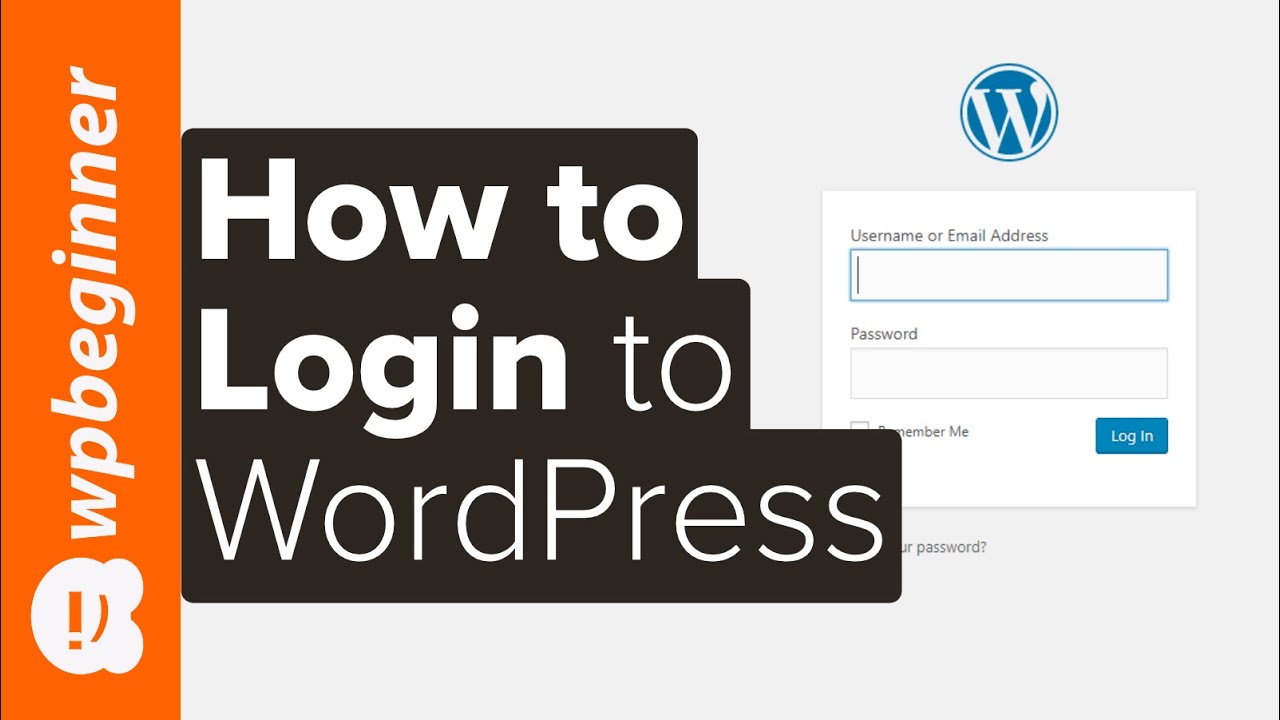
Forgot your password? No problem. Go to the WordPress login page.
Click on the “Lost your password?” link below the login form. Enter your username or email address. WordPress will send a password reset link to your email.
Follow the link to create a new password. Use a strong, unique password this time. After resetting, log in with your new credentials.
Enable Two-factor Authentication
Enabling two-factor authentication (2FA) adds a strong layer of security to your WordPress website. It requires users to provide two forms of identification before gaining access. This method helps protect your site from hackers and unauthorized logins.
2FA is easy to set up and use. It gives you peace of mind by making your website safer. Let’s explore its benefits and how to enable it on your WordPress site.
Benefits Of Two-factor Authentication
Two-factor authentication protects your site beyond just passwords. Even if a password is stolen, 2FA stops unwanted access. It reduces the risk of hacking and data theft.
2FA builds trust with your visitors. They feel safer knowing your site has extra protection. It also helps you meet security standards and compliance rules.
This method lowers chances of spam and fake accounts. It keeps your website’s content and user data secure. Overall, 2FA strengthens your site’s defense against cyber threats.
Setting Up 2fa On WordPress
Start by choosing a reliable 2FA plugin from the WordPress plugin store. Popular options include Google Authenticator and Wordfence Login Security. Install and activate the plugin.
Next, follow the plugin’s setup instructions. Usually, it asks you to scan a QR code using an authentication app on your phone. The app generates a code that changes every 30 seconds.
After setup, every login requires the usual password and a temporary code from your phone. You can also enable 2FA for other users on your site. This keeps everyone’s account safe.
Credit: www.youtube.com
Troubleshoot Common Login Issues
Accessing your WordPress website should be easy. Sometimes, login problems get in the way. These issues can stop you from managing your site. Troubleshooting common login issues helps you get back on track quickly. Here are simple steps to fix frequent problems.
Clearing Browser Cache And Cookies
Old cache or cookies can block your login page. Browsers save data to load pages faster. This saved data may cause errors when logging in. Clear your browser cache and cookies to fix this. It removes outdated files and refreshes your login session.
After clearing, close and reopen your browser. Try logging in again. This step often solves many login troubles quickly.
Dealing With Locked Accounts
Too many wrong password attempts can lock your account. This security measure protects your website from hackers. If locked out, wait for a few minutes. Most systems unlock automatically after some time.
You can also reset your password using the “Lost your password?” link. Follow the instructions sent to your email. This helps you regain access without waiting long.
Access WordPress Via Hosting Panel
Accessing your WordPress website through the hosting panel is a direct and effective method. It allows you to manage files and databases without logging into the WordPress dashboard. This approach helps fix issues, update themes, or backup your website quickly.
The hosting panel acts as the control center for your website. It stores all your WordPress files and database information. Knowing how to navigate this panel gives you better control over your site’s technical aspects.
Using Cpanel Or Hosting Dashboard
Most hosting providers offer cPanel or a custom hosting dashboard. These tools provide a user-friendly interface to manage your website. Log in to your hosting account to access the panel.
Inside the panel, find the section labeled “File Manager” or similar. This is where your website files are stored. You can upload, edit, or delete files directly here. Look for the folder named “public_html” or “www.” Your WordPress files are inside this folder.
Some hosts provide one-click WordPress installers within the dashboard. These tools also allow you to access WordPress settings or restore backups easily.
Accessing WordPress Files And Database
Your WordPress site depends on two main parts: files and database. Files include themes, plugins, and core WordPress scripts. The database stores all your content like posts, pages, and user data.
Use the File Manager in your hosting panel to find and manage WordPress files. You can edit files like wp-config.php or .htaccess here. Be careful when making changes; incorrect edits can break your site.
To access the database, find the “phpMyAdmin” tool in the hosting panel. This tool allows you to view and edit your WordPress database tables. You can backup, export, or repair your database through phpMyAdmin.
Accessing files and database through the hosting panel helps solve many WordPress issues fast. It gives you full control over your site’s backend without needing advanced technical skills.

Credit: verpex.com
Frequently Asked Questions
How Do I Log Into My WordPress Website?
To log into your WordPress site, visit yourdomain. com/wp-admin. Enter your username and password. This grants access to your dashboard for site management.
What If I Forget My WordPress Password?
Click “Lost your password? ” on the login page. Enter your email to receive a reset link. Follow the link to create a new password.
How Can I Access WordPress Without The Admin Panel?
Use FTP or your hosting control panel’s file manager. Access your WordPress files to edit or upload without logging into the admin panel.
Why Can’t I Access My WordPress Site?
Check your internet, domain status, and hosting account. Clear browser cache or try another device. Contact your hosting provider if issues persist.
Conclusion
Accessing your WordPress website is simple and quick. Use your login details carefully. Keep your password safe and private. Remember to use the correct website URL. Always log out after finishing your work. Regularly update your login information for security.
Following these steps helps you manage your site easily. Start exploring your WordPress dashboard with confidence today.



