
Are you struggling to find a quick way to access your WordPress site from cPanel? You’re not alone.
Many website owners get stuck trying to navigate between these two important tools. But here’s the good news: accessing WordPress through cPanel is easier than you think. Once you know the simple steps, you can manage your site faster, fix issues promptly, and keep everything running smoothly.
Keep reading, and you’ll discover exactly how to access WordPress from cPanel without any hassle. Your website’s control is just a few clicks away.
Credit: www.youtube.com
Accessing Cpanel
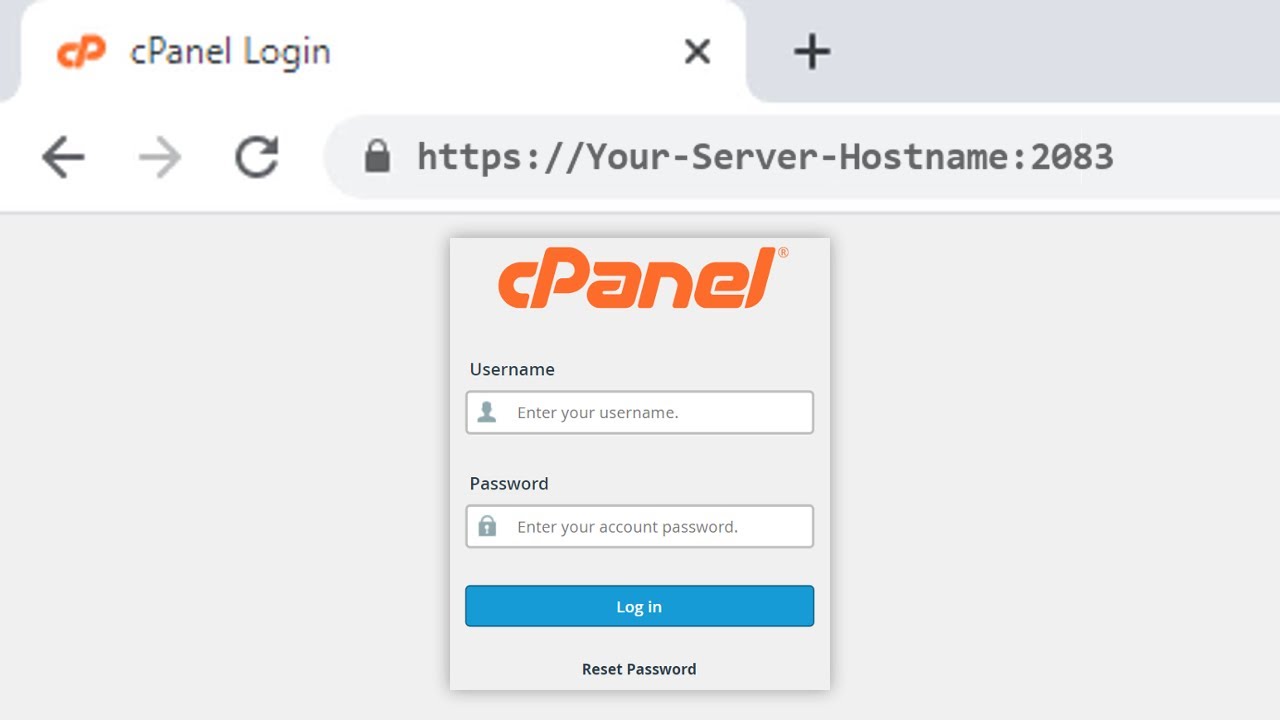
cPanel is the control panel for your web hosting account. It lets you manage website files, databases, and emails easily. To use WordPress, you first need to access cPanel. This section explains how to find and log into cPanel step-by-step.
Locating Cpanel Login Details
Login details are usually sent by your hosting provider. Check your email inbox for a message after purchasing hosting. This email contains the username, password, and the cPanel URL. Sometimes, the login page is your domain name followed by “/cpanel”.
If you cannot find the email, visit your hosting provider’s website. Look for the support or help section. They often provide instructions on how to find your cPanel login details.
Logging Into Cpanel
Open a web browser and enter the cPanel URL. This URL looks like “yourdomain.com/cpanel” or an IP address with “:2083” at the end. Enter the username and password from your hosting email. Press the login button to access the control panel.
Check that your login details are correct if you cannot access cPanel. Use the password reset option or contact your hosting support for help. Once logged in, you can start managing your WordPress site easily.

Credit: www.hostitsmart.com
Finding WordPress In Cpanel
Finding WordPress in cPanel is the first step to managing your website files. cPanel offers tools that help you access WordPress quickly. This guide explains how to find WordPress using cPanel’s File Manager and how to locate the WordPress directory.
Using The File Manager
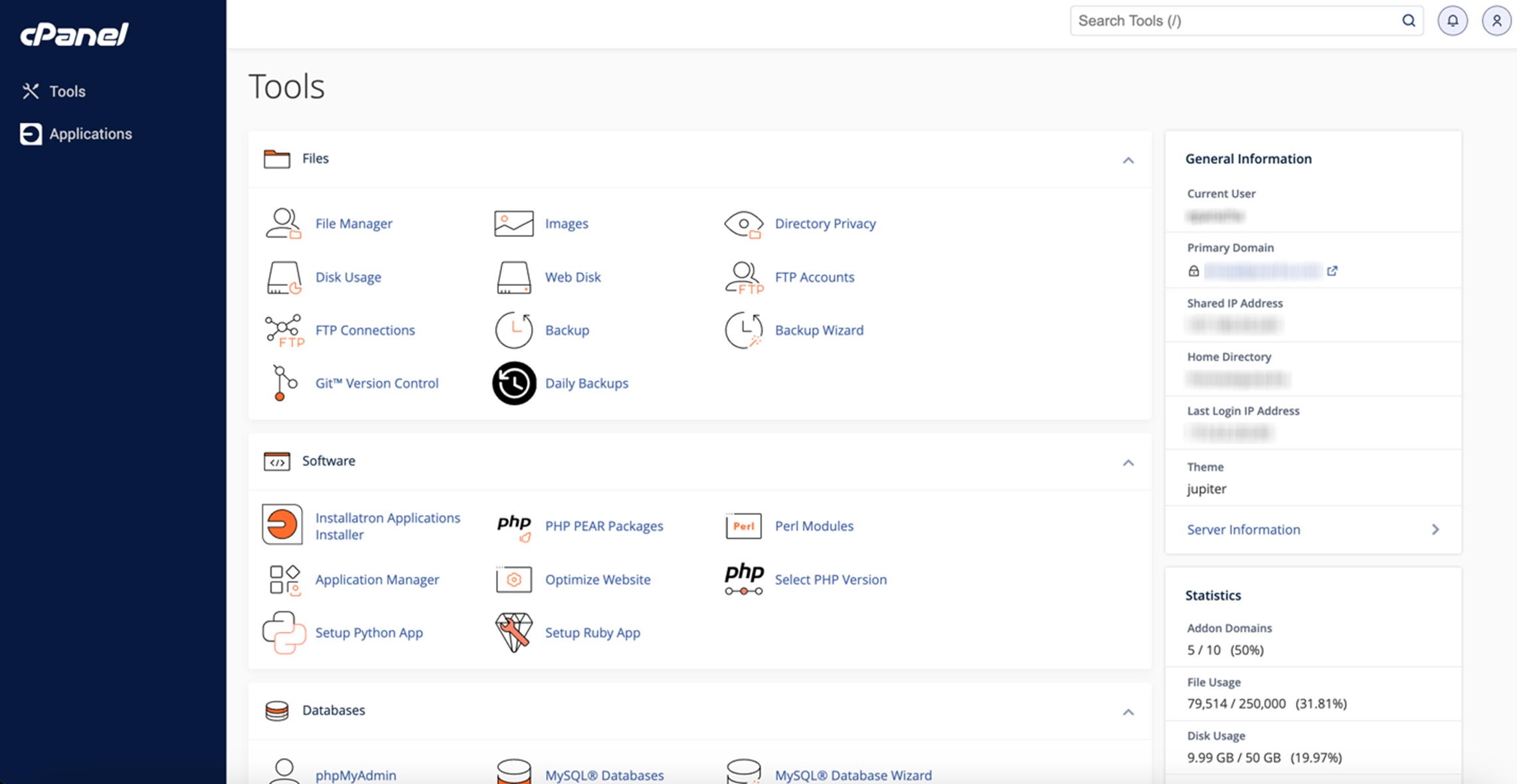
File Manager is a tool inside cPanel that shows all website files. It works like a file explorer on your computer. Open cPanel and click on the File Manager icon. This opens a new window showing your website’s folders and files.
File Manager lets you see WordPress files without extra software. It helps check WordPress setup and edit files if needed. The tool is easy to use and fast to open.
Locating The WordPress Directory
The WordPress directory holds all important WordPress files. Common folder names are public_html or www. Look inside these folders to find WordPress files like wp-config.php and wp-admin.
Sometimes WordPress is in a subfolder. Check folders named after your website or blog. The directory contains files such as wp-content, wp-includes, and index.php.
Knowing the WordPress directory helps manage your site better. You can upload themes, plugins, or backup files here. This step is key for website maintenance and updates.
Managing WordPress Files
Managing WordPress files through cPanel gives direct control over your website’s structure. It lets you modify themes, plugins, and other important files. This access helps fix issues and customize your site without logging into WordPress.
Using the File Manager in cPanel makes file management easy. You can edit, upload, or download files safely. Understanding these actions improves your ability to maintain your WordPress site.
Editing Themes And Plugins
Themes and plugins shape your site’s look and function. In cPanel, open the File Manager and find the “wp-content” folder. Inside, you will see “themes” and “plugins” folders.
Choose the theme or plugin folder you want to edit. Click on files like style.css or functions.php to open and change code. Save edits carefully to avoid errors. Always back up files before making changes.
Uploading And Downloading Files
Uploading files allows you to add new themes, plugins, or images. Use the Upload button in File Manager to select files from your computer. Wait for the upload to finish before closing the window.
Downloading files helps you save backups or transfer content. Right-click a file and choose Download to save it locally. Keep backups in a safe place to restore your site if needed.
Accessing The WordPress Database
Accessing the WordPress database is key to managing your website’s data. The database stores all your content, settings, and user information. Direct access lets you fix issues or make changes quickly. This section explains how to open and explore your WordPress database using cPanel tools.
Opening Phpmyadmin
Log in to your cPanel account. Find the phpMyAdmin icon under the Databases section. Click it to open the phpMyAdmin interface. This tool helps you manage your database easily. It shows a list of all databases on your server.
Look for your WordPress database name. It usually starts with your website’s name or a prefix. Click the database name to open it. Now you can see all the tables inside your WordPress database.
Navigating WordPress Database Tables
Each table holds specific data types for your site. Common tables include wp_posts, wp_users, and wp_options. The wp_posts table stores all posts, pages, and content.
The wp_users table contains user information. The wp_options table saves site settings and configurations. Click any table to view or edit its data. Be careful not to change important information by mistake.
Use phpMyAdmin to search, add, or delete records. It helps keep your WordPress site organized and running smoothly.
Resetting WordPress Password Via Cpanel
Resetting your WordPress password through cPanel is a quick way to regain access. This method works well if you forget your password or cannot use the standard reset option. You can change your password directly from your website’s database or use a special script provided by WordPress. Both methods are safe and effective.
Editing Database User Table
Access cPanel and open the “phpMyAdmin” tool. This tool lets you manage your WordPress database. Find your website’s database name from the “Databases” section. Click on it to see all tables.
Look for the table ending with “_users.” Click on it to view its content. Find your username in the list and click “Edit.”
In the “user_pass” field, change the function to “MD5.” Then, type your new password in the “Value” box. Save the changes by clicking “Go.”
This updates your password in the database. You can now log in to WordPress with the new password.
Using Emergency Password Reset Script
Download the official Emergency Password Reset Script from WordPress.org. Upload this script to your website’s root directory using cPanel’s “File Manager.”
Open your browser and go to the script URL. It will look like “yourdomain.com/emergency.php.”
Enter your username and new password in the script form. Submit the form to reset the password. Remove the script file immediately after use for security reasons.
This method works without accessing the database directly. It offers a simple way to reset your password fast.
Common Issues And Fixes
Accessing WordPress from cPanel may sometimes cause issues. These problems often stop you from managing your site smoothly. Understanding common issues helps fix them quickly. This section covers frequent problems and how to solve them.
Troubleshooting Login Problems
Login problems often happen due to wrong credentials. Double-check your username and password. Clear your browser cache and cookies. Sometimes, outdated cookies block access.
If you forget your password, use the “Lost your password?” link. You can reset it via email. Another cause is incorrect database connection details. Check the wp-config.php file for correct settings.
Also, browser extensions might block login pages. Try disabling them temporarily. Ensure your internet connection is stable. Login issues can also result from security plugins. Disable plugins via cPanel by renaming plugin folders.
Fixing File Permission Errors
File permission errors stop WordPress from working correctly. Incorrect permissions restrict access to files and folders. Use cPanel’s File Manager to check permissions.
Folders should have 755 permissions. Files need 644 permissions. Change them by right-clicking and selecting “Change Permissions.”
Permissions higher than 755 or 644 cause security risks. Too low permissions cause errors. Fix permissions to allow WordPress to read and write files properly. This step often resolves many access problems.
Credit: www.godaddy.com
Frequently Asked Questions
How Do I Log Into WordPress Via Cpanel?
To log into WordPress through cPanel, first access your cPanel dashboard. Then, find and click on the WordPress Manager or File Manager. Locate your WordPress directory and open the wp-admin URL to enter your WordPress login credentials and access your site.
Can I Manage WordPress Plugins Using Cpanel?
No, cPanel itself does not allow direct plugin management. You must log into your WordPress admin dashboard via wp-admin to install or manage plugins effectively.
How To Reset WordPress Password From Cpanel?
To reset your WordPress password via cPanel, go to phpMyAdmin. Select your WordPress database and open the users table. Edit the desired user and update the password field using MD5 encryption. Save changes and log in with the new password.
Is It Safe To Access WordPress Through Cpanel?
Yes, accessing WordPress via cPanel is safe if you use secure login credentials. Always ensure your cPanel access uses HTTPS and a strong password to protect your website data.
Conclusion
Accessing WordPress from cPanel is simple and quick. Just follow the steps carefully to avoid mistakes. This way, you can manage your website easily. Regularly checking your WordPress through cPanel keeps your site secure and updated. Remember, practice helps you get better over time.
Keep your login details safe to protect your site. With these tips, managing WordPress becomes less confusing. Try it today and see how smooth website control can be.



