
Are you struggling to access your WordPress database? Whether you want to customize your site, fix errors, or optimize performance, knowing how to access your database is key.
This guide will walk you through simple, clear steps to get into your WordPress database safely and easily. By the end, you’ll have the confidence to manage your site’s data like a pro. Ready to unlock the full potential of your WordPress site?
Let’s dive in.
Credit: kb.hosting.com
WordPress Database Basics
Understanding the basics of the WordPress database helps you manage your website better. The database stores all your site’s important information. This includes posts, pages, user data, and settings. Knowing how it works can help you fix issues and customize your site.
What Is WordPress Database
The WordPress database is a storage system for your website’s data. It saves content like articles, comments, and user profiles. The database keeps everything organized so WordPress can show it on your site.
Common Database Types
Most WordPress sites use MySQL or MariaDB databases. These are popular because they are fast and reliable. They use tables to store data in rows and columns. This makes finding information quick and easy.
Role Of Database In WordPress
The database controls how data is stored and retrieved. WordPress sends queries to the database to get content for your pages. Without the database, your website would not show any posts or user info. It is the backbone of your WordPress site.

Credit: www.youtube.com
Setting Up Access Tools
Setting up tools to access your WordPress database is the first step. These tools let you view and manage database content safely. Choosing the right tool depends on your hosting and comfort level. Each option offers a simple way to handle database tasks without complex coding.
Using Phpmyadmin
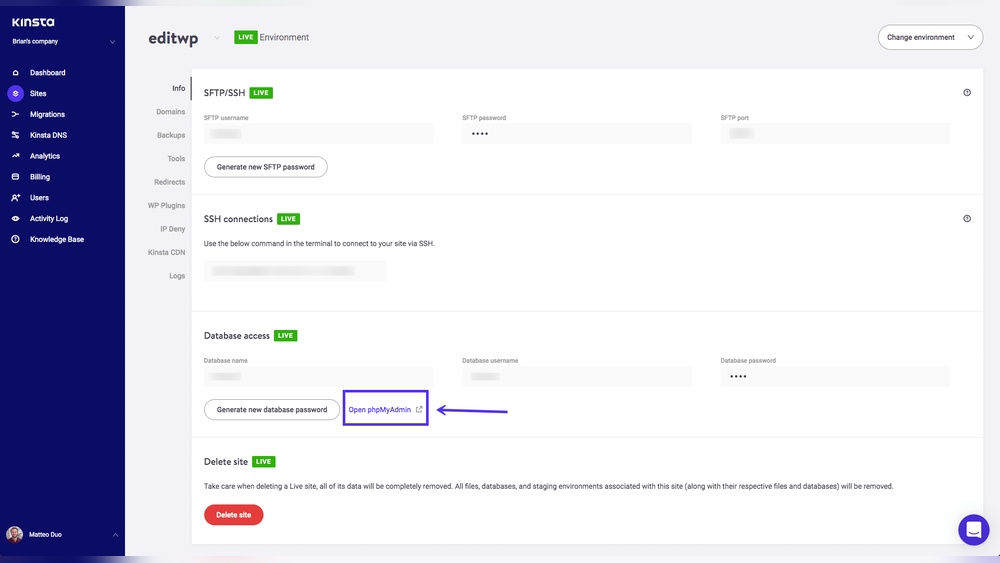
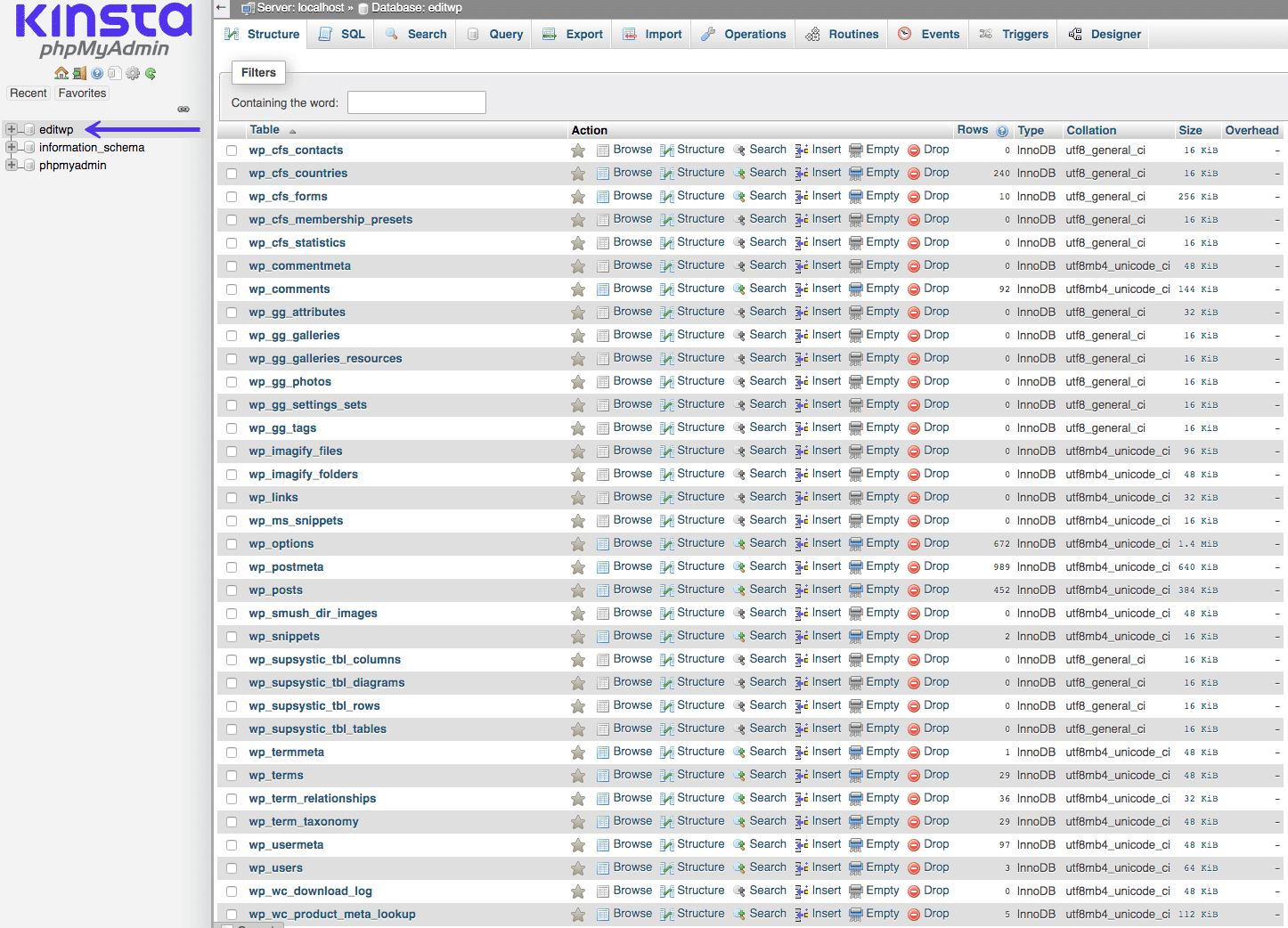
phpMyAdmin is a popular free tool for database management. It works through your web browser. Login with your hosting account details. You can browse tables, run SQL queries, and export data. The interface is user-friendly for beginners. It helps fix errors or optimize tables easily.
Accessing Via Cpanel
Many hosts provide cPanel as a control panel. Inside cPanel, you find phpMyAdmin or other database tools. Access your WordPress database by selecting the right database name. cPanel also offers backup and restore options. It is a central place for website and database management.
Connecting With Adminer
Adminer is a lightweight alternative to phpMyAdmin. It requires only one PHP file on your server. Upload this file to your site directory. Open it in your browser and enter database credentials. Adminer offers quick access and simple navigation. It supports multiple databases and is easy to use.
Locating Database Credentials
To access your WordPress database, you first need to find your database credentials. These credentials help you connect to the database where your website’s data is stored. Without these details, you cannot manage or update your database properly. Locating these credentials is simple and only takes a few steps. Follow along to find them safely.
Finding Wp-config.php File
The wp-config.php file holds your WordPress database details. It is located in your WordPress root folder. You can find it using an FTP client or your hosting control panel file manager. Open this file to see the database information. Be careful not to change anything accidentally.
Understanding Database Details
Inside wp-config.php, you will find key database details. These include the database name, username, password, and host. The database name is the name of your WordPress database. The username and password allow access to this database. The host is usually “localhost,” but it can vary depending on your host. These details connect WordPress to your database.
Securing Your Credentials
Keep your database credentials private. Do not share them with others. Avoid storing them in public or unsecured places. Use strong passwords to protect your database. Regularly update your passwords to improve security. Securing your credentials helps protect your website from unauthorized access.
Accessing Database Through WordPress
Accessing the database through WordPress allows you to manage your site’s data effectively. WordPress stores all content, settings, and user information in its database. Knowing how to access this data helps you customize your site and fix issues quickly.
WordPress provides multiple ways to interact with the database. You can use built-in tools, plugins, or write custom queries. Each method suits different skill levels and needs.
Using Plugins For Database Access
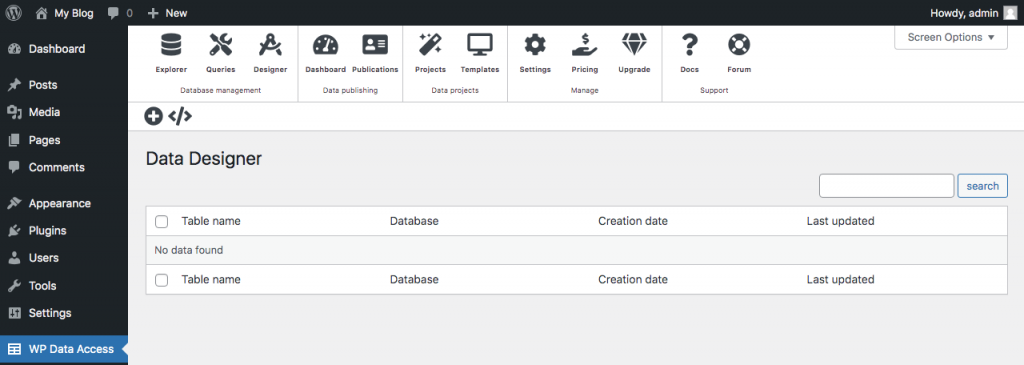
Plugins offer a simple way to view and manage your database. They provide user-friendly interfaces without coding. Popular plugins like WP-DBManager or Adminer let you browse tables and run queries safely.
These tools help avoid common mistakes that can harm your site. You can back up data, optimize tables, and repair issues easily. Plugins save time and reduce risks for beginners.
Executing Sql Queries Safely
Running SQL queries directly requires caution. WordPress has built-in functions to help execute queries securely. Using $wpdb class prevents SQL injection and protects your site.
Always sanitize inputs and validate data before running queries. Test queries on a staging site first to avoid errors. Safe query execution keeps your site stable and secure.
Accessing Database Via Command Line
Accessing the WordPress database through the command line offers a direct way to manage and query your data. This method is fast and does not require a web interface. It is useful for developers and site administrators who want to perform quick database tasks.
Using the command line, you can connect to the MySQL database that WordPress uses. You can run commands to view, update, or delete data. This approach helps you fix problems or customize your site’s content.
Connecting With Mysql Shell
Start by opening your terminal or command prompt. Use the MySQL shell to connect to your WordPress database.
Type the following command:
mysql -u yourusername -pReplace yourusername with your database username. Press Enter. The shell will ask for your password. Enter it carefully. After this, you will see the MySQL prompt.
Next, select your WordPress database with this command:
USE yourdatabasename;Replace yourdatabasename with your actual database name. Now you are ready to run SQL queries.
Basic Command Line Queries
To see all tables in the database, type:
SHOW TABLES;To view the content of a table, use:
SELECT FROM tablename LIMIT 10;Replace tablename with the table you want to check. This command shows the first 10 rows.
To update data, write:
UPDATE tablename SET column='newvalue' WHERE condition;Make sure to change tablename, column, newvalue, and condition to your needs.
To delete data, use:
DELETE FROM tablename WHERE condition;Be very careful with delete commands. They remove data permanently.
Common Database Tasks
Managing your WordPress database is essential for a smooth website experience. Common tasks keep your site safe and fast. These include backing up data, restoring it when needed, and improving database performance. Understanding these tasks helps maintain your site’s health and avoid data loss.
Backing Up Your Database
Backing up your database means saving a copy of all your website data. This copy protects your content from accidental loss or corruption. Use plugins or tools like phpMyAdmin for backups. Schedule regular backups to keep data current. Store backups in a safe place, separate from your server.
Restoring Database From Backup
Restoring your database means returning to a saved version. This helps fix problems or recover lost information. Use your backup files to restore data via your hosting control panel or phpMyAdmin. Follow instructions carefully to avoid overwriting important files. Test your site after restoring to ensure everything works.
Optimizing Database Performance
Optimizing improves your database speed and efficiency. It removes unnecessary data like spam comments or old revisions. Use plugins or manual queries to clean and optimize tables. Regular optimization reduces server load and speeds up page loading. Keep your database tidy for a better user experience.
Troubleshooting Access Issues
Access problems with your WordPress database can stop your website from working. These issues need quick fixes to keep your site running smoothly. This section guides you through common problems and how to solve them.
Fixing Connection Errors
Connection errors happen when WordPress cannot link to the database. Check your wp-config.php file for correct database name, user, and password. Wrong details block access. Also, verify the database host is correct.
Server problems can cause connection failures. Restart your web server or contact hosting support. Sometimes, the database server might be down or overloaded.
Resolving Permission Problems
Permission issues stop WordPress from reading or writing data. Check database user rights in your hosting control panel. The user needs all permissions like SELECT, INSERT, UPDATE, and DELETE.
File permissions on your server also matter. Make sure your WordPress files have the right access levels. Incorrect file permissions can restrict database access.
Handling Corrupted Database
Corruption in the database causes errors and missing content. Use the WordPress repair tool by adding define('WP_ALLOW_REPAIR', true); in wp-config.php. Then visit yoursite.com/wp-admin/maint/repair.php.
Backup your database before repair. If repair fails, restore from a recent backup. Regular backups prevent data loss and fix corruption quickly.
Credit: kinsta.com
Best Practices For Database Access
Accessing your WordPress database safely is very important. The database holds all your website’s data. Protecting it keeps your site running smoothly and secure. Follow these best practices to avoid data loss and security risks. Simple steps can save you from big problems.
Regular Backups
Backing up your database often is key. It helps you restore data if something goes wrong. Use plugins or manual methods to create backups. Store backups in a safe, separate location. Check backups regularly to ensure they work. This habit prevents permanent data loss.
Using Strong Passwords
Choose strong passwords for your database access. Use a mix of letters, numbers, and symbols. Avoid common words or easy-to-guess phrases. Change passwords regularly to keep security tight. Strong passwords block hackers from entering your database.
Limiting Access Permissions
Only give database access to trusted users. Assign the least permissions needed for tasks. Avoid using admin access for everyday work. Restricting permissions reduces the chance of accidental or harmful changes. Review access rights often to keep control.
Frequently Asked Questions
How Do I Access The WordPress Database?
You can access the WordPress database using phpMyAdmin in your hosting control panel. Alternatively, use plugins like WP-DBManager for easier access. Always back up your database before making changes to avoid data loss.
What Is The Default WordPress Database Name?
The default WordPress database name is set during installation. It usually follows the format “wpdb” or a custom name defined in the wp-config. php file. You can find the database name in the wp-config. php file under the DB_NAME constant.
Can I Access WordPress Database Using Php Code?
Yes, you can access the WordPress database using PHP by utilizing the $wpdb class. This class provides safe methods to run queries and fetch data. It is recommended to use $wpdb for database operations to ensure security and compatibility.
How To Find WordPress Database Credentials?
WordPress database credentials are stored in the wp-config. php file. Look for DB_NAME, DB_USER, DB_PASSWORD, and DB_HOST constants. These details are essential for connecting to and managing your WordPress database.
Conclusion
Accessing the database in WordPress helps you manage your site better. You can view, edit, or fix data quickly. Always back up your database before making changes. Use safe methods to avoid errors or data loss. Understanding basic database access builds your confidence.
Keep learning step by step to improve your skills. This knowledge supports smoother website management and problem-solving. Try these tips to work confidently with WordPress databases.



