
Are you struggling to find the right way to access your cPanel for WordPress? Knowing how to get into your cPanel quickly can save you time and keep your website running smoothly.
Whether you want to manage files, install plugins, or tweak settings, accessing cPanel is the first step. In this guide, you’ll discover simple, clear instructions that anyone can follow—no tech jargon, just straightforward help. Keep reading to unlock the full potential of your WordPress site with ease.

Credit: www.hostitsmart.com
Accessing Cpanel For WordPress
Accessing cPanel is a key step to managing your WordPress website effectively. This control panel lets you handle files, databases, and other site settings. Knowing how to access it saves time and helps keep your site secure.
Many beginners find the cPanel login process confusing. This guide breaks it down into simple steps. You will learn how to find your login URL, use your credentials, and fix common login problems.
Locating Your Cpanel Login Url
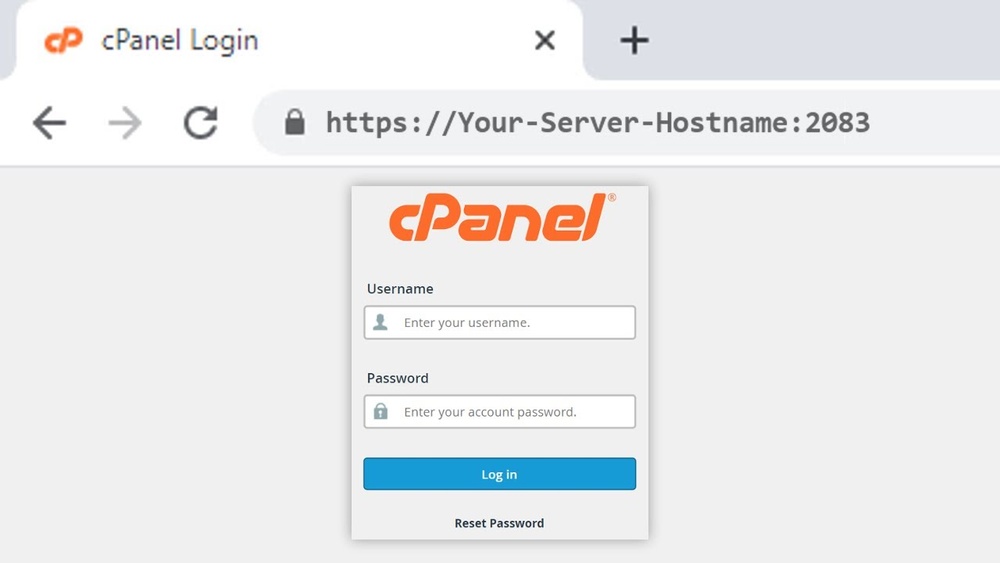
Your cPanel login URL usually follows a simple format. Try adding “/cpanel” or “:2083” after your domain name. For example, “yourdomain.com/cpanel” or “yourdomain.com:2083”.
Your web host may also send the login link in a welcome email. Check your inbox or hosting account dashboard if unsure.
Using Credentials To Log In
Enter your username and password carefully on the login page. These details come from your hosting provider. Keep them safe and private.
Make sure the caps lock key is off. Passwords are case sensitive and must be exact.
Troubleshooting Login Issues
Forgot your password? Use the “Reset Password” link on the login page. Follow the instructions sent to your email.
Clear your browser cache and cookies if the page does not load properly. Try a different browser or device.
Contact your hosting support if problems continue. They can help unlock your account or fix server issues.

Credit: www.interserver.net
Navigating The Cpanel Dashboard
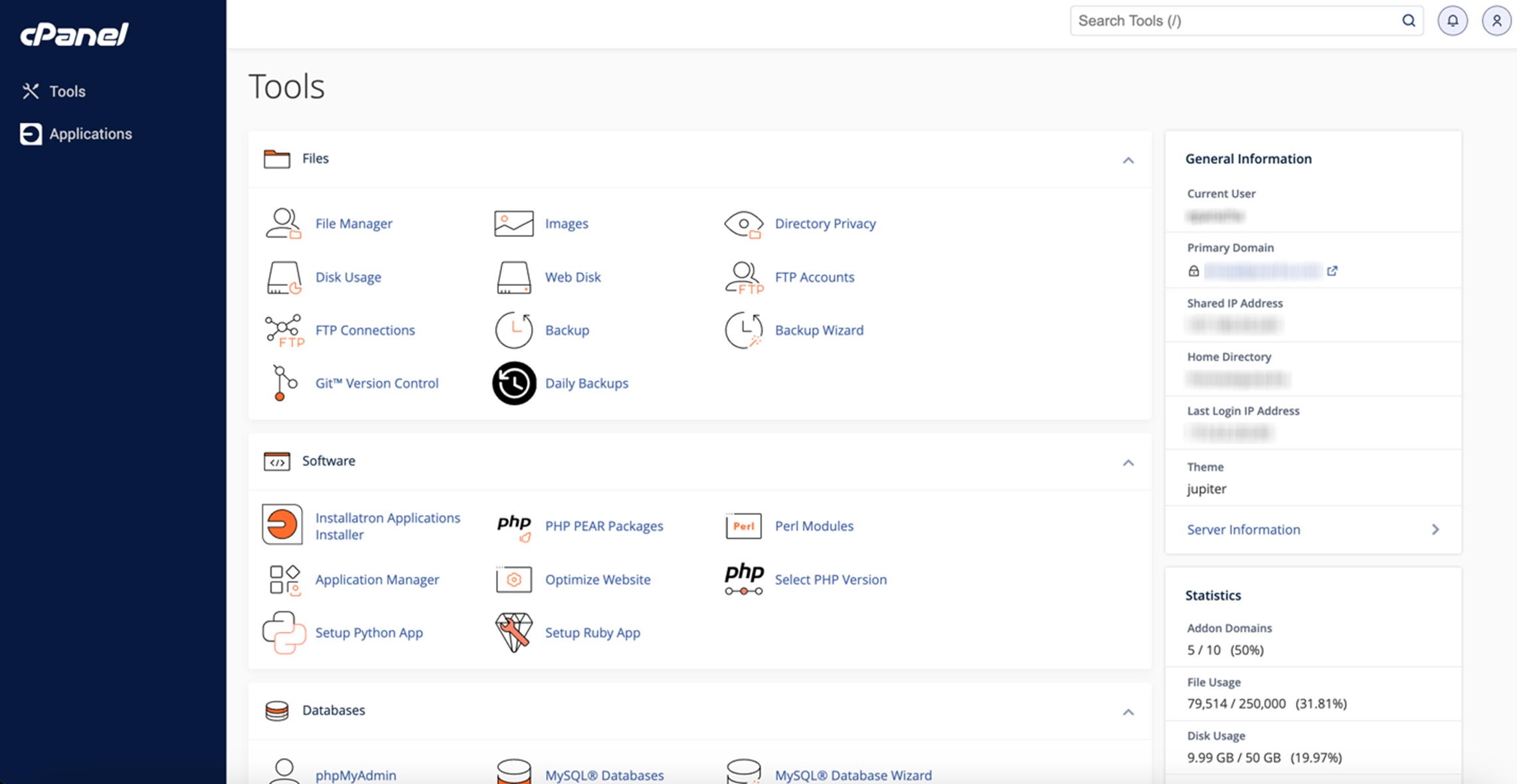
The cPanel dashboard is the control center for managing your WordPress website. It offers a clean layout with easy access to important tools. Navigating this dashboard helps you handle files, databases, and other settings smoothly.
Understanding the main sections of the dashboard makes WordPress management simpler. This guide breaks down key areas to help you get started quickly.
Key Sections For WordPress Management
The dashboard divides tools into categories. Look for sections like “Files,” “Databases,” and “Software.” These contain everything you need for WordPress tasks. The “Softaculous Apps Installer” often lets you install or manage WordPress easily.
Finding The File Manager
The File Manager helps you view and edit your website files. Find it under the “Files” section. It displays folders like “public_html,” where WordPress files live. Use this to upload, delete, or change files directly.
Accessing Databases
WordPress stores content and settings in databases. Access these through “MySQL Databases” or “phpMyAdmin” in cPanel. Here, you can create, manage, or backup your WordPress databases. Be careful when making changes to avoid breaking the site.
Managing WordPress Files
Managing WordPress files through cPanel gives you full control over your website. You can change themes, update plugins, upload images, and save backups. These tasks help keep your site running smoothly and looking good. Accessing files directly is faster than using the WordPress dashboard for some tasks.
Below are key ways to manage your WordPress files using cPanel’s File Manager.
Editing Themes And Plugins
To edit themes or plugins, open the File Manager in cPanel. Navigate to the wp-content folder. Inside, find themes or plugins. You can open files like style.css or functions.php to make changes. Always make a backup before editing. Small edits improve design or add features.
Uploading Media Files
Uploading media files is simple with cPanel. Go to the wp-content/uploads folder. Upload images, videos, or documents here. Keep files organized by year and month folders. This helps WordPress locate your media quickly. After uploading, check your website to see if files display correctly.
Backing Up Your Site
Backing up your site protects your data. Use File Manager to copy all WordPress files. Compress the files into a zip folder for easy download. Also, export your database via cPanel’s phpMyAdmin. Store backups on your computer or cloud storage. Regular backups save you from losing content after errors or hacks.
Using WordPress Tools In Cpanel
Using WordPress tools in cPanel makes site management easy. This control panel offers built-in features for WordPress users. It helps install, update, and manage your WordPress site quickly. These tools save time and reduce technical errors. You can focus more on your website content.
Installing WordPress Via Softaculous
Softaculous is a popular auto-installer inside cPanel. It allows quick WordPress installation with few clicks. Choose Softaculous from the cPanel dashboard. Select WordPress from the list of scripts. Fill in site details like name, admin username, and password. Click install, and Softaculous sets up your site automatically. No coding skills are needed for this process.
Updating WordPress Core And Plugins
Keeping WordPress updated is vital for security and performance. cPanel tools help manage updates easily. Softaculous shows available updates for WordPress core and plugins. Click the update button to install them safely. Regular updates protect your site from bugs and threats. They also add new features and improve speed.
Managing WordPress Databases
WordPress stores all data in databases. cPanel offers tools like phpMyAdmin to manage these databases. You can create backups, optimize tables, and repair errors. Access phpMyAdmin from the cPanel dashboard. Select your WordPress database to view tables. Handle database tasks without needing advanced skills. Proper management keeps your site running smoothly.
Security And Maintenance Tips
Keeping your WordPress site safe and running smoothly is very important. Good security and regular maintenance help avoid problems. You protect your data and keep visitors happy. Using cPanel can make these tasks easier. Here are some key tips for security and maintenance.
Setting Up Backups In Cpanel
Backups save your website data. They help restore your site if something breaks. In cPanel, find the “Backup” or “Backup Wizard” tool. Choose full or partial backups. Download copies to your computer or cloud storage. Set a schedule for regular backups. This keeps your data safe from hacks or errors.
Configuring Ssl Certificates
SSL certificates protect data sent to your website. They show the green padlock in browsers. In cPanel, look for “SSL/TLS” or “Security” section. Use the AutoSSL feature to install free certificates. Make sure your site uses HTTPS in all pages. This builds trust with visitors and improves SEO.
Monitoring Site Performance
Fast websites keep visitors engaged. Slow sites lose traffic and rankings. Use cPanel tools like “Metrics” or “Awstats” to watch your site’s speed and visits. Check for errors or slow loading times. Optimize images and clean up unused plugins. Regular checks keep your site healthy and quick.
Credit: www.godaddy.com
Frequently Asked Questions
How Do I Log Into Cpanel For WordPress?
To log into cPanel, enter yourdomain. com/cpanel in the browser. Use your hosting account username and password to access the dashboard. From there, you can manage WordPress files, databases, and settings easily.
Can I Access WordPress Files Through Cpanel?
Yes, cPanel’s File Manager lets you access WordPress files. Navigate to the public_html folder or your WordPress installation directory. Here, you can edit, upload, or delete files safely.
How To Find WordPress Database In Cpanel?
In cPanel, open the “MySQL Databases” or “phpMyAdmin” section. Your WordPress database is listed there, allowing you to manage tables or perform backups securely.
Is Cpanel Necessary For WordPress Site Management?
While not mandatory, cPanel simplifies WordPress management. It offers easy access to files, databases, backups, and email settings. Many hosts provide cPanel for convenient website control.
Conclusion
Accessing cPanel for WordPress is simple and fast. Just follow the steps carefully. Managing your website becomes easier with this tool. You can update files, check emails, and install apps. Keep your login details safe to avoid trouble. Regular access helps maintain your site’s health.
Practice these steps a few times to feel confident. Soon, handling your WordPress site will feel natural. Stay organized and keep backups to protect your work. Now, you have the basics to manage WordPress through cPanel.



