
Are you struggling to find your way into cPanel on your GoDaddy WordPress hosting? You’re not alone.
Many website owners get stuck because GoDaddy’s setup can feel a bit different from other hosts. But here’s the good news: accessing your cPanel is easier than you think—and it unlocks powerful tools to manage your website like a pro.
Keep reading, and you’ll discover simple, step-by-step instructions to get you inside cPanel fast. Once you know how, you’ll save time and gain full control over your hosting environment. Let’s dive in!
Accessing Cpanel In Godaddy WordPress Hosting
Accessing cPanel in GoDaddy WordPress hosting is not always straightforward. GoDaddy offers different hosting plans, and the method to reach cPanel depends on your specific plan. Many users expect direct cPanel access, but GoDaddy’s Managed WordPress hosting works differently. Understanding how to find and use cPanel can help you manage your website files, databases, and email settings more effectively.
Differences Between Godaddy Cpanel And Managed WordPress
GoDaddy provides two main hosting types: cPanel hosting and Managed WordPress hosting. In cPanel hosting, you get full access to the traditional cPanel dashboard. It includes tools for file management, databases, email setup, and more.
Managed WordPress hosting is tailored for WordPress sites only. It does not include direct cPanel access. Instead, GoDaddy offers a custom control panel designed to simplify site management. This panel focuses on WordPress features like staging, backups, and updates.
Knowing these differences helps set the right expectations. Managed WordPress hosting offers less control but more convenience for WordPress users.
Checking Hosting Type Before Access
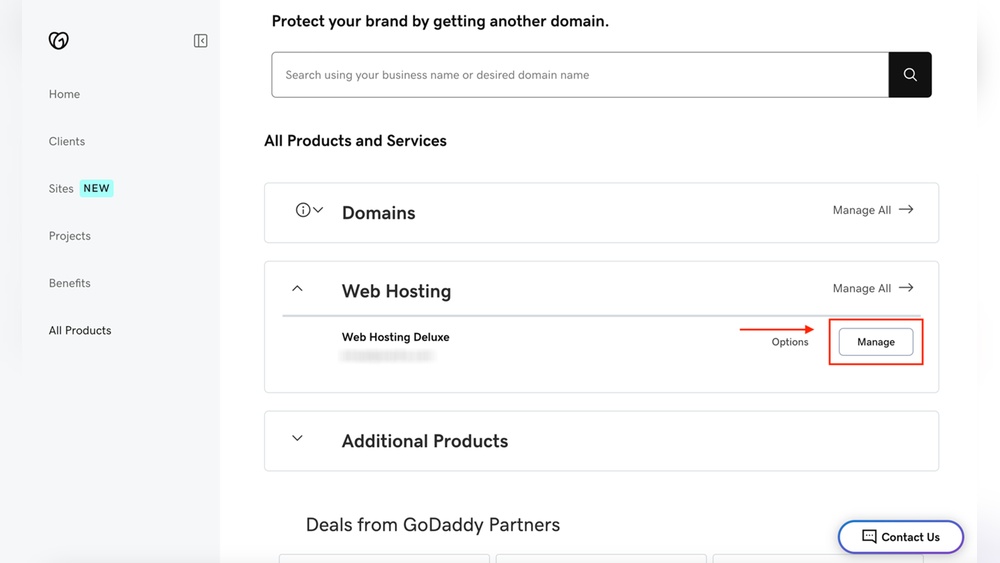
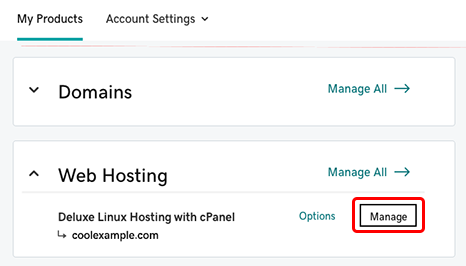
Before trying to access cPanel, check your hosting type in your GoDaddy account. Log in and go to your product page. Find your hosting plan listed under “My Products.”
If your plan says “cPanel Hosting,” you have full cPanel access. For “Managed WordPress,” direct cPanel access is not available. Use the custom dashboard instead.
Confirming your hosting type saves time and avoids confusion. It guides you to the correct method for managing your website.
Credit: www.godaddy.com
Steps To Login To Cpanel
Accessing cPanel in GoDaddy WordPress hosting is simple and quick. This guide shows clear steps to log in to cPanel. Follow these methods to manage your website files, databases, and email easily.
Using Godaddy Account Dashboard
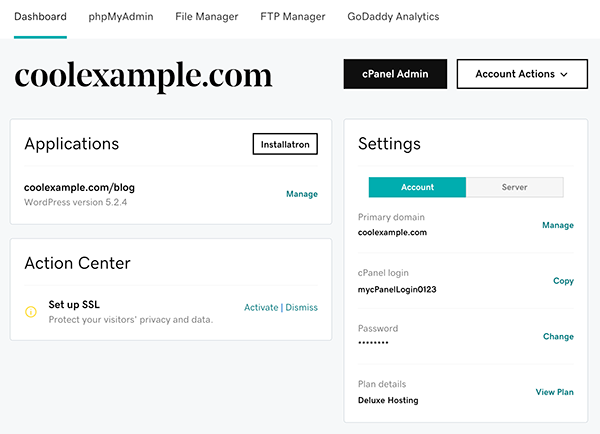
Sign in to your GoDaddy account. Navigate to “My Products.” Find your WordPress hosting plan. Click “Manage” next to the plan. In the hosting dashboard, locate the “cPanel Admin” button. Click it to open your cPanel dashboard.
Direct Cpanel Login Via Url
Open a web browser. Enter your domain name followed by “:2083” (example.com:2083). This opens the cPanel login page. Use your cPanel username and password to log in. Remember, this method needs your cPanel credentials.
Resetting Cpanel Password
Go to your GoDaddy account dashboard. Find your WordPress hosting product. Click “Manage” and select “Settings.” Scroll to the cPanel section. Click “Reset Password.” Enter a new strong password. Save changes. Use the new password to log in.
Navigating The Cpanel Dashboard
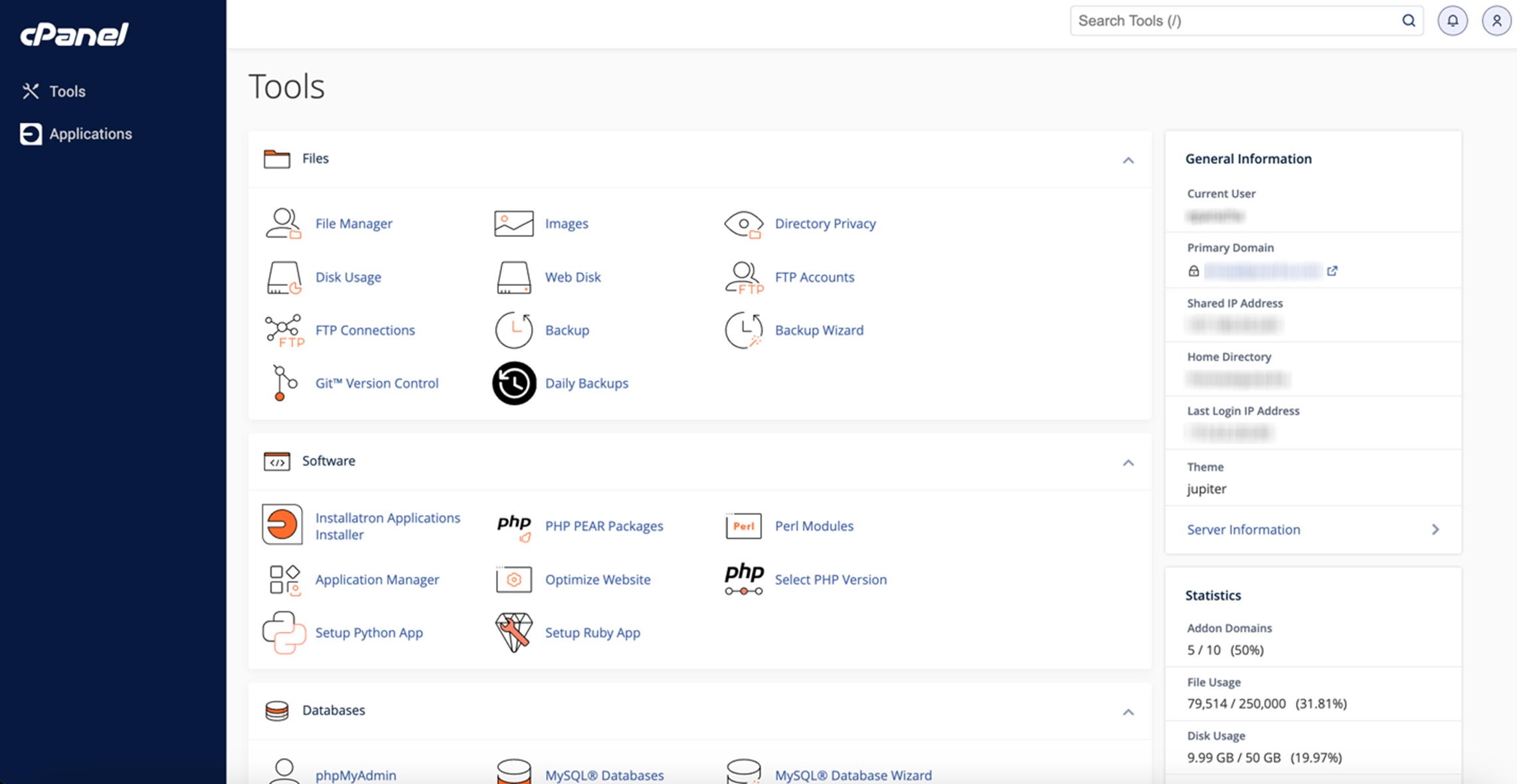
Accessing cPanel in GoDaddy WordPress hosting lets you control many parts of your website easily. The cPanel dashboard is the main place for managing your site’s files, databases, and emails. It has a clean layout to help you find what you need quickly. Learning the key sections will save time and reduce hassle.
Understanding the dashboard tools helps you keep your website running smoothly. Each tool has a clear purpose and is easy to use. This guide breaks down the main features you will use often.
Key Features And Tools
The cPanel dashboard shows many icons and menus. These include file management, database options, email settings, and security tools. The search bar helps find tools fast. The interface is simple, so even beginners can navigate it.
You can check your website’s stats and backups from here. It also offers quick access to install software like WordPress. This central hub keeps all important controls in one spot.
Managing Files And Databases
The File Manager tool lets you upload, edit, or delete website files directly. It works like a basic file explorer. You can organize files into folders for easy access. Backups of files can also be created here.
Database management is done through phpMyAdmin. This tool helps you create, edit, or delete databases. It is important for storing website content and user information. Managing databases here keeps your site data organized and secure.
Email Setup And Management
cPanel allows you to create and manage email accounts linked to your domain. You can set up new email addresses easily. Options for setting passwords and mailbox quotas are available.
There are tools for managing email forwarding and auto-responders. This helps keep your communication professional and organized. You can also access webmail to check messages anytime.
Credit: www.godaddy.com
Troubleshooting Common Access Issues
Accessing cPanel in GoDaddy WordPress hosting can sometimes be tricky. Users often face common issues that block their login or cause errors. Troubleshooting these problems quickly helps maintain your website without delay.
This section guides you through simple steps to fix common access issues. Clear instructions make it easy to follow and solve problems fast.
Handling Login Errors
Login errors happen due to wrong username or password. Double-check your credentials before trying again. Clear your browser cache and cookies to avoid saved data conflicts. Use a different browser or device to see if the problem persists. Reset your password through the GoDaddy account page if you still cannot log in. Keep your login details safe and updated.
Contacting Godaddy Support
Contact GoDaddy support when login problems continue. They can help unlock your account or fix technical issues. Use live chat or phone support for quick responses. Prepare your account details and any error messages for faster help. Support teams work 24/7 to assist you with hosting problems.
Alternative Access Options
Try alternative ways to reach cPanel if direct access fails. Use the GoDaddy dashboard to manage your hosting settings. Access cPanel through the WordPress admin panel if available. Consider FTP or file manager tools to make essential changes. These options keep your site running while solving access issues.
Tips For Secure Cpanel Access
Securing your cPanel access is crucial to protect your website and data. Simple steps can greatly reduce the risk of unauthorized access. Follow these tips to keep your cPanel login safe and secure.
Using Strong Passwords
Create passwords that are hard to guess. Use a mix of letters, numbers, and symbols. Avoid common words or simple patterns. Change your passwords regularly to reduce risk. Never share your password with others.
Enabling Two-factor Authentication
Two-factor authentication adds an extra security layer. It requires a code from your phone along with your password. This step blocks access even if the password is stolen. Activate this feature in your cPanel settings for better protection.
Regular Account Monitoring
Check your cPanel account activity often. Look for unusual logins or changes. Set up alerts to notify you about suspicious actions. Early detection helps prevent bigger security problems. Stay alert and keep your website safe.
Credit: www.godaddy.com
Frequently Asked Questions
How Do I Find Cpanel In Godaddy WordPress Hosting?
GoDaddy’s WordPress hosting does not use traditional cPanel. Instead, it offers a custom control panel for site management. To access advanced settings, you may need to use GoDaddy’s hosting dashboard or contact support for specific features.
Can I Access Cpanel Directly With Godaddy WordPress Hosting?
No, GoDaddy WordPress hosting uses a proprietary dashboard rather than cPanel. For advanced configurations, you should use GoDaddy’s managed WordPress tools or upgrade to a different hosting plan that includes cPanel.
How To Manage Files Without Cpanel On Godaddy WordPress?
You can manage files using GoDaddy’s built-in file manager or connect via FTP/SFTP. These methods allow file uploads, edits, and backups without needing cPanel access in WordPress hosting.
Is Cpanel Necessary For Godaddy WordPress Hosting Users?
Not necessarily. GoDaddy’s WordPress hosting is optimized for ease of use without cPanel. Most users manage their sites efficiently through the custom dashboard provided.
Conclusion
Accessing cPanel in GoDaddy WordPress hosting is simple and clear. Just follow the steps carefully. This allows easy website management and control. Knowing how to reach your cPanel saves time and effort. Your site settings stay organized and easy to find.
Keep this guide handy for quick reference anytime. Managing your WordPress site becomes smooth and stress-free. Try it out and see the difference yourself.



