
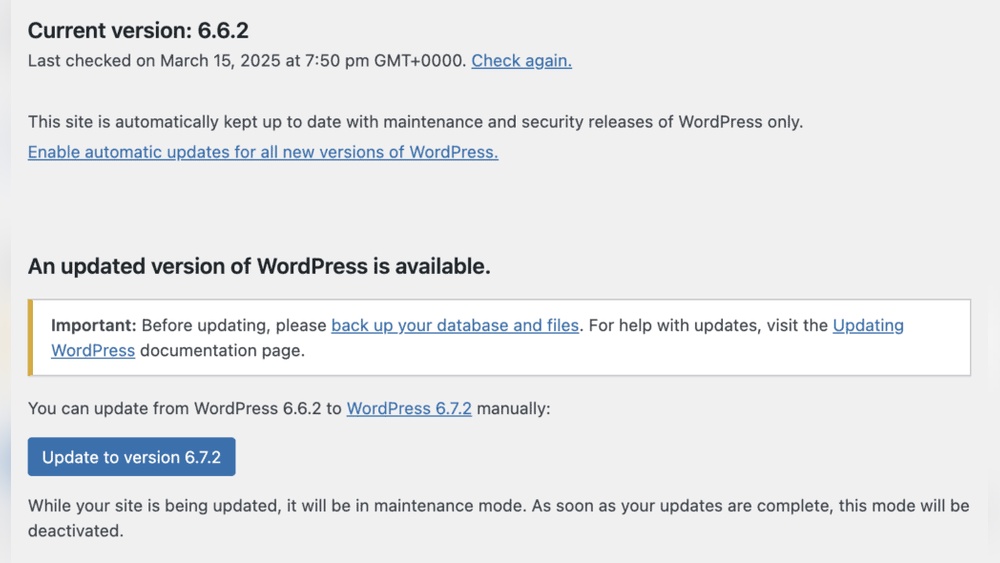
You’ve just made changes to your WordPress site, but how long will it take for those updates to actually show up? Waiting can be frustrating, especially when you want your visitors to see your latest content or fixes right away.
Understanding the update process can save you time and stress. You’ll discover exactly how long WordPress takes to update changes and what you can do to speed things up. Keep reading—you’re about to take control of your website’s updates like a pro.
Credit: cmsminds.com
WordPress Update Process
Understanding the WordPress update process helps manage site changes smoothly. Updates vary in speed depending on the type of change and system settings. Some changes appear instantly, while others need a few minutes or actions to take effect.
Types Of Changes In WordPress
WordPress updates include core system updates, plugin updates, theme updates, and content changes. Core updates affect the WordPress software itself. Plugin and theme updates improve features or fix bugs. Content changes involve edits to posts, pages, or media.
Each change type processes differently. Core and plugin updates often require a few seconds to minutes. Content changes usually appear immediately after saving. Some updates may need cache clearing to show properly.
How WordPress Handles Updates
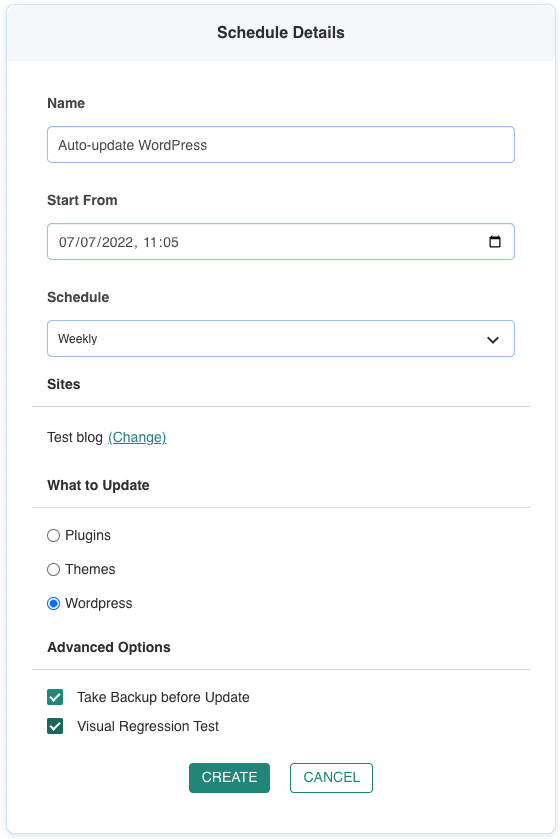
WordPress uses a system to apply updates safely. It downloads files, verifies them, and installs updates automatically or manually. This process protects your site from errors during updates.
Content changes save directly to the database, making them visible right away. For larger updates, WordPress may pause site functions briefly. This ensures all files update without conflicts or data loss.
Cache systems can delay visible changes. Clearing cache often solves this issue. Hosting environments and server speed also affect update times.
Credit: blogvault.net
Factors Affecting Update Speed
Several factors affect how fast WordPress shows your changes. Some are technical, others depend on your setup. Understanding these helps you manage expectations and improve update speed.
Hosting Server Performance
The server hosting your WordPress site plays a big role. Faster servers process and deliver changes quickly. Slow servers cause delays, making updates appear later.
Shared hosting often has slower response times. Dedicated or VPS hosting usually offers better speed. Choose hosting that matches your site’s needs.
Caching Mechanisms
Caching stores a version of your site to load faster. It can delay updates because it shows old content first. Clearing or disabling cache helps show changes sooner.
WordPress uses different caching types: page, object, and database caching. Each can impact update speed differently.
Content Delivery Networks (cdns)
CDNs store your site files on many servers worldwide. They deliver content from the closest location to visitors. This speeds up loading but might delay update visibility.
CDNs cache static files like images and scripts. Purging the CDN cache forces it to fetch fresh content.
Browser Cache Impact
Browsers save parts of websites to load them faster later. This cache can show old versions after you update your site. Clearing the browser cache or refreshing with Ctrl+F5 helps see recent changes.
Browser cache varies by user settings and browser type. Some visitors may see updates faster than others.
Typical Timeframes For Updates
Understanding how long WordPress takes to update changes helps you plan better. Some updates appear right away. Others take time. Scheduled updates happen at set moments. Knowing these timeframes improves your editing experience.
Immediate Changes
Most text and content edits show instantly on your site. You save changes and refresh the page. The update appears without delay. Simple tweaks like changing words or images update fast. This quick feedback helps you work smoothly.
Delayed Updates
Some changes take minutes or longer to appear. Caching tools or browser cache can slow updates. Caching stores old versions to load pages faster. Clearing cache or waiting helps see new content. Complex updates like plugin settings may also delay.
Scheduled Updates
WordPress allows scheduling posts or changes for future dates. You pick a time and date. The system publishes updates automatically then. This feature helps plan content ahead. Scheduled updates do not show before the set time.
Tips To Speed Up WordPress Updates
Speeding up WordPress updates improves your website experience. Fast updates keep your site fresh and reduce downtime. Simple steps help make changes appear quickly. These tips focus on common areas that slow updates.
Clearing Cache Efficiently
Caching stores a copy of your site to load pages faster. But old cache can delay updates. Clear cache regularly after making changes. Use tools like plugin cache clear or server cache clear. This ensures visitors see the latest content immediately.
Optimizing Hosting Environment
Your hosting affects how fast WordPress updates happen. Choose a host with good speed and uptime. Use servers close to your main audience for better response time. Keep your server software updated for best performance. Faster hosting means quicker updates and less waiting.
Using Reliable Plugins
Plugins add features but some slow down updates. Pick plugins that are lightweight and well-coded. Avoid too many plugins that overlap in function. Regularly update plugins to keep compatibility and speed. Reliable plugins reduce conflicts and speed up changes.
Disabling Unnecessary Features
Extra features can slow your WordPress updates. Turn off features you do not use. This lowers the load on your website and server. Disable unused widgets, scripts, and animations. A simpler site updates faster and runs smoother.
Troubleshooting Slow Updates
Slow updates in WordPress can be frustrating. Changes might not show right away. This delay can affect your site’s performance and user experience. Troubleshooting slow updates helps find the root cause and fix it fast. Focus on three main areas: cache issues, plugin conflicts, and server logs. Each can slow your update process.
Identifying Cache Issues
Cache stores parts of your site to speed up loading. Sometimes, it shows old content instead of new updates. Clear your browser cache first. Then clear your WordPress cache if you use a caching plugin. Also, check if your host uses server-side caching. Disable it temporarily to see if updates appear faster.
Checking Plugin Conflicts
Plugins can slow down your site or block updates. Some plugins do not work well together. Disable all plugins and check if the update appears quickly. If yes, enable plugins one by one. This process finds the plugin causing the problem. Update or replace the conflicting plugin to fix slow updates.
Examining Server Logs
Server logs record errors and warnings on your site. They help find hidden issues causing slow updates. Access your hosting control panel to view logs. Look for error messages or delays during update times. Share logs with your hosting support if you cannot understand them. Fixing server issues speeds up WordPress updates.
Credit: fluentforms.com
Frequently Asked Questions
How Long Does WordPress Take To Reflect Changes?
WordPress usually updates changes immediately after saving. However, caching plugins or browser cache may delay visible updates. Clearing cache often resolves this.
Why Are My WordPress Updates Not Showing Instantly?
Delayed updates often result from caching mechanisms. Clear your site and browser cache to see changes instantly. Also, check for CDN delays.
Does WordPress Auto-update Content Changes?
WordPress does not auto-update saved content. You must manually save or publish changes for them to appear live on the site.
How Can I Speed Up WordPress Update Visibility?
Clear all caches, disable aggressive caching plugins, and refresh your browser. Using reliable hosting with fast server response also helps speed up updates.
Conclusion
WordPress updates usually appear quickly, often within minutes. Some changes might take longer due to caching or server speed. Clearing your cache helps show updates faster. Always save your work before making edits. Patience is key, but most updates show up soon.
Understanding this saves time and avoids frustration. Keep your site fresh by checking updates regularly. Simple steps lead to smooth, fast WordPress changes.



