
Your website’s footer is more important than you might think. It’s the last thing visitors see and can leave a lasting impression.
But how do you make sure your footer looks just right and shows the information you want? If you’ve ever wondered how to edit the footer in WordPress, you’re in the right place. In this guide, you’ll discover simple steps to customize your footer easily—no tech skills needed.
Keep reading, and you’ll have a footer that not only looks great but also helps your site stand out.
Accessing Footer Settings
Accessing footer settings in WordPress is the first step to customize your website’s bottom section. The footer often holds important info like contact details, links, or copyright notices. Changing it helps your site look professional and fit your style.
WordPress offers several ways to edit the footer. You can use built-in tools or theme-specific options. Each method lets you control different parts of the footer. Here are the main ways to access footer settings.
Using The WordPress Customizer
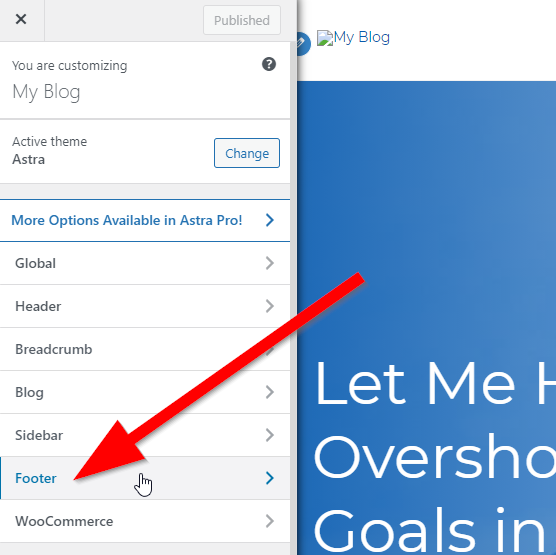
The WordPress Customizer is a simple tool for editing your site live. It shows a preview of your changes. To open it, go to your dashboard and click Appearance > Customize. Look for the footer section in the menu. You can change text, colors, and layout here. Changes appear instantly in the preview window.
Navigating The Theme Options Panel
Some themes have a special panel for settings. This panel is inside the dashboard, often under Appearance or a theme name tab. It offers more footer options than the Customizer. You can enable or disable footer features. You can also add custom code or change styles. The options vary depending on your theme.
Editing Footer Widgets
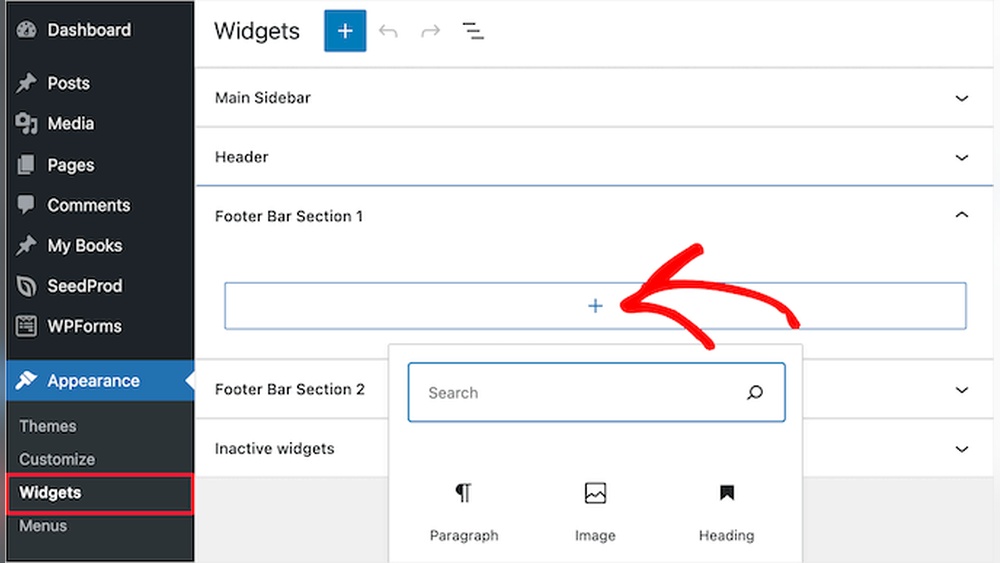
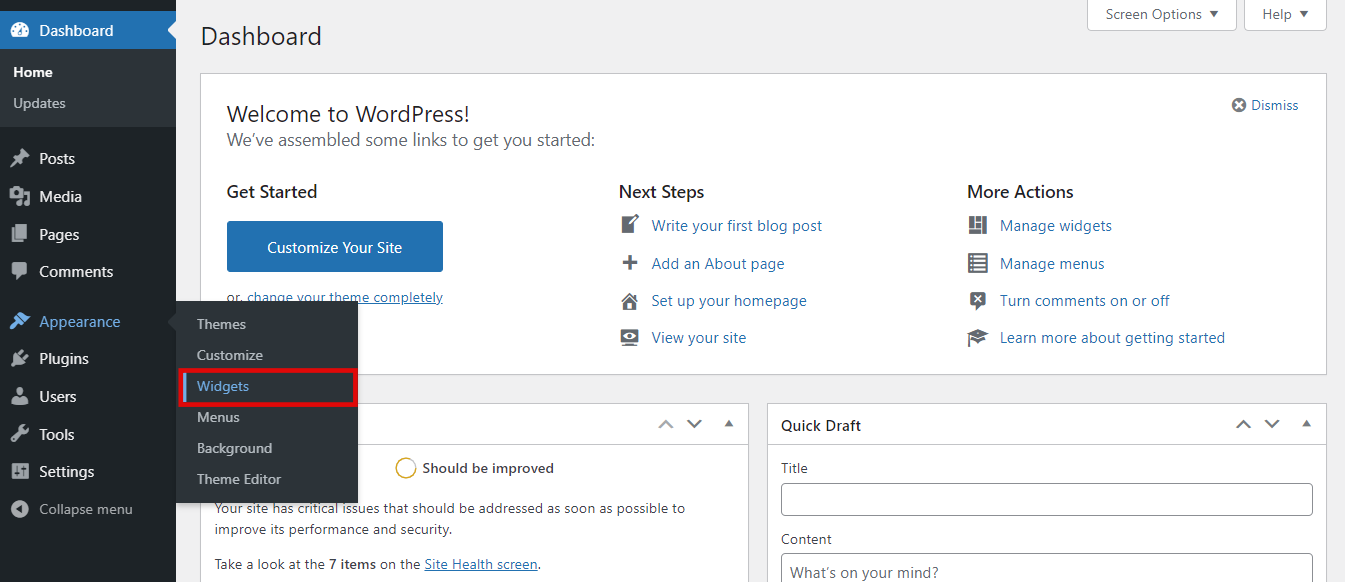
Footers usually contain widgets. Widgets are blocks with content like menus or text. To edit them, go to Appearance > Widgets. Find the footer widget areas. Drag and drop widgets to add or remove them. Edit each widget’s content directly. This method is great for adding links, social icons, or custom messages.
Credit: 10web.io
Modifying Footer Content
The footer is a key part of any website. It holds important information visitors often need. Modifying footer content helps keep your site fresh and useful. You can update text, add links, or even include social media icons. Custom HTML or shortcodes also work well for advanced changes. Understanding how to edit these elements improves your site’s look and function.
Changing Text And Links
Editing footer text is simple and fast. Use the WordPress customizer or theme settings. Click on the footer section and type your new text. Change copyright details or contact info easily. Updating links helps guide visitors to important pages. Replace old URLs with new ones to keep navigation smooth. Always check links work correctly after changes.
Adding Social Media Icons
Social media icons boost visitor engagement. Many themes have built-in options for these icons. Add icons for Facebook, Twitter, Instagram, or LinkedIn. Choose the icons that match your brand. Link each icon to your social media profile. Place icons neatly in the footer for easy access. This helps visitors connect with you on other platforms.
Inserting Custom Html Or Shortcodes
Custom HTML lets you add unique footer features. You can insert code snippets for forms, buttons, or widgets. Shortcodes simplify adding complex elements without coding skills. Use shortcodes from plugins or themes to enhance your footer. This method gives more control over footer design and content. Always preview changes before saving to avoid errors.
Styling The Footer
Styling the footer helps make your website look complete and professional. The footer is the bottom part of your site. It often has important information like contact details, links, or social media icons. Changing its style can improve user experience. It also keeps your brand consistent across all pages.
Adjusting Colors And Fonts
Colors and fonts set the mood for your footer. Choose colors that match your website’s theme. Use contrasting colors for text and background. This makes reading easier. Pick fonts that are clear and simple. Avoid fancy fonts that distract visitors. Small changes in font size can improve readability. Use the WordPress Customizer or footer settings to change these styles quickly.
Customizing Layout And Spacing
Layout controls how content appears in the footer. Use columns or rows to organize links and information. Proper spacing keeps the footer clean and neat. Add padding around elements to avoid clutter. Check the footer on mobile devices to ensure it looks good. WordPress themes often let you adjust layout and spacing without coding. A well-arranged footer helps visitors find what they need fast.
Credit: www.crazyegg.com
Editing Footer With Page Builders
Editing the footer in WordPress is easier with page builders. These tools let you design footers without coding. You can add text, images, and links quickly. Page builders offer drag-and-drop features to customize every part of the footer. This way, your website looks professional and matches your brand style.
Using Elementor For Footer Customization
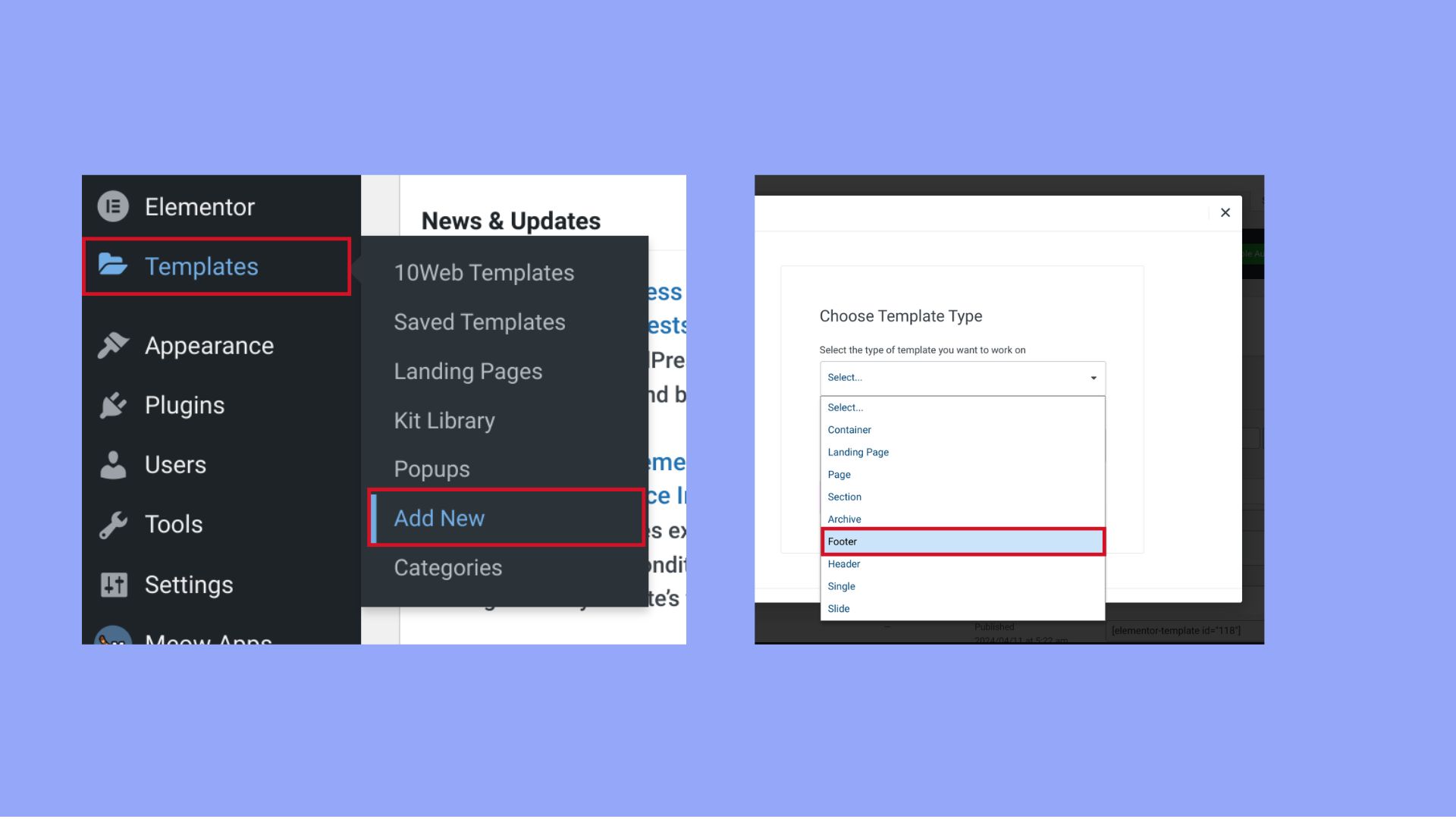
Elementor allows easy footer editing with its visual editor. Open Elementor and go to the Footer template section. Drag widgets like text, icons, or menus into the footer area. Adjust colors, fonts, and spacing to fit your design. Preview changes in real-time before saving. Elementor also supports mobile-friendly footers for all devices.
Customizing Footer In Beaver Builder
Beaver Builder offers a simple way to edit footers inside WordPress. Launch Beaver Builder and select the footer part of your site. Use rows and modules to add content like copyright notes or social links. Customize styles using the built-in settings. Save and publish your footer changes with a single click. Beaver Builder ensures your footer looks clean and organized.
Advanced Footer Customization
Advanced footer customization lets you change your site’s footer beyond basic options. It helps create a unique look and adds useful information. You can edit code, add styles, and keep changes safe.
Editing Footer.php File Safely
The footer.php file controls the footer layout and content. Edit it to add or remove elements directly. Use a code editor or WordPress theme editor. Always back up your site before changes. Mistakes in this file can break your site. Test changes on a staging site first. Avoid editing the main theme directly to save your work.
Adding Custom Css For Footer
Custom CSS changes the footer’s style without altering code files. Use the WordPress Customizer or a plugin for CSS. You can change colors, fonts, and spacing easily. CSS keeps your design neat and flexible. Write simple CSS rules targeting footer elements. This method is safe and reversible. It improves the footer look without risk.
Using Child Themes For Footer Edits
Child themes let you modify the footer safely. They keep your edits separate from the main theme. Create a child theme and copy footer.php there. Make your changes in the child theme file. Your edits stay after theme updates. This method protects your custom work. It also helps organize your code better.
Credit: www.hostinger.com
Tips For Effective Footer Design
The footer is a key part of your website. It helps visitors find important details quickly. Good footer design improves user experience and site navigation. Simple, clear, and neat footers keep your site professional and easy to use.
Keeping Footer User-friendly
Use easy-to-read fonts and colors. Make links visible and clickable. Avoid clutter by limiting the number of items. Group related information together. A clean footer helps users find what they want fast.
Including Important Information
Place contact details like phone and email. Add your business address or map link. Include social media icons for quick access. Terms of service and privacy policies are crucial. These details build trust and keep users informed.
Maintaining Mobile Responsiveness
Ensure footer elements resize on small screens. Avoid tiny text or links that are hard to tap. Test your footer on different devices. A mobile-friendly footer keeps visitors engaged and reduces bounce rates.
Frequently Asked Questions
How Do I Access The Footer Editor In WordPress?
To edit your WordPress footer, go to Appearance > Customize > Widgets or Footer section. You can also edit footer. php via Appearance > Theme Editor for advanced changes.
Can I Customize The Footer Without Coding?
Yes, use the WordPress Customizer or a page builder plugin. These tools allow easy footer edits without touching code.
How To Add Copyright Text In WordPress Footer?
Navigate to Appearance > Customize > Footer or Widgets. Add a text widget with your copyright information. Save changes to update.
Is It Safe To Edit Footer.php Directly?
Editing footer. php directly can break your site if done incorrectly. Always use a child theme or backup before making changes.
Conclusion
Editing the footer in WordPress is simple and quick. You can customize it to fit your website style. Small changes make your site look more professional. Try different options to see what works best. Keep your footer clear and useful for visitors.
Regular updates keep your site fresh and relevant. Now, you can easily control the footer content. Enjoy making your WordPress site your own.



