
Have you ever needed to create a page on your WordPress site that looks just like another one? Maybe you want to save time by copying a layout or keep your content consistent across multiple pages.
Knowing how to duplicate a page in WordPress can make your work easier and faster. You’ll discover simple steps to duplicate your pages without losing any content or design. Keep reading, and you’ll learn how to streamline your website editing process like a pro.
Benefits Of Duplicating Pages
Duplicating pages in WordPress offers many advantages. It helps users work faster and keeps their site organized. Copying a page saves effort and keeps design elements steady. Teams benefit from smooth workflows and clear processes. This simple tool improves how you manage content and design.
Save Time On Content Creation
Copying an existing page means no need to start from scratch. You keep the main structure and just change the text or images. This speeds up publishing new content. It also reduces mistakes by reusing tested layouts. More pages get done in less time.
Maintain Consistent Design
Duplicating pages helps keep your website’s look the same. Fonts, colors, and styles stay uniform across all pages. Visitors notice this consistency and trust your site more. It is easier to follow brand rules with copied templates. No need to fix design errors repeatedly.
Simplify Workflow For Teams
Teams work better when pages are easy to duplicate. Members can focus on editing instead of building from zero. Roles become clear, and handoffs happen smoothly. Everyone uses the same base, reducing confusion. This makes the whole process faster and clearer.
Methods To Duplicate Pages
Duplicating pages in WordPress is useful for saving time and keeping your website consistent. You can create a copy of an existing page without starting from scratch. There are several methods to duplicate pages, each with its own advantages. Choose the one that fits your needs and skills best.
Using Plugins For Duplication
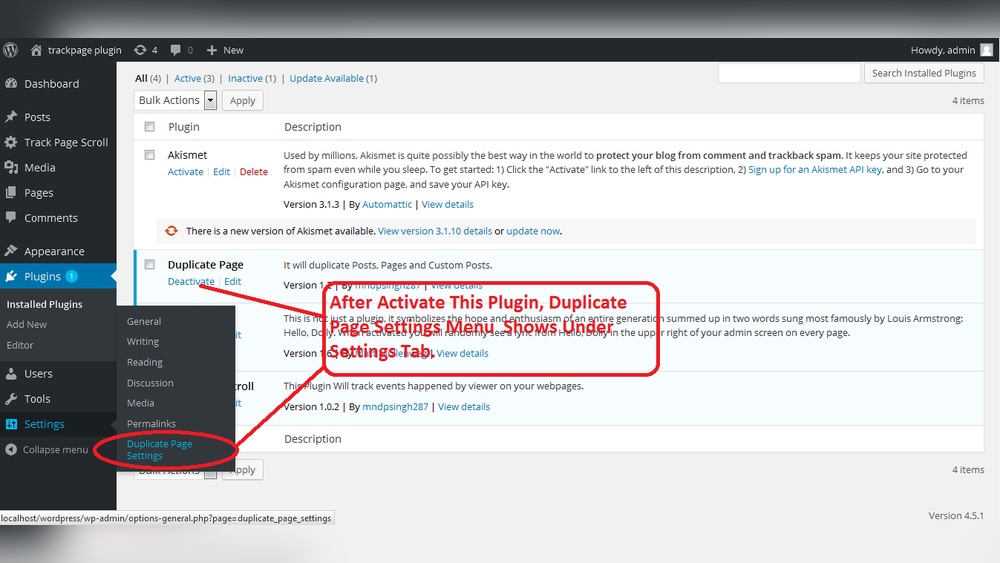
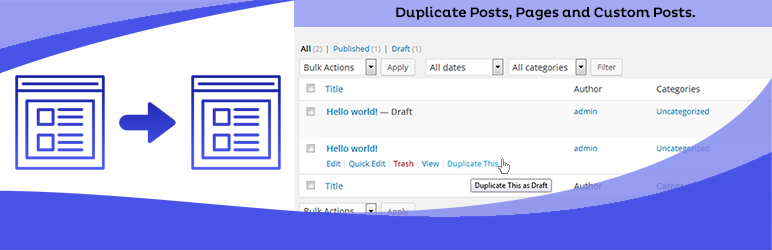
Plugins make page duplication quick and easy. Many plugins are free and require no coding skills. They add a “Duplicate” or “Clone” option in your WordPress dashboard. With one click, you get an exact copy of your page. This method saves effort and keeps formatting intact. Popular plugins include “Duplicate Post” and “Yoast Duplicate Post.”
Manual Copy And Paste Approach
This method is simple and requires no extra tools. Open the page you want to copy. Select all the content, then copy it. Create a new page and paste the content inside. This way, you can edit the new page freely. It takes a bit more time and may need reformatting. Good for small jobs or quick fixes.
Duplicating Via Page Builders
Page builders like Elementor or Divi offer built-in duplication features. These tools let you save a page as a template. Then, you can insert the template as a new page. This method keeps your design and layout perfect. Ideal for users who build pages visually. It works well for complex page designs.
Best Plugins For Page Duplication
Duplicating pages in WordPress saves time and effort. It helps create similar content fast without starting from scratch. Using the right plugin makes this task simple and efficient. Many plugins offer different features to match your needs. Choosing the best one improves your workflow and site management.
Features To Look For
Easy installation and setup matter a lot. The plugin should create exact copies of pages or posts. Support for custom post types is important. Look for plugins that keep SEO settings intact. A simple interface helps users with no coding skills. Fast duplication saves time on large sites. Compatibility with the latest WordPress version is a must.
Popular Plugin Options
Duplicate Post is widely used and trusted. It copies pages, posts, and custom types easily. Yoast Duplicate Post adds SEO-friendly features. Duplicate Page offers quick cloning with one click. WP Staging helps duplicate pages for testing. Each plugin has unique strengths for different users. Check user reviews and update history before picking one.
Plugin Setup And Usage
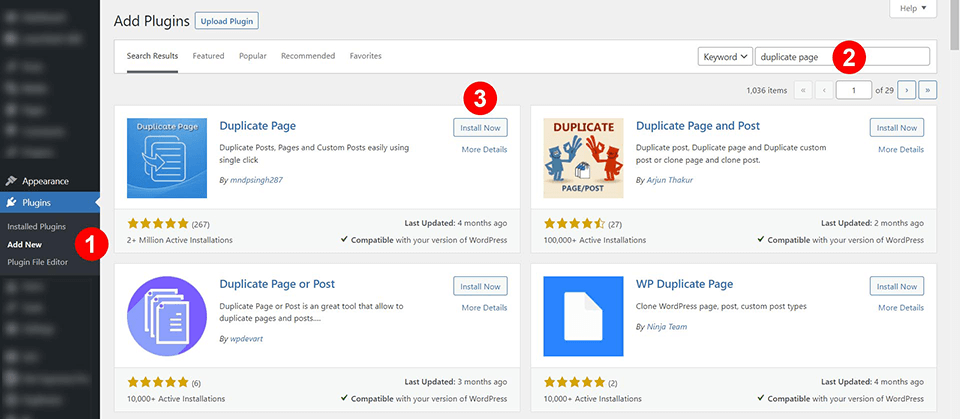
Install the plugin from the WordPress plugin directory. Activate it through the Plugins menu. Go to plugin settings to customize options. Usually, you find a “Duplicate” link on the page list. Click it to create a copy instantly. Rename the new page to avoid confusion. Edit the copied page like any other page. Save changes and publish when ready.
Credit: wordpress.org
Common Use Cases
Duplicating pages in WordPress saves time and effort. It helps create content quickly without starting from scratch. Many website owners use this method for different tasks. Here are some common use cases where duplicating pages is very useful.
Creating Landing Pages
Landing pages need a clear and focused design. Copying an existing page keeps the layout consistent. You can change the text and images to fit each campaign. This method speeds up the process of launching new offers.
Marketers often use duplicate pages to test different versions. It helps find which page works best to attract visitors. Changing small details can improve conversion rates fast.
Replicating Product Pages
Online stores often sell similar products. Duplicating a product page keeps the format and style uniform. It saves time by copying all the basic information.
Store owners only need to update product names, prices, and images. This approach reduces errors and keeps the website looking professional. It also makes managing many products easier.
Developing Multi-language Sites
Websites with multiple languages need the same page in different versions. Copying pages helps create each language version quickly. It keeps the structure the same across all languages.
Translators can focus on changing the text without worrying about the layout. This process improves the user experience for visitors from different countries. It also helps keep the site consistent and easy to navigate.
Tips For Managing Duplicated Pages
Duplicated pages in WordPress can be useful for saving time. Yet, managing these copies needs care. Poor handling can cause problems for your site. Follow these tips to keep your site clean and effective. Handle duplicates smartly to improve user experience and SEO.
Avoiding Seo Issues
Search engines dislike duplicate content. It can lower your site ranking. Use canonical tags to tell search engines which page is primary. Block duplicate pages from indexing using robots.txt or meta noindex tags. Always check for URL variations that might create duplicates. Avoid copying content without changes. Make each page unique for better SEO results.
Organizing Content Efficiently
Keep duplicated pages in clear folders or categories. Label copies with clear names to avoid confusion. Use plugins that help manage duplicates easily. Group similar pages to find them quickly later. Organize your dashboard to reduce mistakes. Proper structure saves time and improves site management.
Updating And Maintaining Copies
Regularly review duplicated pages for accuracy. Update content to keep it relevant and fresh. Synchronize changes if needed to maintain consistency. Remove outdated copies to reduce clutter. Set reminders to check duplicate pages often. Proper maintenance keeps your site professional and user-friendly.
Credit: www.elegantthemes.com
Impact On Site Performance
Duplicate pages in WordPress can affect your site’s performance in several ways. These copies increase the amount of data your server processes. This can slow down your website and affect user experience. Understanding the impact helps you keep your site fast and efficient.
Effect On Loading Speed
Duplicate pages add extra files and content to your website. This can make your site load slower. Visitors may wait longer for pages to appear. Slow loading times can cause users to leave your site quickly. Search engines may also rank your site lower.
Database Considerations
Each duplicate page creates more entries in your WordPress database. This increases the size of your database. Larger databases take more time to query and update. This can slow down your website’s backend processes. Over time, this affects overall site speed and management.
Optimizing For Scalability
Removing duplicate pages helps your site grow without problems. It reduces unnecessary data and keeps your database clean. A clean database improves site speed and stability. Efficient page management supports better performance as traffic increases. This prepares your site for future growth.
Credit: www.elegantthemes.com
Frequently Asked Questions
How Can I Duplicate A Page In WordPress Easily?
You can duplicate a page using plugins like “Duplicate Post. ” It copies content, settings, and metadata quickly. This method saves time and keeps your layout intact.
Is There A Manual Way To Duplicate A WordPress Page?
Yes, you can duplicate a page manually by copying the page content. Create a new page and paste the content. However, this method won’t copy settings or SEO data.
Which Plugins Are Best For Duplicating WordPress Pages?
Popular plugins include “Duplicate Post,” “Yoast Duplicate Post,” and “Duplicate Page. ” These plugins are user-friendly and preserve content, SEO, and page settings efficiently.
Can Duplicating Pages Affect Seo On WordPress?
Duplicating pages may cause duplicate content issues if not managed well. Use noindex tags or canonical URLs to avoid SEO penalties and maintain site ranking.
Conclusion
Creating a duplicate page in WordPress saves time and effort. It helps keep your website consistent and organized. Using simple tools or plugins makes the process quick and easy. Always check the new page for errors before publishing. This method works well for many website types.
Try it to improve your workflow today.



